Install, activate and fix IPTV apps like IPTV Smarters Pro, TiviMate and IBO Player on Firestick, Smart TVs, Android, iPhone and PC. Clear tutorials for Xtream Codes and M3U playlists, safe and beginner-friendly.
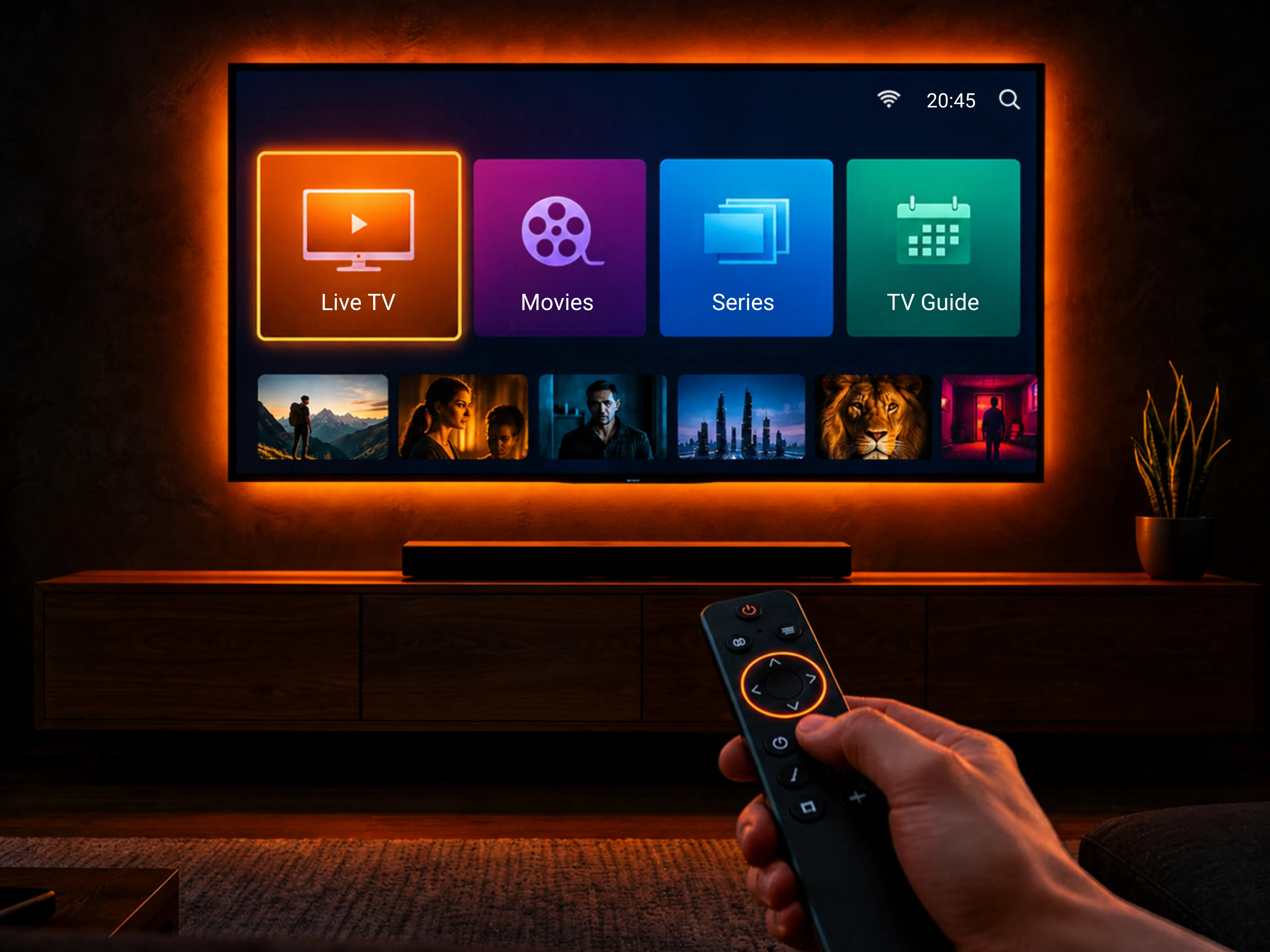
IPTV (Internet Protocol Television) brings live TV, movies and series to your screen over the internet instead of cable or satellite. You watch it in a player app with a playlist from your provider.
Xtream Codes is a login made of a server URL, username and password. Player apps use it to load your channels, movies, series and TV guide in separate, organized sections.
Every player app needs a playlist to show channels. Learn how to get your M3U URL or Xtream Codes login from your provider, and how to add it to IPTV Smarters Pro, TiviMate, IBO Player and other players in minutes.
IPTV (Internet Protocol Television) is TV delivered over the internet instead of cable, satellite or antenna. You watch live channels, movies and series in a player app using a playlist from a provider.
Your provider streams channels from its servers over the internet. You add your Xtream Codes login or M3U playlist to a player app, which loads the channel list and plays the streams on your device.
IPTV technology and player apps are legal. What matters is the provider: watching channels from a provider that has the rights to them is legal, while services that stream content without permission are illegal in many countries.
It depends on your device: IPTV Smarters Pro works almost everywhere, TiviMate is a favorite on Android TV and Firestick, and IBO Player or SmartOne IPTV are popular on Samsung and LG smart TVs.
Install a player on your device, get your Xtream Codes login or M3U link from your provider, add it to the app and wait for the channels to load. Our guides show every step with screenshots.
A VPN is not required, but some people use one for privacy. Many servers block VPN addresses, so use the VPN DNS your provider gives you (it starts with vpn) as the server address.
Usually it is a wrong login or server address, an expired subscription, a playlist that needs reloading or a slow connection. See our troubleshooting guide for step-by-step fixes.