
Quick Summary
To get Xtream Codes, start a free trial or a plan with your IPTV provider, finish the checkout, then open your client area. Your Xtream Codes login (username, password and server URL) is listed under your active service, ready to copy. The whole process takes about 2 minutes.
Most IPTV apps, including TiviMate, IPTV Smarters, IBO Player and XCIPTV, let you sign in with Xtream Codes. Instead of pasting a long playlist link, you enter three short details and the app loads live TV, movies, series and the TV guide for you. This guide explains what Xtream Codes are, where to get them and how to use them in your IPTV player.
What Are Xtream Codes?
Xtream Codes (also written as Xtream code, Xtream IPTV or even “Xtreme codes”) is the login format used by most IPTV services. It started as the name of a popular IPTV panel, the server software providers used to manage channels and subscribers. Today the name refers to the login details that the panel creates for each customer:
- Username: your unique account name
- Password: the password linked to that username
- Server URL: the address of your provider’s server, for example
http://your-provider-url
Your IPTV app uses these three details to connect to the server and download your channel list, movies, series and EPG.
What Is the Xtream Codes API?
The Xtream Codes API is the connection method IPTV apps use behind the scenes. When you log in with Xtream Codes, the app talks to the provider’s server through this API and receives channels sorted by category, movies and series with posters, catch-up (if your plan includes it) and the program guide. That is why many apps label this option Xtream Codes API, Login with Xtream Codes or simply Xtream.
What you need before you start
- An IPTV provider that offers a free trial or a subscription
- A valid email address (your login details are also sent there)
- An IPTV player that supports Xtream Codes, for example TiviMate, IPTV Smarters or IBO Player Pro
How to Get Xtream Codes: Step-by-Step
Step 1: Choose a Free Trial or a Plan
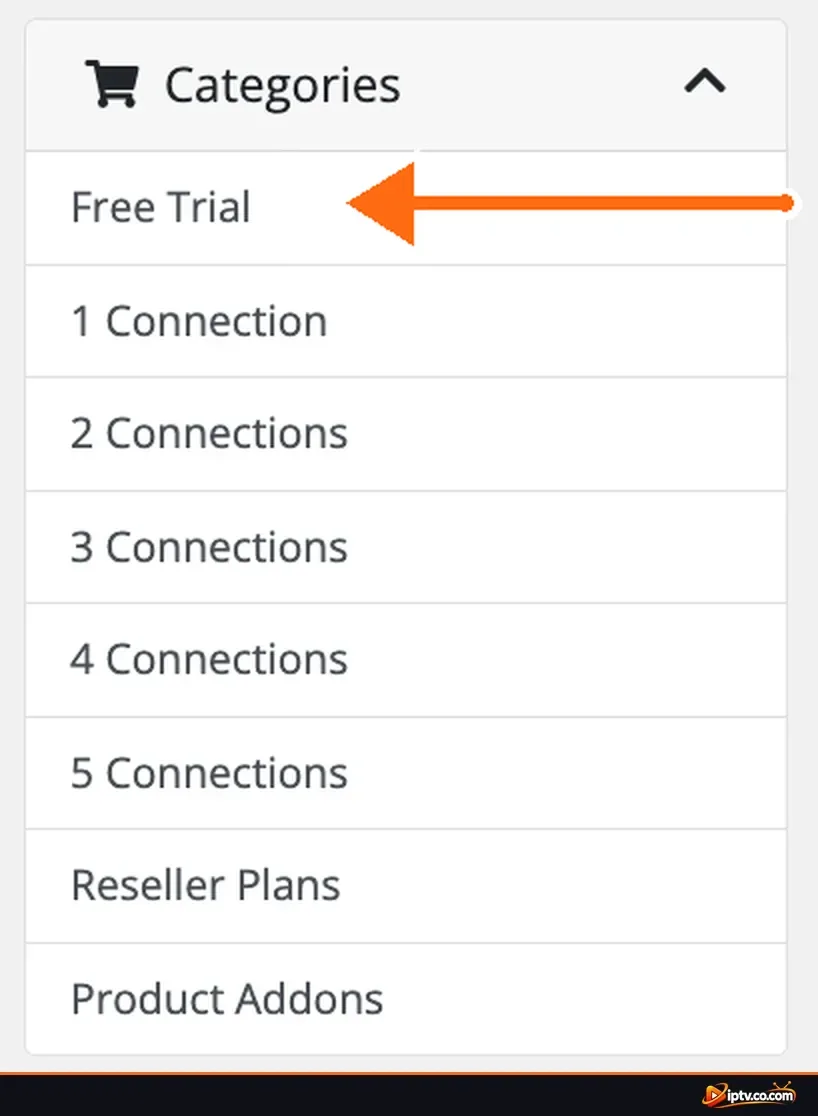
Go to your IPTV provider’s website and open the Store. Select Free Trial to test the service first, or pick a plan with the number of connections (devices) you need. Every option comes with its own Xtream Codes login.
Step 2: Review Your Cart and Click Checkout
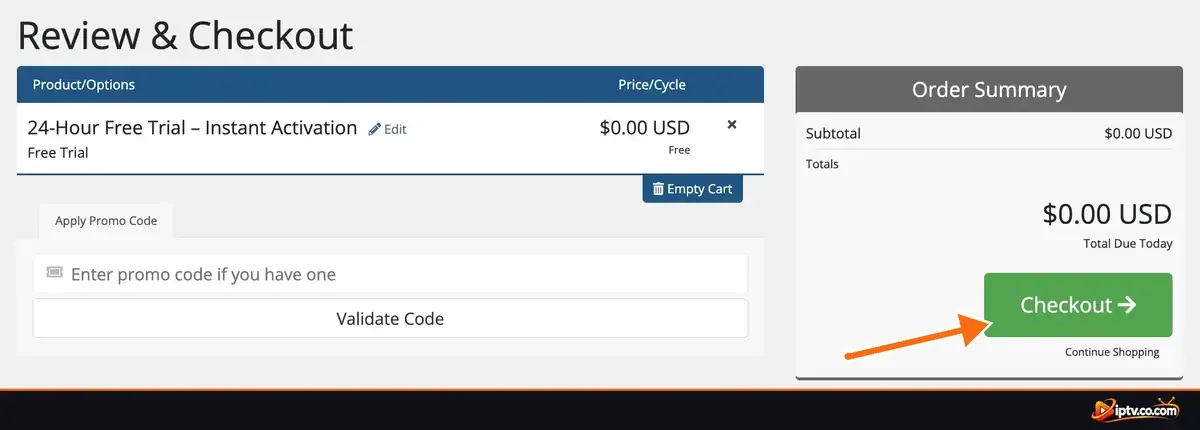
- Check that the right product is in your cart, for example 24-Hour Free Trial, Instant Activation.
- Confirm the total. A free trial shows $0.00 USD due today.
- Click the green Checkout button.
Step 3: Create Your Account and Complete the Order
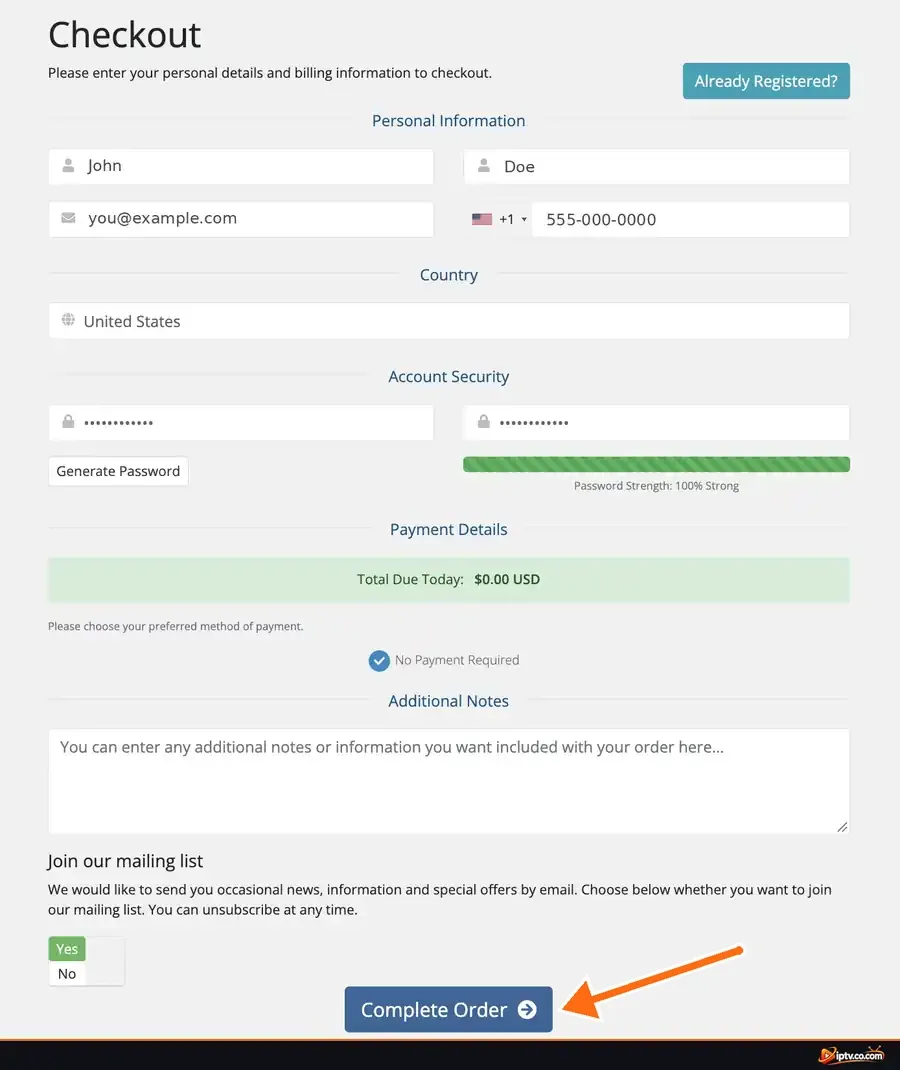
- Enter your first name, last name, email address and phone number.
- Select your country.
- Create a strong password, or click Generate Password.
- Use an email address you check: your Xtream Codes are also sent there.
- Click Complete Order at the bottom of the form.
Step 4: Go to Your Client Area
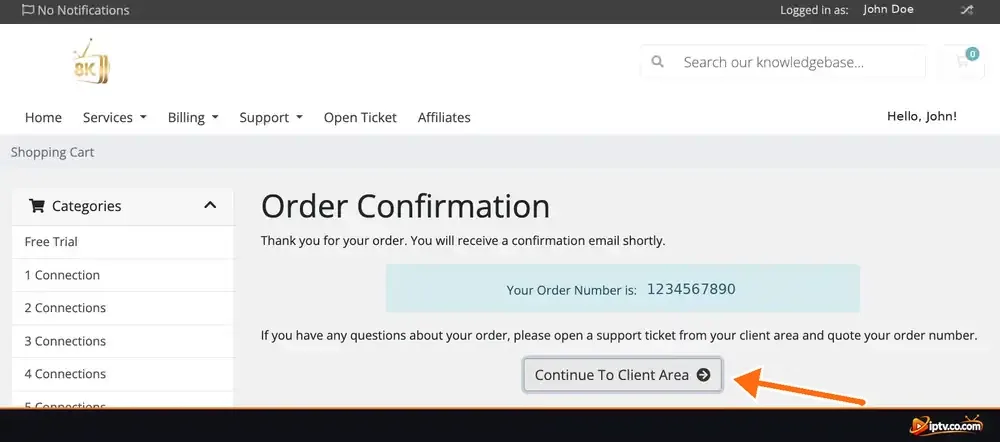
The Order Confirmation page shows your order number, and a confirmation email is on its way. Click Continue To Client Area to see your new service.
Step 5: Open Your Active IPTV Service
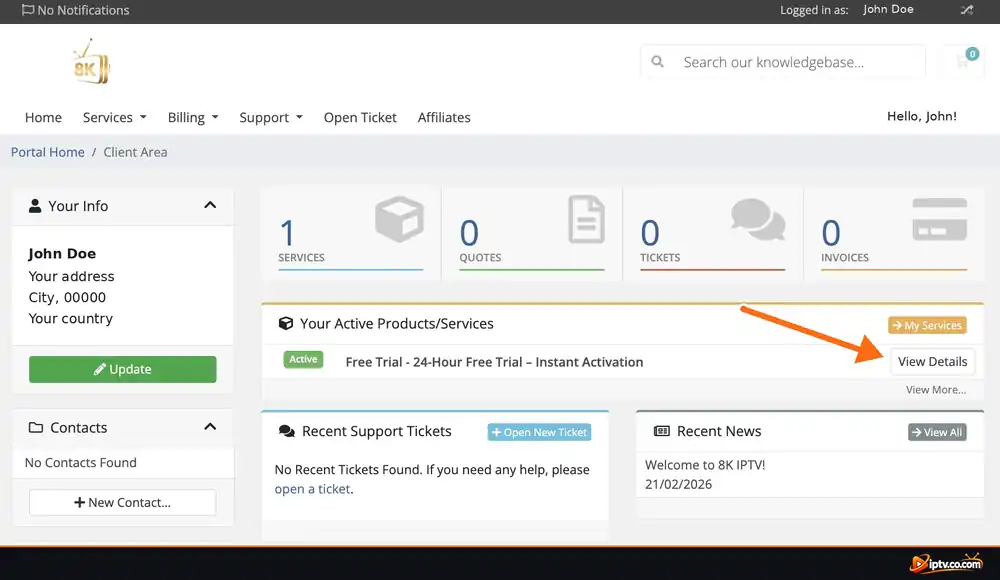
Under Your Active Products/Services, find the service with the green Active label and click View Details next to it. If it still shows Pending, wait a minute and refresh the page.
Step 6: Copy Your Xtream Codes Login
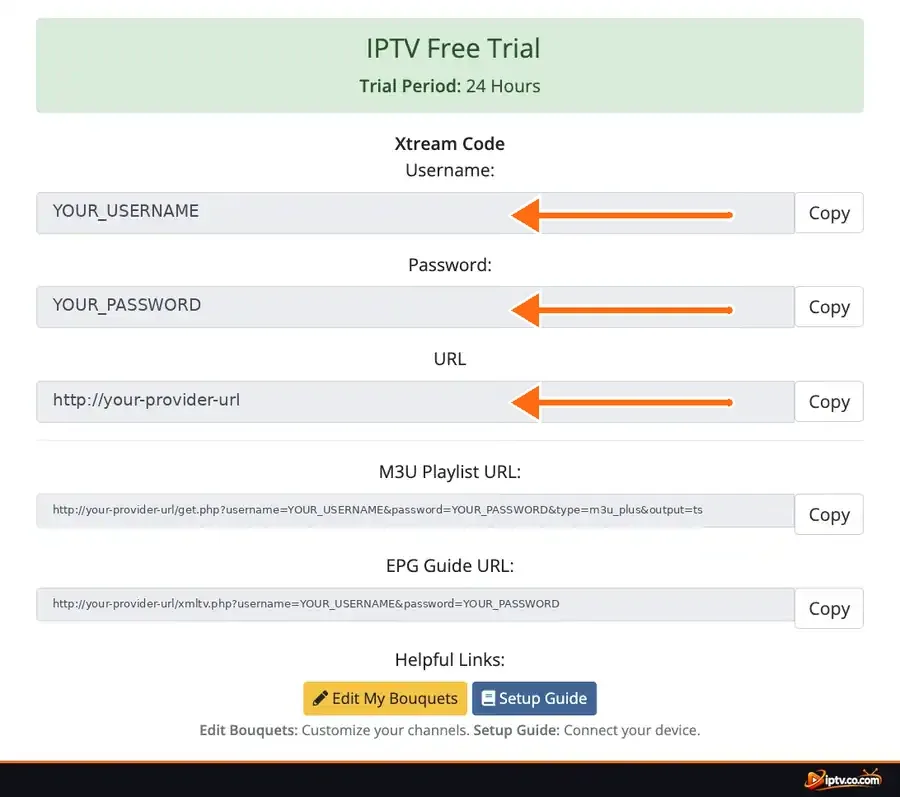
Scroll to the Xtream Code section. Your three login details are shown, each with its own Copy button:
- Username: click Copy and paste it into a private note.
- Password: copy it exactly as shown, because it is case-sensitive.
- URL: the server address your app asks for (also called host, portal or DNS).
The same page also lists your M3U Playlist URL and EPG Guide URL for apps that do not support Xtream Codes.
Pro Tip
Copy each value with its Copy button instead of typing it. An extra space or a missing letter is the most common reason an Xtream Codes login fails. Keep the http:// part of the URL, and include the port number (for example :8080) if your provider shows one.
How to Convert Xtream Codes to an M3U URL
Some apps, such as VLC, only accept a playlist link. You can turn your Xtream Codes into an M3U URL by placing your details into this format:
http://your-provider-url/get.php?username=YOUR_USERNAME&password=YOUR_PASSWORD&type=m3u_plus&output=tsReplace the bold parts with your own server URL, username and password. Most client areas already show this ready-made link as the M3U Playlist URL. For a full walkthrough, see how to get an M3U URL instantly.
Xtream Codes vs M3U URL: Which One Should You Use?
Both come from the same account, so you can use either one. Pick the option your app supports best:
| Xtream Codes login | M3U playlist URL | |
|---|---|---|
| What you enter | Username, password and server URL | One single link |
| Live, Movies, Series | Separated automatically | Depends on the app |
| TV guide (EPG) | Usually loads automatically | Add the EPG URL manually |
| Best for | Apps with an Xtream Codes option | Apps that only accept a playlist link, like VLC |
Converting Xtream Codes to M3U: you can build the M3U link yourself by placing your server URL, username and password into the format shown above.
How to Add EPG With Xtream Codes
When you log in with Xtream Codes, most apps load the TV guide automatically. If yours does not, paste the EPG URL from your client area into the app’s EPG URL field:
http://your-provider-url/xmltv.php?username=YOUR_USERNAME&password=YOUR_PASSWORDHow to Use Xtream Codes in an IPTV Player
Menus differ a little from app to app, but the Xtream Codes login always works the same way:
- Open your IPTV player and choose Add Playlist, Add User or Login.
- Select Xtream Codes (or Xtream Codes API).
- Type any name for the playlist, for example My IPTV.
- Paste the Server URL, Username and Password from your client area.
- Tap Add User or Next and wait while channels, movies and the TV guide load.
How to Add Xtream Codes to TiviMate
- Open TiviMate and select Add playlist. If you already have one, go to Settings › Playlists › Add playlist.
- Choose Xtream Codes.
- Enter the Server address (your URL), then your Username and Password.
- Select Next. TiviMate checks the login and shows how many channels and movies it found.
- Name the playlist and select Done. The TV guide loads automatically through the Xtream Codes API.
Looking for another app? Browse our IPTV Apps guides.
Keep Your Xtream Codes Private
Your username and password give full access to your subscription. Anyone who has them can use your connections, which can get your account limited or blocked. Never share them in comments, forums or screenshots, and ask your provider to reset your password if they leak.
Xtream Codes Not Working? Quick Fixes
- Check that the service is active. An expired trial or an unpaid plan stops the login from working.
- Copy the details again. Use the Copy buttons so no extra spaces or wrong letters slip in. Passwords are case-sensitive.
- Check the server URL format. Enter only
http://your-provider-url(plus the port if one is shown). Do not add/get.phpor anything else. - “Server connection error”? This usually means a wrong URL, an expired account or a network problem. Restart your router and device, then try again.
- Too many connections. Each plan allows a set number of devices at the same time. Close the app on other devices.
- Still stuck? Update your IPTV app, clear its cache, or contact your provider’s support. You can also check our Troubleshooting guides.
Frequently Asked Questions
What is Xtream Codes?
Xtream Codes is a login format used by IPTV services and apps. It is made of three details: a username, a password and a server URL. Your IPTV player uses them to load live channels, movies, series and the TV guide.
Where do I get Xtream Codes?
From your IPTV provider. After you start a free trial or buy a plan, open your client area and click your active service. The username, password and URL are listed under Xtream Code. Many providers also send them by email.
What is the Xtream Codes API?
It is the connection method IPTV apps use to talk to the provider’s server. Logging in with Xtream Codes API gives you channels sorted by category, VOD with posters and an automatic EPG.
Does TiviMate support Xtream Codes API?
Yes. In TiviMate select Add playlist, choose Xtream Codes, then enter your server address, username and password.
How do I convert Xtream Codes to M3U?
Use this format: http://your-provider-url/get.php?username=YOUR_USERNAME&password=YOUR_PASSWORD&type=m3u_plus&output=ts and replace the parts in capitals with your own details. Most client areas also show this link as the M3U Playlist URL.
Are free Xtream Codes safe to use?
Xtream Codes shared publicly online usually belong to someone else’s account or to unlicensed streams. They stop working quickly, can expose you to malware and may be illegal depending on where you live. Use a legitimate free trial from a provider instead.
What happened to Xtream Codes?
The original Xtream Codes panel software was shut down in 2019. The login format it created is still used by many IPTV panels and players, which is why apps still call it Xtream Codes.
Can Xtream Codes block my IP?
Your provider can limit or block access if its rules are broken, for example when one login is used on more devices than the plan allows or is shared with other people. Stay within your connection limit to avoid this.
That is everything you need to get Xtream Codes and start watching. Next, follow our Setup Guides for app-by-app instructions, or learn how to get an M3U URL for apps that only accept playlist links.