Quick Summary
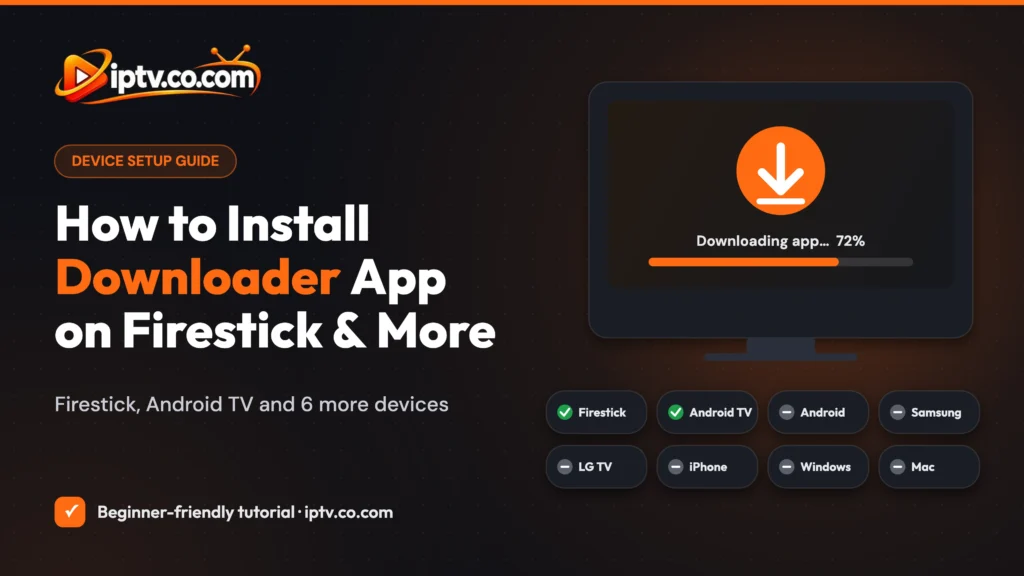
Downloader is a free app for Amazon Firestick and Android TV / Google TV. On Firestick, install it from the Appstore, then turn on Install unknown apps for Downloader in Developer Options. On Android TV, install it from Google Play and allow Unknown sources. Android phones don’t need it, and it doesn’t exist for Samsung (Tizen), LG (webOS), iPhone, iPad, Windows or Mac. Those devices use their own app stores instead.
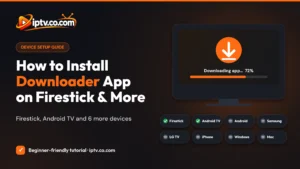
Want to install an app that isn’t in your TV’s app store, like an IPTV player? On a Firestick, the easiest way is the Downloader app. This beginner guide shows how to install Downloader on Firestick and Android TV with screenshots, how to turn on the permissions it needs, and how to use it safely. It also explains what to use on every other device where Downloader is not available, and why.
What Is the Downloader App?
Downloader (by AFTVnews) is a free tool with a built-in web browser and file downloader made for TV remotes. You type a web address or a short code, and it downloads the file, for example an app installer (APK), straight to your Firestick or Android TV. When the download finishes, it opens the Android installer for you.
Downloader does not contain any apps or content itself. It only downloads what you point it to, so what you install is your choice and your responsibility.
Downloader App Availability by Device
| Device | Operating system | Downloader available? | How to install apps |
|---|---|---|---|
| Amazon Firestick / Fire TV | Fire OS (Android-based) | Yes, in the Amazon Appstore* | Appstore, or Downloader + Install unknown apps |
| Android TV / Google TV | Android TV OS | Yes, in Google Play | Google Play, or Downloader + Unknown sources |
| Android phone & tablet | Android | Not needed | Google Play, or download the APK in your browser |
| Samsung Smart TV | Tizen OS | No | Samsung Apps store, or a streaming stick |
| LG Smart TV | webOS | No | LG Content Store (Apps), or a streaming stick |
| iPhone & iPad | iOS / iPadOS | No | Apple App Store |
| Windows PC | Windows | No | Microsoft Store, or the official .exe / .msi installer |
| Mac | macOS | No | Mac App Store, or the official .dmg / .pkg installer |
*Not on newer Fire TV models that run Vega OS. See the check below.
Install Only Apps You Trust
Apps installed outside an app store skip the store’s safety checks. Only download APKs from the official website of the app’s developer, avoid modified or “cracked” apps, and never enter your passwords or payment details in an app you don’t trust.
How to Install Downloader on Amazon Firestick
Before You Start: Check That Your Fire TV Supports Downloader
Amazon has started moving some new Fire TV models to Vega OS, which cannot install Android apps from outside the Appstore. On these models Downloader and sideloading don’t work. To check yours, go to Settings > My Fire TV > About (on Fire TV smart TVs: Settings > Device & Software > About) and look at Software Version. If it says Fire OS, you can continue. If it only says OS 1.x, your device runs Vega OS and you can only install apps from the Appstore.
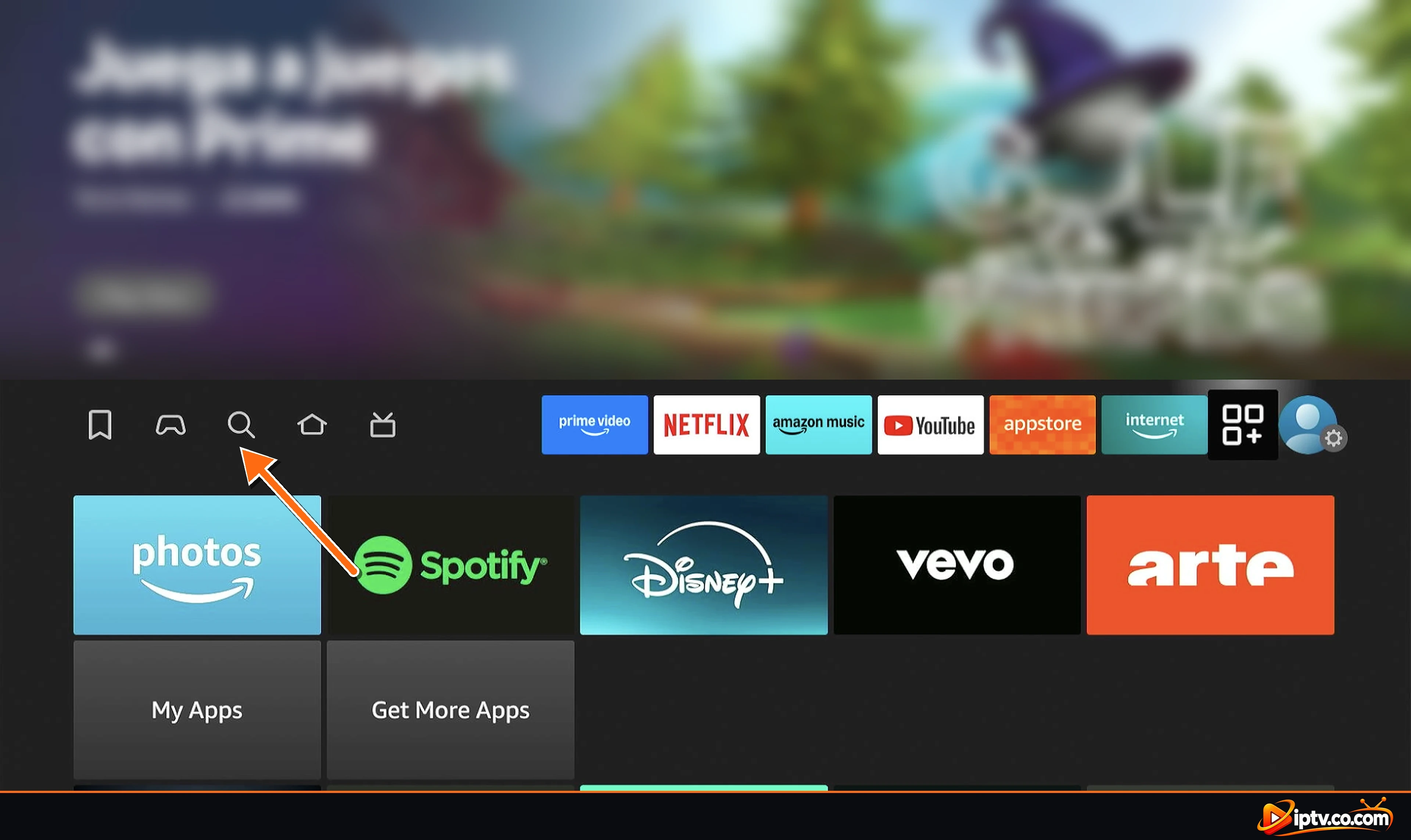
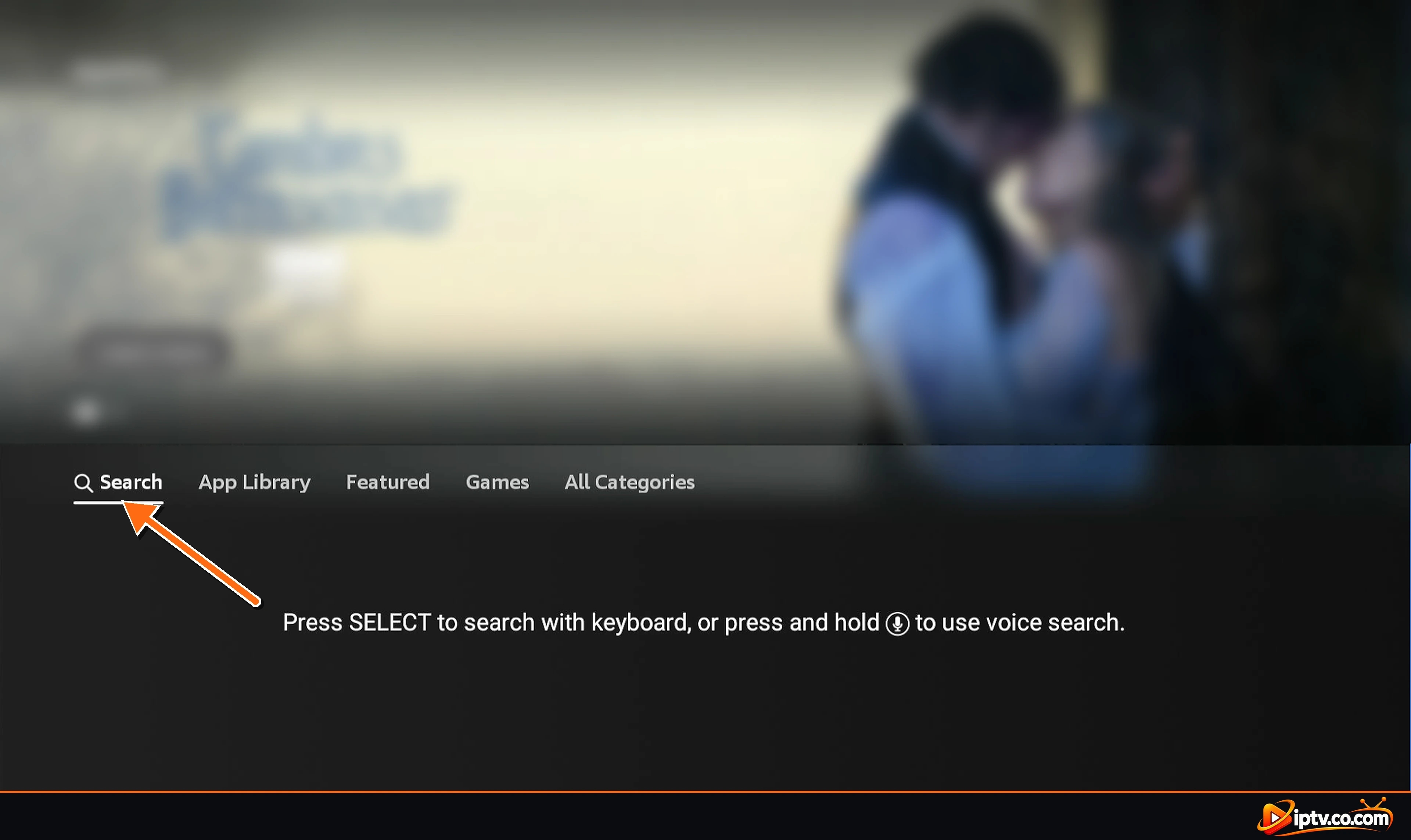
Step 1: Open Find (Search) on the Home Screen
Press the Home button on your remote, then select the magnifying glass (Find / Search) in the menu bar.
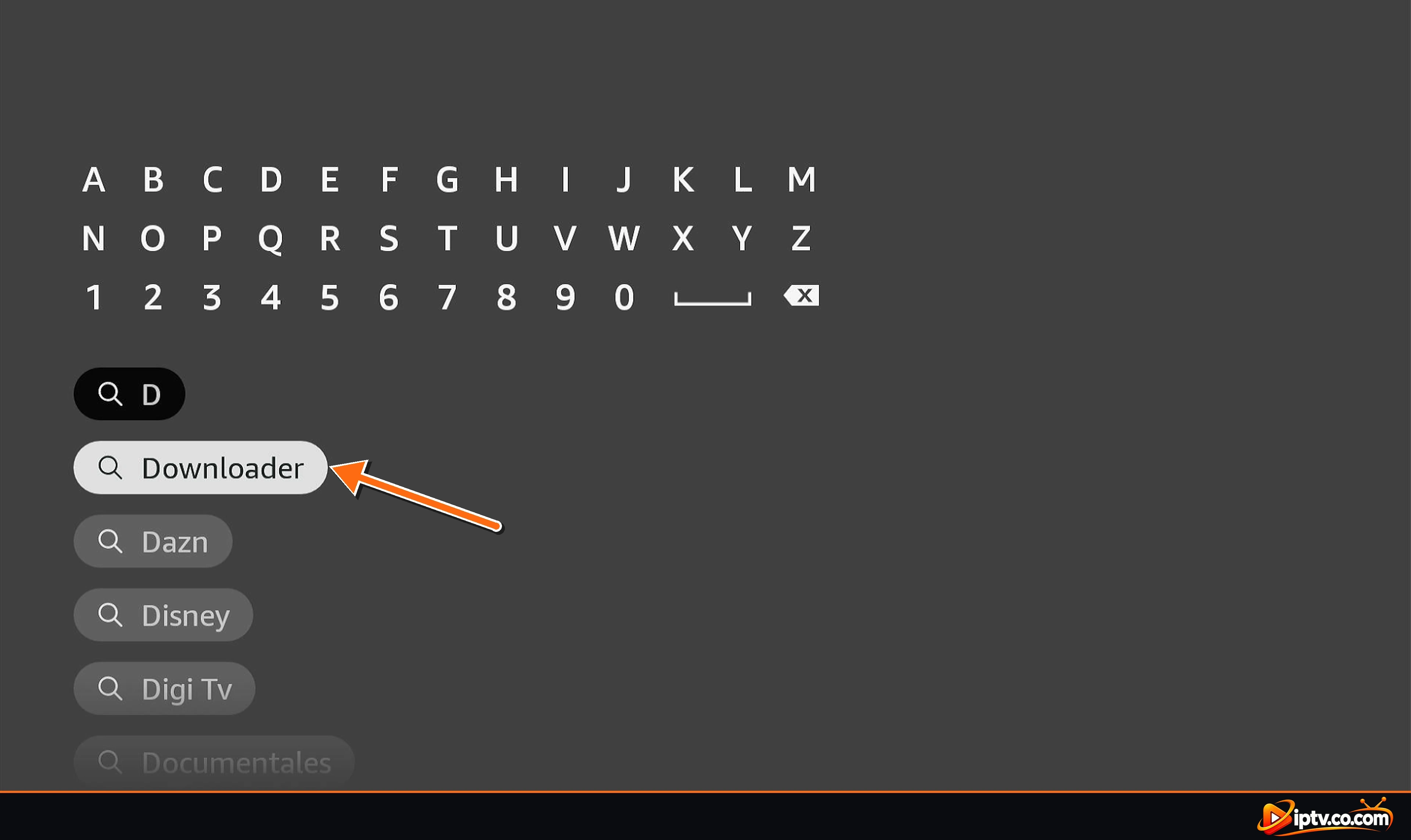
Step 2: Type Downloader
Use the on-screen keyboard to type Downloader, or hold the microphone button and say it. Select Downloader in the suggestions.
Step 3: Select the Downloader App
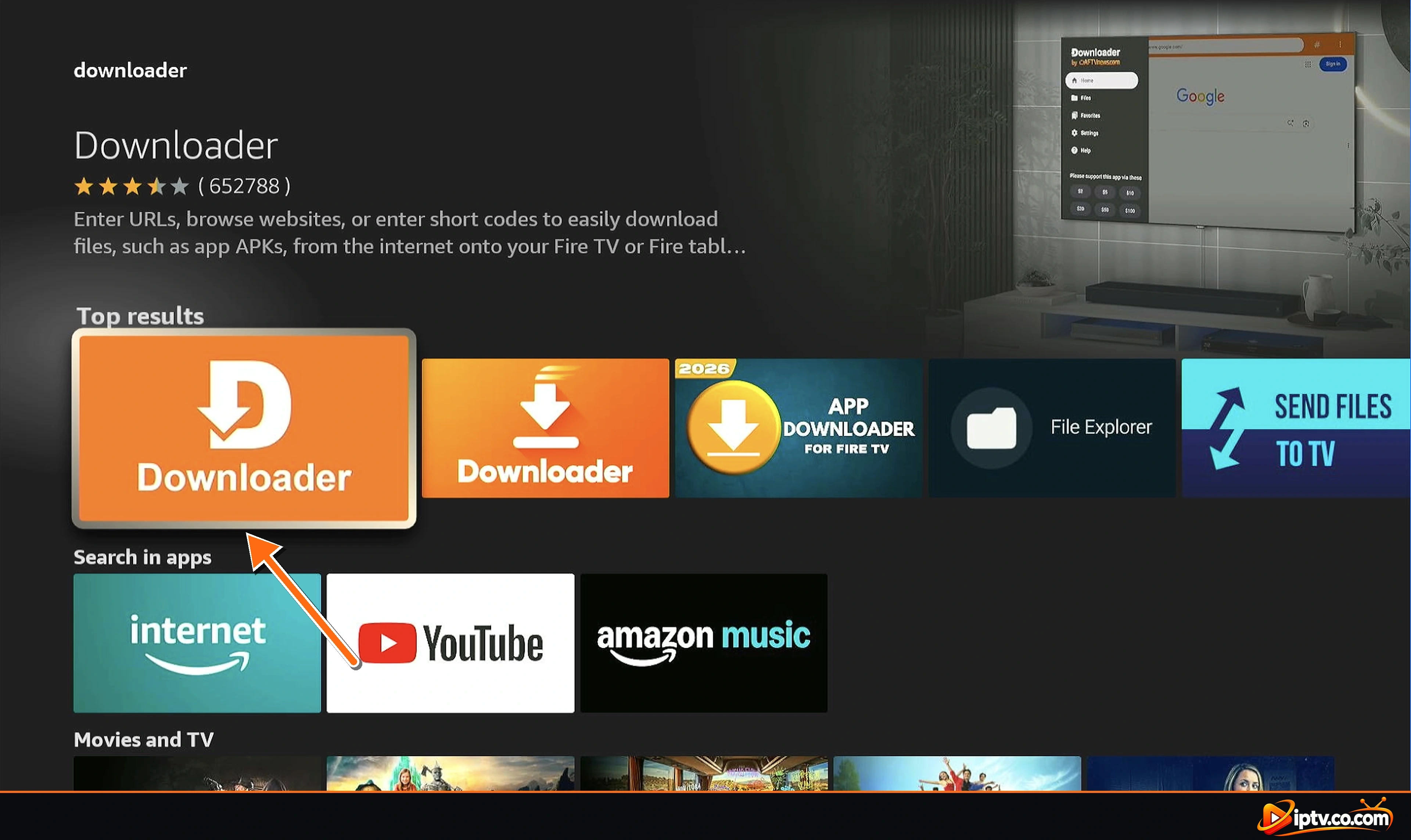
Under Top results, select the orange Downloader app by AFTVnews. Look-alike apps with similar names and icons are not the same app.
Step 4: Download and Install Downloader
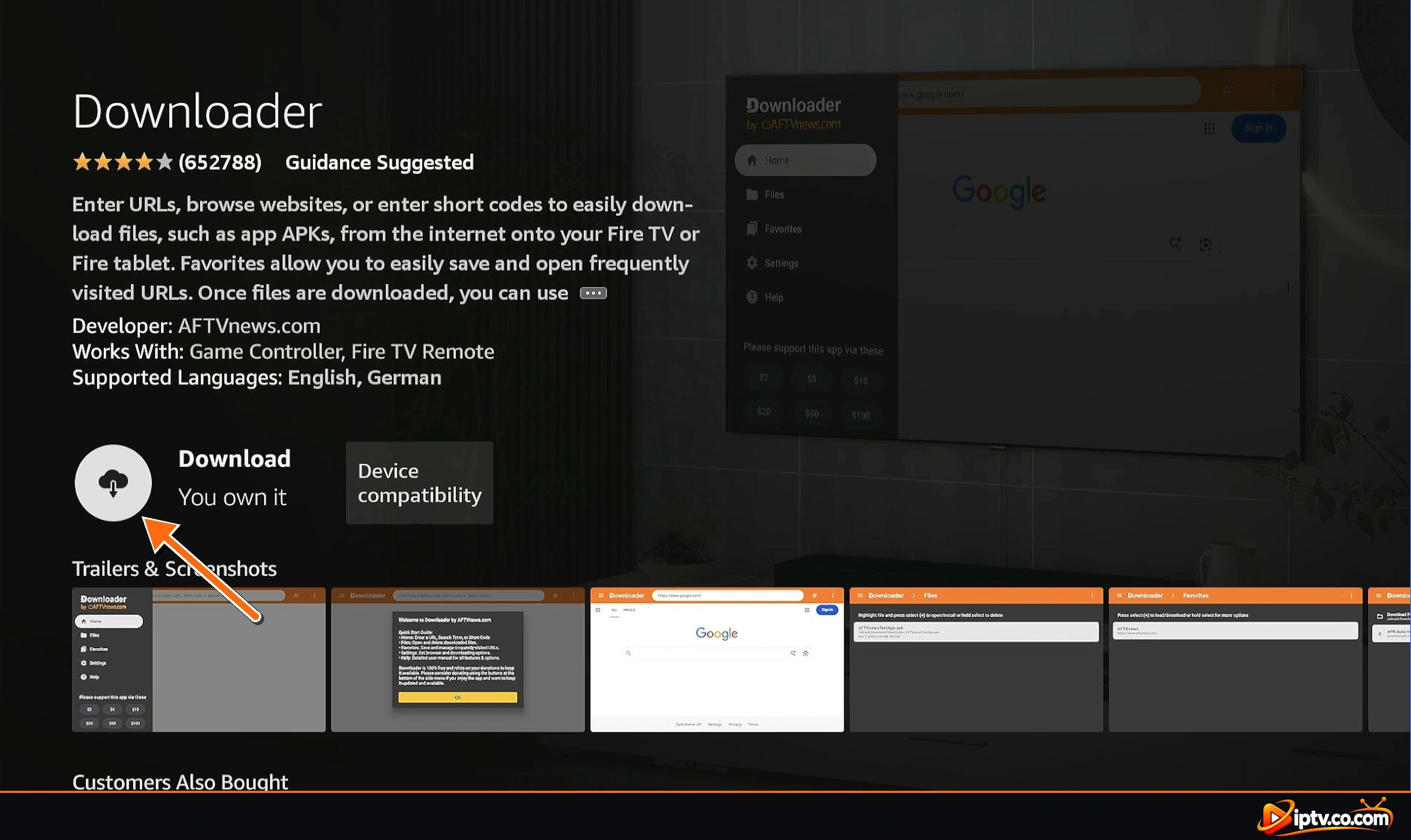
Select Download (or Get). Downloader installs in a few seconds. It is free. Don’t open it yet: first allow it to install apps.
Step 5: Turn On Developer Options
- Go to Settings > My Fire TV > About.
- Select your device name (the first line, for example Fire TV Stick 4K) 7 times until you see No need, you are already a developer.
- Press Back. Developer Options now appears in the My Fire TV menu.
If Developer Options is already there, skip this step.
Step 6: Allow Downloader to Install Unknown Apps
- Open Settings > My Fire TV > Developer Options.
- Select Install unknown apps.
- Find Downloader and turn it ON.
On older Fire OS versions this option is called Apps from Unknown Sources. Turn it on and confirm the warning.
Step 7: Open Downloader and Allow File Access
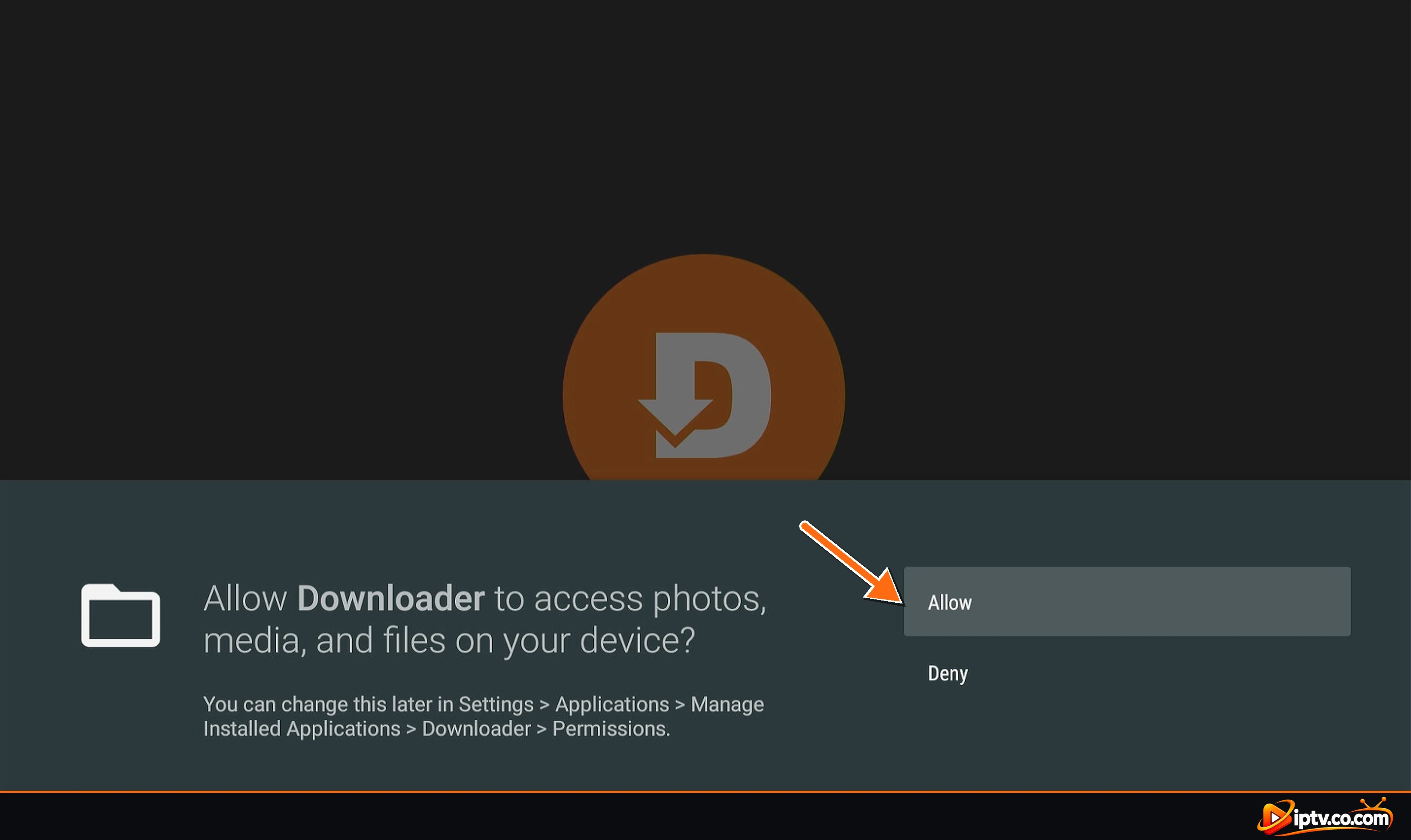
Open Downloader from Your Apps & Channels. The first time, it asks to access photos, media and files. Select Allow so it can save the files you download. Close the welcome message with OK.
Step 8: Enter a URL to Download a Compatible App
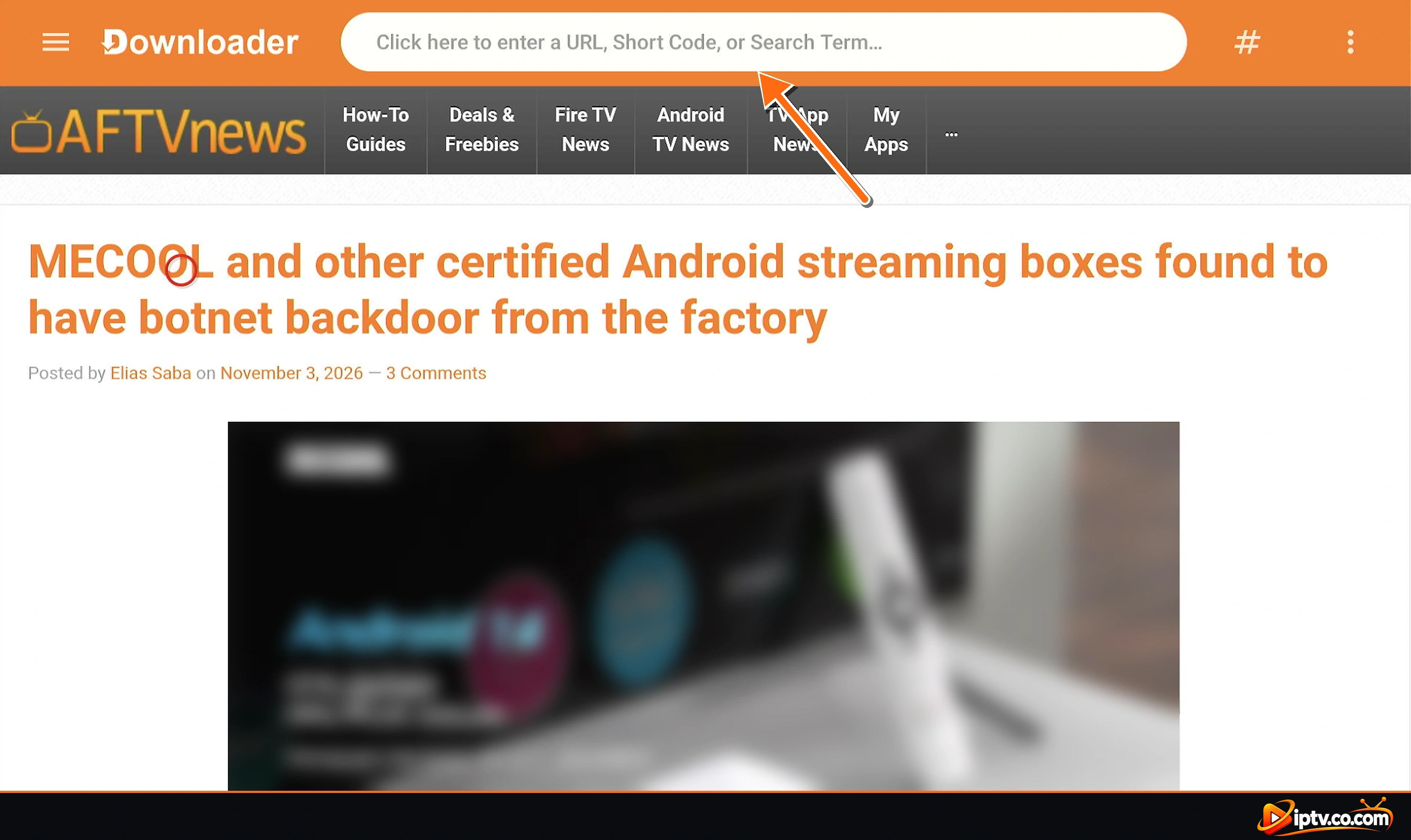
- On the Home tab, select the field that says Click here to enter a URL, Short Code, or Search Term.
- Type the official download link of the app, from the developer’s website, and select Go.
- When the download finishes, select Install, then Done.
- Select Delete when Downloader offers to remove the installer file. The app stays installed and you get your storage back.
Alternative: Install Downloader From the Appstore
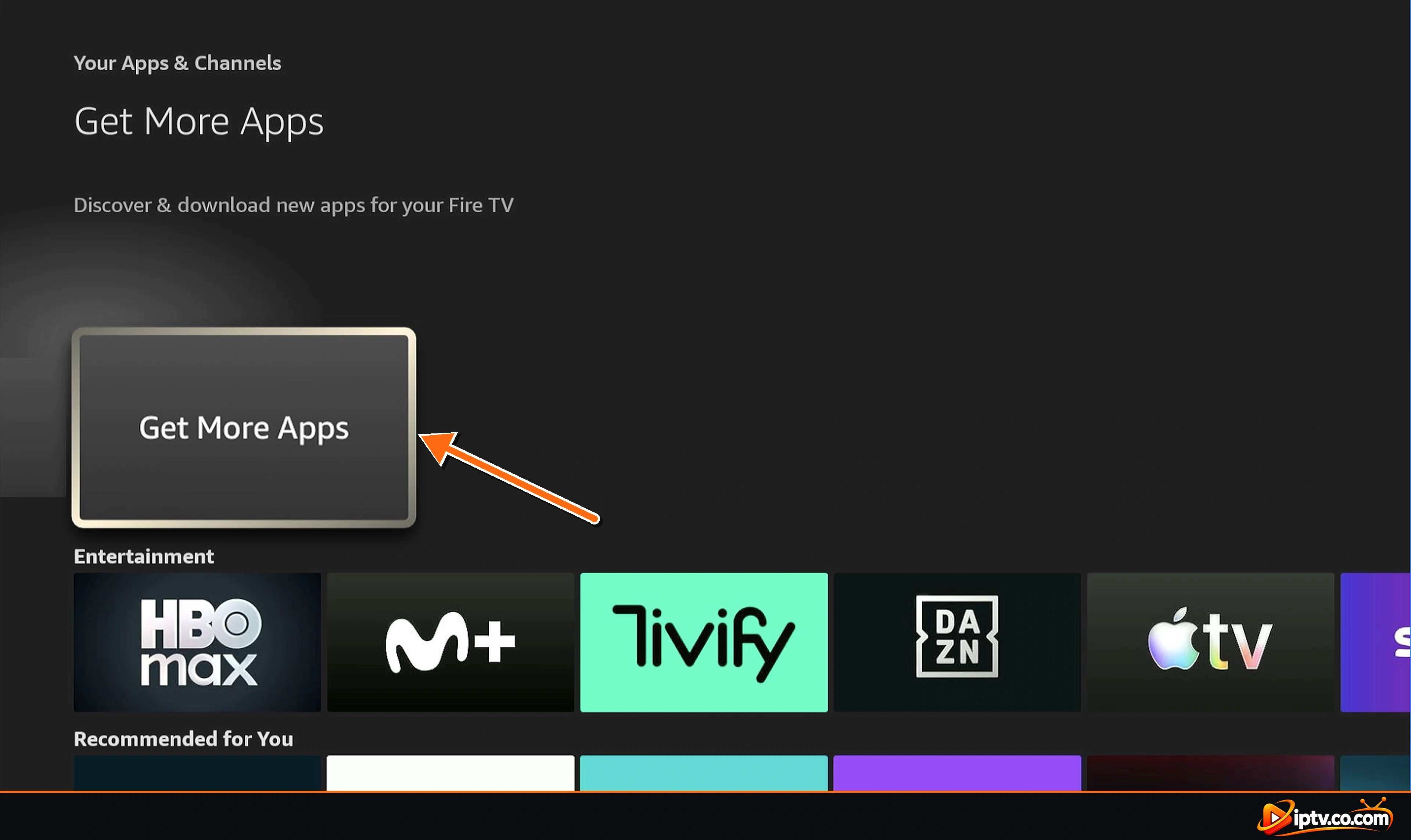
You can also open Your Apps & Channels > Get More Apps (or the Appstore tile), select Search and type Downloader. Then continue with Step 4.
How to Install Downloader on Android TV and Google TV
These steps work on Google TV Streamer, Chromecast with Google TV, Nvidia Shield, Android TV boxes and smart TVs with Android TV or Google TV (Sony, TCL, Hisense, Philips and others). Menu names can differ a little by brand.
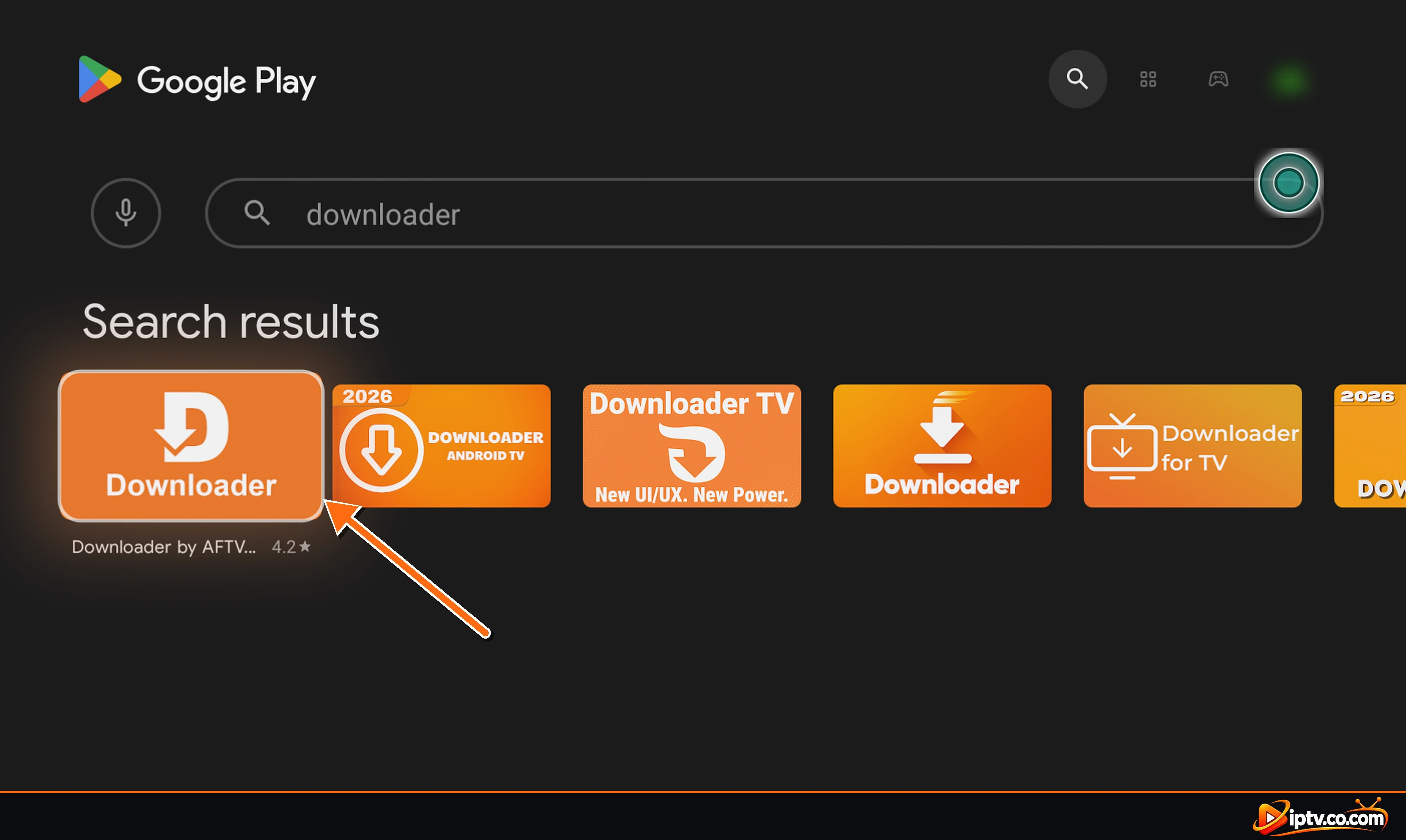
Step 1: Search for Downloader in Google Play
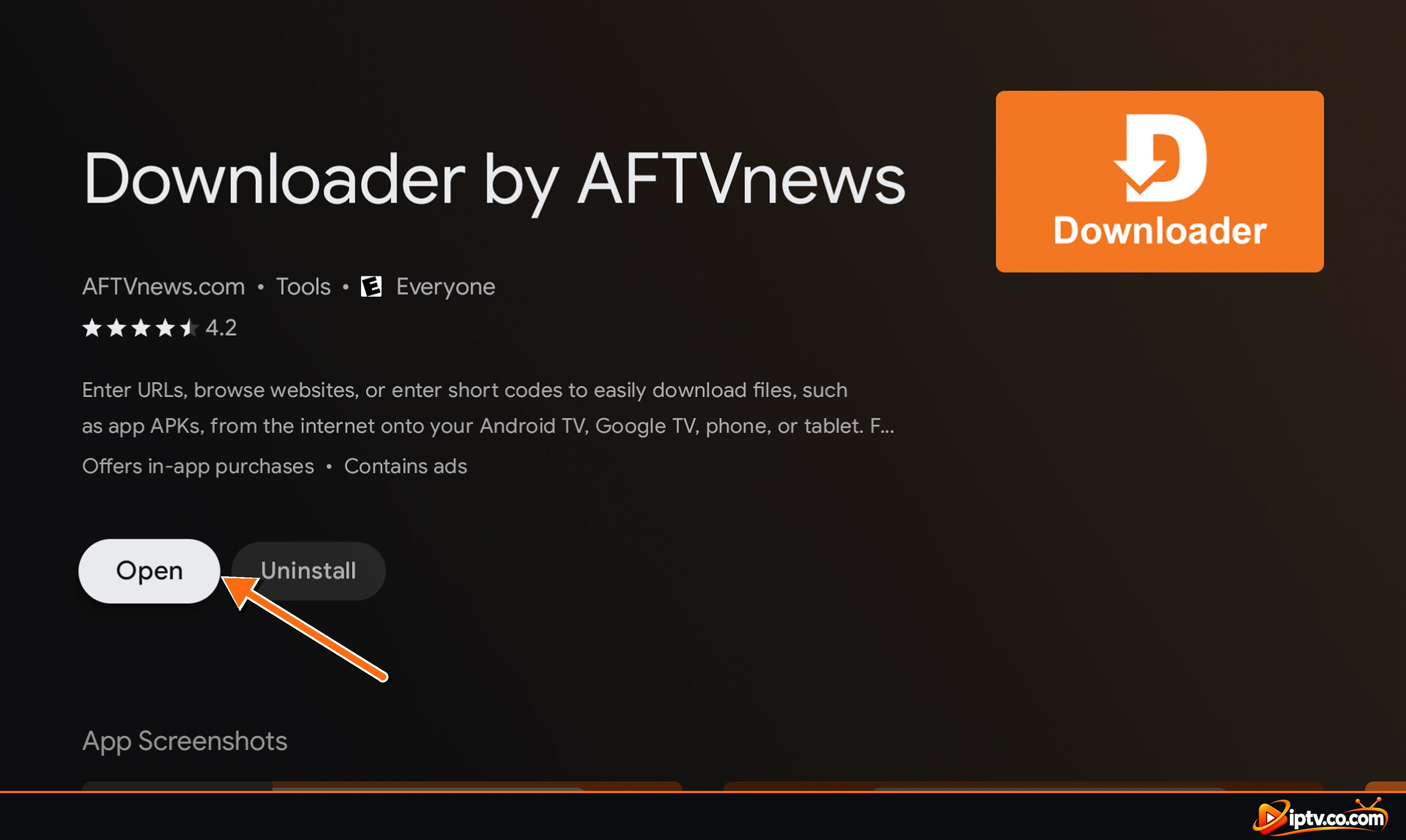
Open the Google Play Store, select the search icon and type downloader. Select Downloader by AFTVnews.
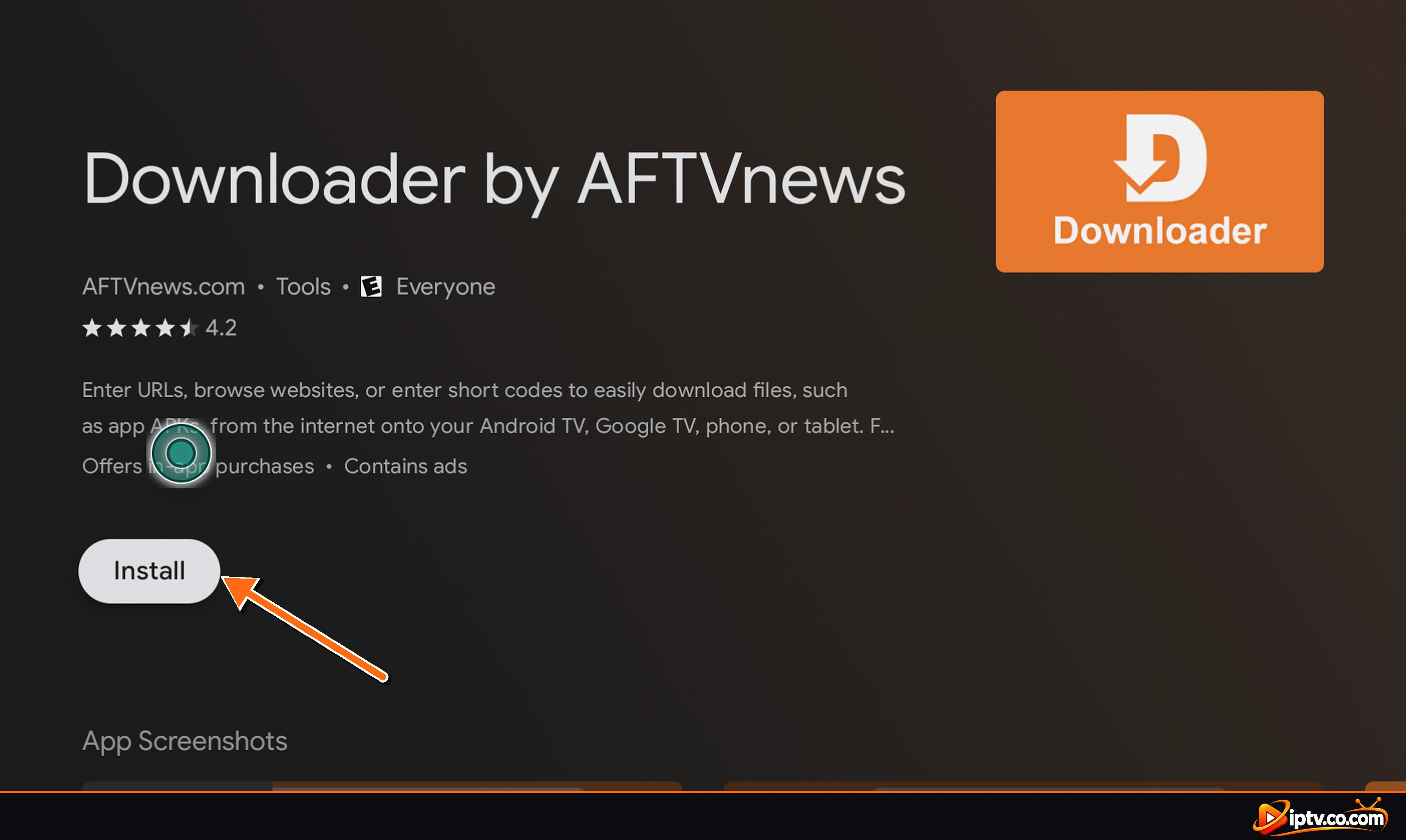
Step 2: Select Install
On the app page, check that the developer is AFTVnews.com and select Install.
Step 3: Open Downloader
When the installation finishes, select Open. Allow file access if asked.
Step 4: Allow Downloader to Install Unknown Apps
Android TV: go to Settings > Device Preferences > Security & restrictions > Unknown sources and turn on Downloader.
Google TV: first turn on developer mode: Settings > System > About, then select Android TV OS build 7 times. Next, open Settings > Apps > Security & Restrictions > Unknown sources and turn on Downloader.
Many TVs also show this switch automatically the first time Downloader tries to install an app. Just select Settings in the message and turn it on.
Step 5: Enter a URL and Install the App
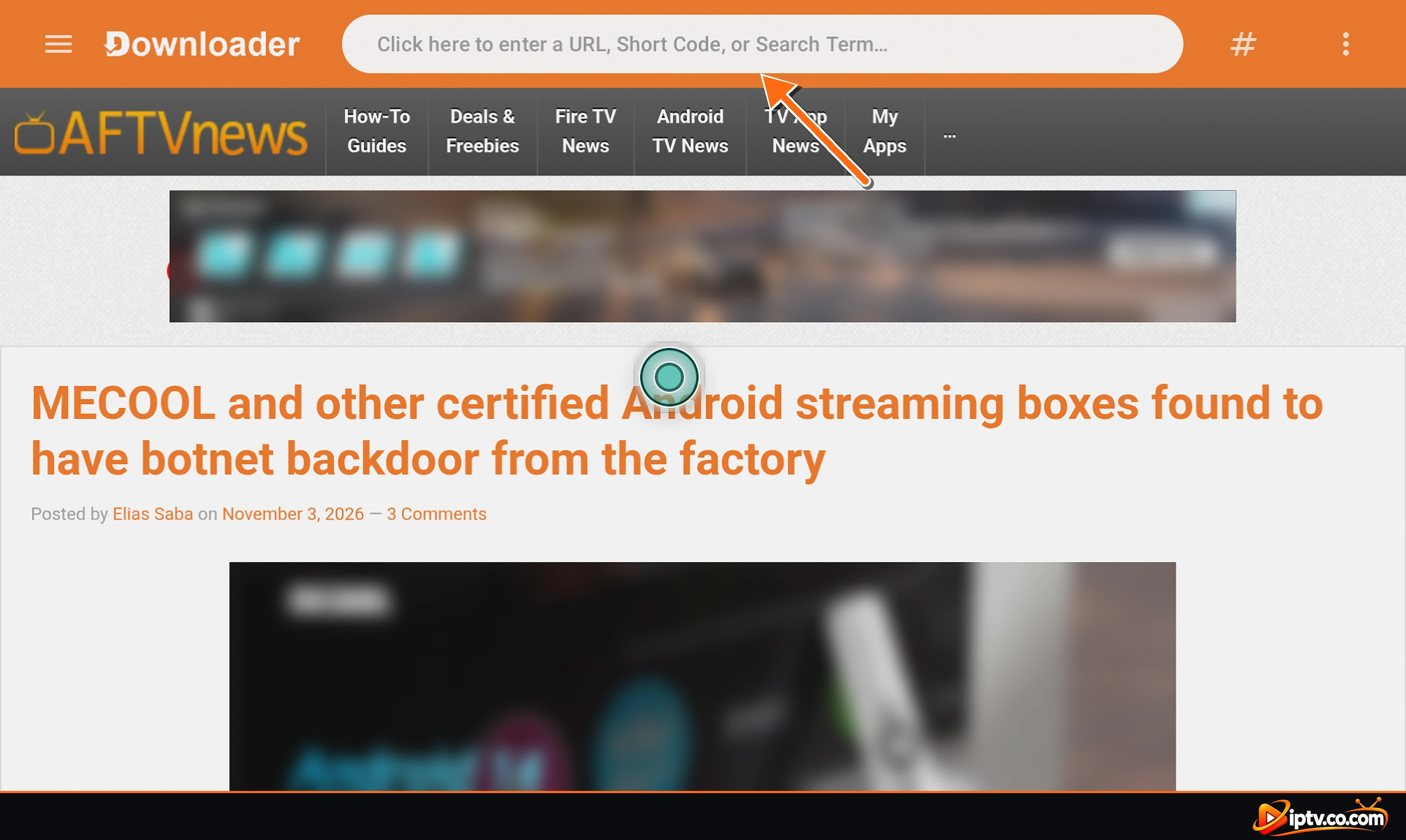
In Downloader, select the address bar, type the official download link of the app and select Go. When the download finishes, select Install, then delete the installer file to save space.
Good to Know: Android Developer Verification
Google is rolling out developer verification for apps installed outside Google Play on certified Android devices. It started in a few countries in 2026, and Google plans to expand it worldwide in 2027. Apps from verified developers install normally. Apps from unverified developers may need extra steps. Always check the app’s official website for install instructions.
Android Phone and Tablet: You Don’t Need Downloader
Downloader is made for TV remotes. On an Android phone or tablet you already have a full web browser, so you can download apps directly. If the app is in Google Play, always install it from there first. If it’s only offered as an APK on the developer’s website:
- Open Chrome (or your browser) and go to the app’s official website.
- Tap the download link for the APK file and confirm the download.
- Tap the finished download in the notification or in Files > Downloads.
- If Android blocks it, tap Settings and turn on Allow from this source for Chrome. You can also find it in Settings > Apps > Special app access > Install unknown apps.
- Go back and tap Install. Let Google Play Protect scan the app if it asks.
- Turn off Allow from this source again afterwards for extra safety.
Samsung Smart TV: Why Downloader Is Not Available
Samsung Smart TVs run Tizen OS, not Android. Tizen cannot run Android apps or install APK files, so the Downloader app doesn’t exist for Samsung TVs and there is no setting to enable it. Supported options:
- Samsung Apps store: press Home, open Apps, select the search icon and type the app name. Many IPTV players have a Samsung version.
- Add a streaming device: plug a Firestick (Fire OS model) or a Google TV device into an HDMI port. Then follow the Firestick or Android TV steps above.
- Developer mode on Samsung TVs only lets developers test their own Tizen apps from a computer. It does not install APKs and is not meant for everyday users.
LG Smart TV: Why Downloader Is Not Available
LG Smart TVs run webOS, which also can’t run Android apps or APK files. Downloader is not available on LG TVs. Use these supported options instead:
- LG Content Store (Apps): press Home, open Apps (LG Content Store), search for the app and select Install.
- Add a streaming device: connect a Fire OS Firestick or a Google TV device to your LG TV and install apps there.
- LG Developer Mode is only for developers testing their own webOS apps. It can’t install Android apps.
iPhone and iPad: Why Downloader Is Not Available
Downloader is an Android app, and iPhone and iPad run iOS and iPadOS, which can’t run Android apps or APK files. Apple also only allows apps from approved sources. To install an app on iPhone or iPad:
- Open the App Store.
- Tap Search and type the app name, for example an IPTV player.
- Tap Get and confirm with Face ID, Touch ID or your password.
In the European Union, Apple also allows alternative app marketplaces, but these still install iOS apps only, not Android APKs. For IPTV players on iPhone and iPad, see how to activate IPTV Smarters (IPTV Smarters Lite).
Windows PC: Why Downloader Is Not Available
Downloader is built for Android TV and Fire OS, and Windows can’t run Android apps by itself. Microsoft ended the Windows Subsystem for Android (and the Amazon Appstore on Windows) on March 5, 2025. You don’t need Downloader on a PC anyway, because Windows has its own app store and browser downloads:
- Open the Microsoft Store, search for the app and select Get or Install.
- If the app isn’t in the store, open its official website in your browser and download the Windows version (
.exeor.msi). - Open the file from Downloads and follow the installer.
- If Microsoft Defender SmartScreen warns you, only continue if the file came from the official developer.
Mac: Why Downloader Is Not Available
macOS can’t run Android apps, so Downloader is not available for Mac. Install Mac apps instead:
- Open the App Store on your Mac, search for the app and click Get.
- If it’s not in the App Store, download the Mac version (
.dmgor.pkg) from the developer’s official website. - Open the file. For a
.dmg, drag the app into the Applications folder. - If macOS says the app can’t be opened, go to System Settings > Privacy & Security and click Open Anyway. Only do this for apps from developers you trust.
Macs with Apple silicon can also run some iPhone and iPad apps from the App Store, but never Android APKs.
Downloader Not Working? Troubleshooting
- Can’t find Downloader on Firestick: search for Downloader by AFTVnews. If it’s still missing, check the Software Version. Vega OS models don’t support it.
- Downloader is missing from Install unknown apps: open Downloader once, then restart your Fire TV (Settings > My Fire TV > Restart) and check again.
- “App not installed” or “problem parsing the package”: the file is damaged or not made for your device. Download it again from the official site and pick the version for Android TV / Fire TV.
- Install button doesn’t respond: close apps that draw over the screen (screen filters, overlays), then try again. On some remotes, press the Right button and then Select.
- Download is slow or stuck: restart your router and device, and make sure there is enough free storage.
- Not enough storage: delete old installer files in Downloader’s Files tab, and clear cache in Settings > Applications > Manage Installed Applications.
- Link or code doesn’t work: check every character, including
http://orhttps://. Only use codes from developers you trust.
Pro Tip
Once you’ve installed what you need, you can turn Install unknown apps off again for Downloader. Turn it back on the next time you install or update an app.
Frequently Asked Questions
Is the Downloader app free?
Yes. Downloader by AFTVnews is free on the Amazon Appstore and Google Play. It shows ads and offers optional donations.
Is the Downloader app safe?
Downloader itself is a legitimate app from the official app stores. Your safety depends on what you download with it, so only install apps from their official developers.
Why can’t I find Downloader on my Firestick?
Newer Fire TV models with Vega OS, such as the Fire TV Stick 4K Select, don’t support Downloader or sideloading. On Fire OS devices, search for Downloader by AFTVnews in the Appstore.
How do I allow unknown apps on Firestick?
Open Settings > My Fire TV > Developer Options > Install unknown apps and turn on Downloader. If Developer Options is hidden, go to Settings > My Fire TV > About and select your device name 7 times.
Can I install Downloader on a Samsung Smart TV?
No. Samsung TVs run Tizen OS, which can’t run Android apps. Install apps from the Samsung Apps store, or plug in a Firestick or Google TV device.
Can I install Downloader on an LG TV?
No. LG TVs run webOS. Use the LG Content Store, or connect a Firestick or Google TV device to install Android apps.
Is Downloader available for iPhone or iPad?
No. Downloader is an Android app, and iOS and iPadOS can’t install APK files. Install apps from the App Store instead.
Can I use Downloader on Windows or Mac?
No. Download Windows apps from the Microsoft Store or the developer’s website, and Mac apps from the Mac App Store or the developer’s website.
Do I need Downloader on an Android phone?
No. You can download APK files directly in Chrome and install them after allowing Install unknown apps for your browser.
What are Downloader codes?
Downloader codes are short numbers that open a longer web address, so you don’t have to type it on a remote. Only use codes published by developers you trust.
Which Fire TV devices don’t support Downloader?
Fire TV models that run Vega OS instead of Fire OS. Check Settings > My Fire TV > About > Software Version: if it doesn’t say Fire OS, Downloader won’t work.
Now that Downloader is set up, install your IPTV player and follow our guides on how to activate IPTV Smarters and how to add EPG to IPTV Smarters Pro. For more devices, browse our Streaming Devices and Setup Guides.