Quick Summary
Most SmartOne IPTV problems are fixed in a minute: select Reload on the home screen, check that your playlist URL starts with http:// (not https://), and make sure the MAC on the SmartOne website matches Settings > Info on your TV. Stopped after 15 days? Your trial ended: buy a SmartOne license. Using a VPN? Use your provider’s VPN DNS.
Good to Know: SmartOne Has No Channels of Its Own
SmartOne IPTV is only a player. It doesn’t provide any IPTV channels, playlists or subscriptions, so if your channels stop working, the problem is often your IPTV subscription or login details. Check them with your provider first.
SmartOne IPTV usually works without problems on Samsung, LG and Android TV, but a playlist that won’t load, movies that won’t start or an app that suddenly stops after the trial can be frustrating. This guide lists every common SmartOne IPTV problem and the fix for each one, step by step.
Playlist Not Working Because the URL Starts With https://
A very common mistake: the M3U URL, the EPG URL or the Xtream Codes Server Adress starts with https://. Most IPTV servers only work with http://, so SmartOne loads nothing. On the SmartOne website, edit your playlist and change https:// to http://, then select Reload on the TV.
http://example-server.com/get.php?username=XXXX&password=XXXX&type=m3u_plus&output=ts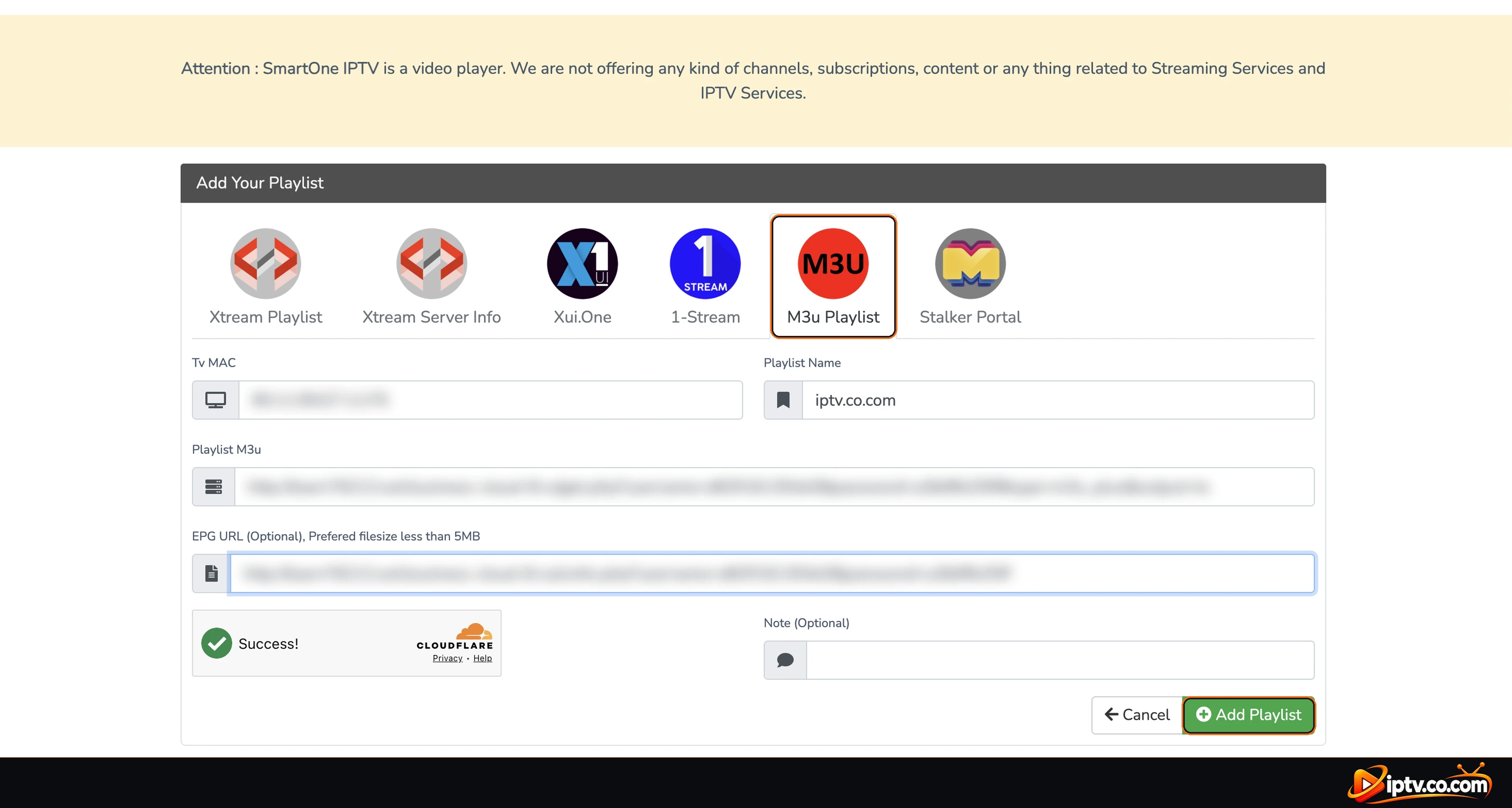
Quick Checklist: Try These First
- Check that your internet works on another app (YouTube, Netflix).
- Restart your internet to get a new IP address: unplug your router or modem for 1 minute, plug it back in and wait until it’s fully online.
- Turn the TV off at the wall for 1 minute (a real restart, not standby).
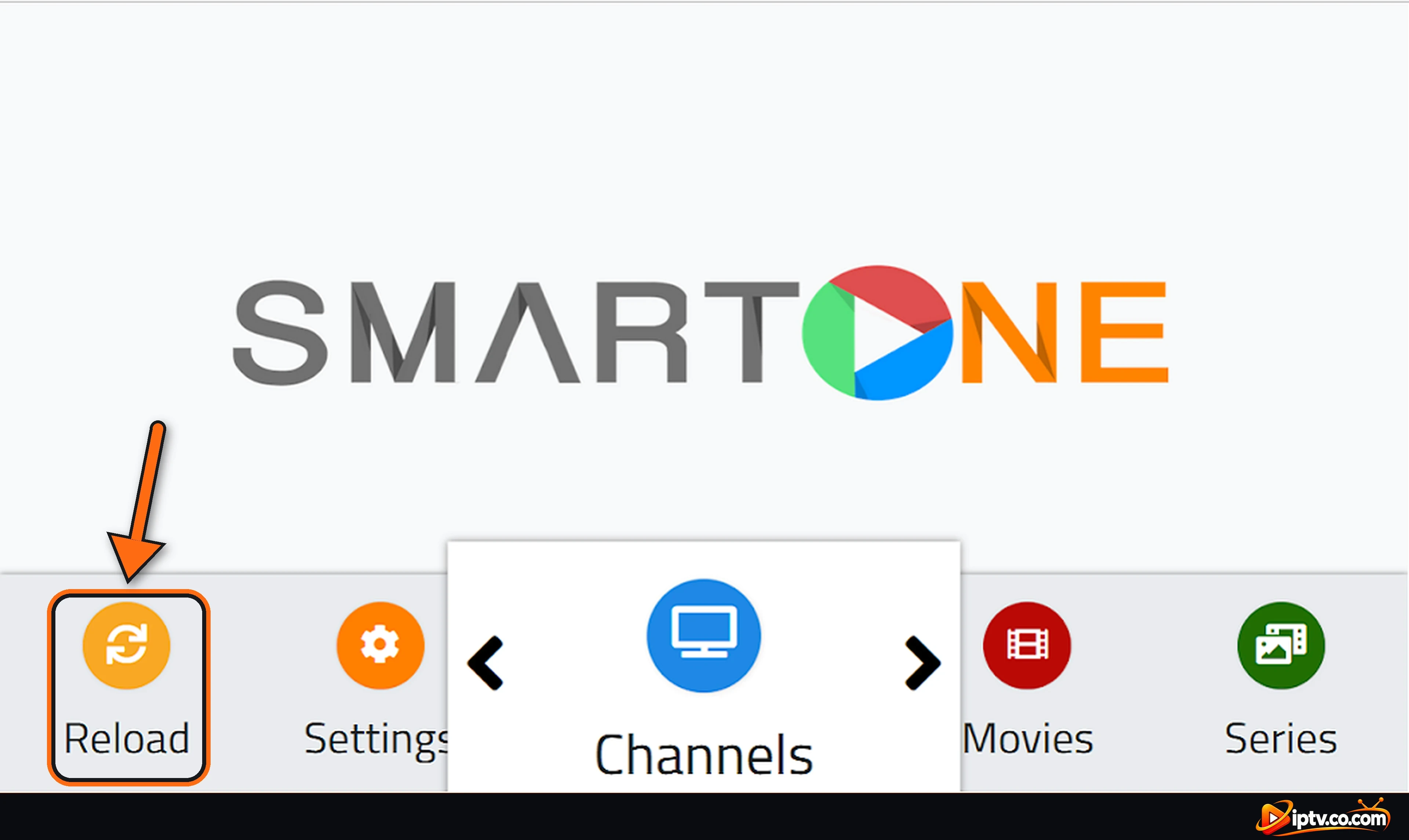
- Open SmartOne and select Reload on the home screen.
- Check with your provider that your IPTV subscription is still active.
Movies and Series Not Working in SmartOne
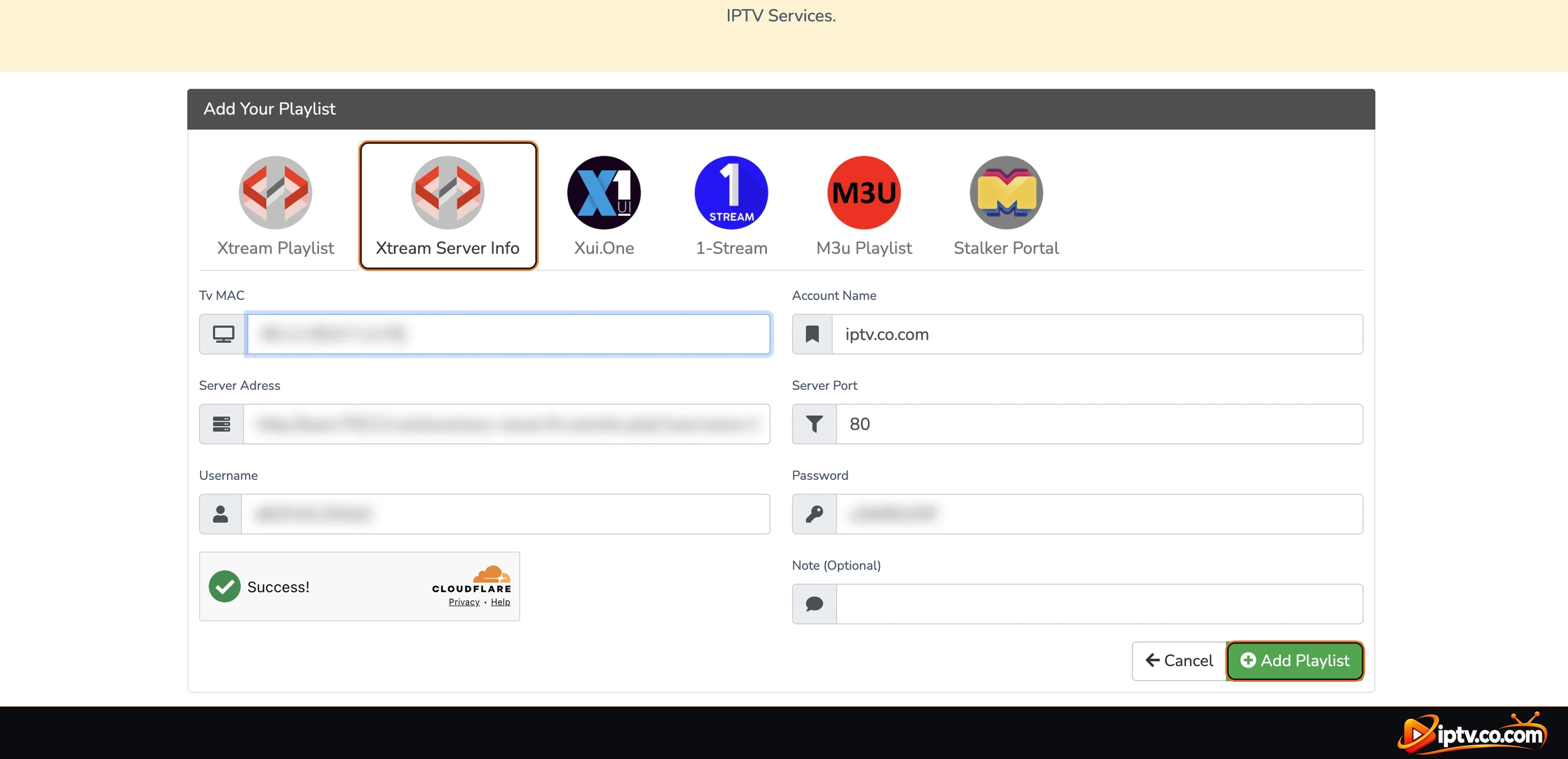
- Use Xtream Codes instead of M3U: M3U playlists often load movies and series badly. On the SmartOne website, add your playlist again with the Xtream Server Info tab (see how to add Xtream Codes), then Reload.
- Select Reload after your provider adds new movies or series.
- Try another title: if only one movie fails, the file may be missing on your provider’s server. Report it to your provider.
- Check your connection speed: 4K movies need about 25 Mbps.
SmartOne Not Loading or Stuck on Loading
- Select Reload and wait: big playlists can take a minute to load.
- Close and reopen SmartOne, or restart the TV at the wall for 1 minute.
- Check the URL: it must start with http:// and contain your correct username and password.
- Remove old playlists: on the SmartOne website, delete playlists you don’t use so only the working one loads.
- Update your TV software and the SmartOne app.
SmartOne Playlist Not Working or No Channels
- Check the playlist on the website: open the SmartOne website and make sure your playlist is added to your TV’s MAC. If it’s missing, add it again.
- Check your login details: type the username and password exactly as your provider sent them (they are case-sensitive).
- Check your subscription: an expired or suspended IPTV subscription loads no channels. Ask your provider.
- Too many connections: if the same login is used on another device at the same time, channels may stop. Close it on the other device.
Playlist Not Showing: Wrong MAC Address
SmartOne sends your playlist to the TV with the MAC you typed on the website. One wrong character and the playlist goes nowhere:
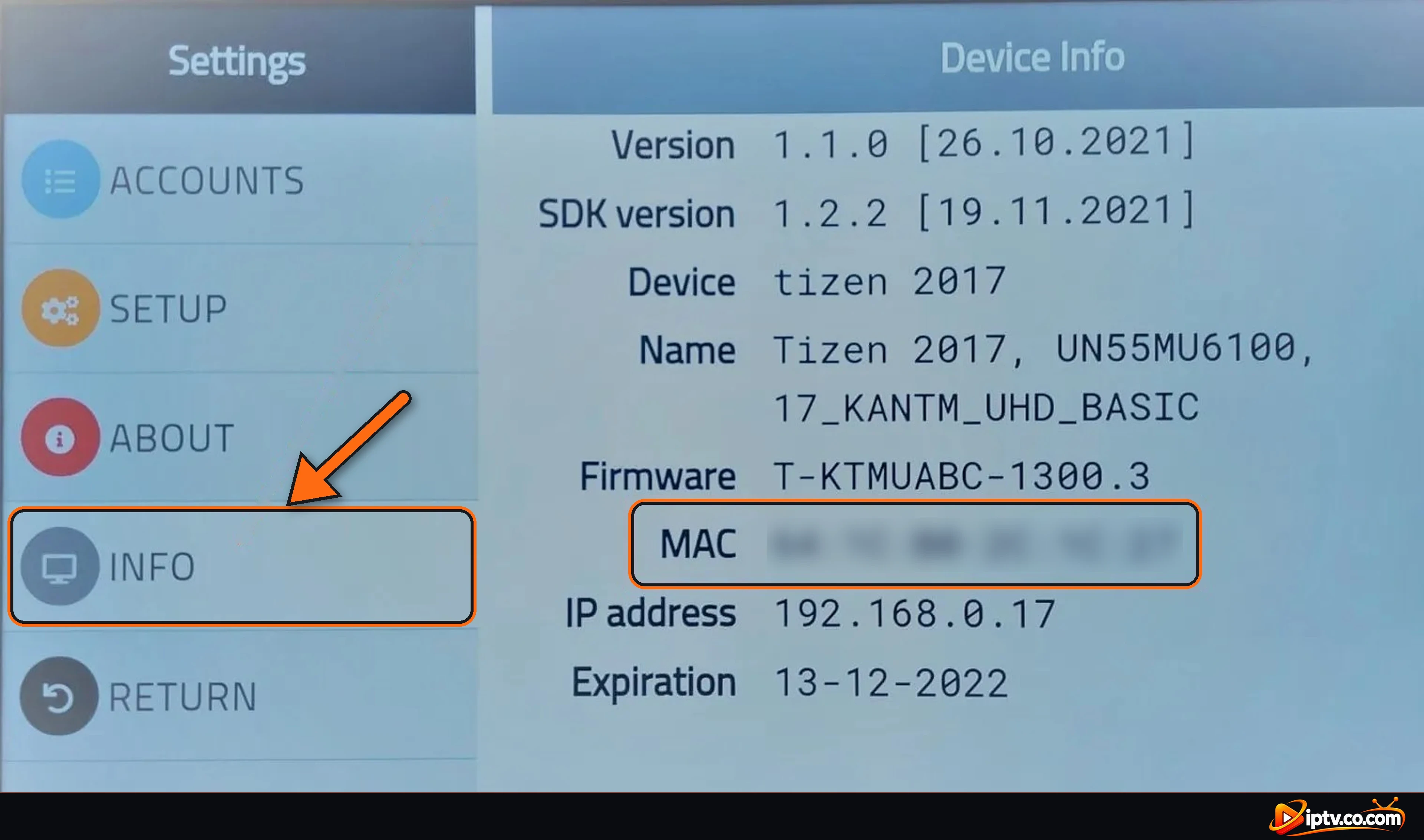
- Open Settings > Info on the TV and compare the MAC with the one on the website.
- Type it with the colons, and don’t mix up 0 (zero) and O, or 1 and I.
- A new TV has a new MAC: add your playlist again for the new MAC.
SmartOne Stopped Working After 15 Days (Trial Expired)
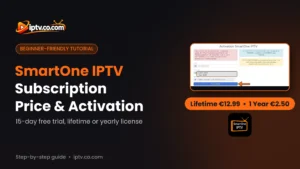
Every TV gets a 15-day free trial. When it ends, SmartOne stops playing until the TV is activated. Check the date in Settings > Info > Expiration, then buy a license on the SmartOne website: 1 year for €2.50 or Lifetime for €12.99. See the SmartOne IPTV subscription guide.

SmartOne EPG (TV Guide) Not Working
- Add the EPG URL: on the SmartOne website, edit your playlist and paste the EPG URL from your provider in EPG URL (Optional). It comes with your IPTV login details, in the free trial or the paid version.
- Use http:// in the EPG URL, not https://.
- Select Reload and wait: the guide can take a few minutes to appear.
- Wrong times? Check the time zone and clock of your TV.
- Some channels have no guide: that’s normal if your provider doesn’t send EPG for them.
SmartOne Buffering or Freezing
- Use an Ethernet cable instead of Wi-Fi, or move the router closer. HD needs about 10 Mbps, 4K about 25 Mbps.
- Restart the router and the TV.
- Close other apps and downloads using your internet.
- If only some channels freeze, the problem is on the provider’s server: report the channels to your provider.
- Your internet provider may slow down IPTV: try a VPN with your provider’s VPN DNS (see below).
SmartOne Not Working With a VPN
Many IPTV servers block VPN IP addresses, so SmartOne loads no channels when your VPN is on. The fix is to use your provider’s VPN DNS: it always comes with your IPTV login details and always starts with vpn. If your provider didn’t send one, contact them. On the SmartOne website, edit your playlist and replace the server with the VPN DNS, then Reload.
Example: VPN DNS for Xtream Codes and M3U
VPN DNS:
http://vpn.dream-4k.coXtream Codes Server Adress:
http://vpn.dream-4k.coM3U URL:
http://vpn.dream-4k.co/get.php?username=YOUR_USERNAME&password=YOUR_PASSWORD&type=m3u_plus&output=tsStill not working? Change the VPN server or country, try another VPN protocol (for example WireGuard), and turn off the VPN’s ad or tracker blocker.
SmartOne Not Working on Samsung or LG TV
- Update the TV software: Settings > Support > Software Update (Samsung) or Settings > General > About This TV (LG).
- Update SmartOne: open the app page in Samsung Apps or the LG Content Store and select Update if it shows.
- Cold restart: unplug the TV for 1 minute. On Samsung, you can also hold the power button on the remote until the TV restarts.
- Clear the cache on Samsung: Settings > Support > Device Care > Manage Storage, select SmartOne and Clear Cache.
- Check the date and time: a wrong TV clock can block secure connections.
SmartOne Not Working on Android TV or Google TV
- Clear the cache: Settings > Apps > SmartOne IPTV Player > Clear cache. Then open the app and Reload.
- Force stop: in the same menu, select Force stop, then open SmartOne again.
- Update the app in the Google Play Store.
- Free up storage: uninstall apps you don’t use.
Keep Your Login Private
Never post your MAC address, Xtream Codes or M3U link in comments or support groups when asking for help. Anyone with them can use your playlist.
Still Not Working? Uninstall SmartOne and Install It Again
If nothing above fixes it, a clean reinstall usually does. Your playlist is saved on the SmartOne website with your TV’s MAC, so you don’t lose it.
- Samsung: open Apps, highlight SmartOne, press and hold the center button (or open Settings on the app) and select Delete.
- LG: on the home bar, highlight SmartOne, hold the center button and select the X to delete it.
- Android TV / Google TV: Settings > Apps > SmartOne IPTV Player > Uninstall.
Restart the TV, then install SmartOne again. Open it and select Reload: your playlist comes back automatically.
Frequently Asked Questions
Why is SmartOne IPTV not working?
The most common causes are a playlist URL with https:// instead of http://, a wrong MAC address on the SmartOne website, an expired trial or license, or an expired IPTV subscription. Select Reload after each fix.
Why are movies and series not working in SmartOne?
M3U playlists often load movies and series badly. Add your playlist with Xtream Codes on the SmartOne website, then select Reload.
Why is SmartOne not loading my playlist?
Check that the MAC on the website matches Settings > Info, that the URL starts with http://, and that your login details are correct. Then select Reload.
Should the SmartOne playlist URL start with http or https?
Use http://. Most IPTV servers don’t support https://, so SmartOne loads nothing with it.
Why did SmartOne stop working after 15 days?
The 15-day free trial ended. Buy a 1 year (2.50 EUR) or lifetime (12.99 EUR) license on the SmartOne website with your MAC.
Why is the SmartOne EPG not working?
Add the EPG URL from your provider in the playlist on the SmartOne website, use http://, then select Reload and wait a few minutes.
Why is SmartOne buffering?
Usually a slow or unstable connection. Use a cable, restart the router, and report channels that keep freezing to your provider.
Why is SmartOne not working on my Samsung TV?
Update the TV software and the app, clear the SmartOne cache in Device Care, restart the TV at the wall, and select Reload.
Does SmartOne work with a VPN?
Yes, but many servers block VPN IPs. Use your provider’s VPN DNS (it starts with vpn) as the server in your playlist.
Do I lose my playlist if I reinstall SmartOne?
No. The playlist is saved on the SmartOne website with your MAC. Reinstall the app and select Reload.
My playlist doesn’t appear on my new TV. Why?
A new TV has a new MAC address. Add your playlist again on the SmartOne website for the new MAC.
Does paying for SmartOne fix playback problems?
No. The license only unlocks the app. If channels don’t play, the problem is your playlist, provider or connection.
Still stuck? Set it up again step by step with our guides on how to install SmartOne IPTV and how to activate SmartOne IPTV, or browse all SmartOne IPTV guides.