Quick Summary
IPTV Smarters Pro does not need an activation code. To activate it, open the app, choose Xtreme Code or M3U Playlist, enter the login details from your IPTV provider and tap Add Playlist. Then download Live TV, Movies and Series and start watching. It takes about 3 minutes.
IPTV Smarters Pro (also published as IPTV Smarters Lite or Smarters Player Lite on some devices) is a free IPTV player. The app itself has no channels: you “activate” it by adding a playlist from your IPTV provider. This image-based tutorial shows both ways to do it, with Xtream Codes and with an M3U URL, and how to load your channels, movies and series afterwards.
Before You Start: What You Need
- IPTV Smarters Pro or IPTV Smarters Lite installed on your device
- An active IPTV subscription or free trial from a provider
- Your Xtream Codes (username, password and server URL) or your M3U playlist URL
- A stable internet connection
Don’t have your login details yet? Follow our guides on how to get Xtream Codes and how to get an M3U URL. Both are listed in your provider’s client area.
Xtream Codes vs M3U: Which Method Should You Use?
| Method 1: Xtream Codes | Method 2: M3U URL | |
|---|---|---|
| What you enter | Username, password and server URL | One long playlist link |
| Button in IPTV Smarters | Xtreme Code | M3U Playlist |
| TV guide (EPG) | Loads automatically | May be missing or need an EPG link |
| Movies and series | Sorted with posters and info | Often mixed into one long list |
| Typing on a TV remote | Short and easy | Long URL, easy to mistype |
| Best for | Most users (recommended) | Providers that only give an M3U link |
| How to get it | How to get Xtream Codes | How to get an M3U URL |
Method 1: Activate IPTV Smarters With Xtream Codes
This is the recommended method because it gives you the TV guide and a well-organized movie and series library.
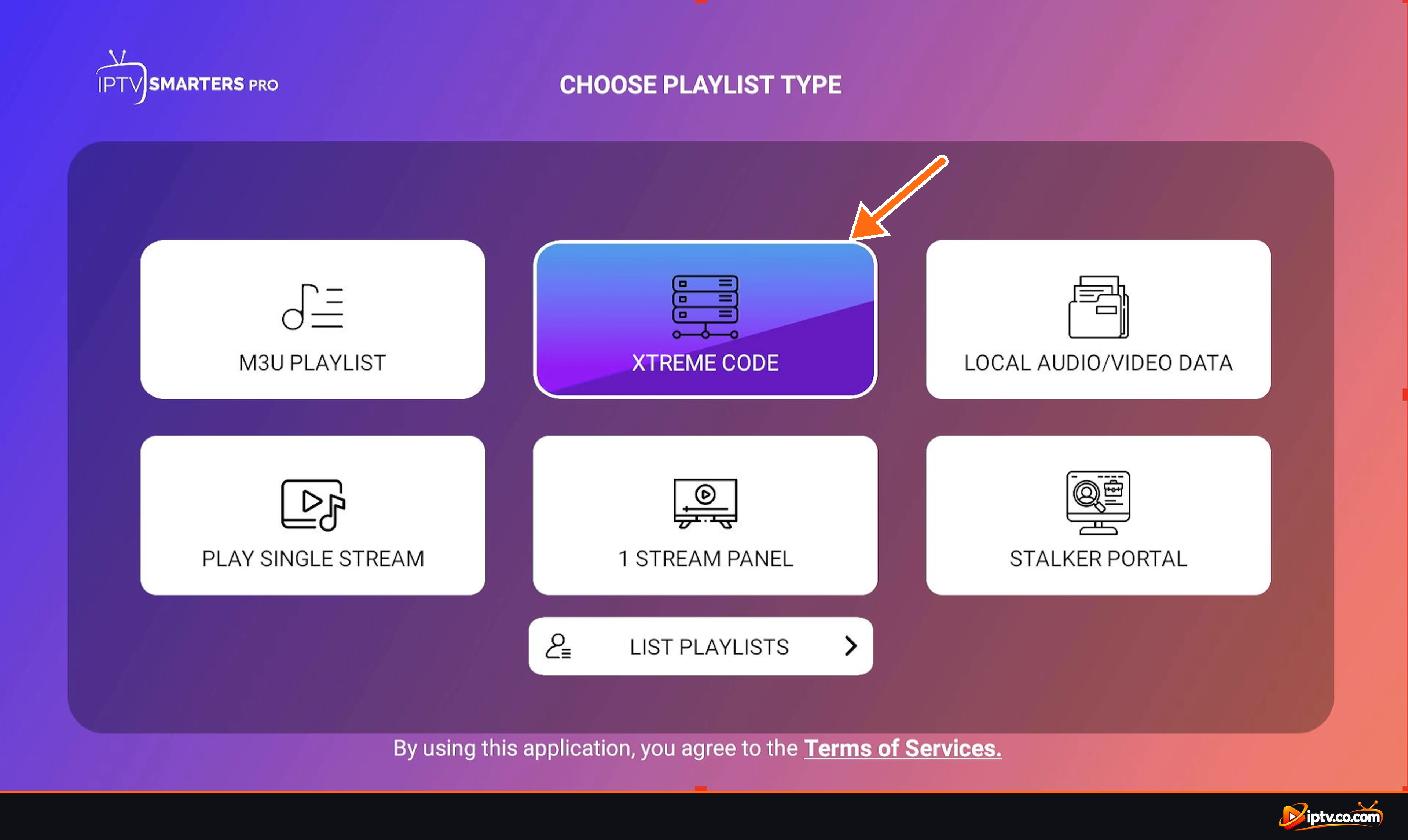
Step 1: Choose Xtreme Code
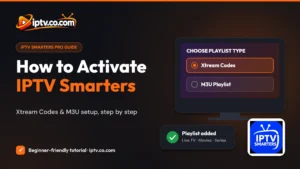
Open IPTV Smarters Pro. On the Choose Playlist Type screen, select Xtreme Code (this is how the app spells Xtream Codes).
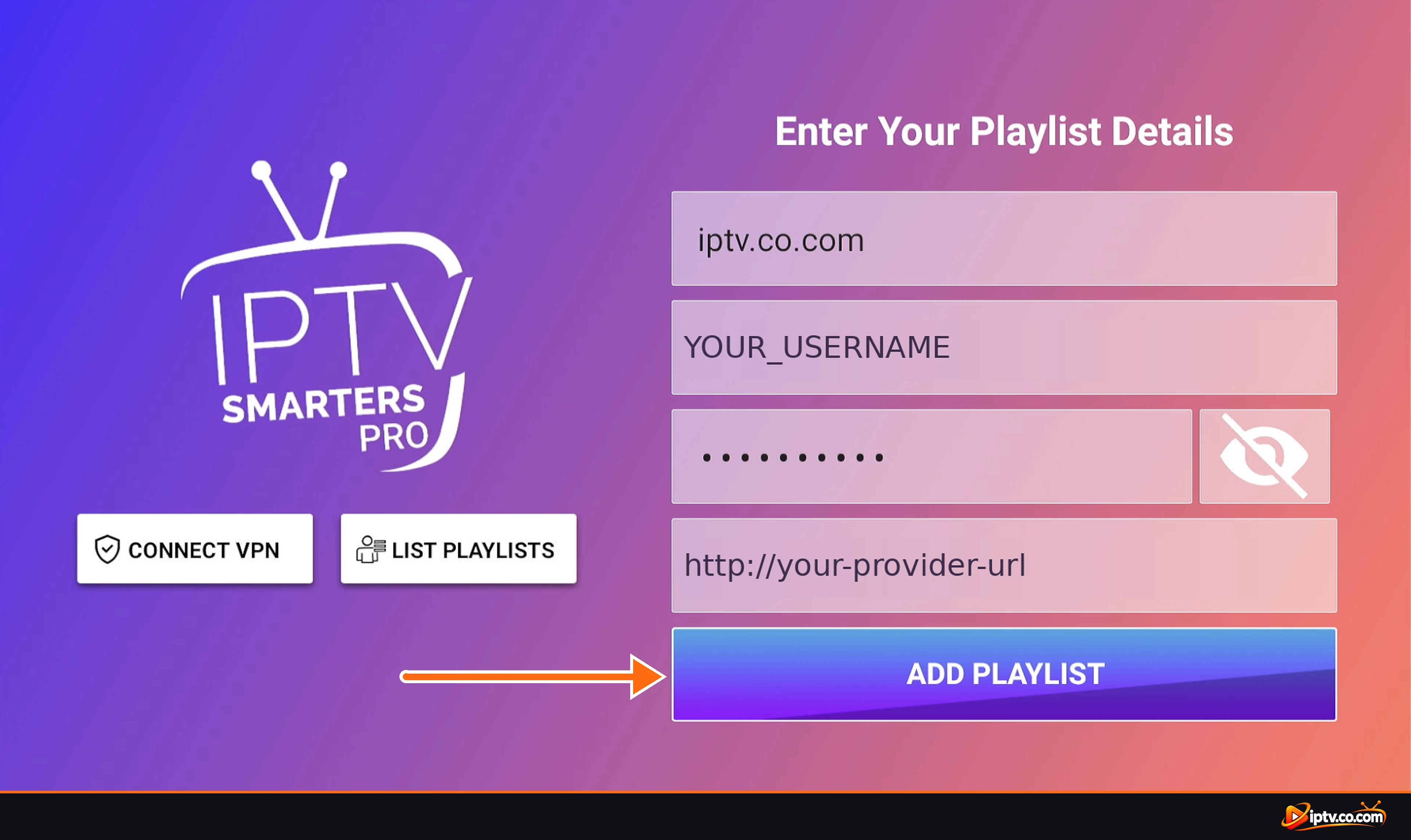
Step 2: Enter Your Xtream Codes Login and Tap Add Playlist
- First field (name): type any name, for example iptv.co.com or My IPTV.
- Username: paste the username from your client area.
- Password: paste your password. Tap the eye icon to check it.
- URL: paste the server URL, including
http://and the port if your provider shows one. - Tap Add Playlist.
Need these details? See how to get Xtream Codes instantly.
IPTV Smarters checks your login and opens the dashboard. Now jump to Load Your Channels, Movies and Series below.
Method 2: Activate IPTV Smarters With an M3U URL
Use this method if your provider only gives you an M3U playlist link.
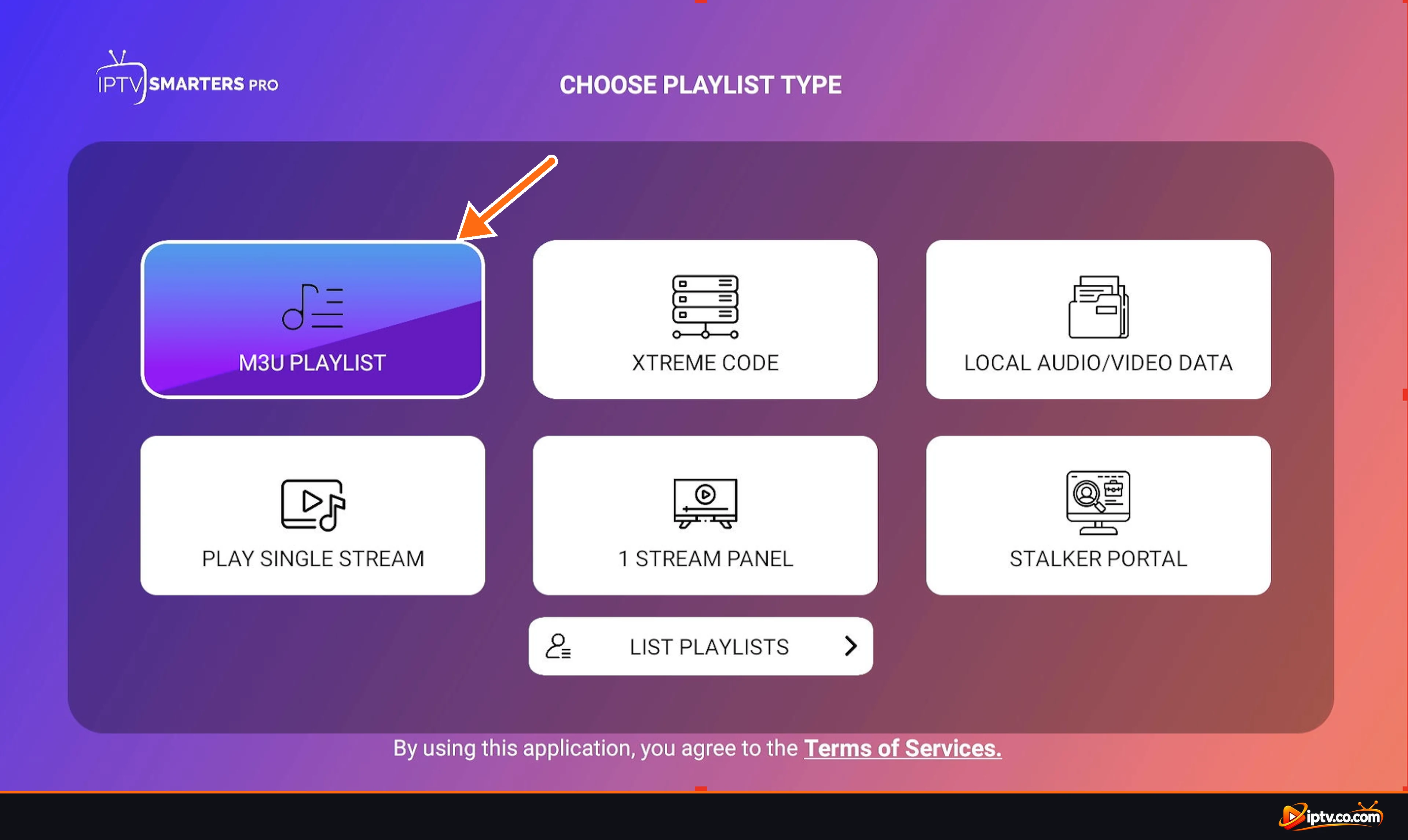
Step 1: Choose M3U Playlist
On the Choose Playlist Type screen, select M3U Playlist.
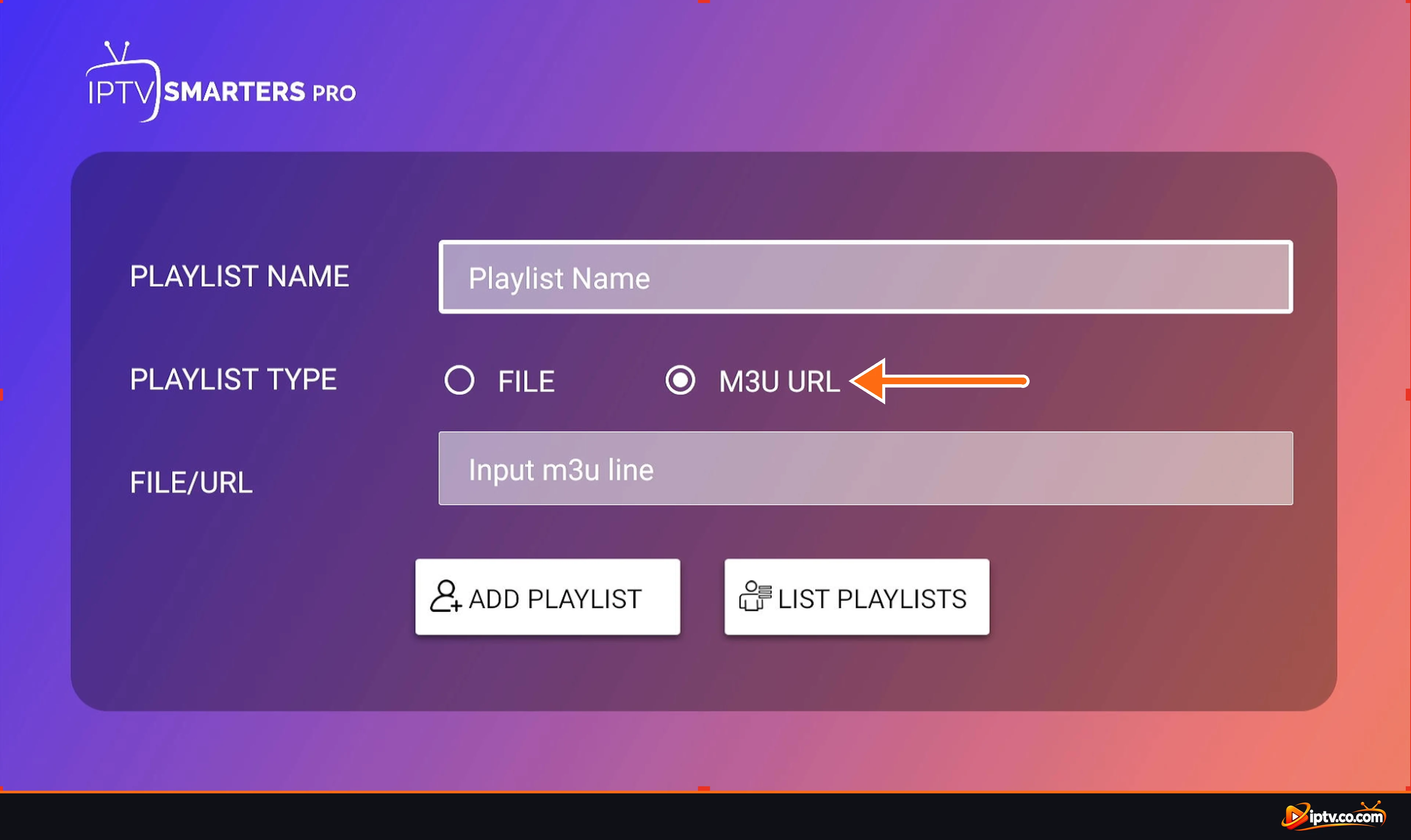
Step 2: Select M3U URL as the Playlist Type
The playlist form opens. Next to Playlist Type, select M3U URL. (Choose File only if you have an .m3u file saved on your device.)
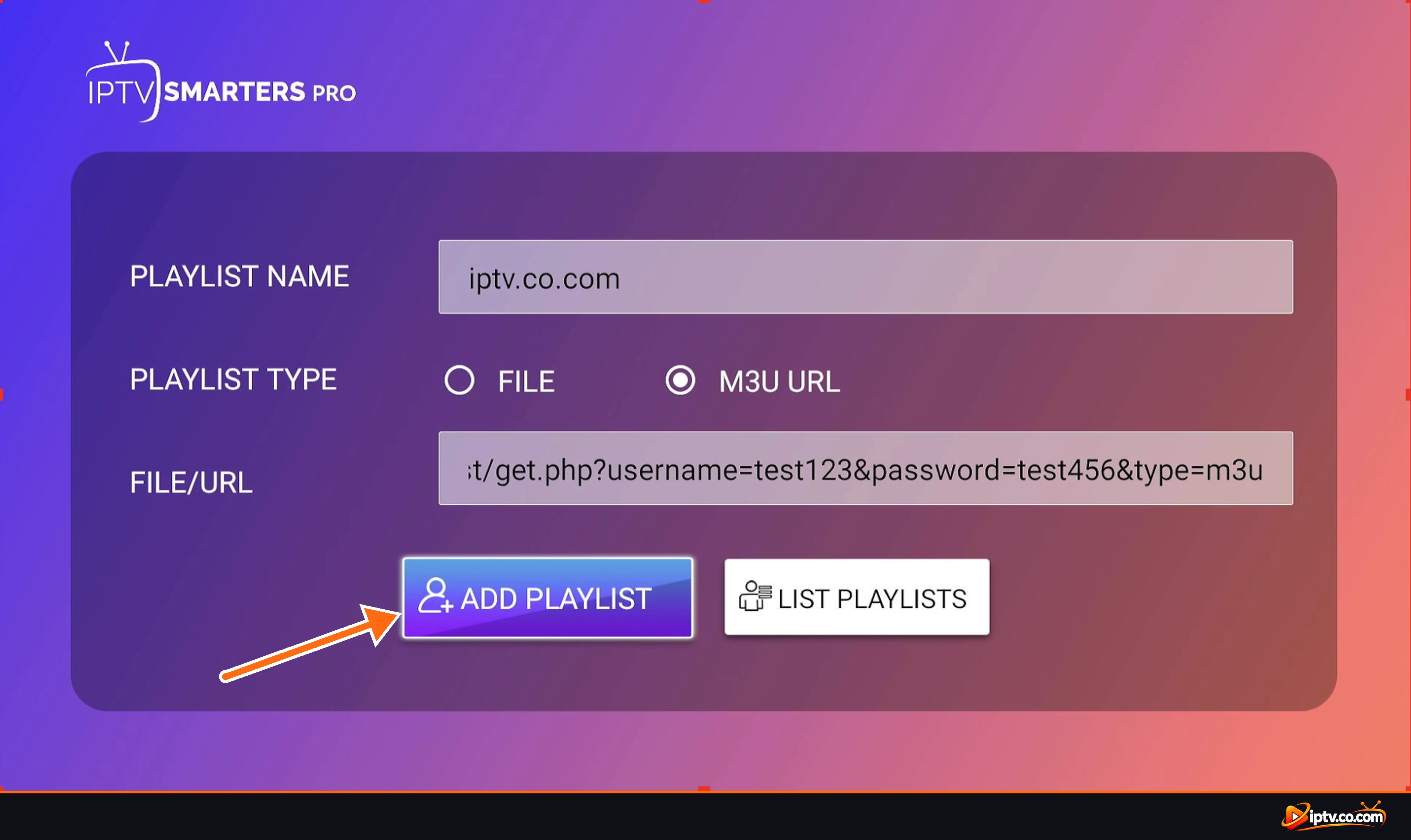
Step 3: Paste Your M3U Link and Tap Add Playlist
- Playlist Name: type any name, for example iptv.co.com.
- File/URL: paste your full M3U URL. It looks like
http://your-provider-url/get.php?username=…&password=…&type=m3u_plus&output=ts - Tap Add Playlist.
Don’t have the link? Learn how to get an M3U URL instantly.
Load Your Channels, Movies and Series
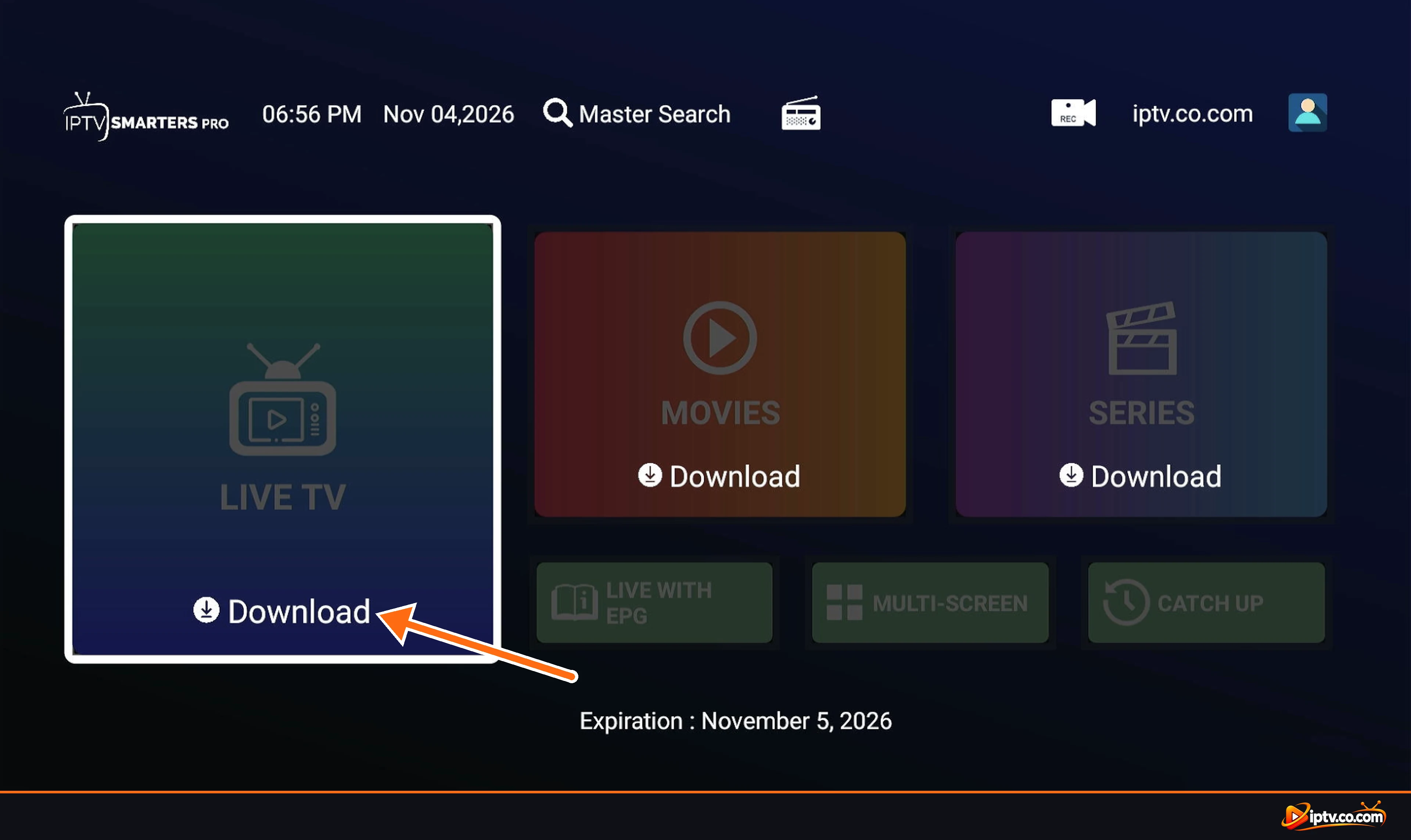
Whichever method you used, IPTV Smarters now shows its dashboard. The first time, you have to download each section.
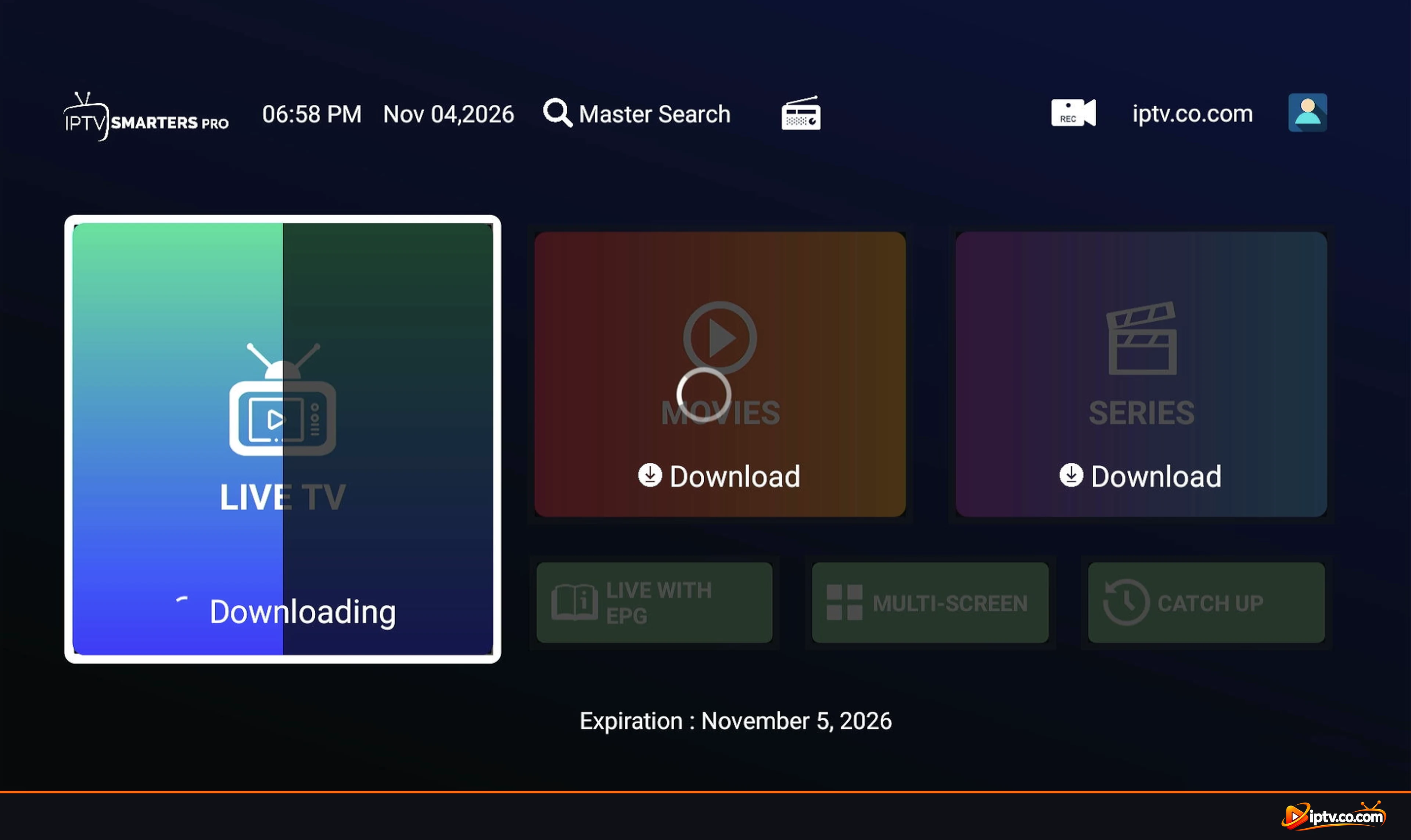
Step 1: Tap Download on Live TV
Select Live TV and tap Download. Do the same for Movies and Series.
Step 2: Wait While the Content Downloads
A Downloading bar shows the progress. Large playlists can take a minute or two, so don’t close the app.
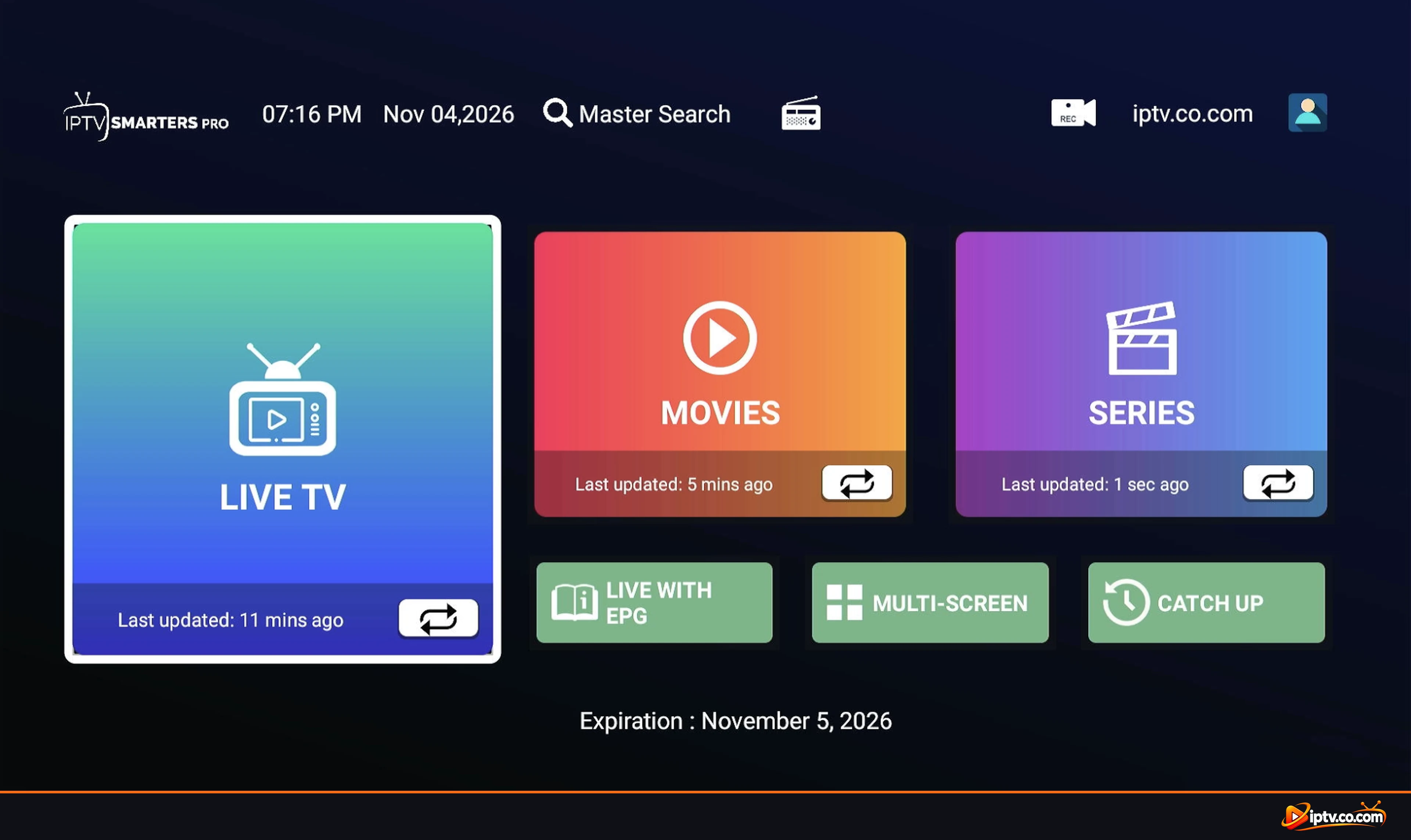
Step 3: Your Content Is Ready
When the download finishes, each section shows Last updated. Live With EPG, Multi-Screen and Catch Up also become available.
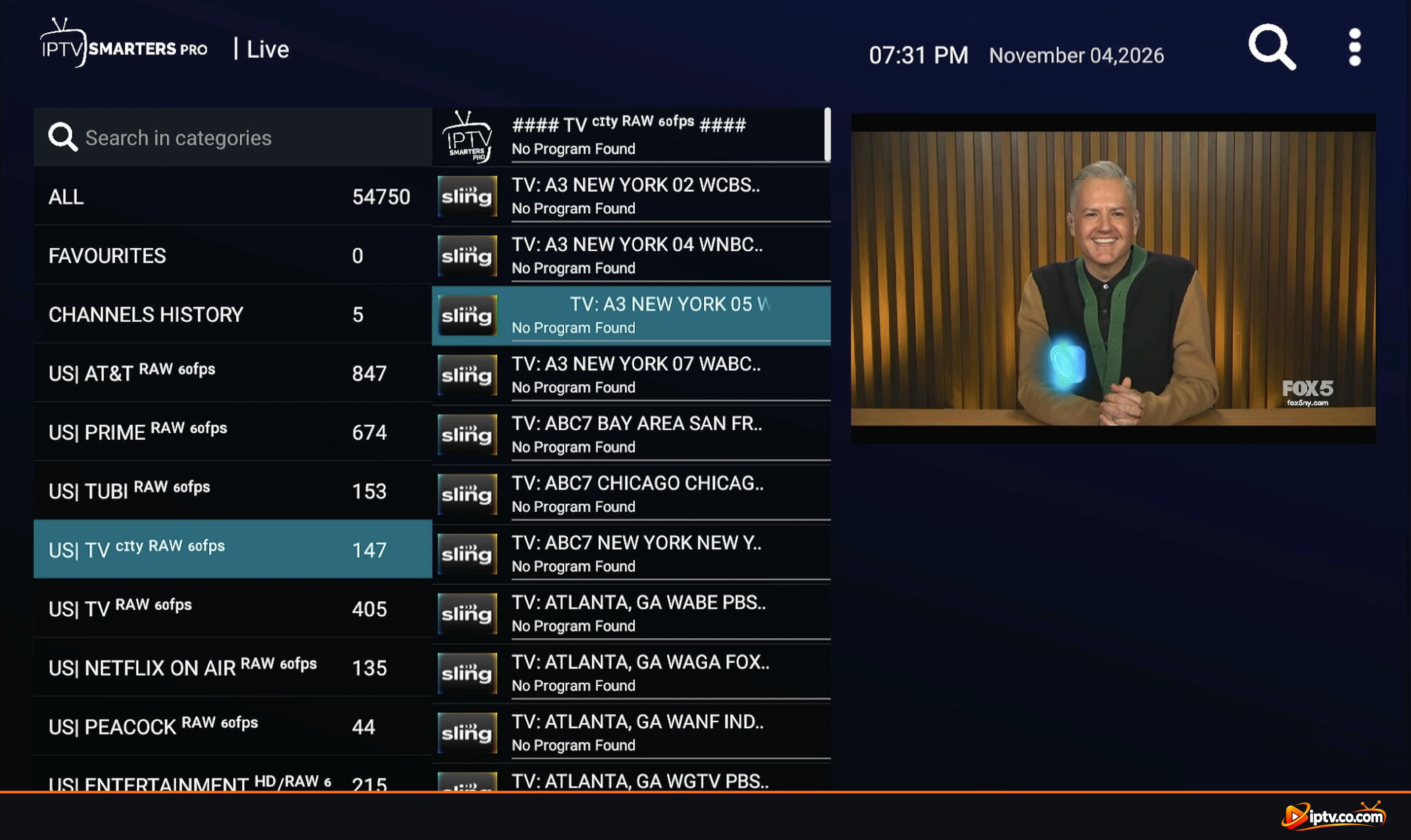
Step 4: Open Live TV and Start Watching
Open Live TV, pick a category on the left and select a channel. The preview starts on the right; select it again to watch in full screen.
Pro Tip
Your provider adds and changes channels often. Tap the refresh button on Live TV, Movies or Series every few days to keep your lists up to date.
How to Get an M3U URL or Xtream Codes
IPTV Smarters only plays content from your own IPTV provider. Your login details are in the provider’s client area, under your active service. We have a step-by-step guide for each:
- How to Get Xtream Codes Instantly: find your username, password and server URL.
- How to Get M3U URL Instantly: copy your M3U playlist URL and EPG URL.
IPTV Smarters Pro vs IPTV Smarters Lite
Both come from the same developer and use the same login methods, so the steps in this guide work for either one. IPTV Smarters Lite (Smarters Player Lite) is the lighter version offered on some platforms, such as iPhone, iPad and Mac, while IPTV Smarters Pro is the full version for Android, Firestick and other devices. Menu names can differ slightly, but you still choose Xtream Codes or M3U and add your playlist.
IPTV Smarters Not Activating? Quick Fixes
- “Failed to authorize” or “Invalid username or password”: copy the username and password again, check uppercase and lowercase letters, and make sure your service is still active.
- Check the server URL: it must start with
http://and include the port if one is shown (for example:8080). For Xtream Codes, do not add/get.php. - M3U playlist not loading: paste the full link without spaces, and make sure M3U URL (not File) is selected.
- Too many connections: close IPTV Smarters on your other devices. Each plan allows a set number of devices at the same time.
- Change the URL or remove a user: tap List Playlists, select the playlist and choose edit or delete, then add it again with the new details.
- Still stuck? Restart your device and router, update the app, or check our Troubleshooting guides.
Keep Your Login Private
Your Xtream Codes and M3U link give full access to your subscription. Don’t share them in comments, forums or screenshots. If they leak, ask your provider to reset your password.
Frequently Asked Questions
How do I activate IPTV Smarters Pro?
Open the app, choose Xtreme Code or M3U Playlist, enter the login details from your IPTV provider and tap Add Playlist. There is no separate activation code for the app on most devices.
Is IPTV Smarters Pro free?
The app is free to download on most devices. It does not include channels, so you need a subscription or free trial from an IPTV provider to watch anything.
Does IPTV Smarters provide channels?
No. IPTV Smarters is only a player. All channels, movies and series come from the playlist your IPTV provider gives you.
What URL do I use for IPTV Smarters Pro?
For Xtream Codes, use the server URL from your client area, such as http://your-provider-url (with the port if shown). For the M3U method, use your full M3U playlist URL.
Should I use Xtream Codes or M3U in IPTV Smarters?
Xtream Codes is better for most people. It loads the TV guide automatically and sorts movies and series. Use M3U only if your provider gives you an M3U link and nothing else.
Why does IPTV Smarters say Failed to Authorize?
The username, password or server URL is wrong, or the subscription has expired. Copy the details again from your client area and check that the URL starts with http://.
Is IPTV Smarters Lite the same as IPTV Smarters Pro?
They are versions of the same player from the same developer. Lite is a lighter edition offered on some platforms. Both accept Xtream Codes and M3U playlists in the same way.
Can I add more than one playlist to IPTV Smarters?
Yes. Tap List Playlists and add a new playlist or user. You can switch between them at any time.
That’s it: IPTV Smarters is activated and ready to use. For more app and device tutorials, browse our IPTV Smarters guides and Setup Guides.