Quick Summary
To add EPG to IPTV Smarters Pro, open Settings > EPG > EPG Sources, tap Add Source, paste your provider’s EPG link and tap Save. Then open the new source, turn on Default and tap Save. The TV guide downloads in a few seconds and shows up in Live TV.
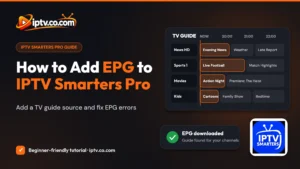
EPG (Electronic Program Guide) is the TV guide in IPTV Smarters: it shows what is on now and what is coming next on each channel. If your channels say No Program Found or the guide is empty, you can add an EPG source yourself. This image-based tutorial shows exactly where to enter the EPG link in IPTV Smarters Pro, how to make it the default guide, and how to fix EPG not working.
What Is EPG in IPTV Smarters?
The EPG is a schedule file (in XMLTV format) that your IPTV provider publishes for its channels. IPTV Smarters downloads it and matches it to your channel list, so you can see program names, times and descriptions next to every channel.
Do You Need to Add EPG Manually?
| Logged in with Xtream Codes | Logged in with M3U URL | |
|---|---|---|
| Built-in EPG | Loads automatically as the Inbuilt EPG Source | Often missing or incomplete |
| Add EPG source manually? | Only if the guide is empty or wrong | Yes, add your provider’s EPG link |
| Where to add it | Settings > EPG > EPG Sources > Add Source | |
Not logged in yet? First follow our guide on how to activate IPTV Smarters with Xtream Codes or an M3U URL.
Before You Start: What You Need
- IPTV Smarters Pro installed, with your playlist already added
- An active IPTV subscription
- Your EPG source link from your IPTV provider
- A stable internet connection
Where to Find Your EPG Source Link
Your EPG link is in your provider’s client area, usually next to your M3U playlist URL. For most Xtream Codes services you can also build it yourself from your login details:
http://your-provider-url:port/xmltv.php?username=YOUR_USERNAME&password=YOUR_PASSWORD
Use the same server URL, username and password as your playlist. Find them with our guides on how to get Xtream Codes and how to get an M3U URL and EPG URL.
How to Add EPG to IPTV Smarters Pro (Step by Step)
These steps are shown on IPTV Smarters Pro for Android TV and Firestick. The menus are the same on most devices.
Step 1: Open Settings
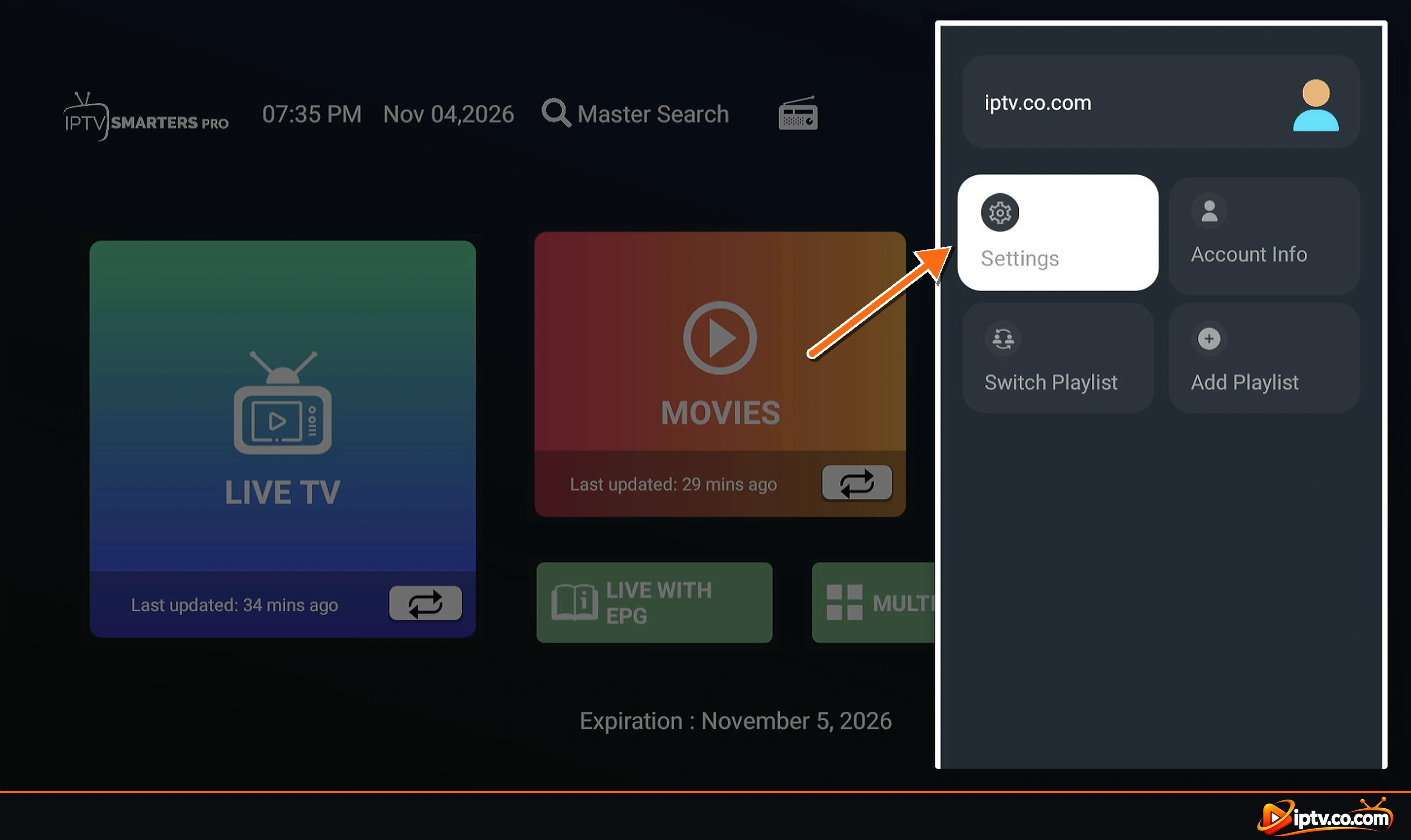
On the IPTV Smarters Pro home screen, open the side menu with your playlist name and select Settings.
Step 2: Select EPG
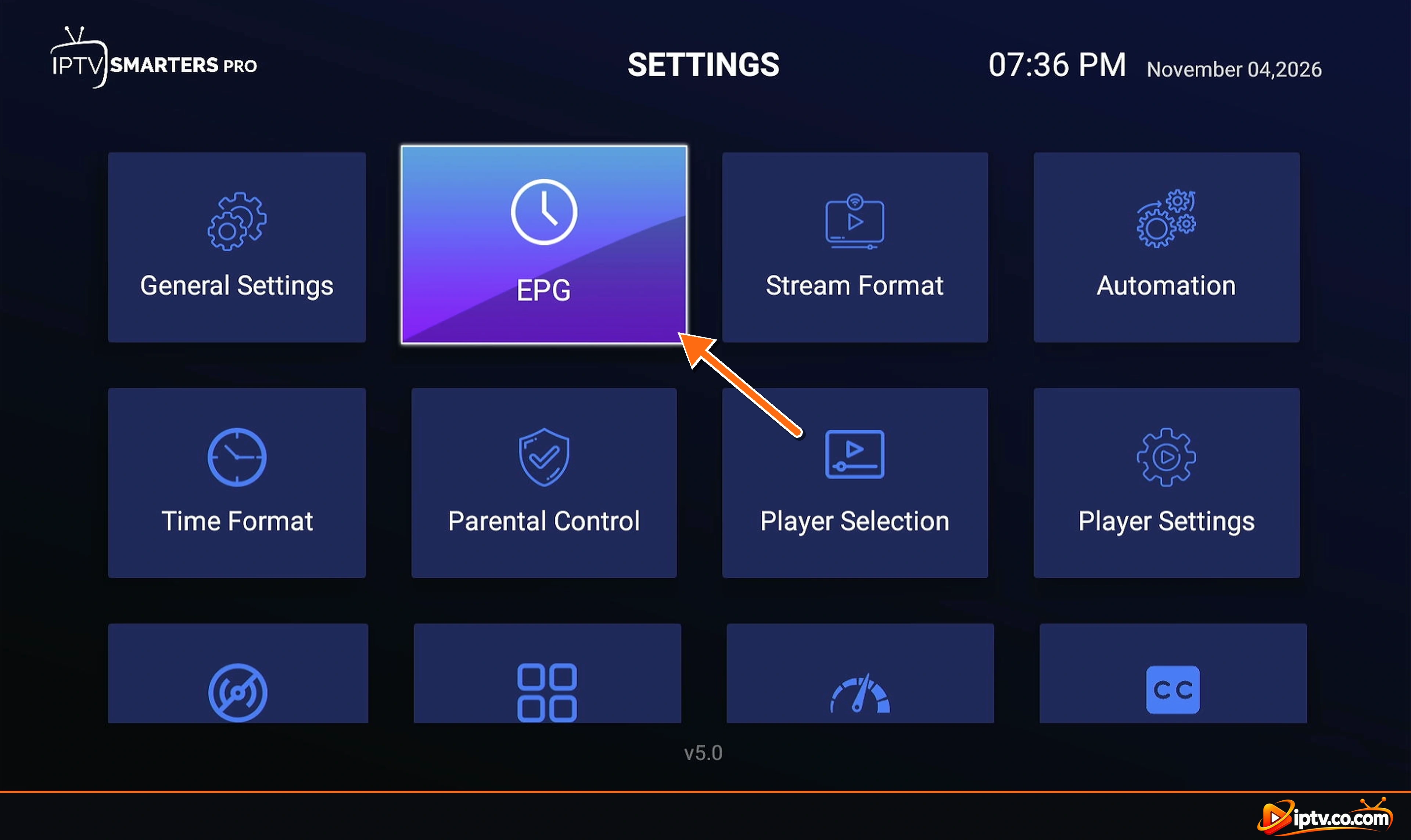
The Settings screen opens. Select the EPG tile.
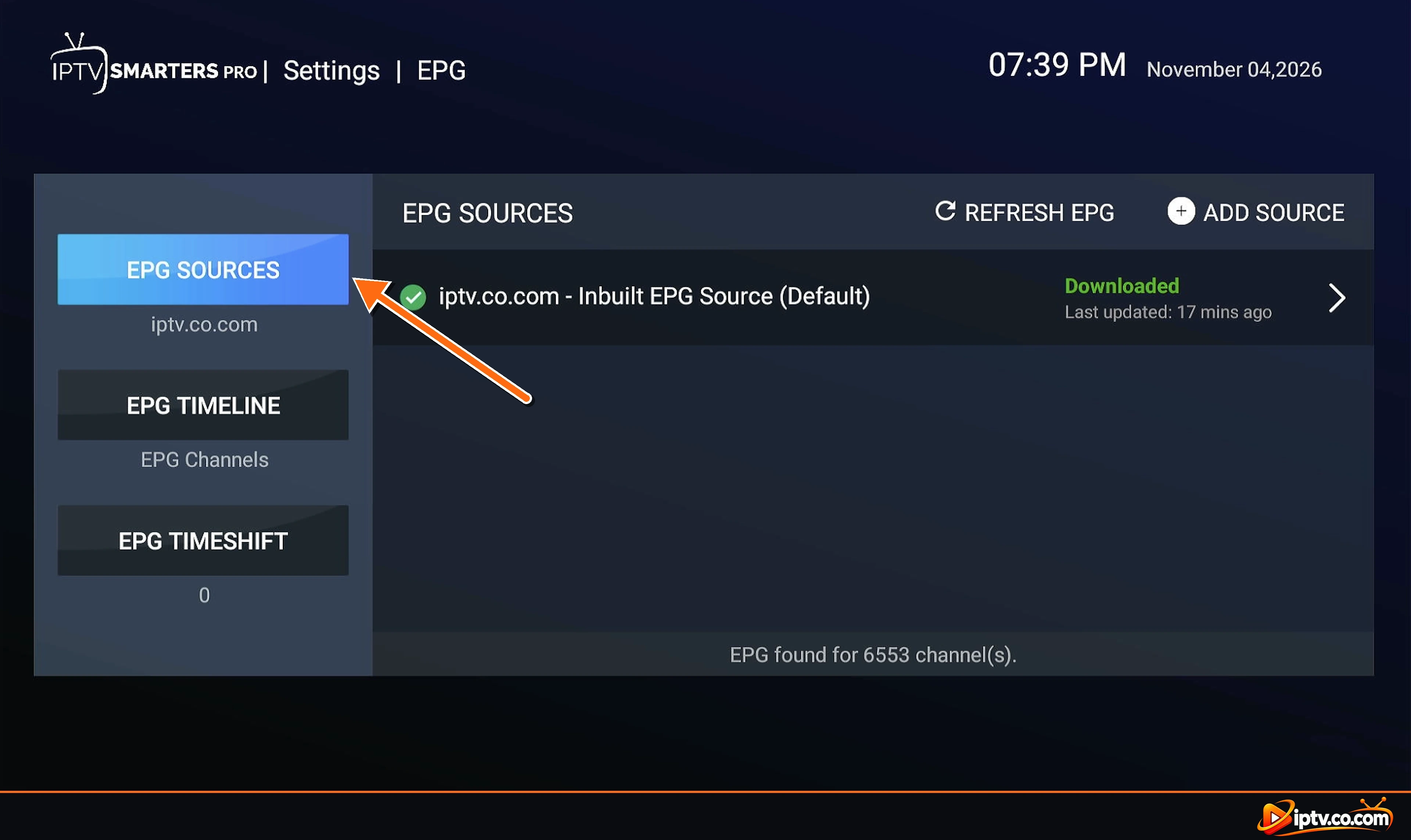
Step 3: Open EPG Sources
Make sure EPG Sources is selected on the left. Here you see the current guide. If you logged in with Xtream Codes, the Inbuilt EPG Source is already listed as Default, and the bottom line shows how many channels have guide data.
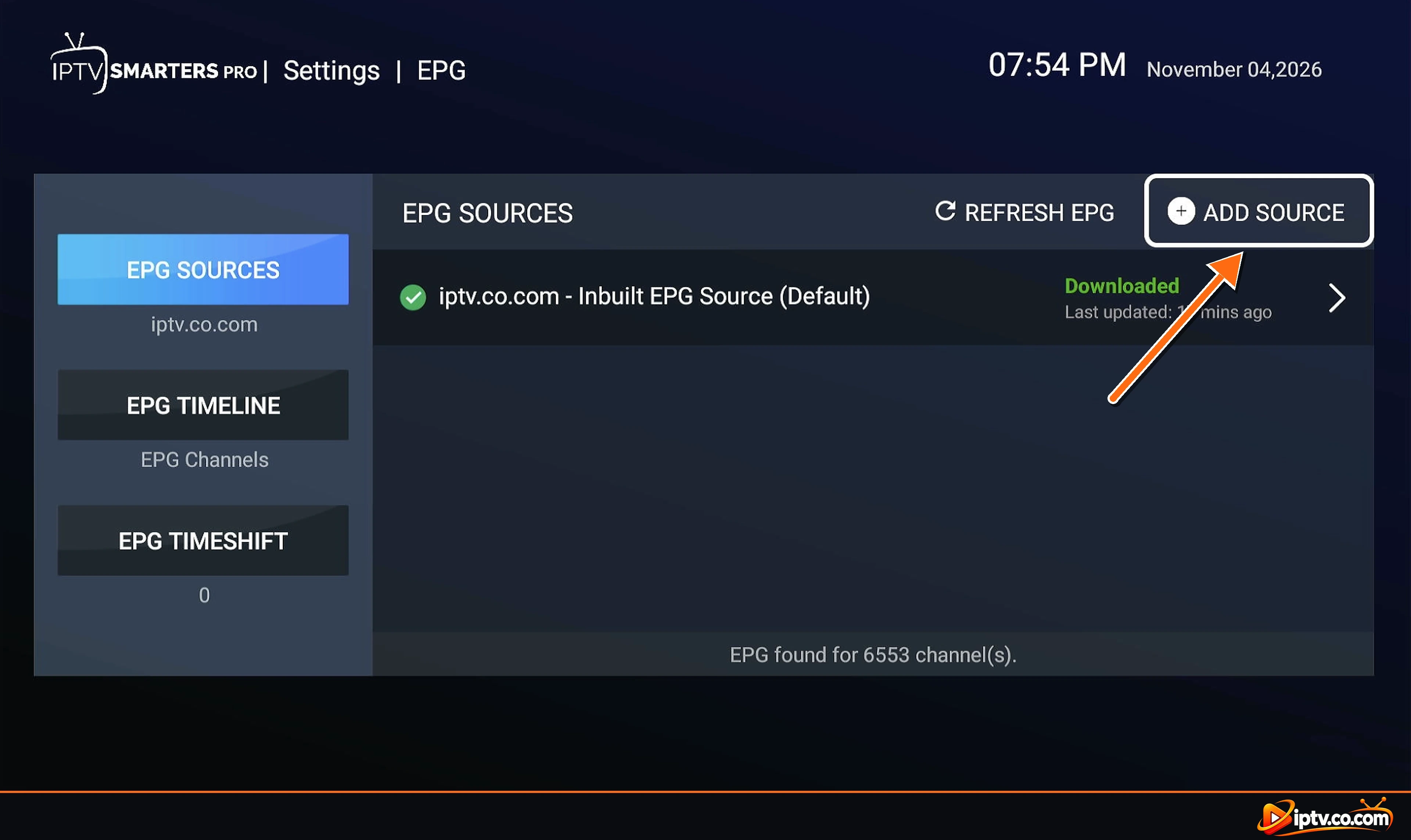
Step 4: Tap Add Source
Tap Add Source at the top right.
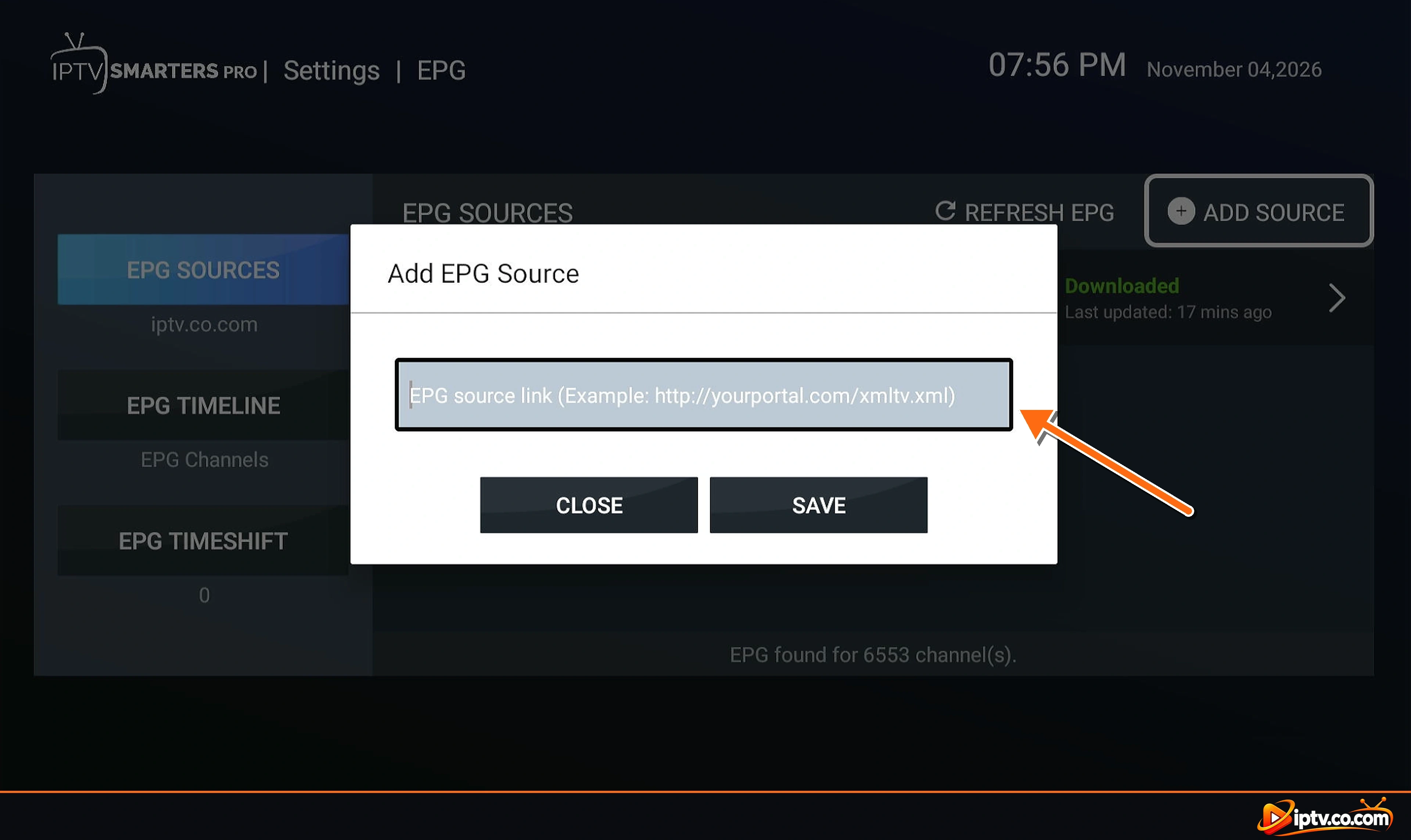
Step 5: Select the EPG Source Link Field
The Add EPG Source window opens. Select the field that says EPG source link.
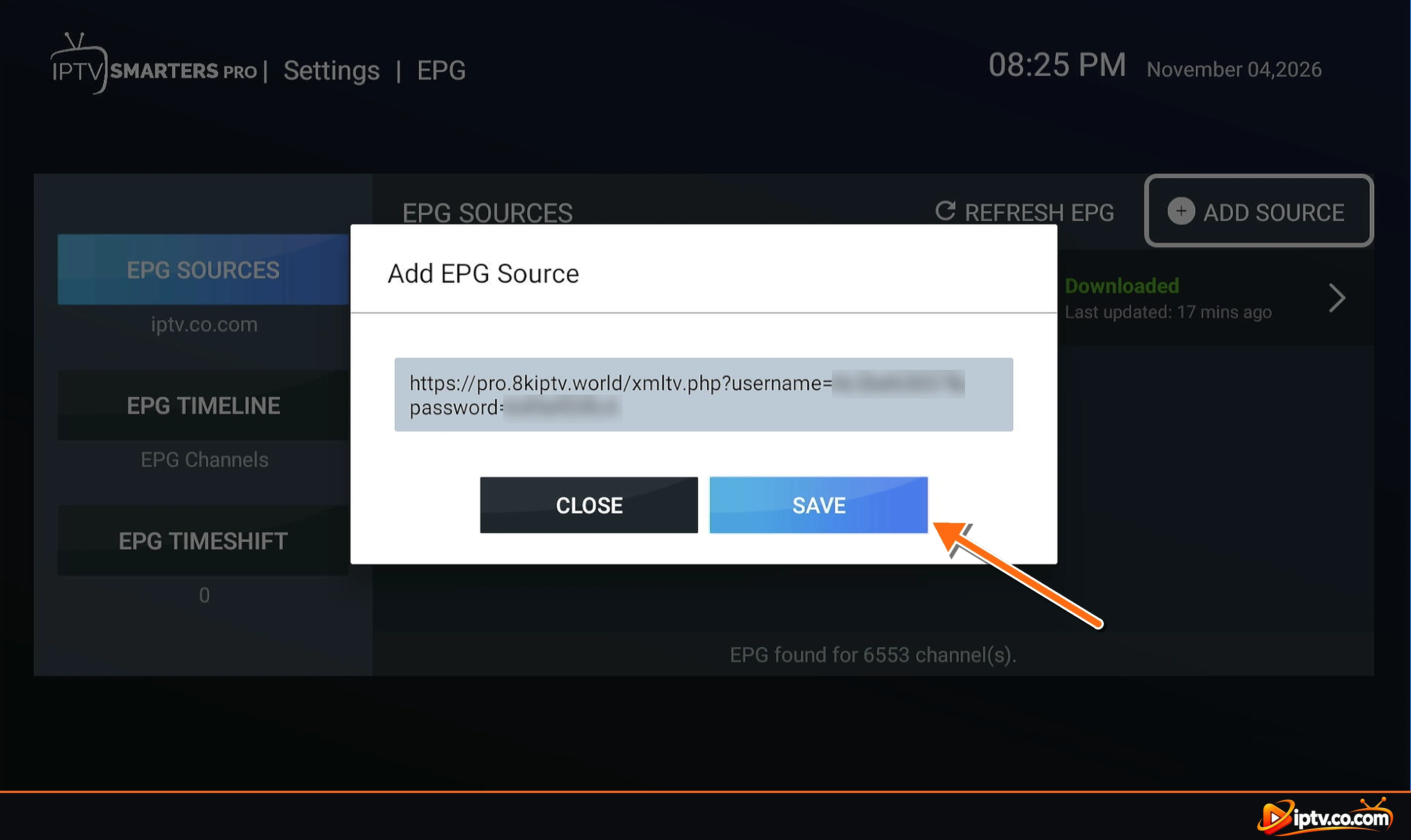
Step 6: Paste Your EPG URL and Tap Save
- Paste or type your full EPG link, for example
http://your-provider-url:port/xmltv.php?username=…&password=… - Check that there are no spaces at the start or end.
- Tap Save.
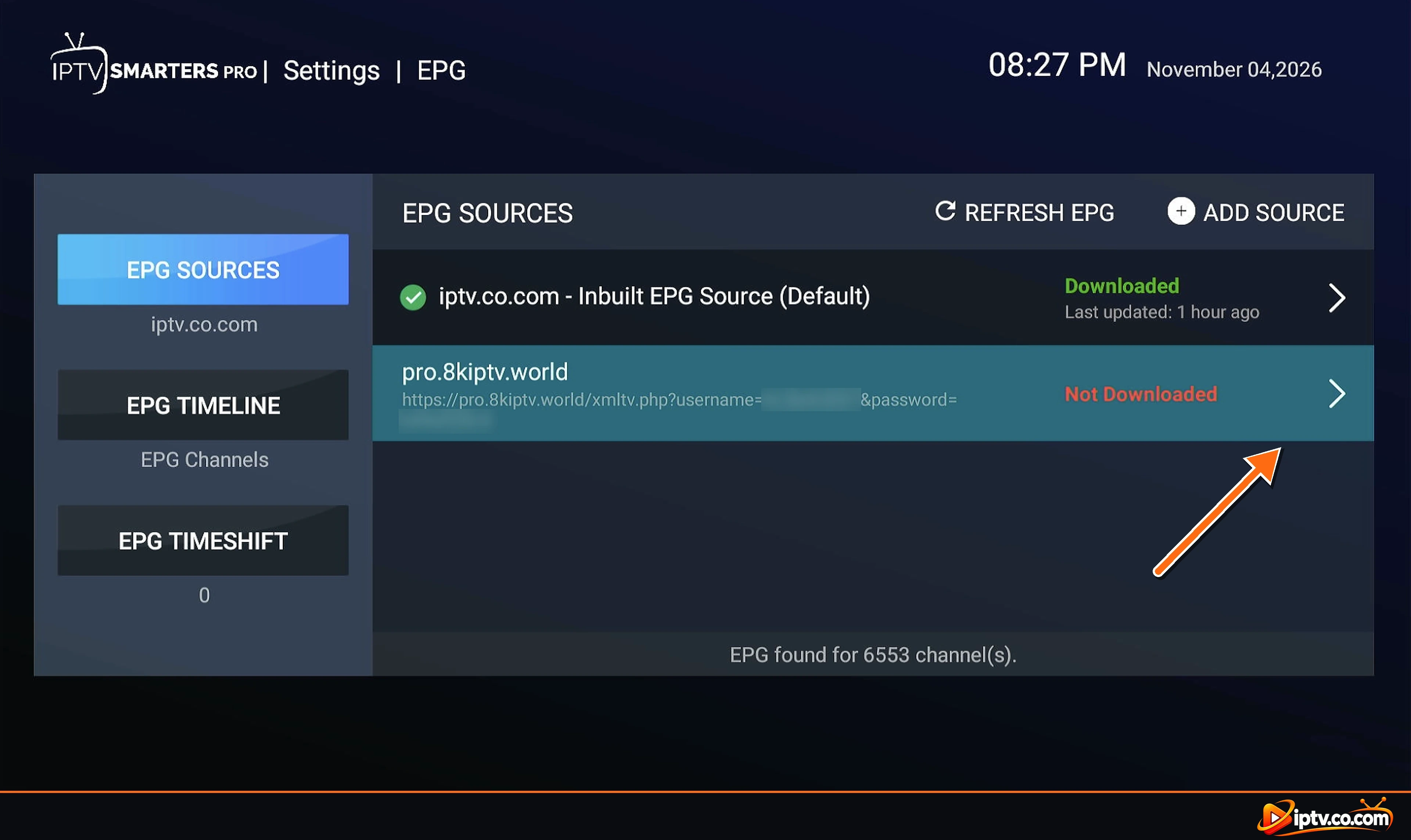
Step 7: Open the New EPG Source
The new source appears under the inbuilt one with the status Not Downloaded. Select it to open its settings.
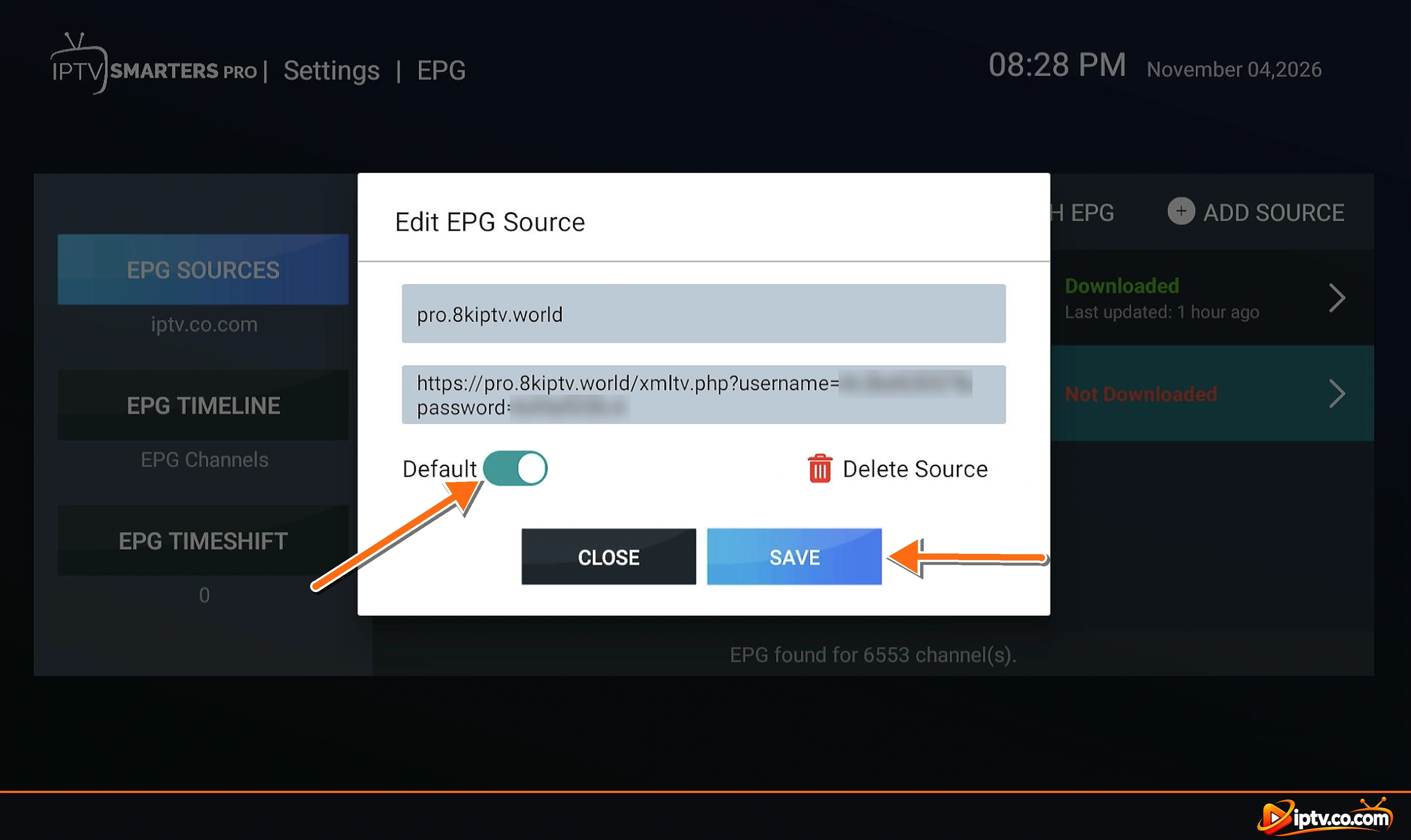
Step 8: Set It as Default and Tap Save
In the Edit EPG Source window, turn on Default so IPTV Smarters uses this guide, then tap Save. You can also rename the source here, or use Delete Source to remove it later.
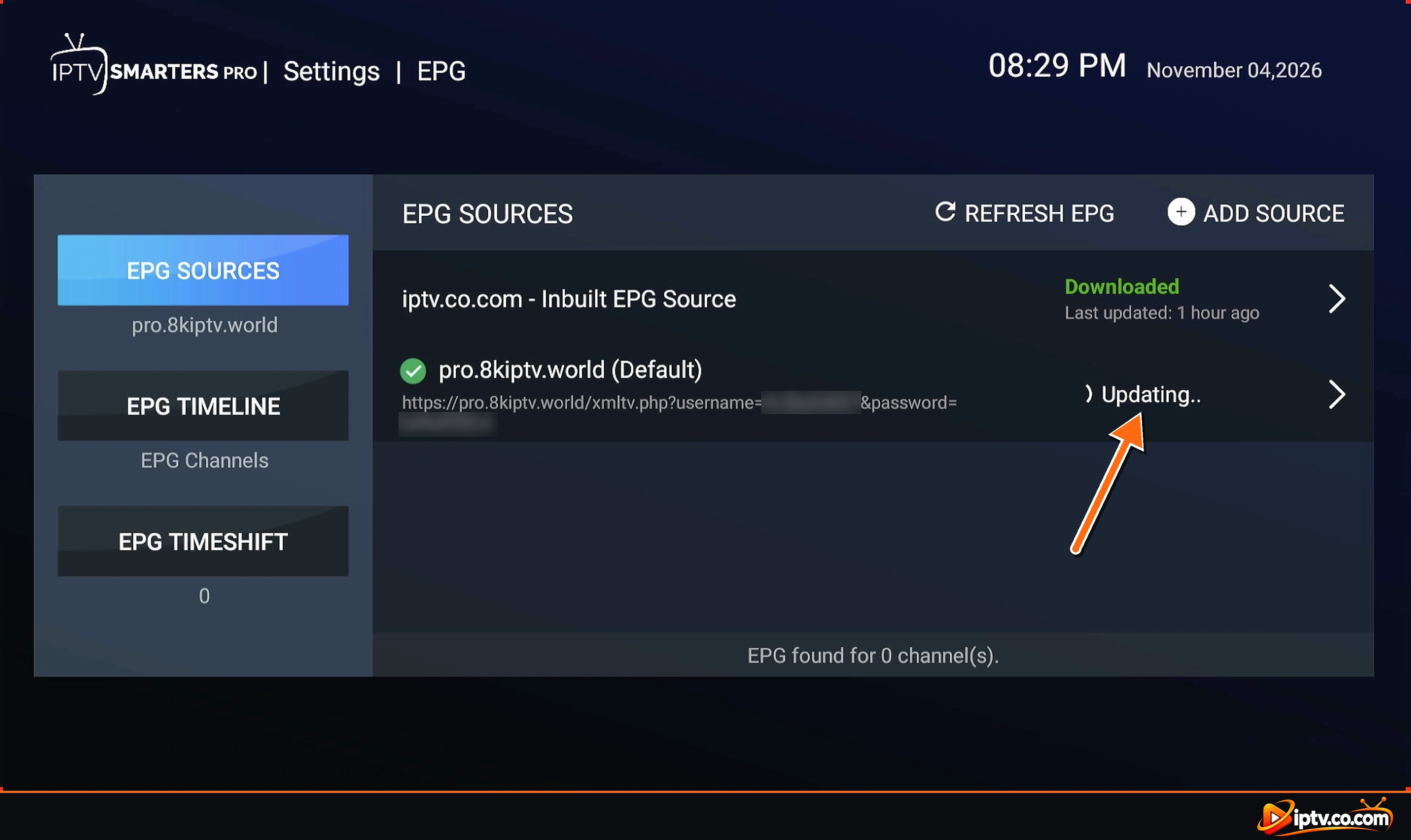
Step 9: Wait While the EPG Updates
The new source is now marked (Default) and shows Updating.. while IPTV Smarters downloads the guide. Don’t leave the screen until it finishes.
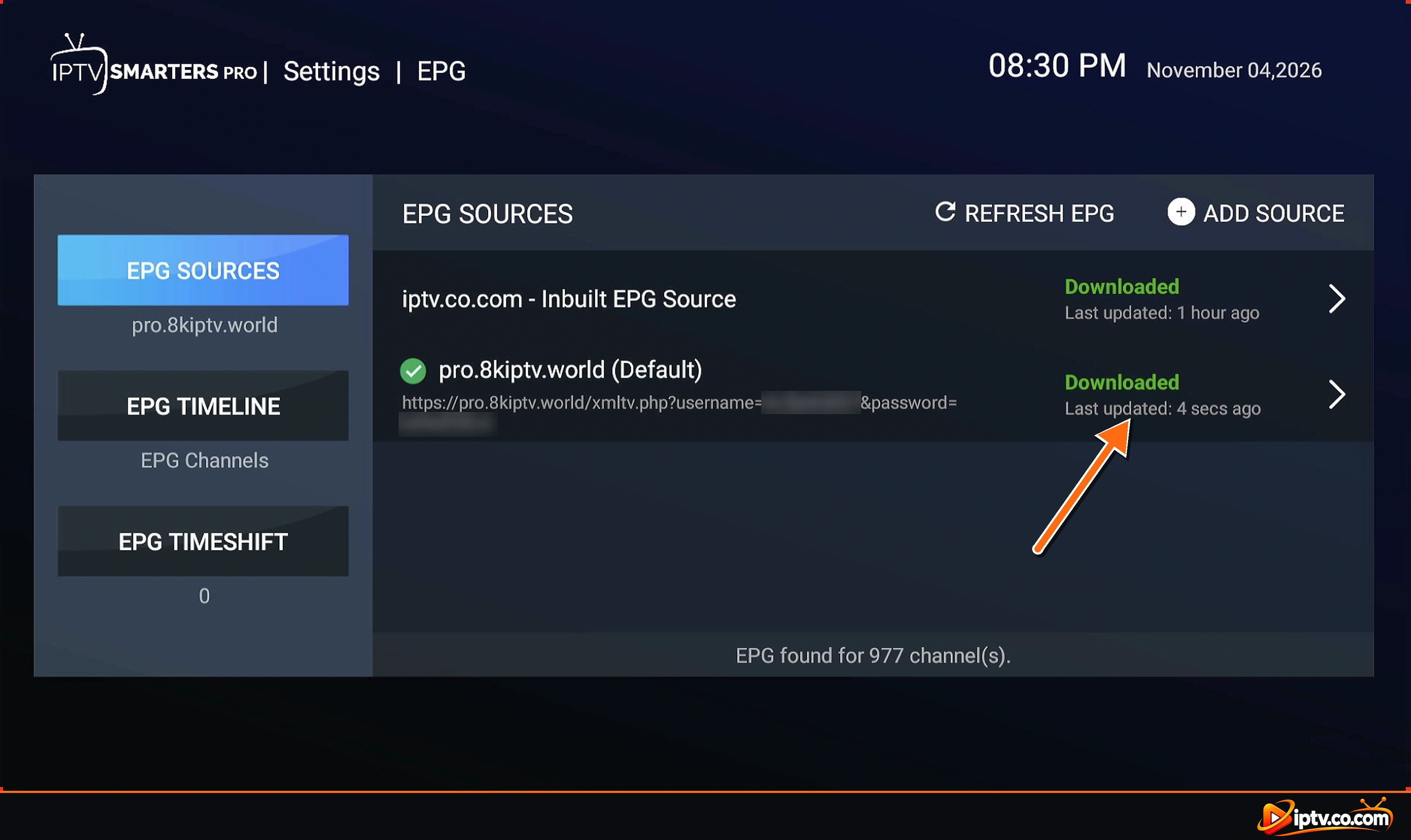
Step 10: Check That the EPG Is Downloaded
When the status changes to Downloaded, the bottom line shows EPG found for … channel(s). If this number is much lower than before, your old source covered more channels: open it and set it back to Default.
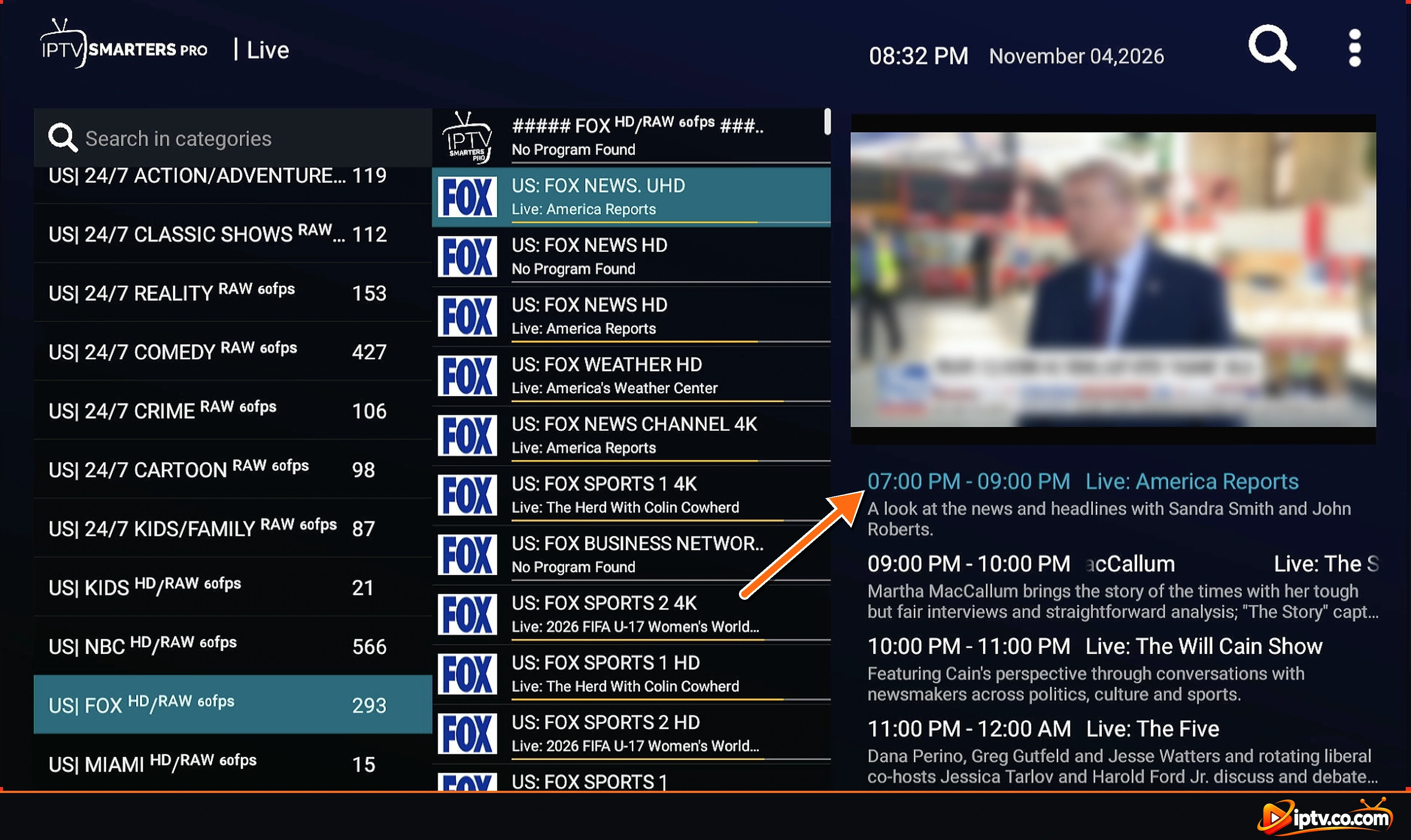
Step 11: Open Live TV and Check the TV Guide
Go back to the home screen and open Live TV (or Live With EPG). Select a channel: the program now on and the upcoming shows appear under the preview, with times and descriptions.
Pro Tip
Providers update their TV guide every day. Open Settings > EPG and tap Refresh EPG every few days, or whenever the guide looks out of date.
How to Manage EPG Sources in IPTV Smarters
How to Refresh or Update the EPG
Open Settings > EPG and tap Refresh EPG. Each source shows Updating.. and then Downloaded with the Last updated time. Do this when the guide is empty, out of date or not updating on its own.
How to Change or Delete an EPG Source
On the EPG Sources screen, select the source and the Edit EPG Source window opens. From there you can rename it, fix the EPG URL, turn Default on or off, or tap Delete Source to remove it. The inbuilt source from your Xtream Codes login stays in the list, so you can always switch back to it.
Can You Use More Than One EPG Source?
Yes, you can add several EPG sources, but only the one marked (Default) is used for the TV guide. Compare the EPG found for … channel(s) number for each source and keep the one that covers the most of your channels as Default.
M3U Playlist With No EPG? Add an XMLTV Link
An M3U playlist often has no TV guide built in. Ask your provider for its XMLTV EPG URL (it usually ends in xmltv.php or .xml) and add it with the steps above. The guide only matches channels when the channel IDs in the EPG file match the ones in your playlist, which is why your provider’s own EPG works best.
Add EPG on Firestick, Android TV, Windows, Mac and iPhone
- Firestick, Fire TV, Android TV, Google TV and Android phones: the steps in this guide are the same: Settings > EPG > EPG Sources > Add Source.
- Windows and Mac: look for the EPG option in the app’s settings. The layout differs, but you still paste your EPG URL and refresh it.
- iPhone, iPad and Apple TV (IPTV Smarters Lite / Smarters Player Lite): menu names can differ. With an Xtream Codes login, the guide normally loads automatically; if it doesn’t, refresh the EPG from settings.
Haven’t added your playlist yet on this device? See how to activate IPTV Smarters.
IPTV Smarters EPG Not Working? Quick Fixes
- EPG shows No Information or No Program Found: tap Refresh EPG. If only some channels are empty, your provider has no guide data for them. That is normal.
- EPG failed or Not Downloaded: the link is wrong or incomplete. Copy the full EPG URL again, check the username and password, and make sure your subscription is active.
- EPG not loading or stuck on Updating: wait a minute, then restart the app. Large guides take longer on slow connections.
- EPG not updating: tap Refresh EPG and check the Last updated time under the source.
- Wrong guide or a different EPG: open each source and make sure the one you want is set as Default. Only the default source is used.
- EPG not showing in Live With EPG: download Live TV again from the home screen, then refresh the EPG.
- Still no EPG? Restart your device and router, update IPTV Smarters, or see our Troubleshooting guides.
EPG Time Is Wrong? Use EPG Timeshift
If the guide shows the right programs at the wrong time, open Settings > EPG > EPG Timeshift and move the guide forward or back by the number of hours it is off (for example +1 or -1). This is common when your provider’s guide uses a different time zone.
Keep Your EPG Link Private
Your EPG link contains your username and password. Don’t share it in comments, forums or screenshots. If it leaks, ask your provider to reset your password.
Frequently Asked Questions
How do I add EPG to IPTV Smarters Pro?
Go to Settings, then EPG, then EPG Sources. Tap Add Source, paste your EPG link and tap Save. Open the new source, turn on Default and tap Save again. The TV guide downloads in a few seconds.
Where do I enter the EPG link in IPTV Smarters?
In Settings, open EPG and stay on the EPG Sources tab. Tap Add Source at the top right and paste the link into the field that says EPG source link.
What is the EPG URL for IPTV Smarters?
Your IPTV provider gives it to you. For most Xtream Codes services it looks like http://your-provider-url:port/xmltv.php?username=YOUR_USERNAME&password=YOUR_PASSWORD, using the same server URL, username and password as your playlist.
Why is there no EPG on IPTV Smarters?
The guide has not been downloaded yet, the EPG source is wrong, or your provider has no guide data for that channel. Open Settings, EPG, tap Refresh EPG and check that a source shows Downloaded and is set as Default.
Why does IPTV Smarters say EPG failed or Not Downloaded?
The EPG link is wrong, incomplete or expired, or the server is busy. Copy the full link again without spaces, check that your subscription is active and tap Refresh EPG.
How do I update the EPG in IPTV Smarters?
Open Settings, then EPG, and tap Refresh EPG. The source shows Updating and then Downloaded with the time of the last update.
How do I fix the EPG time in IPTV Smarters?
If programs start too early or too late, open Settings, EPG, EPG Timeshift and move the guide forward or back by the number of hours it is off.
Does EPG work with an M3U playlist in IPTV Smarters?
Yes. If your M3U playlist has no guide, add your provider’s EPG link as an EPG source and set it as Default. With Xtream Codes, the guide usually loads automatically.
Is there a free EPG for IPTV Smarters Pro?
The best EPG is the one included with your IPTV subscription, because its channel IDs match your playlist. A guide from another source often shows No Program Found because the channel names do not match.
How do I see the full TV guide in IPTV Smarters?
On the home screen, open Live With EPG. It shows the full guide as a grid with channels down the side and times across the top. In Live TV, the guide for the selected channel appears under the preview.
What is XMLTV EPG?
XMLTV is the standard file format for TV guides. IPTV Smarters reads XMLTV links, which usually end in xmltv.php or .xml, as EPG sources.
Does IPTV Smarters Lite support EPG?
Yes. IPTV Smarters Lite (Smarters Player Lite) shows the TV guide too. With an Xtream Codes login, it normally loads the guide automatically.
Why does the EPG show the wrong programs on a channel?
The EPG file and your playlist use different channel IDs, or the wrong source is set as Default. Use your provider’s own EPG link, set it as Default and tap Refresh EPG.
Can I add more than one EPG source in IPTV Smarters?
Yes. You can add several sources, but only the one marked Default is used. Keep the source that finds guide data for the most channels as Default.
That’s it: your TV guide is set up in IPTV Smarters Pro. Next, learn how to activate IPTV Smarters on another device, or browse all our IPTV Smarters guides.