How to Activate GSE Smart IPTV With Xtream Codes and M3U
Activate GSE Smart IPTV step by step: add Xtream Codes in Xtream-Codes API or an M3U link in Remote Playlists, load Live TV, VOD and series, and fix common playlist problems.
By IPTV Guide
6 min read
1 Comment
Quick Summary
To activate GSE Smart IPTV, add the playlist from your IPTV provider. For Xtream Codes, open Xtream-Codes API, long-press the + button and enter a name, the server URL, your username and password, then select ADD. For an M3U link, open Remote Playlists, long-press +, choose Add M3U URL, paste the link and select ADD. Open the playlist to load Live TV, VOD and TV Series.
Good to Know: You Need Your IPTV Login Details
GSE Smart IPTV is a player only and includes no channels. You need an M3U link or Xtream Codes login from your IPTV provider. Haven’t installed it yet? See how to install GSE Smart IPTV.
GSE Smart IPTV supports two ways to add your IPTV subscription: the Xtream-Codes API (recommended: movies, series and the TV guide load better) and M3U playlist links. This guide shows both methods step by step, on Firestick, Android TV and Android.
Method 1: Activate GSE Smart IPTV With Xtream Codes
Step 1: Open Xtream-Codes API
On the GSE Smart IPTV home screen, select Xtream-Codes API in the menu on the left.
Select Xtream-Codes API on the GSE Smart IPTV home screen
The list shows a Sample Xtream-Codes api. Move up to the + button.
The Xtream-Codes API list with the + button
Step 2: Long-Press the + Button
Select + (Long click for menu) and hold the OK button on your remote for 2 seconds to open the add form.
Long-press the + button to add an Xtream Codes playlist
The Xtream Codes add form: name, server URL, username and password
Step 3: Enter Your Xtream Codes and Select ADD
Any name: a name for your playlist.
Server URL: the server from your provider, with http:// and the port if your provider gave one, for example:
http://yourserver.com:8000
username and password: exactly as your provider sent them.
EPG Time shift: leave 0. Tick Auto Update to update the TV guide every day.
Select ADD.
Enter your Xtream Codes login and select ADD
Step 4: Open Your Playlist
Your playlist appears in the list. Select it to open it.
The Xtream Codes playlist is added to GSE Smart IPTV
The first time, GSE Smart IPTV shows two tips: you can hide channel groups you don’t watch with the eye buttons next to LIVE and VOD. Select >, then OK.
Tip: filter live and VOD groups with the eye buttons
Select OK to close the tips
Wait while the playlist loads (Loading…).
GSE Smart IPTV loading the Xtream Codes playlist
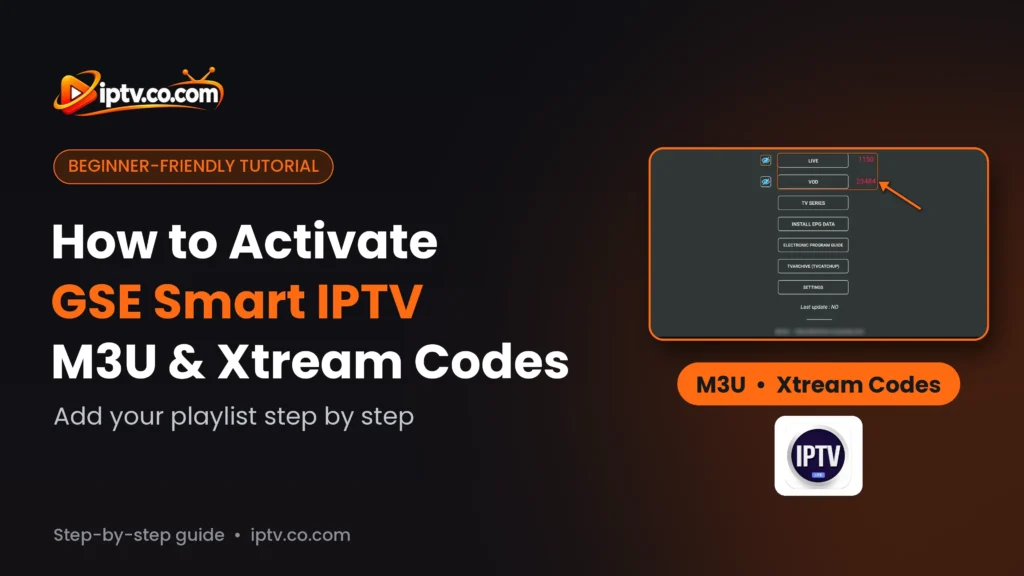
When the numbers appear next to LIVE and VOD, GSE Smart IPTV is activated with your subscription. From here you can also open TV SERIES, INSTALL EPG DATA, the ELECTRONIC PROGRAM GUIDE and TVARCHIVE (TVCATCHUP).
Live TV and VOD loaded in GSE Smart IPTV
Method 2: Activate GSE Smart IPTV With an M3U Link
Step 1: Open Remote Playlists
On the home screen, select Remote Playlists. It supports M3U and JSON playlists, and you can add as many as you want.
Select Remote Playlists on the GSE Smart IPTV home screen
Step 2: Long-Press the + Button
Select + (Long click for menu) and hold OK for 2 seconds.
Long-press the + button in Remote Playlists
Step 3: Select Add M3U URL
Select Add M3U URL
Step 4: Enter a Name and Your M3U Link, Then Select ADD
Type a Playlist name, then paste the full M3U link from your provider in playlist link. It usually looks like this:
Select ADD. Your playlist appears in Remote Playlists: select it to load your channels.
Paste your M3U link and select ADD
Watch Live TV in GSE Smart IPTV
Select LIVE to see your channel groups. Long-press a group to set or remove parental controls.
Live TV channel groups in GSE Smart IPTV
Open a group and select a channel to play it. Long-press a channel to add or remove it from your favourites, and use the search icon at the top to find a channel.
Live TV channels in GSE Smart IPTV
Using a VPN? Use Your Provider’s VPN DNS
If GSE Smart IPTV stops working when your VPN is on, replace the server with your provider’s VPN DNS. It comes with your IPTV login details and always starts with vpn.



One Response