Smart STB Not Working? Easy Fixes for Every Problem
Smart STB not working? Fix Request failed with status code 404, portal not loading, blocked portal, too many bouquets, MAG model, VPN and trial problems step by step.
By IPTV Guide
6 min read
1 Comment
Quick Summary
Most Smart STB problems are fixed in a few minutes: restart your internet to get a new IP address, reboot the application and restart the portal. If you see the red message Request failed with status code 404, add the new portal from your IPTV provider. Still not working? Ask your provider to remove the country bouquets you don’t watch: Smart STB can’t load every country at once.
Good to Know: Smart STB Has No Channels of Its Own
Smart STB only connects to your IPTV provider’s portal. It doesn’t provide any channels, so if your channels stop working, the problem is often the portal, your internet provider or your IPTV subscription. Check with your provider when the fixes below don’t help.
Smart STB usually works well on Firestick, Android TV, Samsung, LG and phones, but a portal that won’t load, a red Request failed with status code 404 message or an endless loading screen can be frustrating. Try these fixes in order: most problems are solved by the first three.
Fix 1: Restart Your Internet to Get a New IP Address
Unplug your router or modem for 1 minute, plug it back in and wait until it’s fully online. This gives you a new IP address, which fixes most connection problems.
Check that your internet works on another app (YouTube, Netflix).
Turn the TV or Firestick off at the wall for 1 minute (a real restart, not standby).
Fix 2: Reboot the Smart STB Application
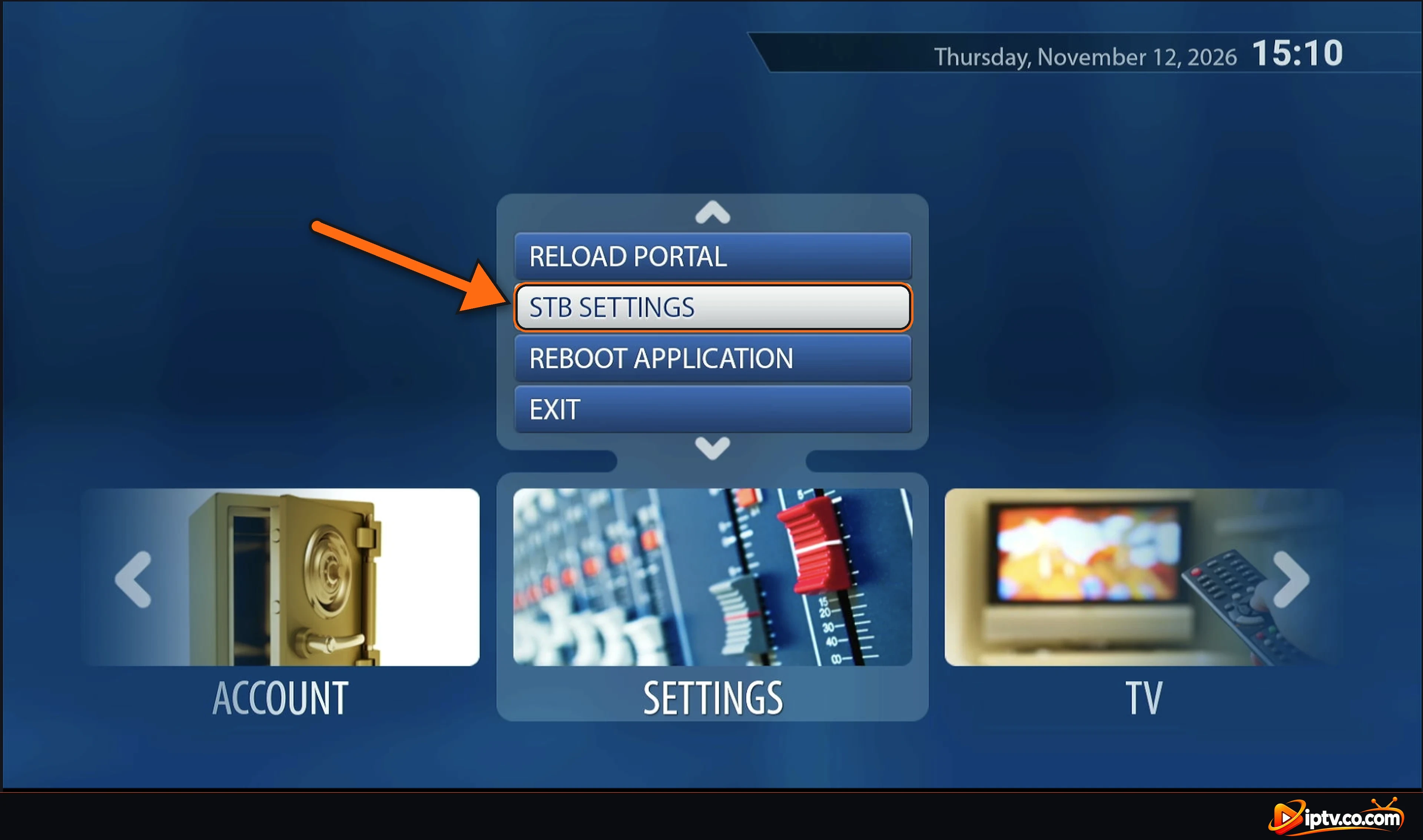
On the Smart STB home screen, move to Settings and select STB SETTINGS (the same menu also has RELOAD PORTAL and REBOOT APPLICATION).
Open STB SETTINGS on the Smart STB home screen
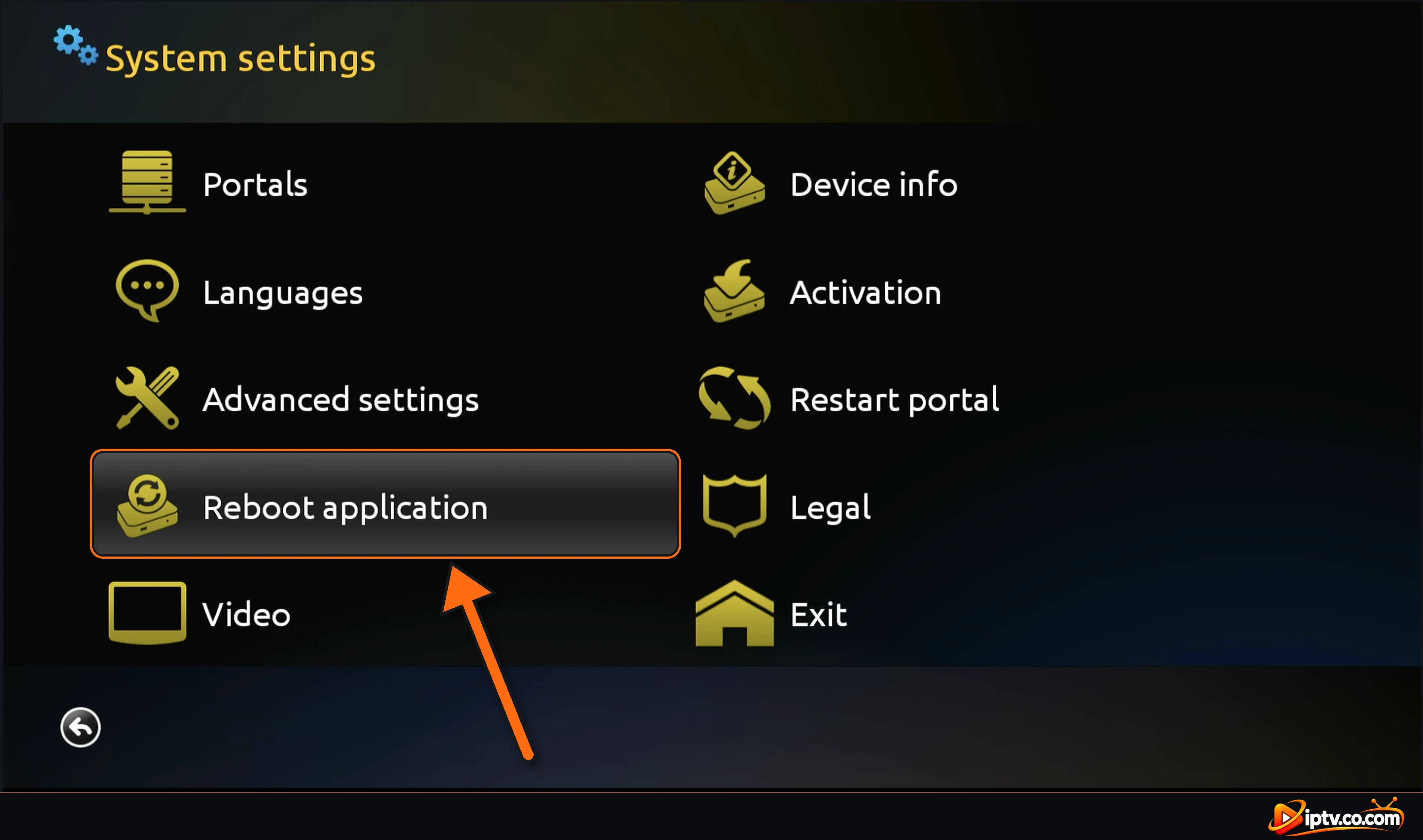
In System settings, select Reboot application. Smart STB closes and opens again with a fresh connection.
Select Reboot application in Smart STB System settings
Fix 3: Restart the Portal
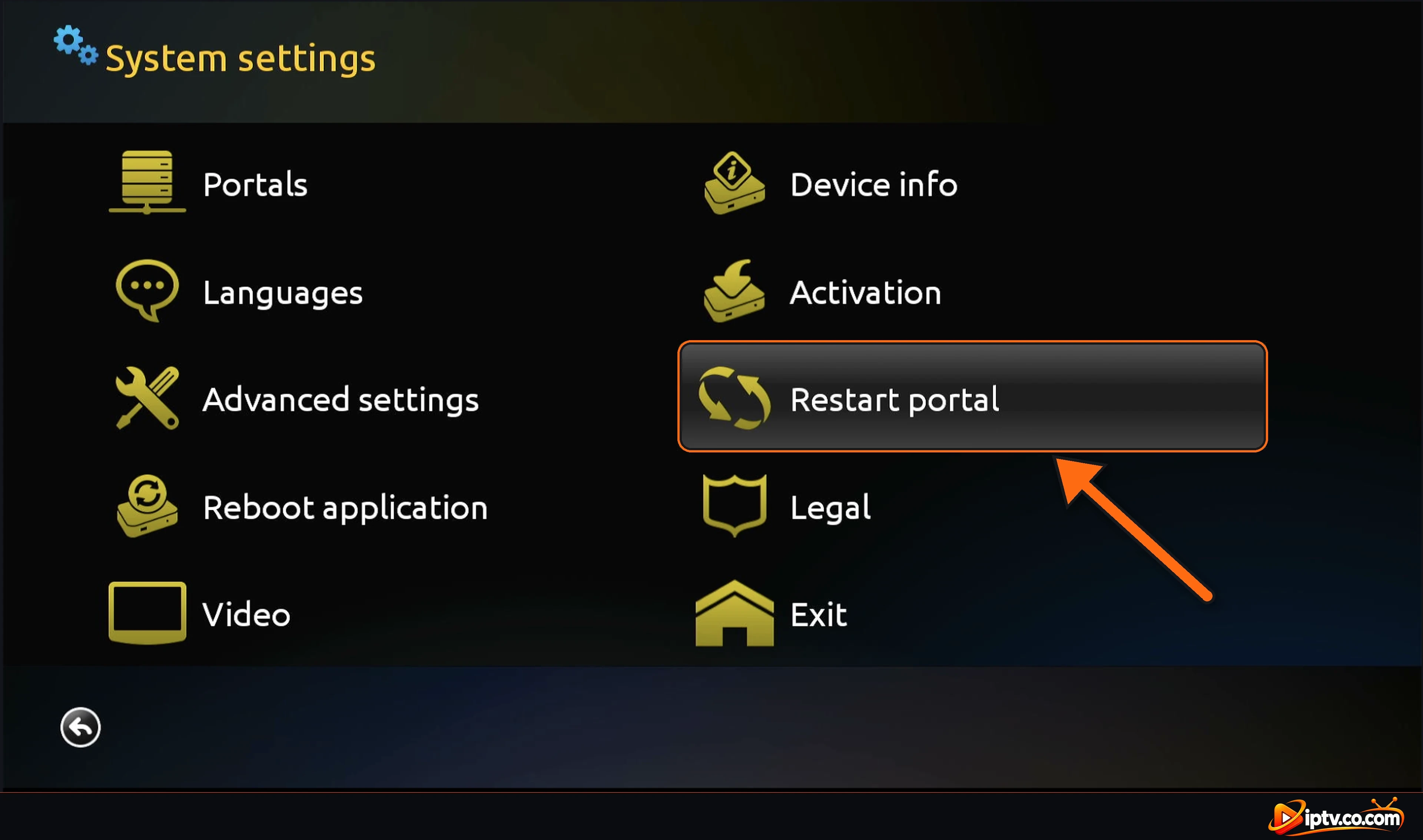
In System settings, select Restart portal, then Yes. Smart STB reloads your provider’s portal with the latest channels.
Select Restart portal in Smart STB System settings
Fix 4: “Request Failed With Status Code 404”: Add a New Portal
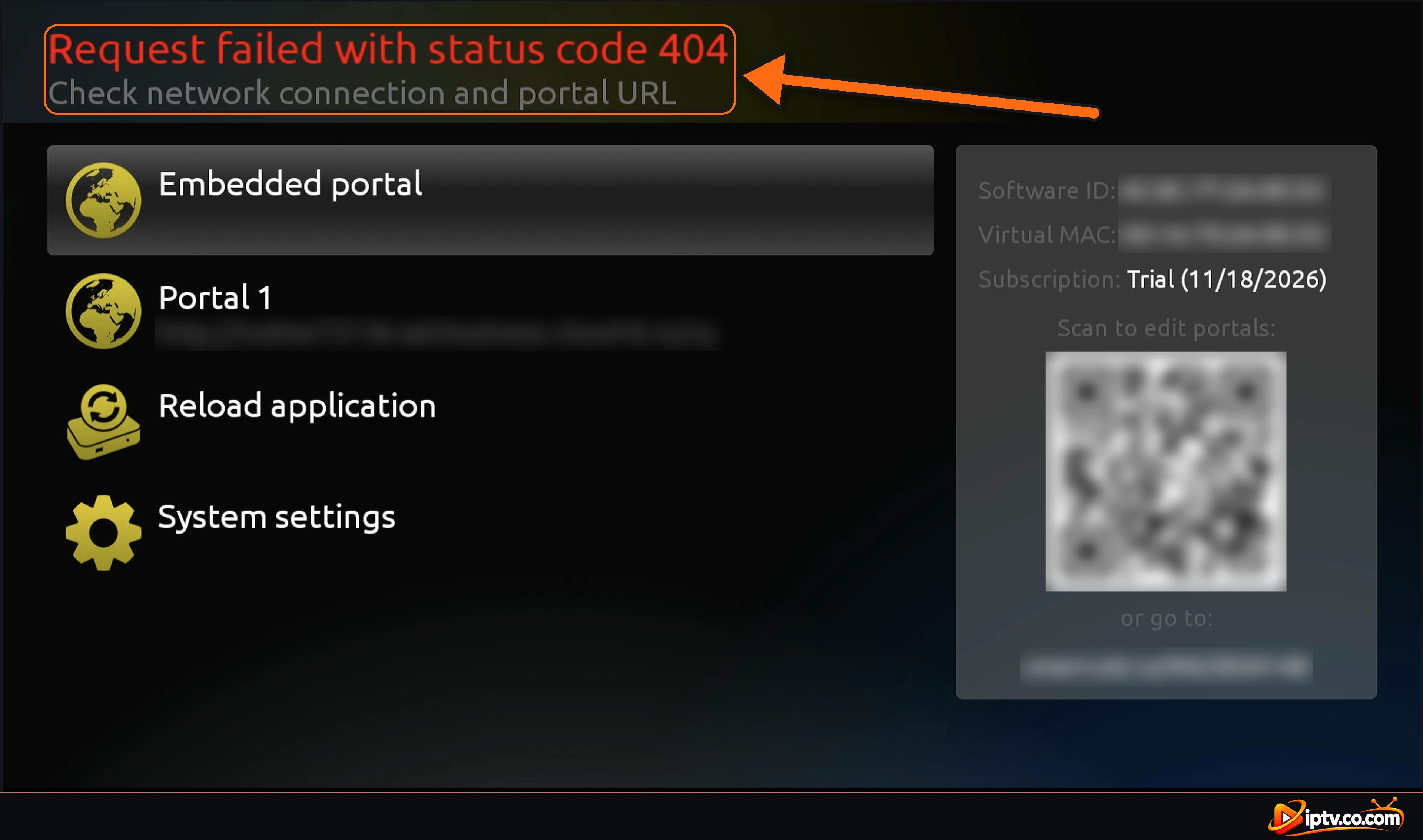
If Smart STB shows the red message Request failed with status code 404 and Check network connection and portal URL, the portal can’t be reached. The portal URL is wrong, has changed, or is blocked. Ask your IPTV provider for a new portal URL and add it.
Smart STB error: Request failed with status code 404
Open System Settings > Portals
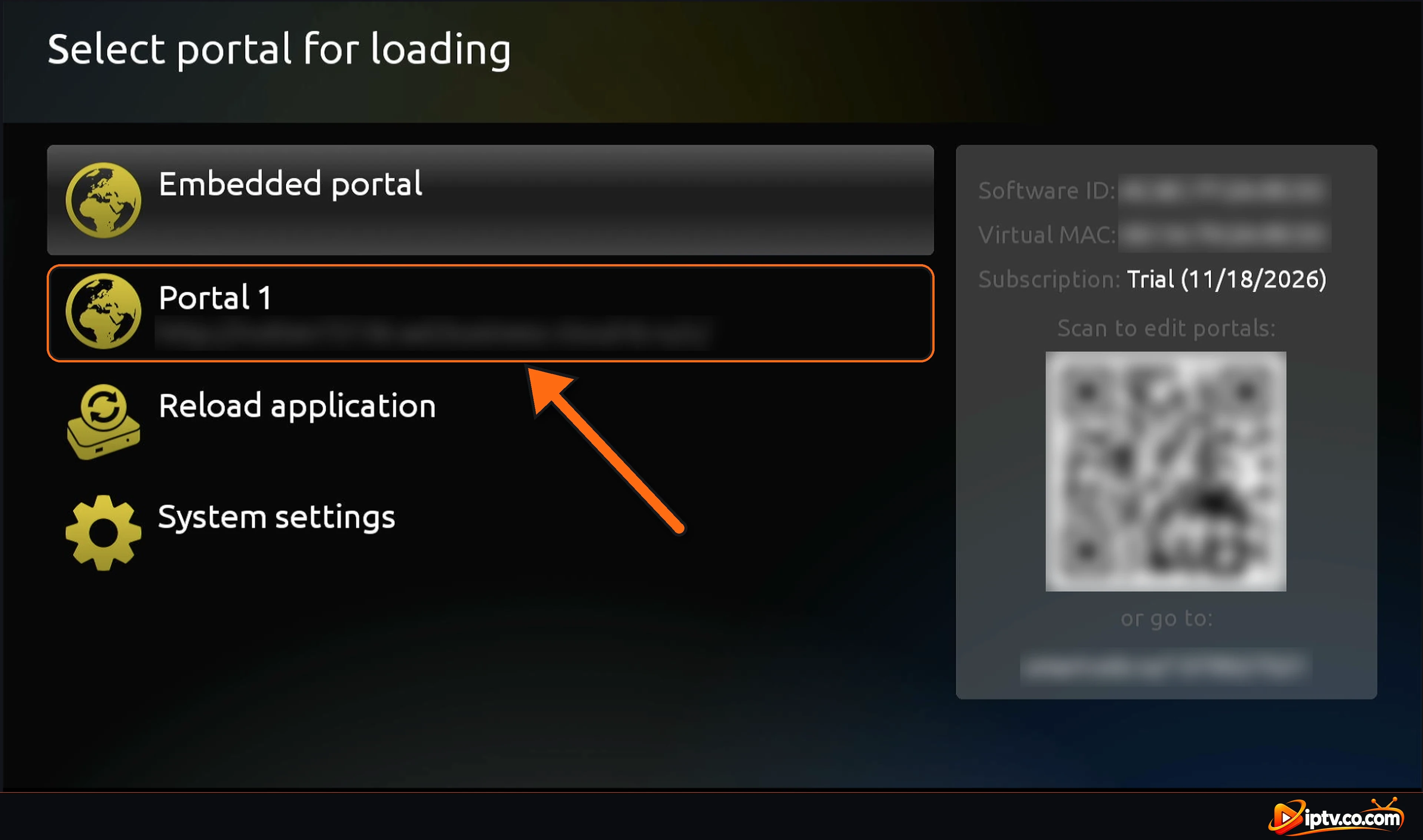
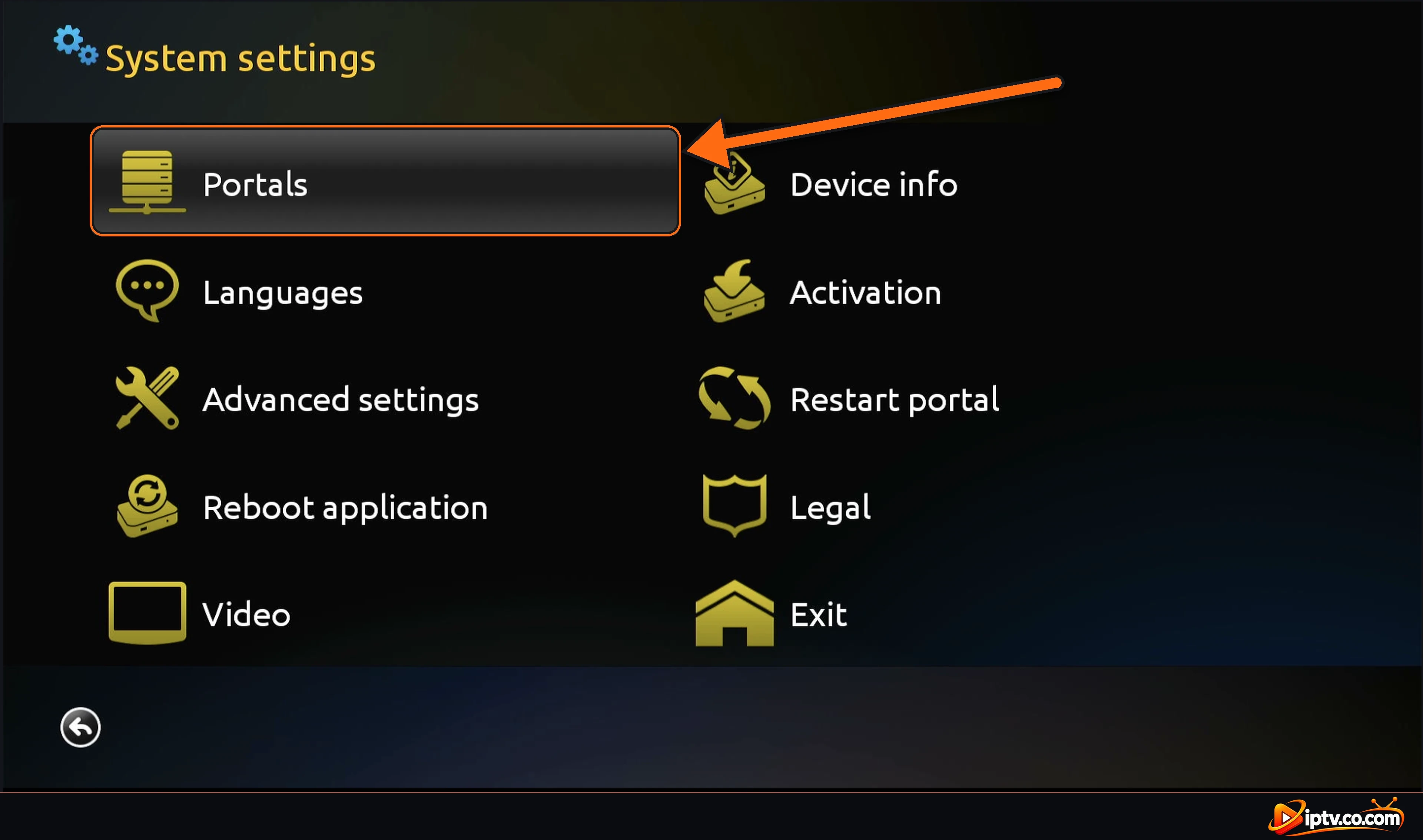
On the Select portal for loading screen, select System settings (or open STB SETTINGS from the home screen), then select Portals.
Select portal for loading screen with your portal and System settings
Select Portals in System settings
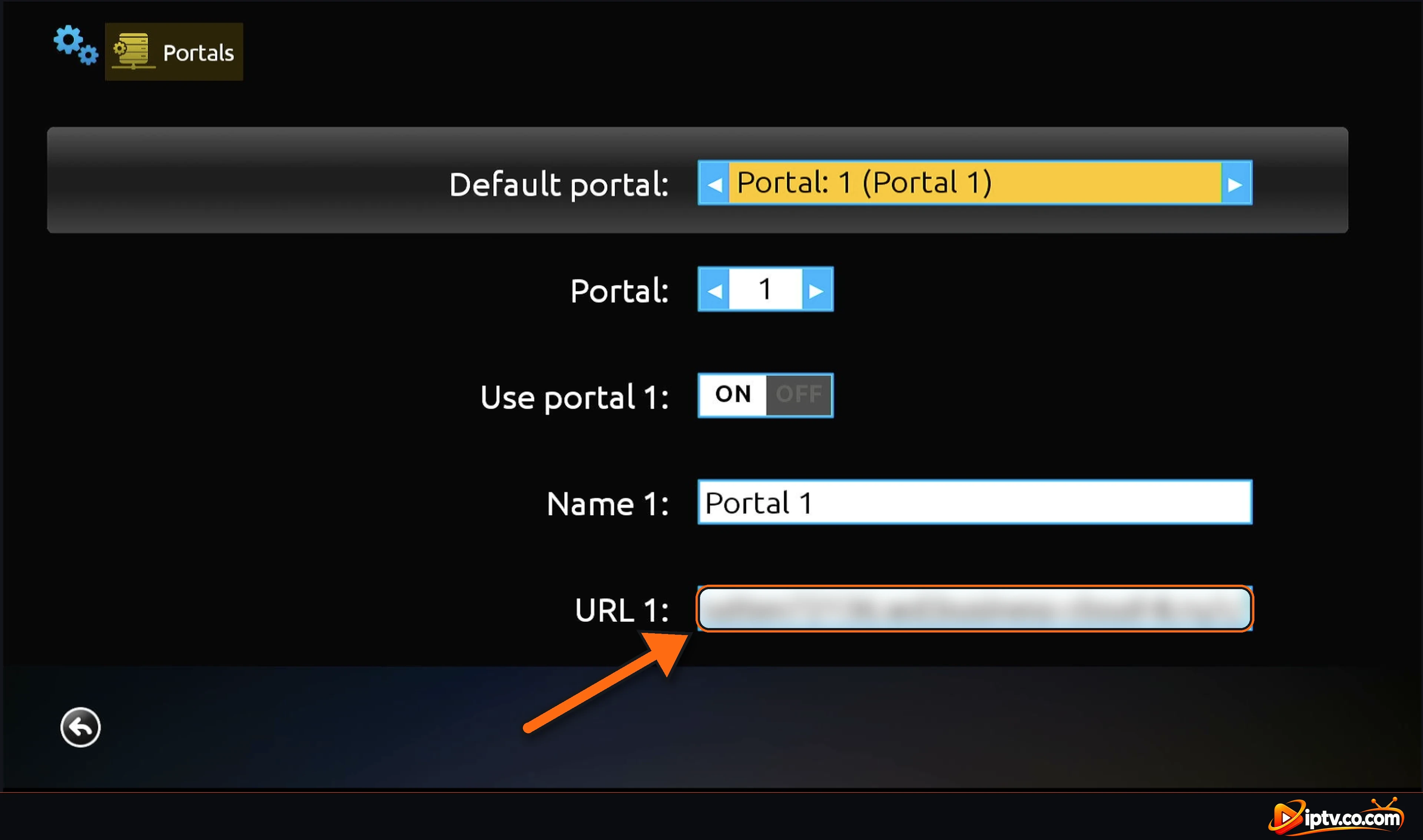
Replace the Portal URL in URL 1
Select URL 1, delete the old address and type the new portal URL exactly as your provider sent it. Check that Use portal 1 is ON and that Default portal is your portal. Then go back and select Restart portal.
Type the new portal URL in URL 1
Why Your Portal Stops Working: Blocked by Your Internet Provider
Sometimes your internet provider blocks the portal address. The portal worked yesterday and suddenly shows an error or loads nothing. In that case, only your IPTV provider can help: ask them for a new portal URL, add it in URL 1 and restart the portal.
Still Not Working? Remove the Countries You Don’t Watch
Important: Smart STB Can’t Load All Country Bouquets
If you tried everything and Smart STB still doesn’t load, the portal is probably too big. Smart STB can’t load the bouquets of every country at once. Contact your IPTV provider and ask them to delete the bouquets of the countries you don’t want: for example, keep only USA + Canada + UK and remove the others. Then restart the portal.
Change the Emulated MAG Model
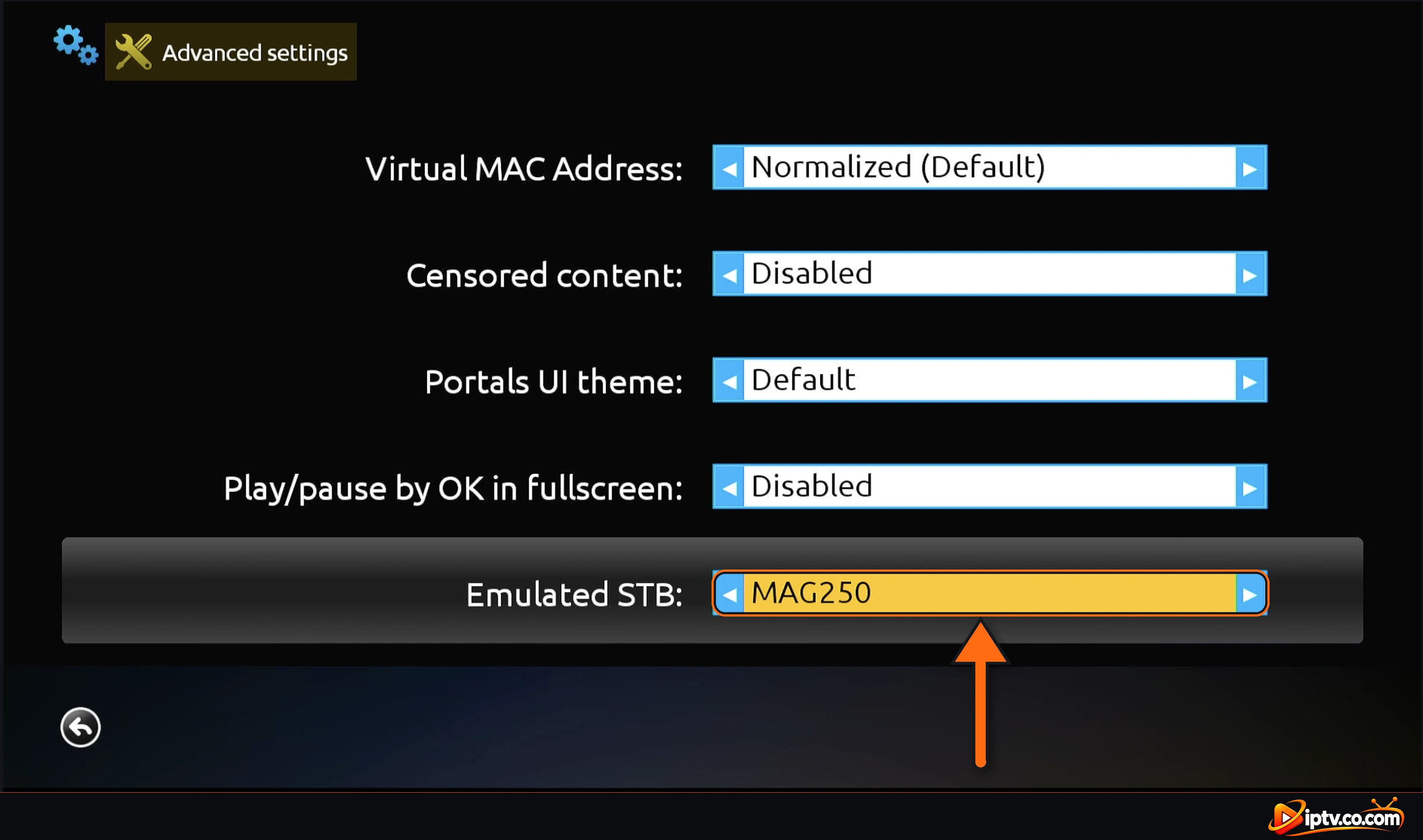
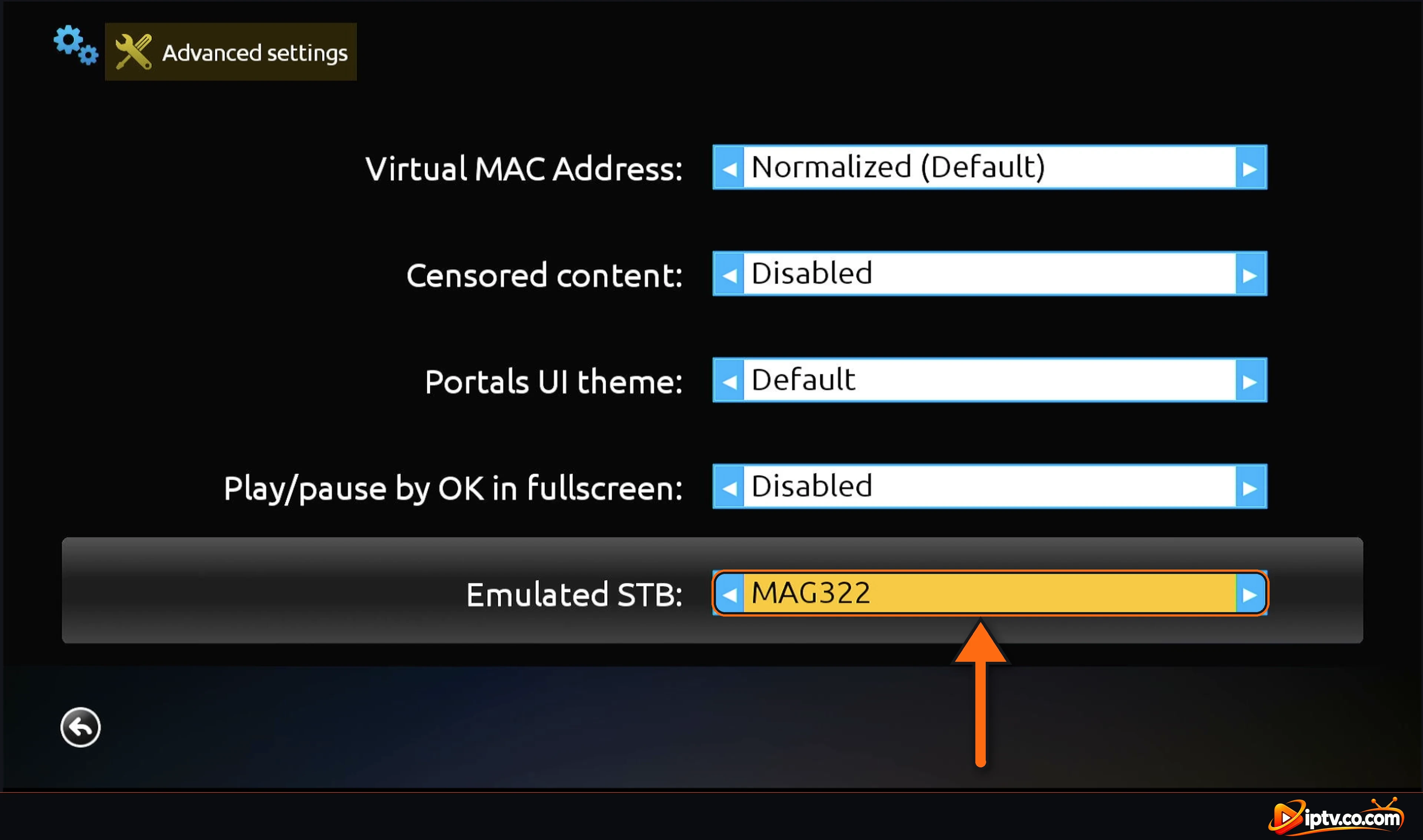
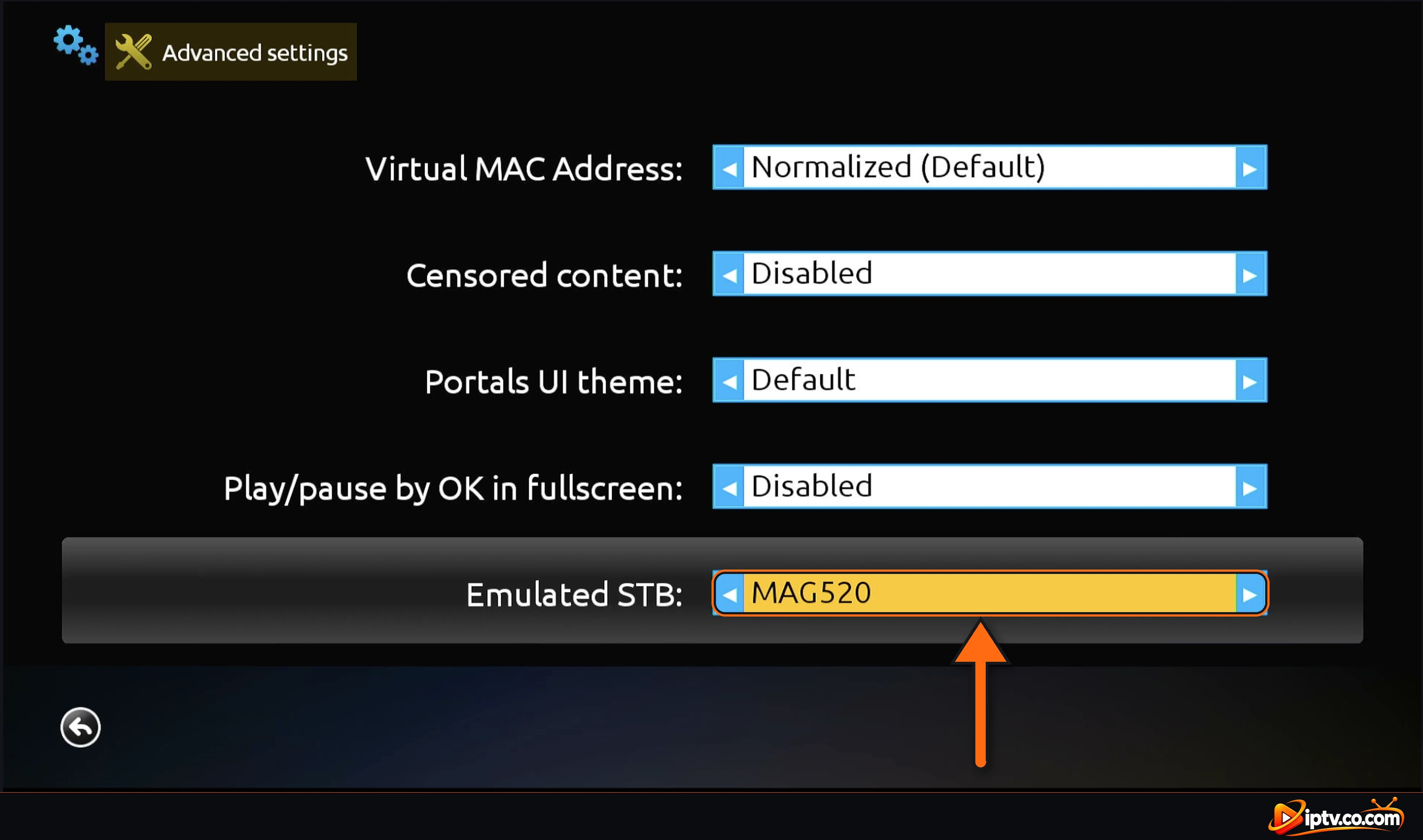
Some portals only work with a specific MAG box model. In System settings, open Advanced settings and change Emulated STB with the left and right arrows: try MAG250, MAG322 or MAG520, or ask your provider which model they support. Restart the portal after each change.
Emulated STB set to MAG250 in Smart STB Advanced settings
Emulated STB set to MAG322
Emulated STB set to MAG520
Smart STB Not Working With a VPN
Many IPTV portals block VPN IP addresses. If Smart STB stops working when your VPN is on, ask your IPTV provider for their VPN portal URL (it usually starts with vpn), add it in URL 1 and restart the portal.
Smart STB Stopped Working After 7 Days
Every device gets a free 7-day trial of the app. When it ends, Smart STB stops until you activate it from STB Settings > Activation. Check the end date in Subscription on the home screen.
If nothing works, uninstall Smart STB, restart your device and install Smart STB again. Your virtual MAC stays the same on the same device, so your provider doesn’t need to change anything. Add your portal URL again and restart the portal.
The most common causes are an IP or internet problem, a portal that has changed or is blocked, a portal with too many country bouquets, or an expired trial. Restart your internet, reboot the app and restart the portal first.


One Response