
Quick Summary
To activate SmartOne IPTV with your playlist: open Settings > Info on your TV and note the MAC address. On the SmartOne website, open Add Playlist, choose M3u Playlist or Xtream Server Info, enter the MAC and your IPTV login details, then select Add Playlist. Back on the TV, select Reload to load your channels, movies and series.
Good to Know: SmartOne Has No Channels
SmartOne IPTV is a video player only. It doesn’t provide any channels, playlists or subscriptions. Your M3U URL or Xtream Codes come from your IPTV provider.
After you install SmartOne IPTV on your Samsung, LG or Android TV, the app is empty. Unlike most IPTV players, you don’t type your playlist on the TV: SmartOne links playlists to your TV’s MAC address, and you add them on the SmartOne website from a phone or computer. This guide shows how to activate SmartOne IPTV with an M3U playlist or Xtream Codes step by step.
What You Need Before You Start
- SmartOne IPTV installed on your TV. See how to install SmartOne IPTV.
- Your IPTV login details from your provider: an M3U URL or Xtream Codes (server URL, username and password). The EPG URL (TV guide) is optional and usually comes with the same login details.
- A phone or computer with a web browser to open the SmartOne website.
Step 1: Find Your SmartOne MAC Address
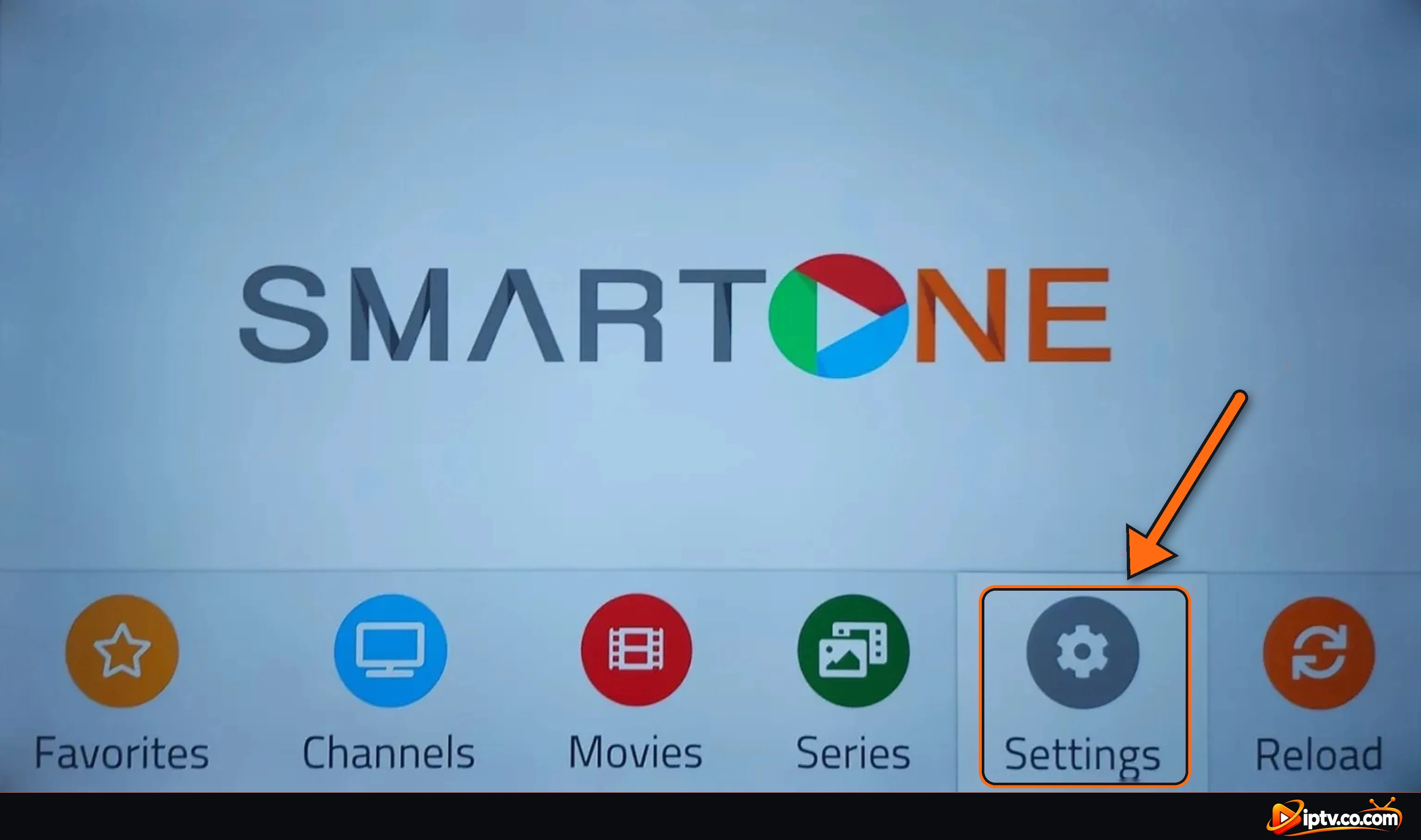
Open Settings
Open SmartOne IPTV on your TV and select Settings (the gear icon) in the bottom menu.
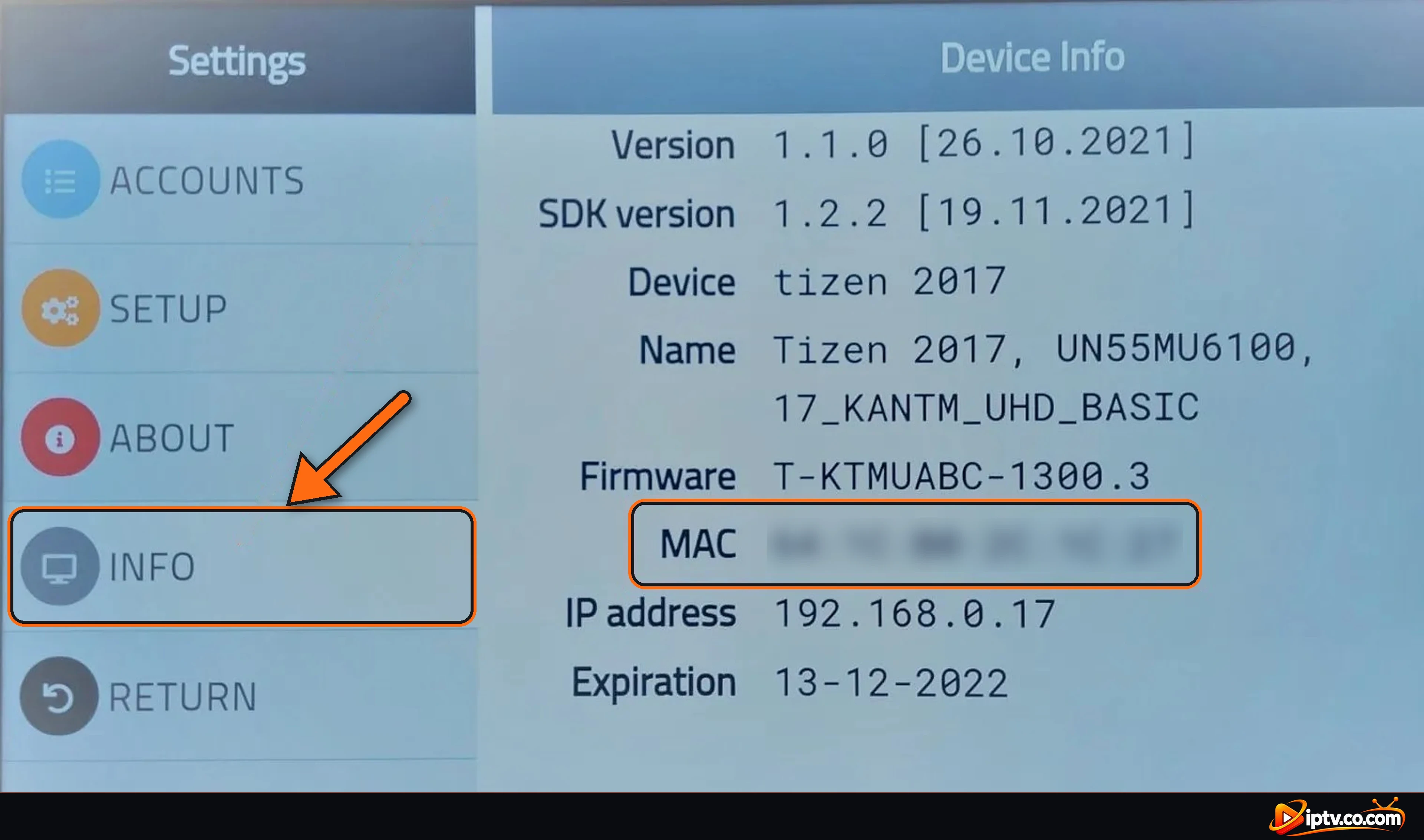
Select Info and Write Down the MAC
In Settings, select INFO. The Device Info screen shows your MAC address (six pairs of letters and numbers, for example 64:1C:XX:XX:XX:XX) and the Expiration date of your SmartOne license. Write the MAC down exactly as shown.
Step 2: Open the SmartOne Add Playlist Page
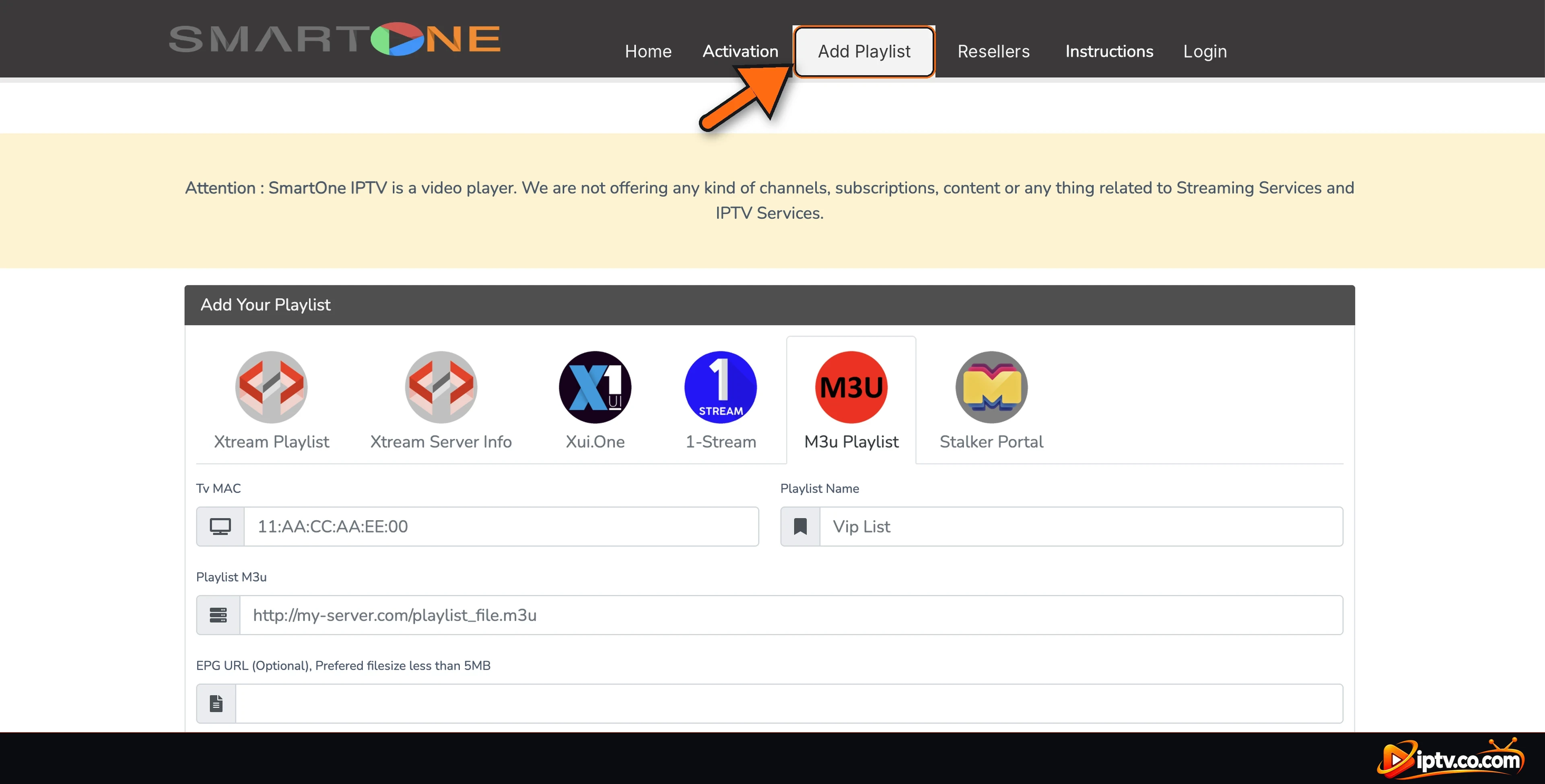
On your phone or computer, open the SmartOne IPTV website in your browser:
https://smartone-iptv.comSelect Add Playlist in the top menu. The page shows the form Add Your Playlist with six tabs: Xtream Playlist, Xtream Server Info, Xui.One, 1-Stream, M3u Playlist and Stalker Portal.
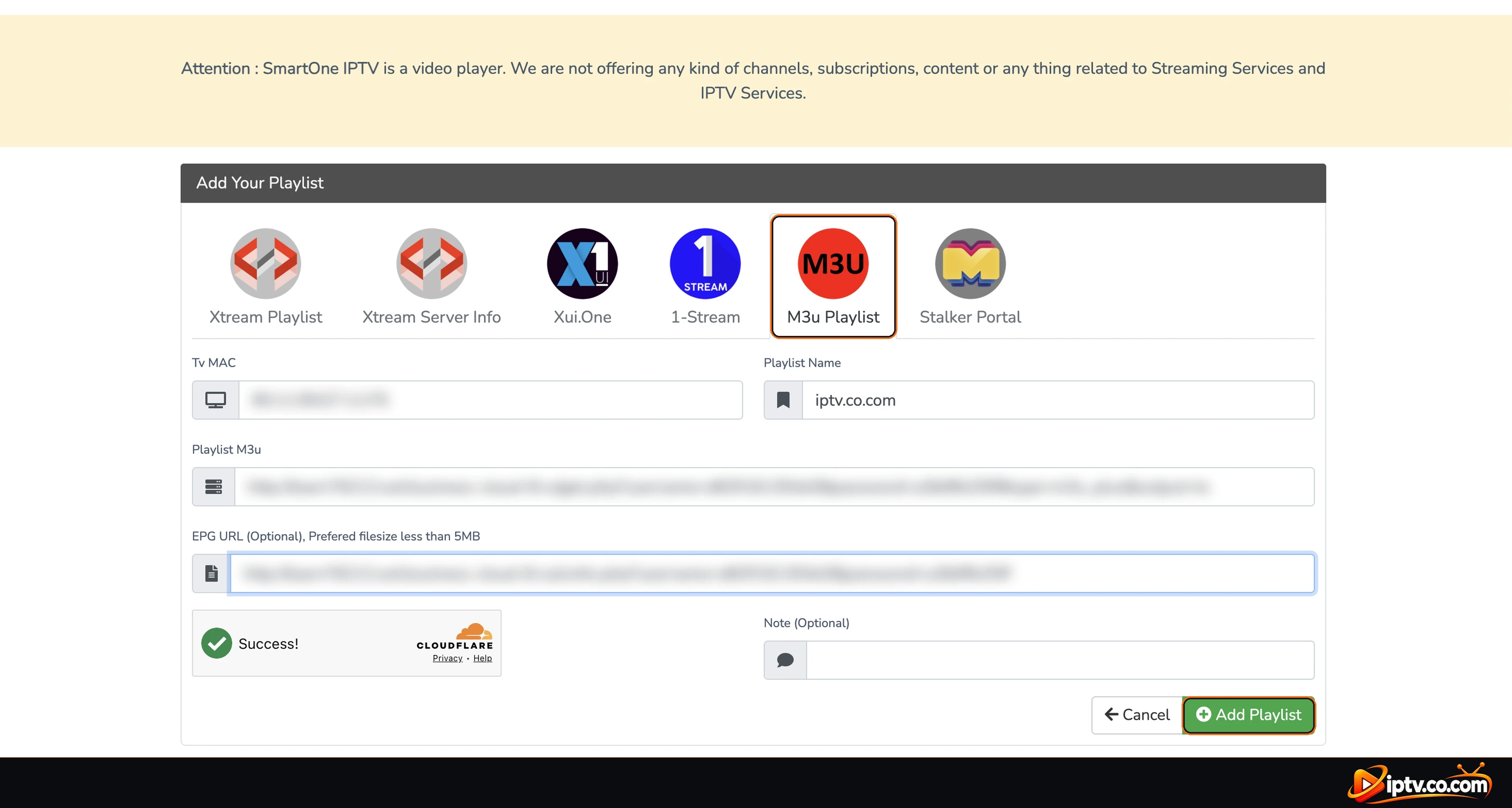
Method 1: Activate SmartOne With an M3U Playlist
- Select the M3u Playlist tab.
- Tv MAC: type the MAC address from your TV, with the colons.
- Playlist Name: any name you like, for example My IPTV.
- Playlist M3u: paste the full M3U URL from your IPTV provider.
- EPG URL (optional): paste the EPG link from your provider to get the TV guide.
- Complete the security check, then select Add Playlist.
Example: M3U URL Format
An M3U link from your provider usually looks like this (your server, username and password will be different):
http://example-server.com/get.php?username=XXXX&password=XXXX&type=m3u_plus&output=tsMethod 2: Activate SmartOne With Xtream Codes
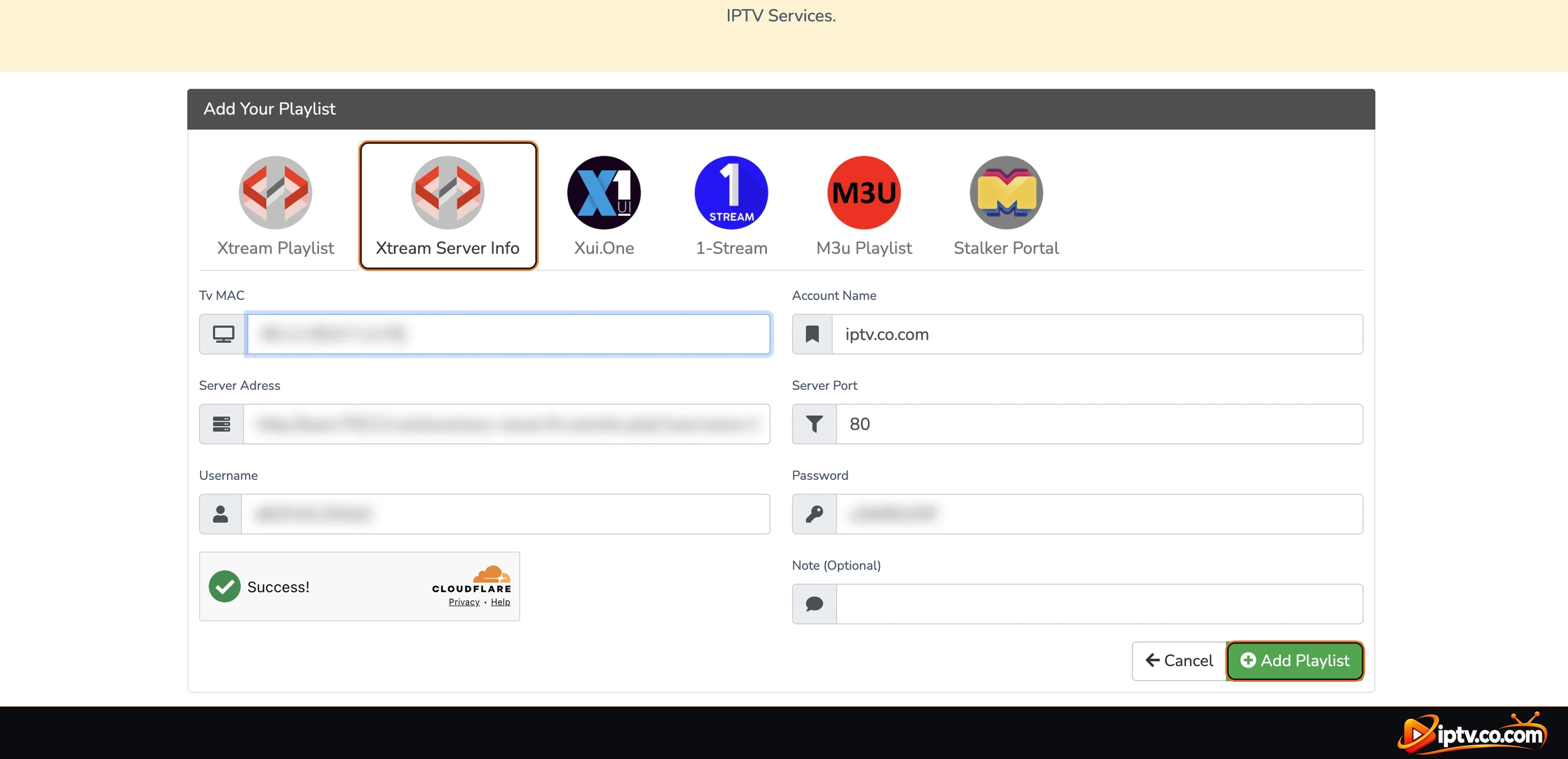
- Select the Xtream Server Info tab.
- Tv MAC: type the MAC address from your TV.
- Account Name: any name you like.
- Server Adress: the server URL from your provider (for example
http://example-server.com), without username or password. - Server Port: the port from your provider, often 80. If your server URL already ends with a port like
:8080, use that number. - Username and Password: exactly as your provider sent them.
- Complete the security check, then select Add Playlist.
Step 3: Reload SmartOne on Your TV
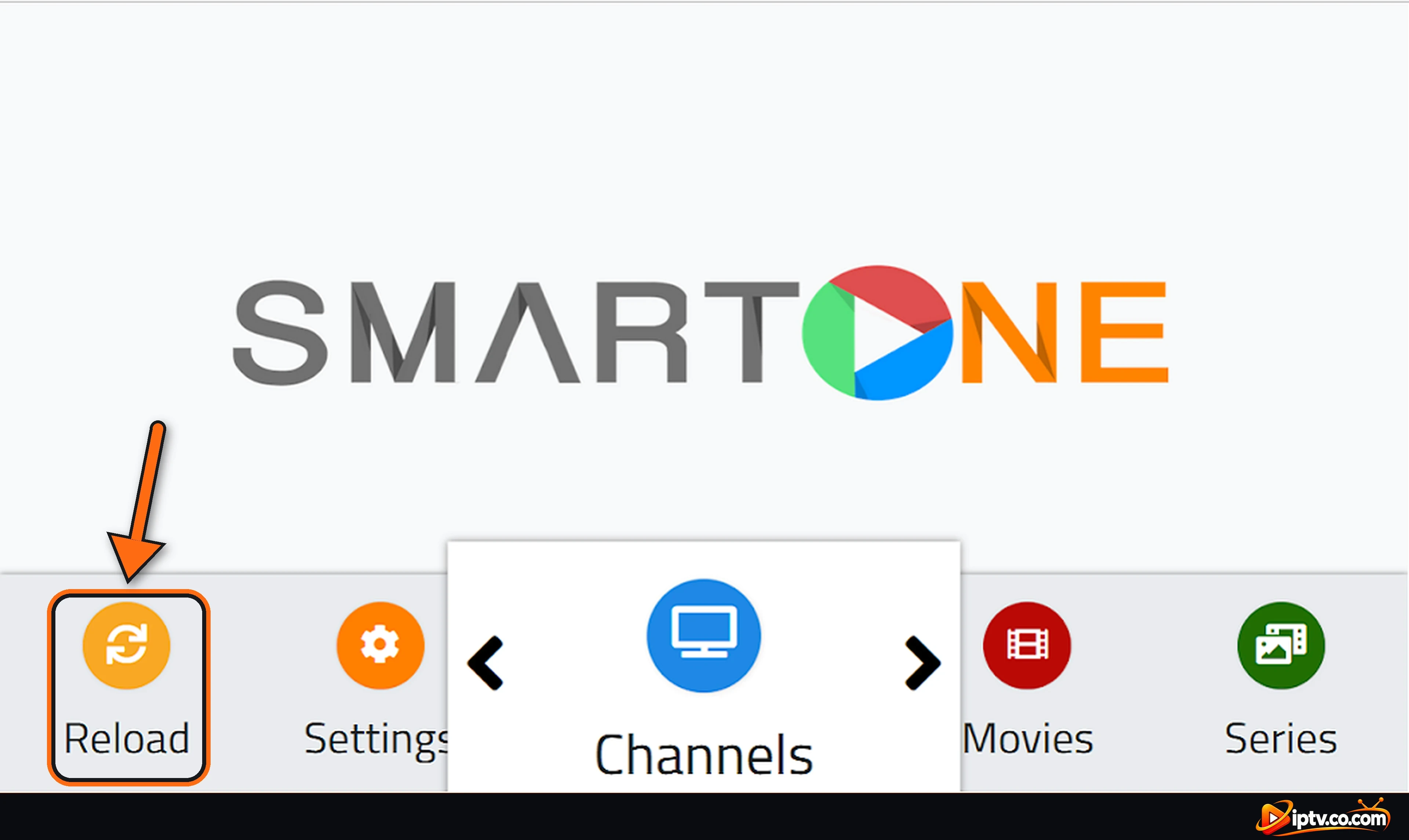
Go back to your TV, open SmartOne IPTV and select Reload in the bottom menu (or close and reopen the app). Your playlist loads and Channels, Movies and Series fill up with your content.
SmartOne Free Trial and Activation
SmartOne IPTV starts with a 15-day free trial. You can check when it ends in Settings > Info > Expiration. After the trial, the app needs a license to keep playing. The license is linked to your TV’s MAC address: buy it on the Activation page of the SmartOne website using the same MAC: 1 year for €2.50 or Lifetime for €12.99. See the full SmartOne IPTV subscription guide.
SmartOne Playlist Not Working? Quick Fixes
- Nothing changes after adding the playlist: select Reload, or close and reopen SmartOne. Restart the TV if needed.
- “Invalid MAC” or the playlist goes to the wrong TV: check every character of the MAC in Settings > Info. Use colons and don’t mix up 0 (zero) and O, or 1 and I.
- Playlist loads but channels don’t play: your IPTV subscription may be expired or the login details wrong. Check them with your provider.
- Xtream Codes don’t work: enter only the server URL in Server Adress (not the full M3U link), and check the port.
- No TV guide: add the EPG URL from your provider, then Reload.
- License expired: check Settings > Info > Expiration and activate SmartOne with your MAC.
Using a VPN? Use Your Provider’s VPN DNS
If SmartOne stops working when your VPN is on, replace the server in your playlist with your provider’s VPN DNS. It always comes with your IPTV login details and always starts with vpn. If your provider didn’t send one, contact them and ask for it.
Example: VPN DNS for Xtream Codes and M3U
Xtream Codes: put the VPN DNS in Server Adress:
http://vpn.dream-4k.coM3U: replace the server at the start of your M3U URL with the VPN DNS:
http://vpn.dream-4k.co/get.php?username=XXXX&password=XXXX&type=m3u_plus&output=tsFrequently Asked Questions
How do I activate SmartOne IPTV?
Find the MAC address in Settings > Info on your TV, open the SmartOne website, select Add Playlist, choose M3u Playlist or Xtream Server Info, enter the MAC and your login details, select Add Playlist, then select Reload on the TV.
Where do I find the SmartOne MAC address?
Open SmartOne on your TV, select Settings, then INFO. The MAC address is shown on the Device Info screen.
Can I add my playlist directly on the TV?
No. SmartOne playlists are added on the SmartOne website using your TV’s MAC address. You only select Reload on the TV.
Should I use M3U or Xtream Codes in SmartOne?
Both work. Xtream Codes usually load faster and organize movies and series better. Use whichever your provider sent you.
What port should I use for Xtream Codes in SmartOne?
Use the port from your provider. It is often 80. If your server URL ends with a port such as :8080, enter that number.
Is the EPG URL required?
No, it is optional. Add it if you want the TV guide. Your provider sends it with your login details.
I added the playlist but SmartOne is still empty. What should I do?
Select Reload or restart the app. Also check that the MAC on the website matches Settings > Info exactly.
Is SmartOne IPTV free?
It starts with a 15-day free trial. After the expiration date shown in Settings > Info, you need to activate a license with your MAC address.
Does SmartOne IPTV provide channels?
No. SmartOne is only a video player. Channels come from your IPTV provider’s playlist.
SmartOne doesn’t work with my VPN. How do I fix it?
Replace the server in your Xtream Codes or M3U URL with your provider’s VPN DNS, which starts with vpn, for example http://vpn.dream-4k.co.
SmartOne IPTV is activated. Something not working? See SmartOne IPTV not working: easy fixes. Haven’t installed it yet? See how to install SmartOne IPTV on Samsung, LG and Android TV, or browse all SmartOne IPTV guides.
One Response