How to Install GSE Smart IPTV on Firestick, Android TV, Android & Mac
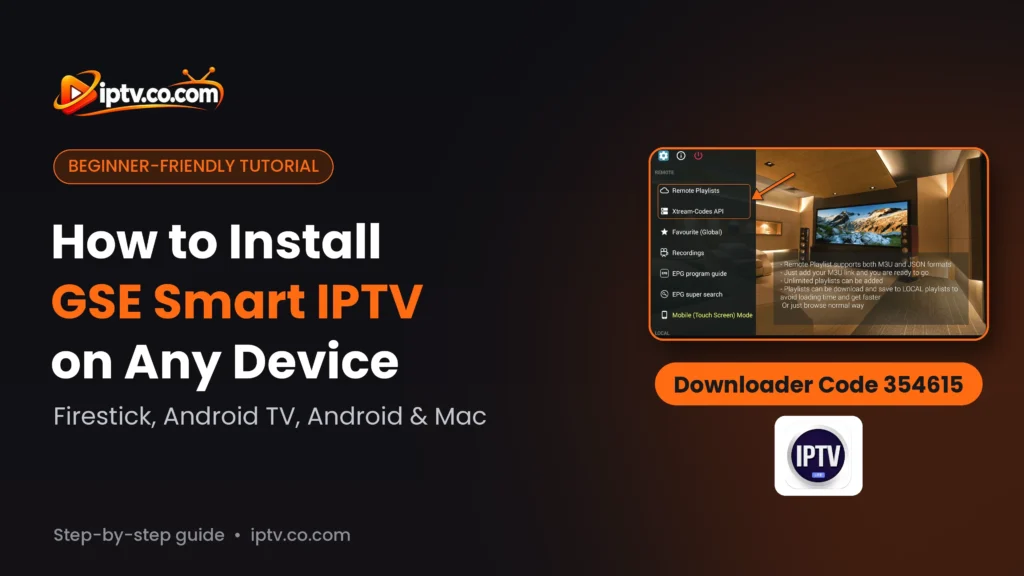
Install GSE Smart IPTV step by step: Firestick with Downloader code 354615, Android TV and Android phones from Google Play, and Mac. Not available on Samsung, LG, iPhone or Windows.
By IPTV Guide
6 min read
1 Comment
Quick Summary
On Amazon Firestick, install GSE Smart IPTV with the Downloader app and code 354615. On Android TV / Google TV and Android phones and tablets, install it from Google Play. On Mac, get GSE SMART IPTV LITE from the Mac App Store. GSE Smart IPTV is not available on Samsung, LG, Roku, iPhone, iPad or Windows.
Good to Know: GSE Smart IPTV Has No Channels
GSE Smart IPTV is a player only: it uses M3U, JSON and Xtream Codes playlists that you add yourself and does not provide any channels. After installing it, you add your playlist from your IPTV provider.
GSE Smart IPTV (by droidvision) is an advanced IPTV player for M3U and JSON playlists and the Xtream-Codes API, with EPG, favourites and recordings. This guide shows how to install GSE Smart IPTV on each device step by step, and which devices it doesn’t support.
Where Can You Install GSE Smart IPTV?
Device
Available?
How to install
Amazon Firestick / Fire TV
Yes
Downloader app, code 354615
Android TV & Google TV
Yes
Google Play
Android phone & tablet
Yes
Google Play
Mac (macOS)
Yes
Mac App Store (GSE SMART IPTV LITE)
Samsung smart TV
No
Not available
LG smart TV
No
Not available
Roku
No
Not available
iPhone & iPad
No
Not available
Windows PC
No
Not available
How to Install GSE Smart IPTV on Firestick
On Firestick you install GSE Smart IPTV with the free Downloader app. If you don’t have Downloader yet, follow how to install the Downloader app, then go to Settings > My Fire TV > Developer Options > Install unknown apps and turn it ON for Downloader.
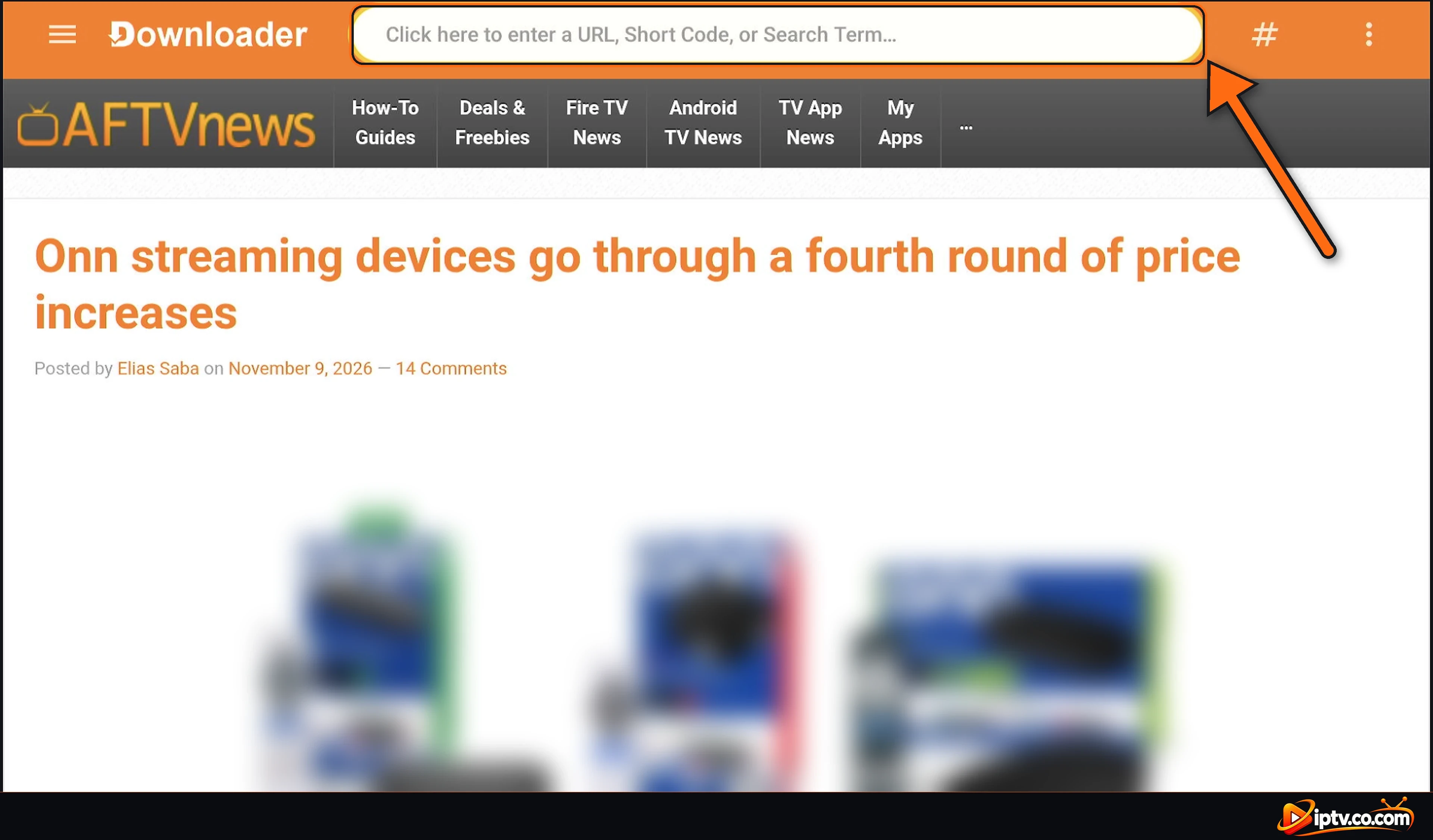
Step 1: Open Downloader and Select the Address Bar
Open Downloader and select the bar at the top: Click here to enter a URL, Short Code, or Search Term.
Open Downloader and select the address bar
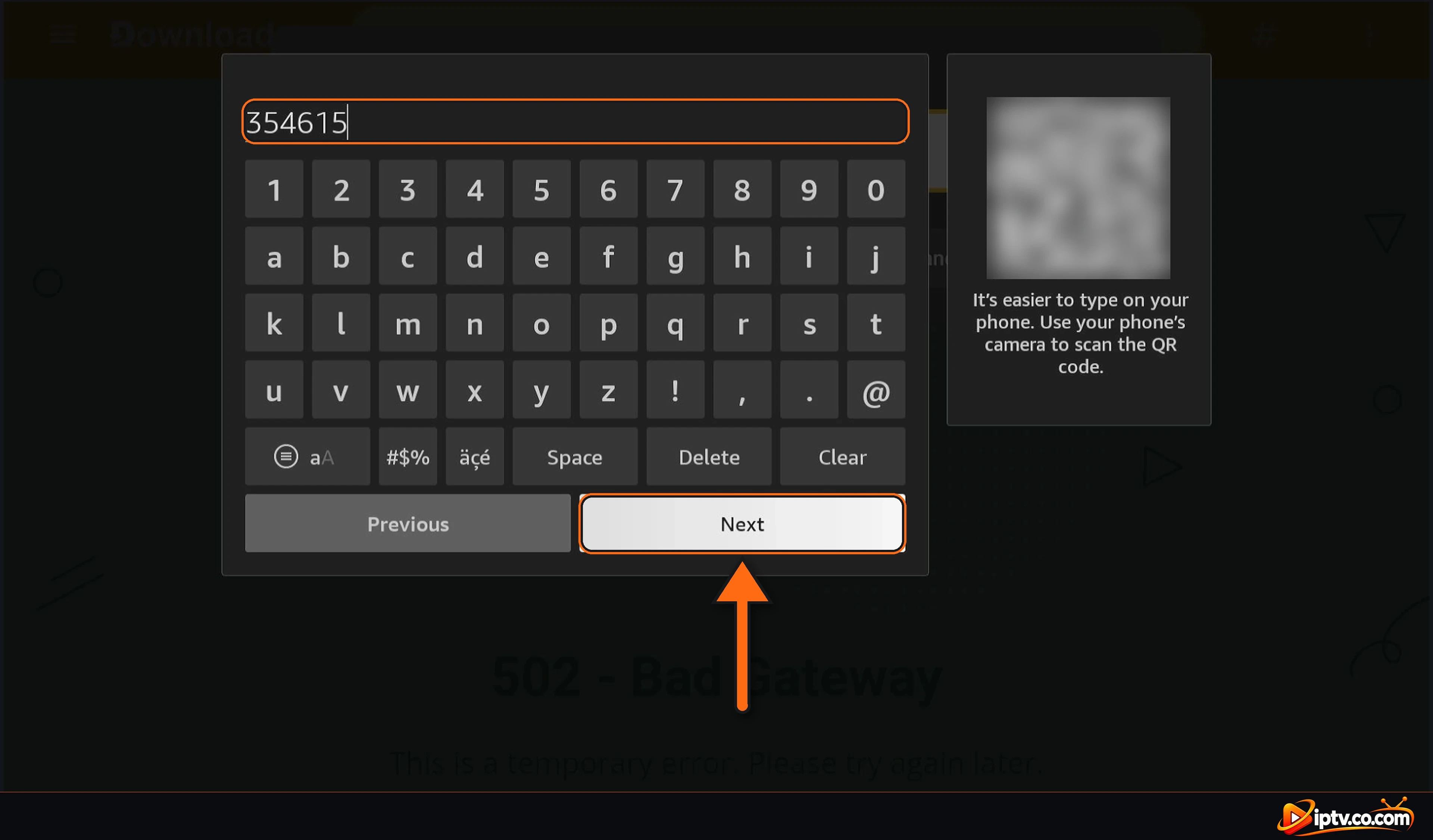
Step 2: Enter Downloader Code 354615
Type the GSE Smart IPTV Downloader code 354615 and select Next.
Enter the GSE Smart IPTV Downloader code 354615 and select Next
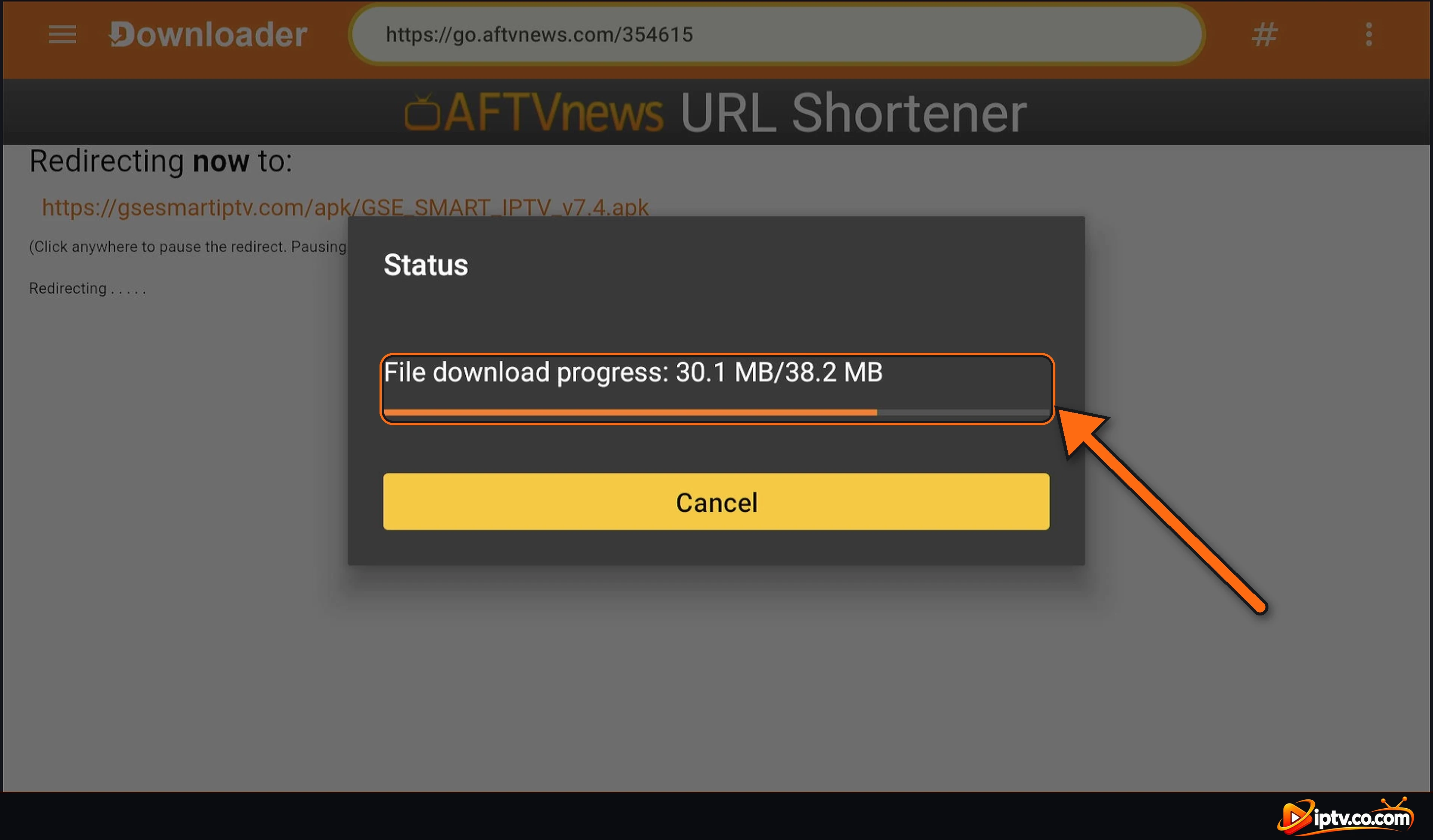
Step 3: Wait While the APK Downloads
Downloader opens the short link and downloads the GSE Smart IPTV APK (about 38 MB). Wait until the download finishes.
The GSE Smart IPTV APK downloads in Downloader
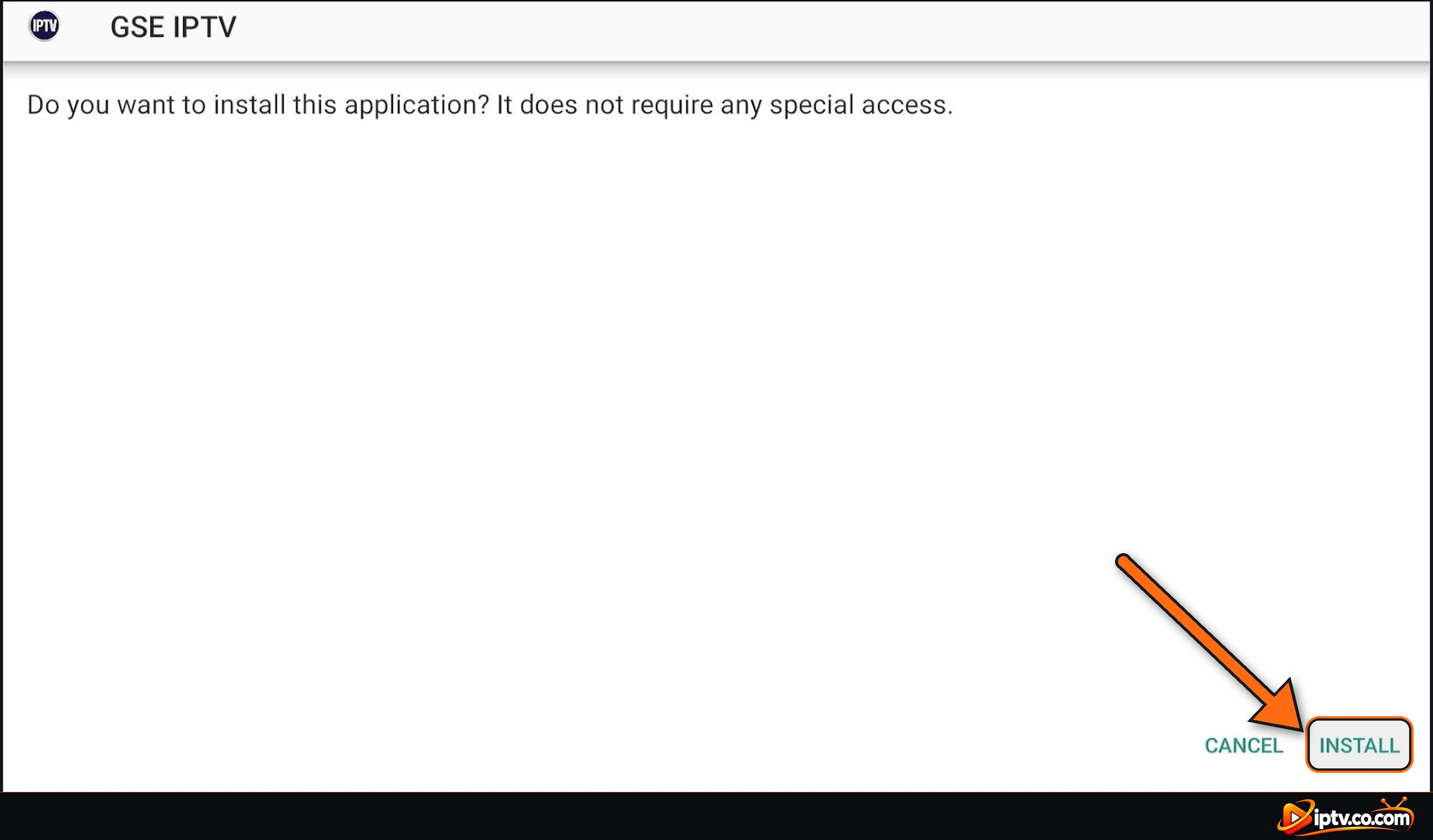
Step 4: Select INSTALL
When the GSE IPTV install screen appears, select INSTALL.
Select INSTALL to install GSE Smart IPTV on Firestick
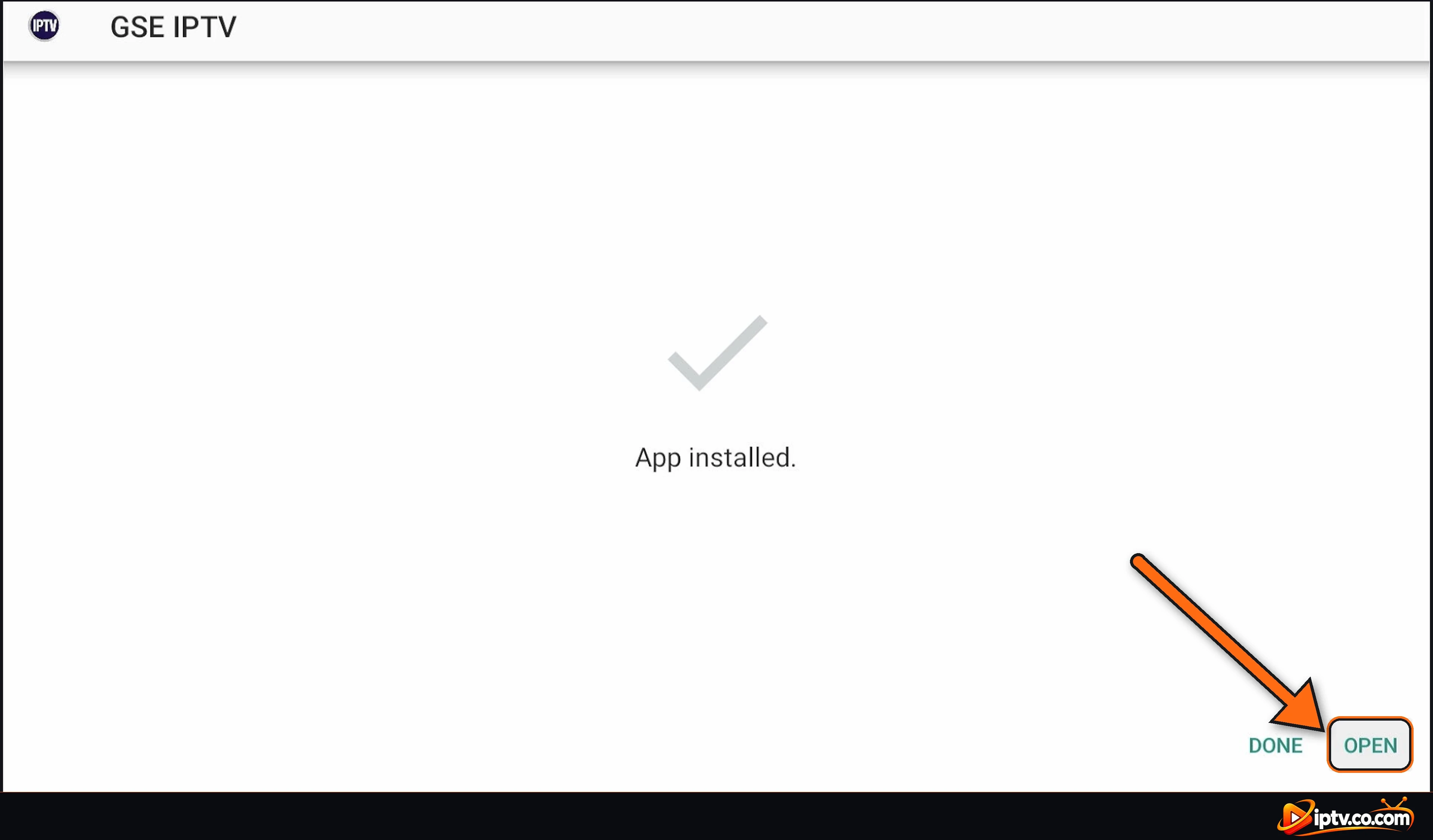
Step 5: Select OPEN
When you see App installed, select OPEN. Back in Downloader, you can choose Delete to remove the APK file and free up space.
GSE Smart IPTV installed: select OPEN
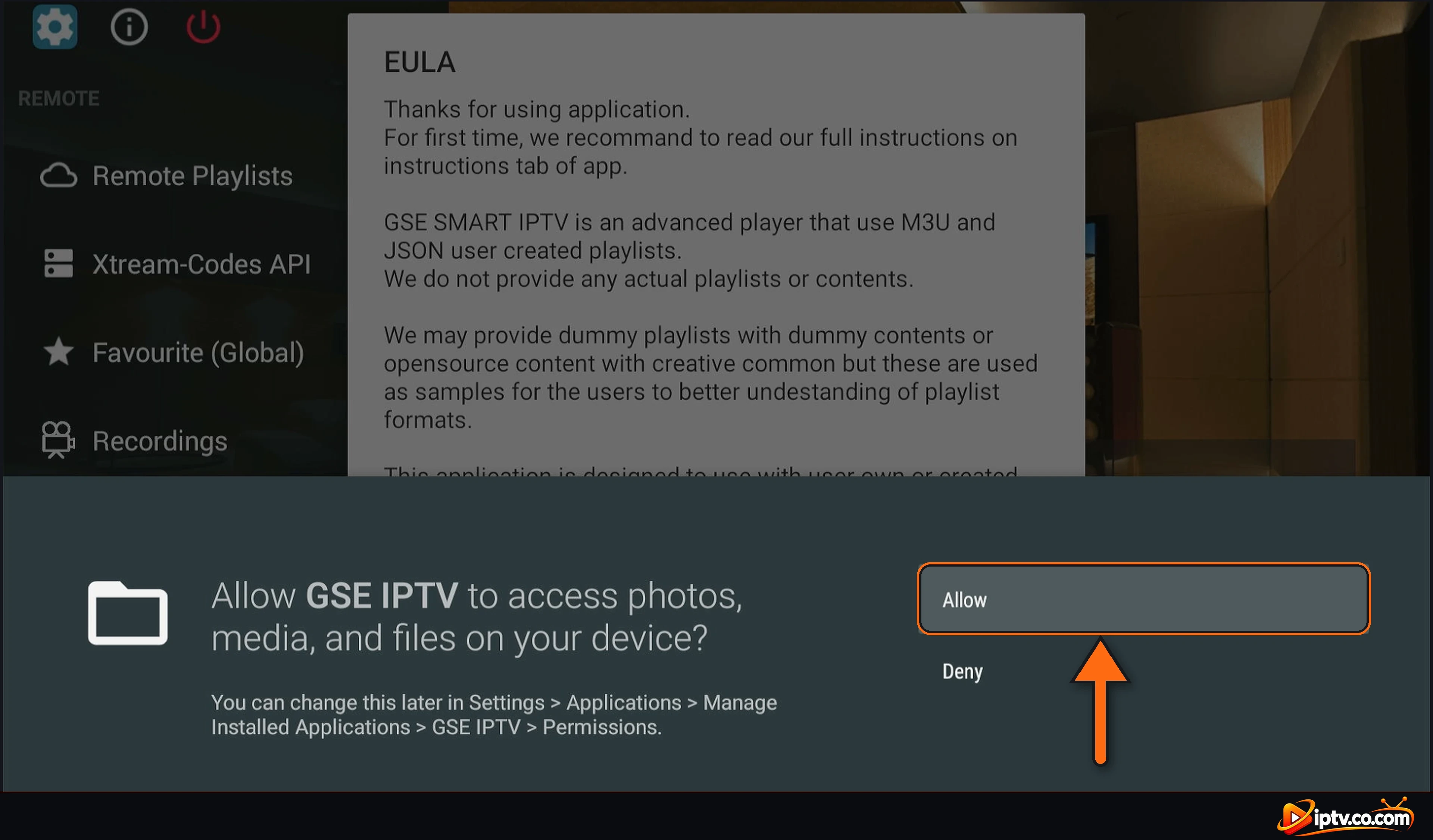
Step 6: Allow Access to Media and Files
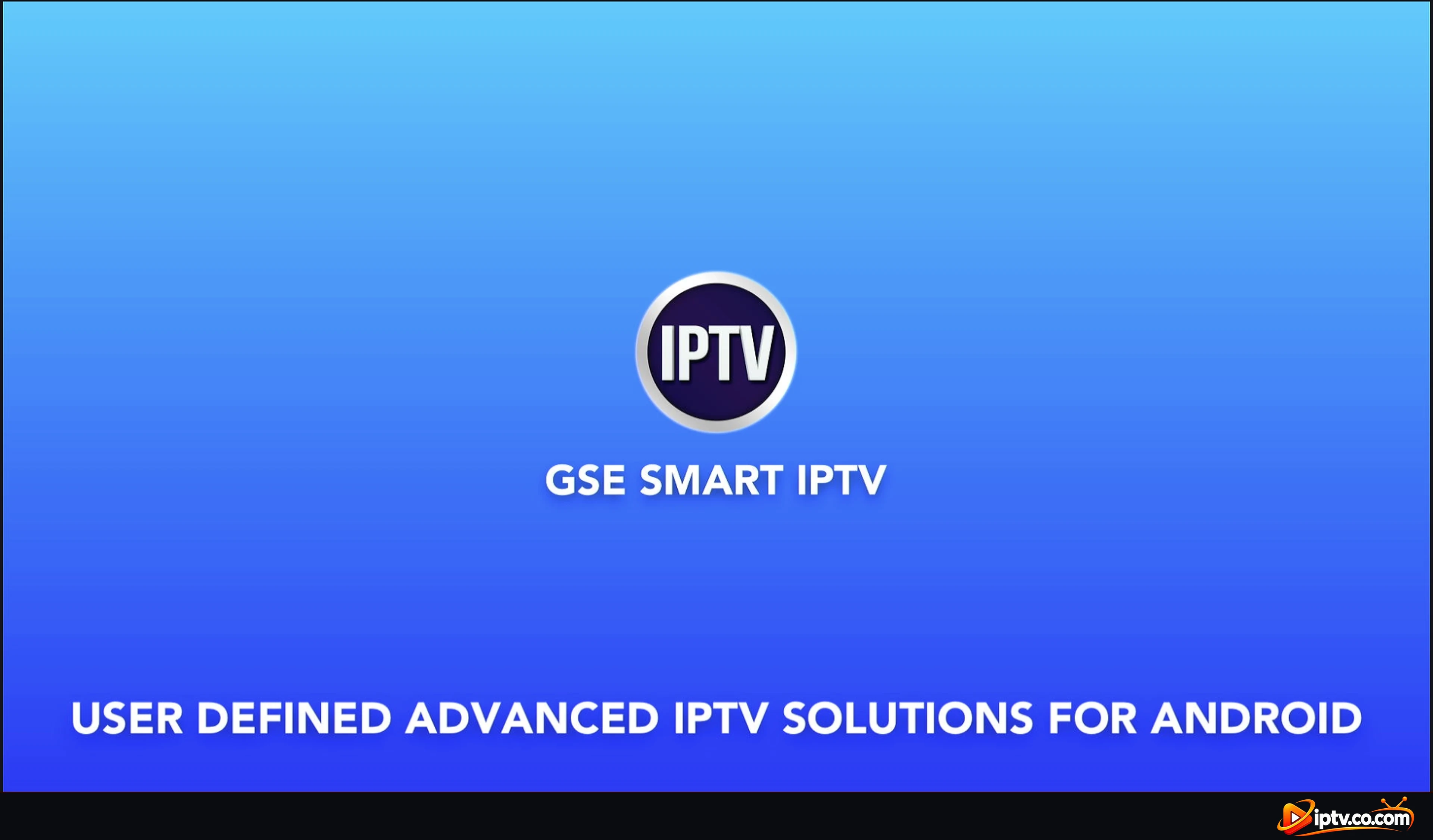
GSE Smart IPTV opens with its splash screen, then asks Allow GSE IPTV to access photos, media, and files on your device? Select Allow. The app needs it to save playlists and recordings.
GSE Smart IPTV splash screen
Select Allow to let GSE IPTV access media and files
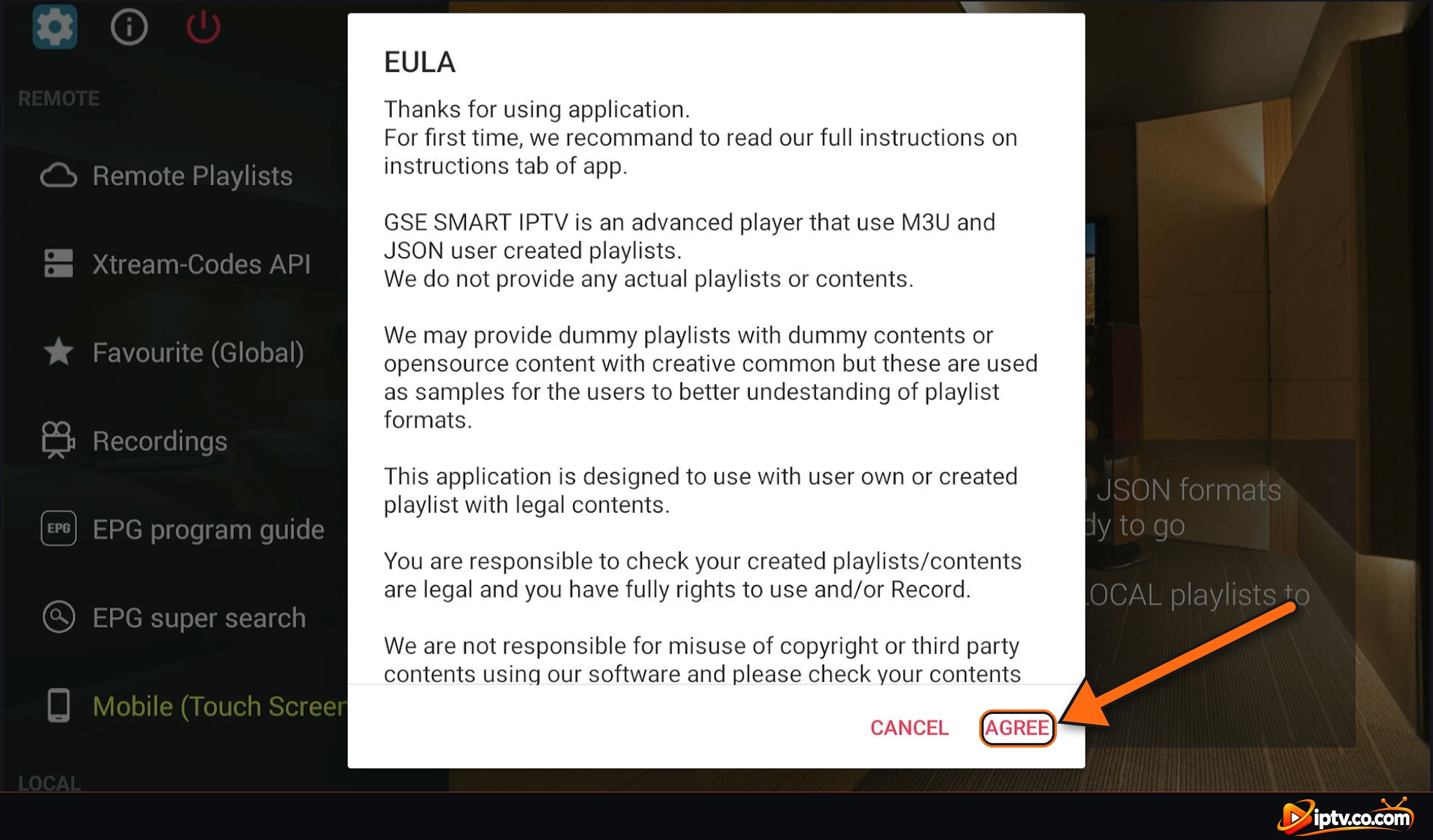
Step 7: Select AGREE on the EULA
Read the EULA: GSE Smart IPTV is a player for your own M3U and JSON playlists and provides no content. Select AGREE.
Select AGREE on the GSE Smart IPTV EULA
Step 8: GSE Smart IPTV Is Ready
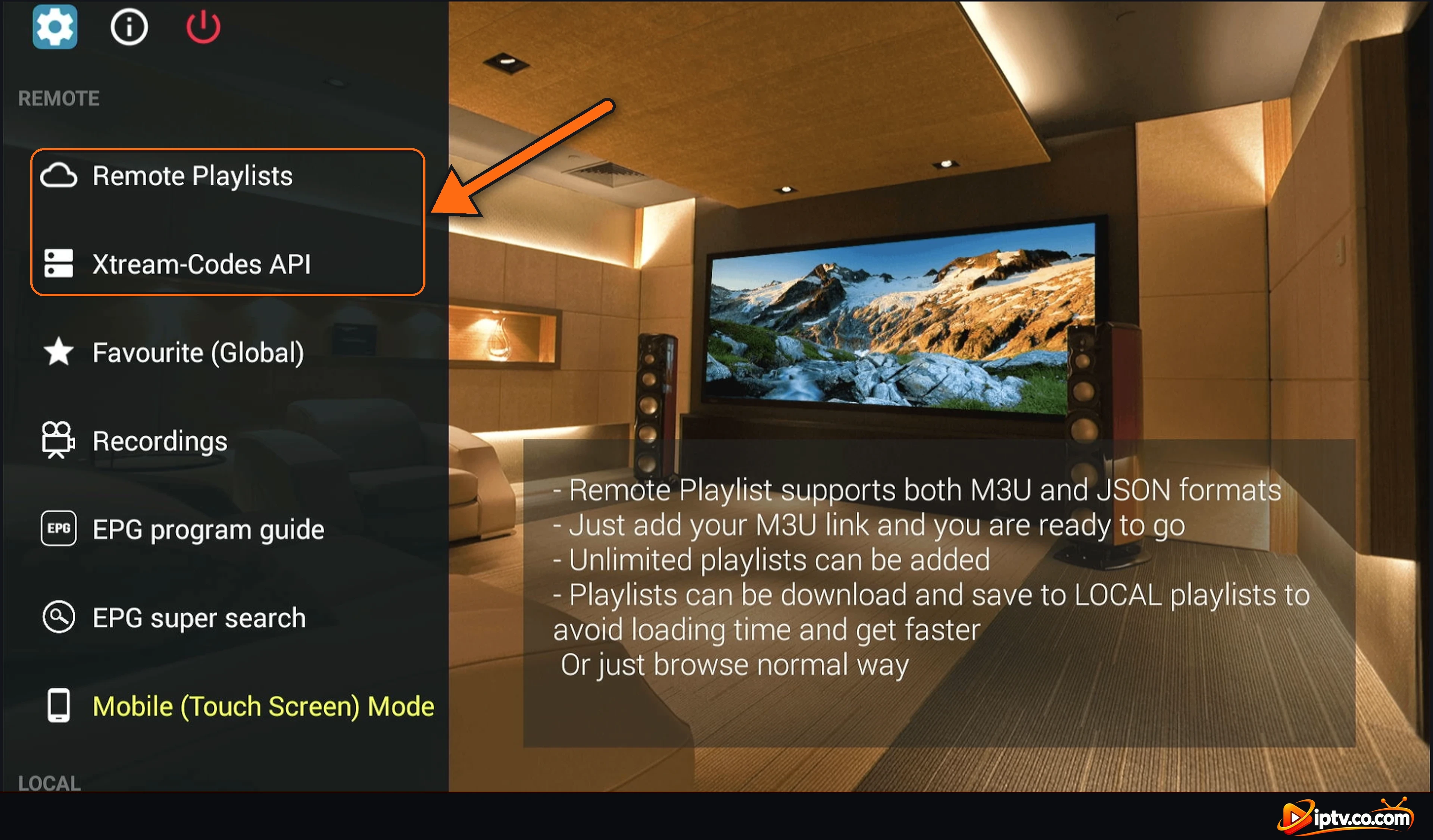
The home screen opens. Use Remote Playlists to add an M3U link, or Xtream-Codes API to log in with your Xtream Codes from your IPTV provider.
GSE Smart IPTV home screen with Remote Playlists and Xtream-Codes API
How to Install GSE Smart IPTV on Android TV and Google TV
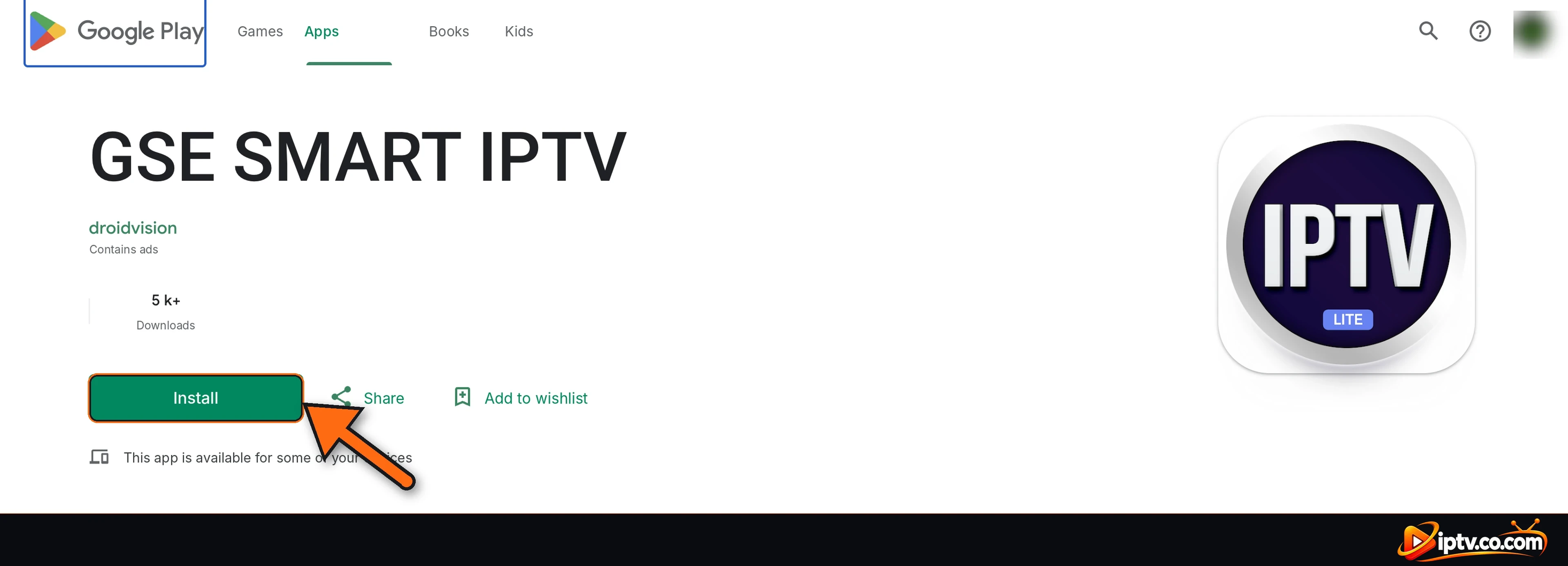
Open the Google Play Store on your Android TV or Google TV (Sony, TCL, Philips, Hisense, Xiaomi Mi Box, NVIDIA Shield, Chromecast with Google TV).
Search for GSE SMART IPTV (by droidvision).
Select Install, then Open.
You can also install it from the Google Play website on your computer and send it to your TV. The first launch is the same as on Firestick: Allow, then AGREE. If it isn’t listed for your TV, use the Downloader app with code 354615.
GSE SMART IPTV by droidvision on Google Play: select Install
How to Install GSE Smart IPTV on Android Phone and Tablet
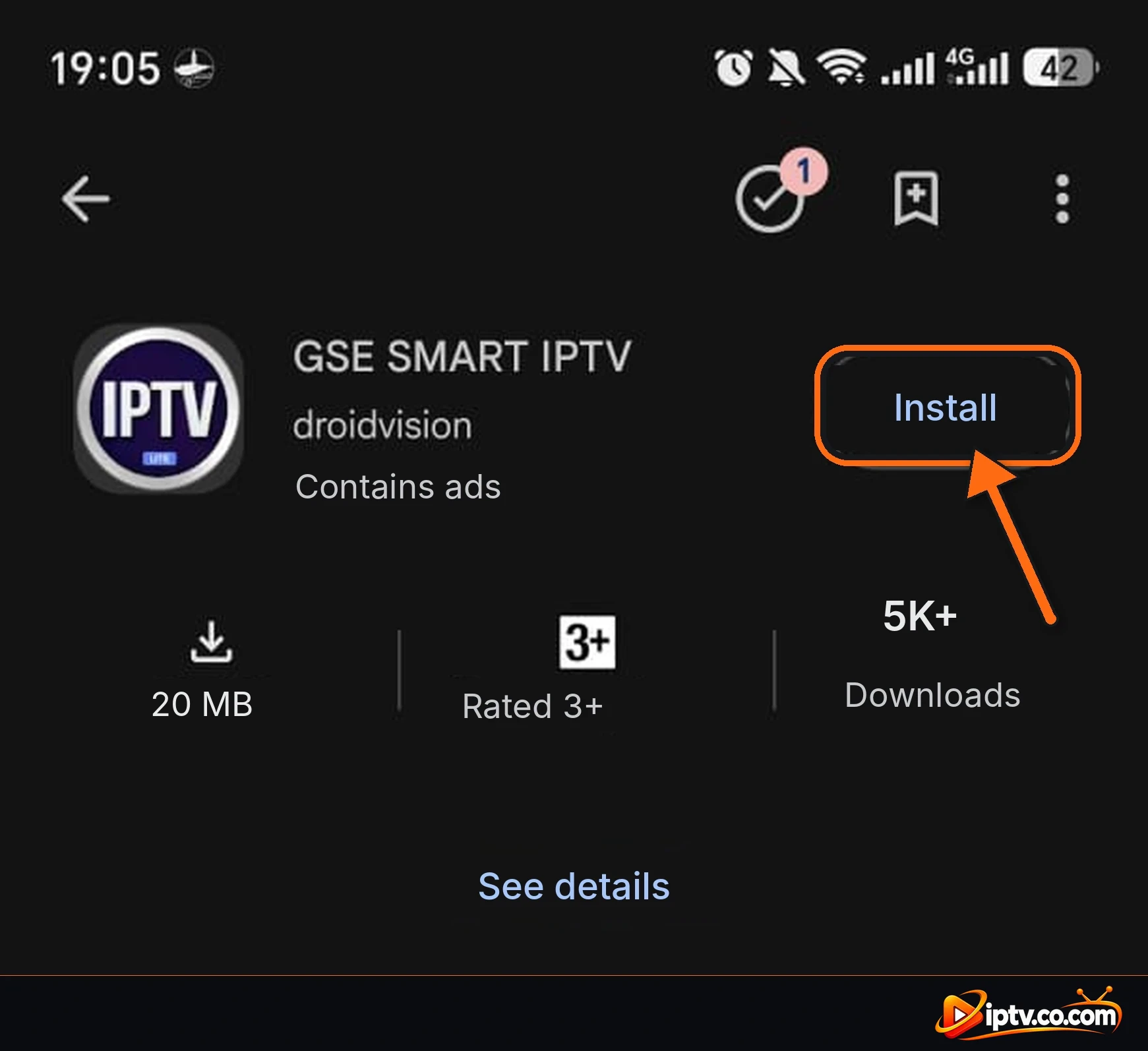
Open the Google Play Store on your phone or tablet.
Search for GSE SMART IPTV (by droidvision, about 20 MB).
Tap Install, then Open.
Install GSE SMART IPTV from Google Play on Android
How to Install GSE Smart IPTV on Mac
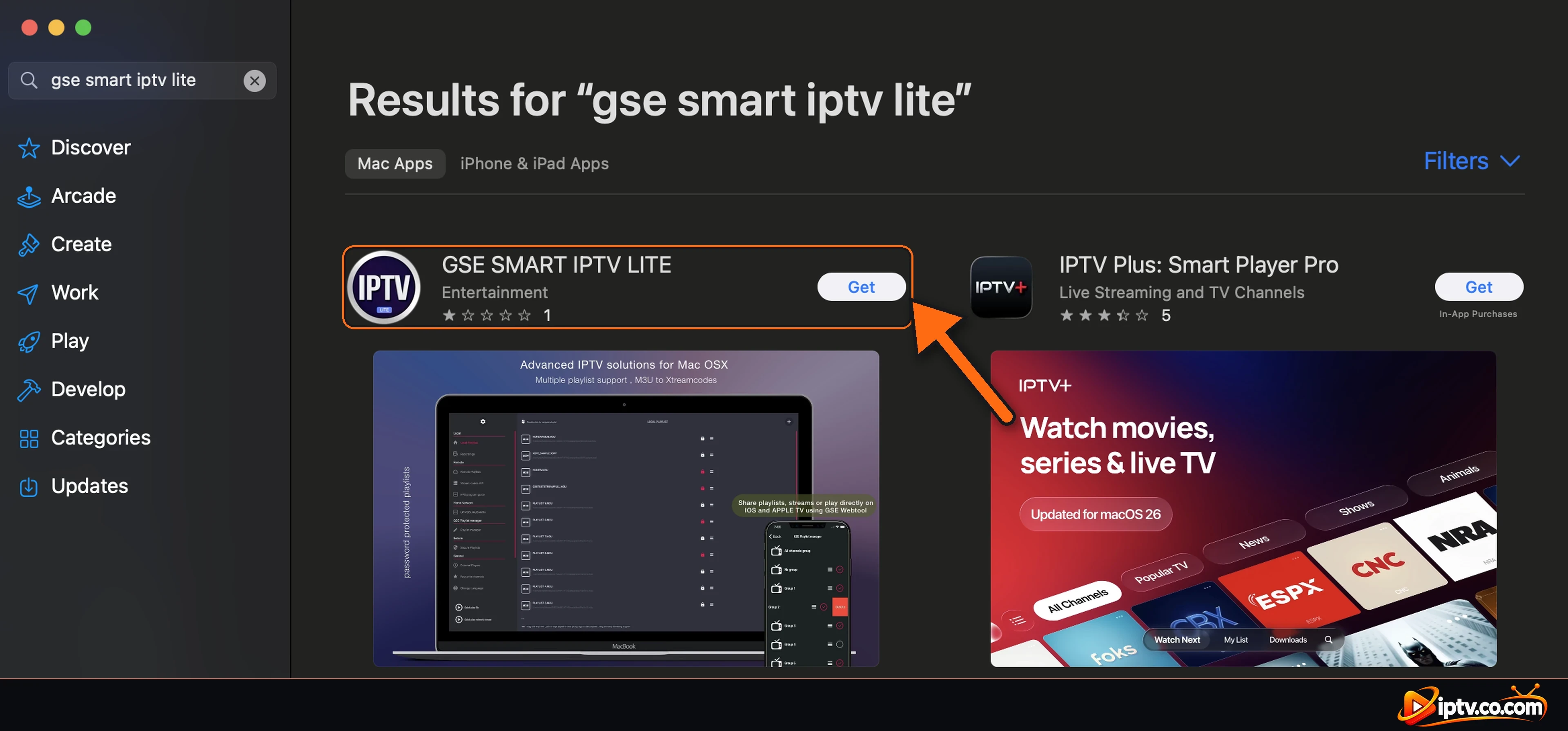
Open the App Store on your Mac and search for GSE SMART IPTV LITE. Select Get, then Install, and open it from Launchpad or the Applications folder.
GSE SMART IPTV LITE in the Mac App Store: select Get
GSE Smart IPTV on Samsung, LG, Roku, iPhone, iPad and Windows: Not Available
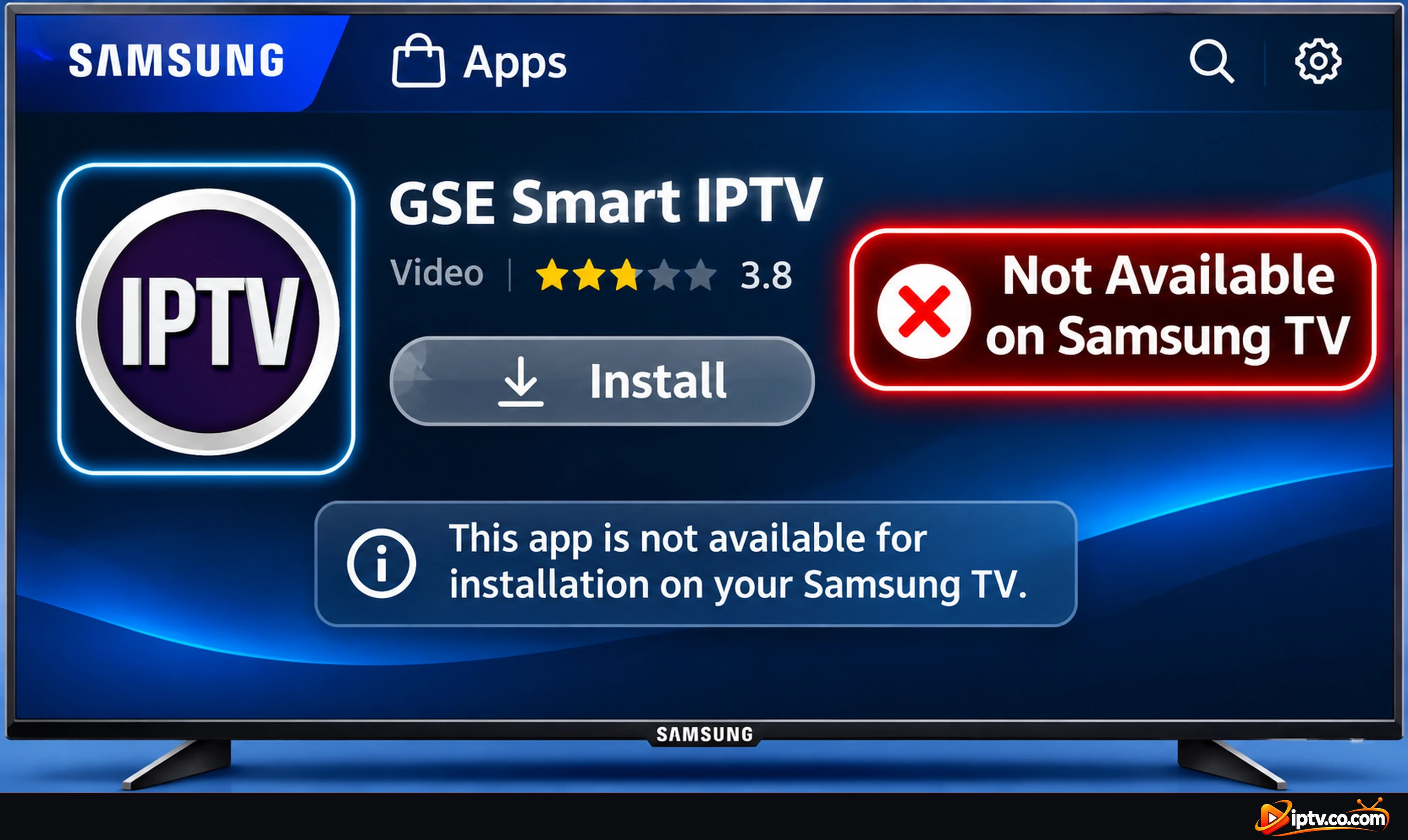
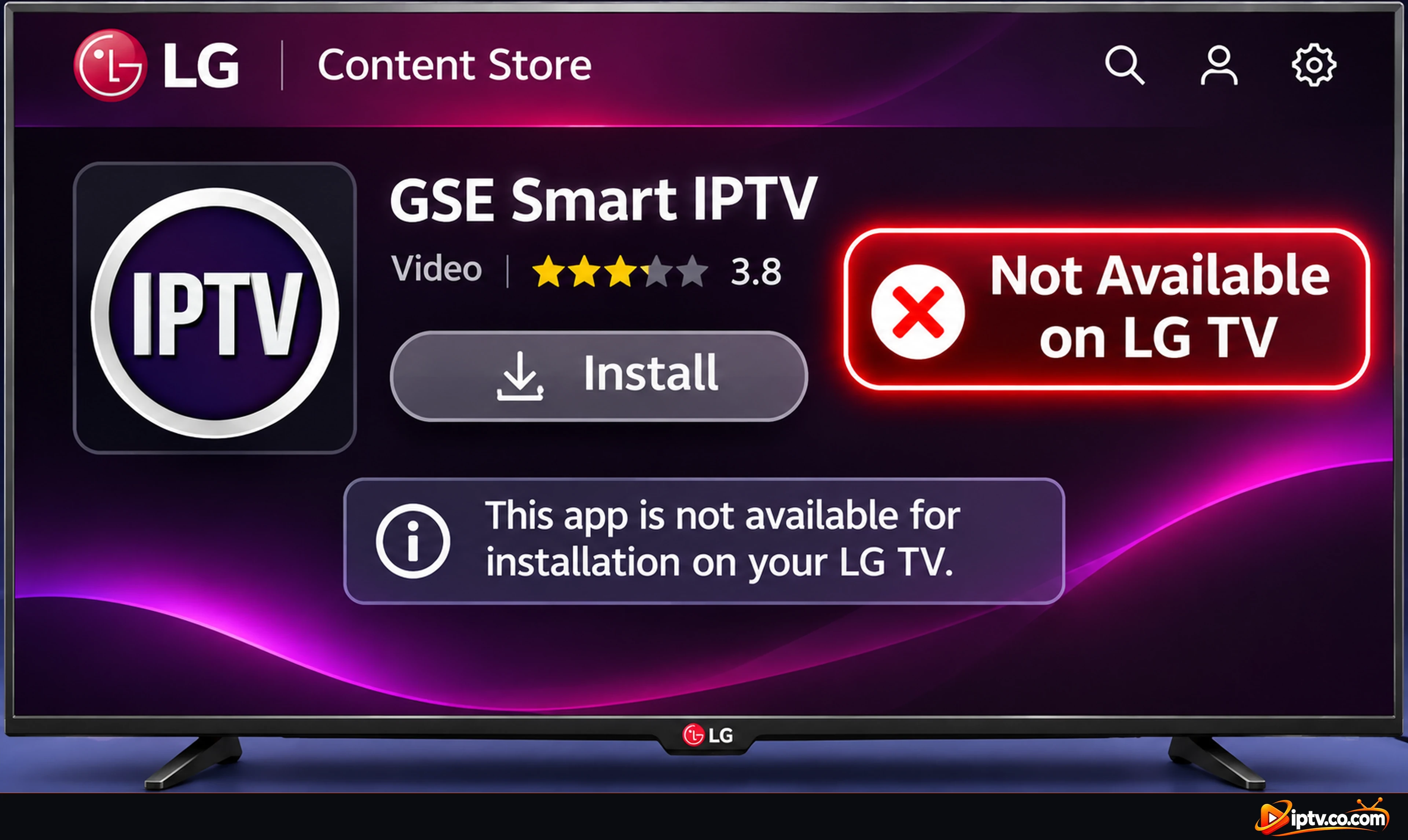
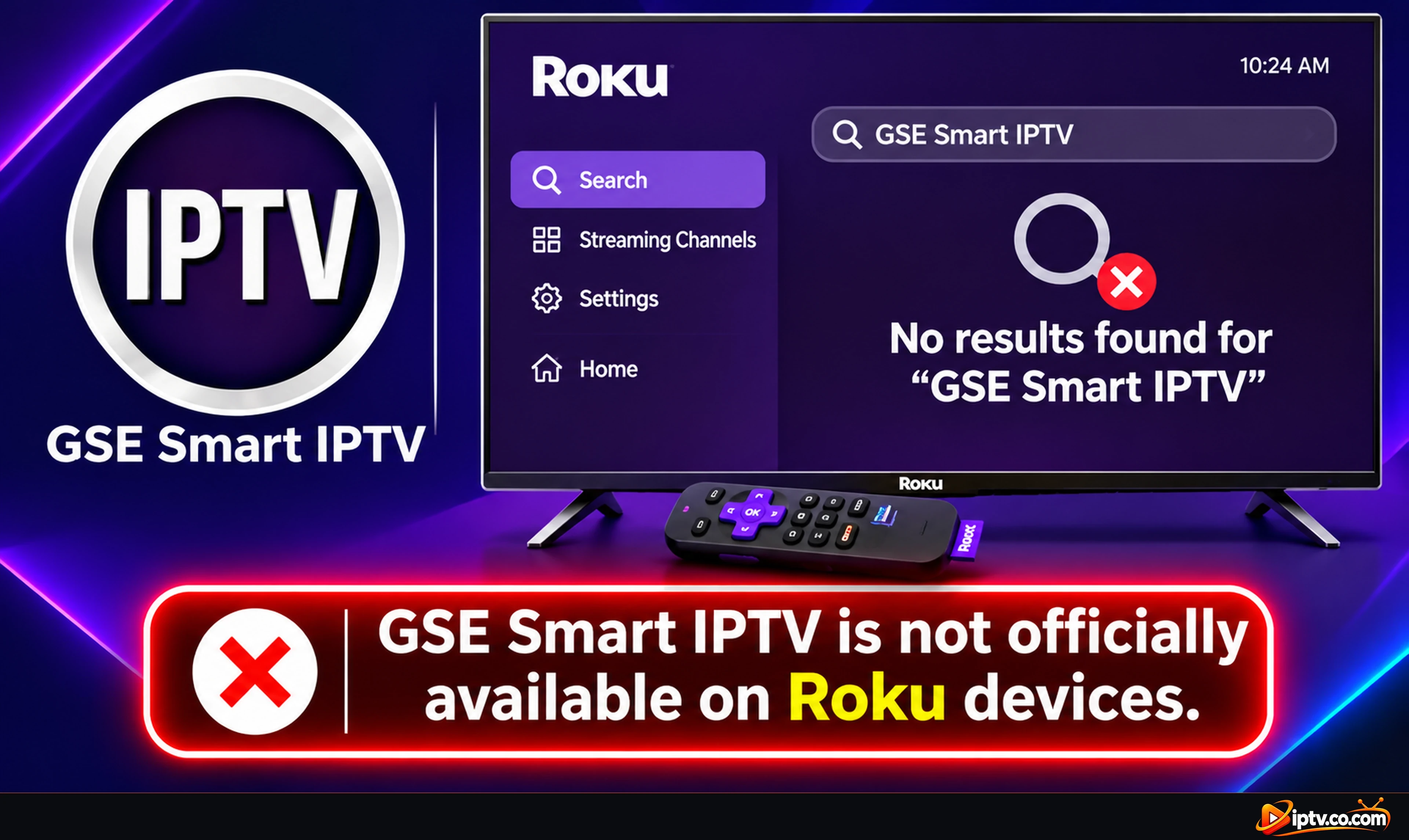
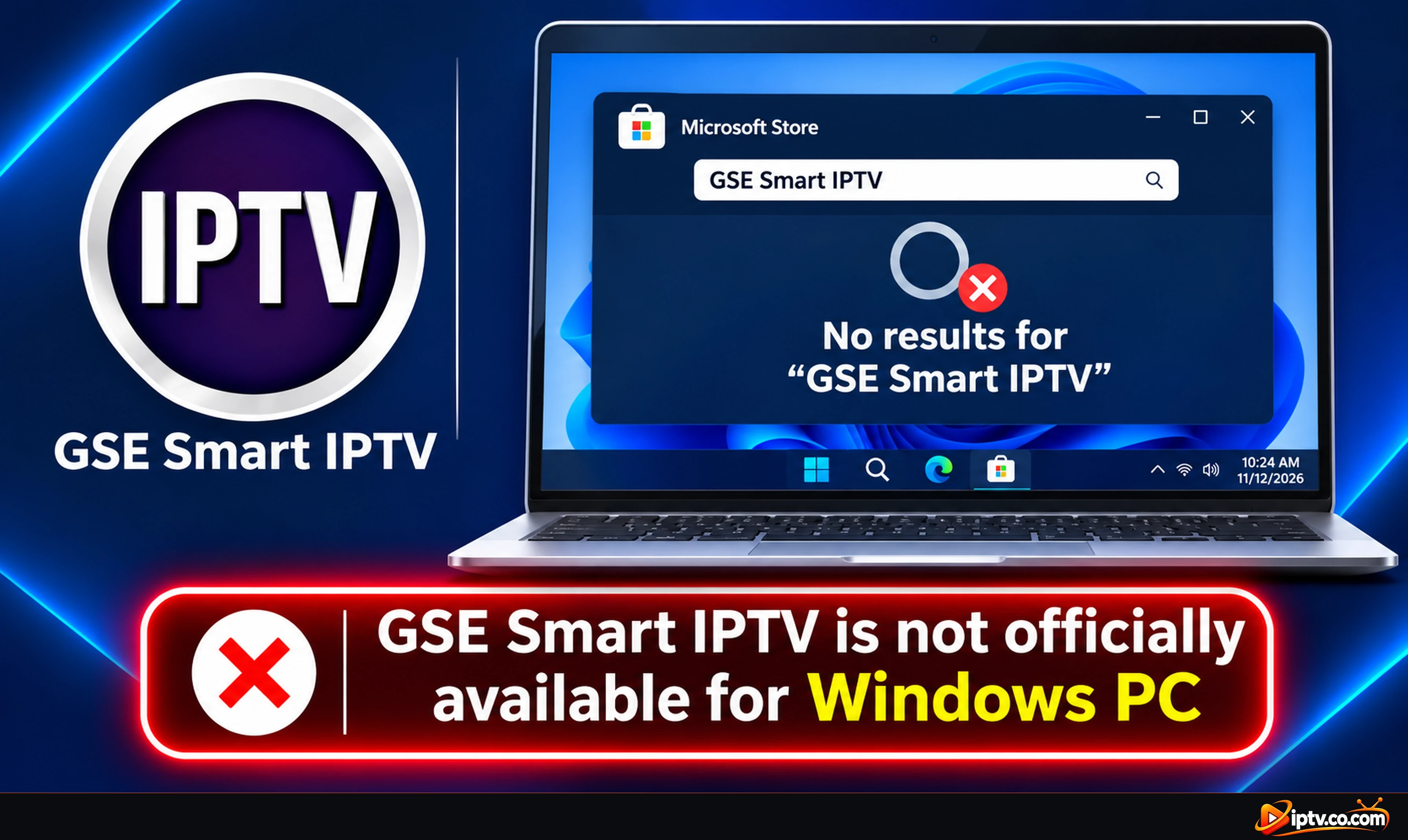
GSE Smart IPTV is not available in the Samsung Apps store, the LG Content Store, the iPhone and iPad App Store, the Microsoft Store or the Roku Channel Store. On those devices, use another player with the same playlist from your IPTV provider, for example Hot Player or SET IPTV on Samsung and LG.
Samsung Smart TV
GSE Smart IPTV is not available on Samsung TV
LG Smart TV
GSE Smart IPTV is not available on LG TV
Roku
GSE Smart IPTV is not available on Roku
iPhone and iPad
GSE Smart IPTV is not available on iPhone and iPad
Windows PC
GSE Smart IPTV is not available for Windows PC
GSE Smart IPTV Won’t Install? Quick Fixes
Downloader says the code is invalid: check that you typed 354615 and that your device is connected to the internet.
“Install blocked”: turn ON Install unknown apps for Downloader.
“App not installed” or not enough storage: the APK is about 38 MB. Uninstall apps you don’t use and try again.
Can’t find it on Google Play: search for GSE SMART IPTV droidvision, or use Downloader on Android TV.
Selected Deny by mistake: go to Settings > Applications > Manage Installed Applications > GSE IPTV > Permissions and allow storage.


One Response