
Quick Summary
To activate IBO XPlayer, open the app and note your Device ID (MAC address) and Device Key. On a phone or computer, log in at iboxxiptv.com/login with them and accept the legal terms. Then click Add Playlist for an M3U URL or Add XC Playlist for Xtream Codes, fill in your details and click SAVE. Restart IBO XPlayer on your TV to load Live TV, Movies and TV Series.
Good to Know: Free Trial, Then a License
IBO XPlayer starts with a free trial. After the trial, the app asks you to buy a license for your device. Ask your IPTV provider first: many include the activation with a subscription. IBO XPlayer doesn’t provide any channels: you add your own playlist from your IPTV provider.
IBO XPlayer (shown as IBOXPlayer in the app) works like IBO Player: you don’t type your login on the TV. Instead, you add your playlist on the IBO XPlayer website with your device’s Device ID and Device Key, and the app downloads it. This guide shows both methods, M3U URL and Xtream Codes, step by step.
Before You Start: What You Need
- IBO XPlayer installed on your TV, Firestick or Android device (see how to install IBO XPlayer).
- Your IPTV login from your provider: Xtream Codes (username, password and host URL) or an M3U URL.
- A phone or computer with a web browser, to open the IBO XPlayer website.
Adding a Playlist vs Buying the License
“Activating IBO XPlayer” can mean two different things. Most people need the first one right away, and the second one after the free trial:
| Add your playlist | Activate the device | |
|---|---|---|
| What it does | Loads your channels, movies and series | Keeps the app working after the free trial |
| Where | IBO XPlayer website > Manage Playlists | IBO XPlayer website > Activate Device, or your IPTV provider |
| What you need | Device ID, Device Key, Xtream Codes or M3U URL | Device ID (MAC address) |
Log In to the IBO XPlayer Website With Your Device ID and Key
Step 1: Find Your Device ID and Device Key
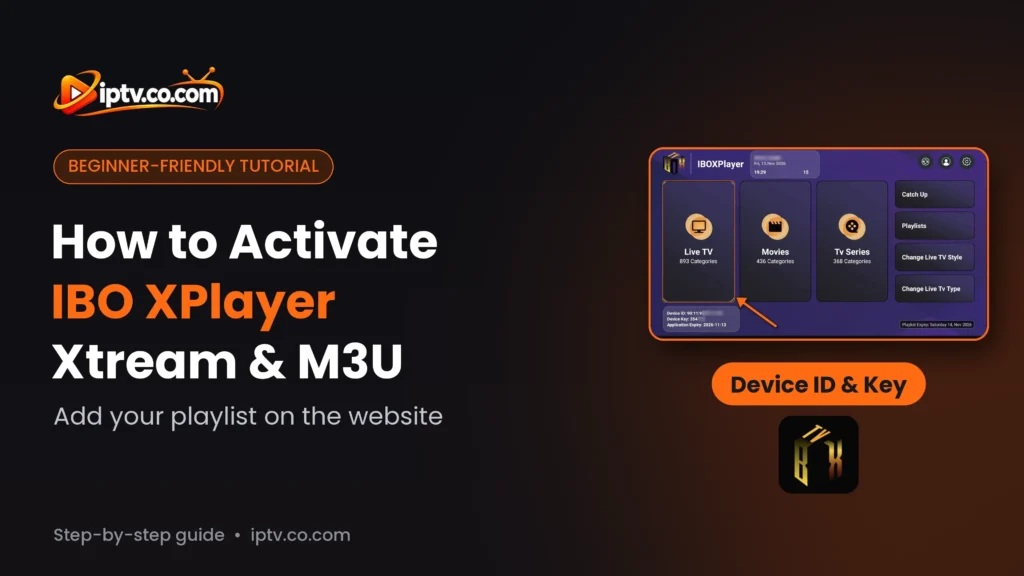
Open IBO XPlayer. The first screen (To Continue Using The App) shows your Device ID (your MAC address) and your 6-digit Device Key under Adding Playlist. Write both down, or take a photo of the screen. You also find them later at the bottom left of the home screen.

Step 2: Log In on the IBO XPlayer Website
On your phone or computer, open your browser and go to the IBO XPlayer login page:
https://iboxxiptv.com/login- Enter your Device ID (MAC address) exactly as shown in the app, with the colons.
- Enter your 6-digit Device Key.
- Click the login button.
Step 3: Accept the Legal Terms
The first time, a Welcome to IBOXPlayer message explains that the app is for legal use only. Read it and click Accept legal terms.

Method 1: Activate IBO XPlayer With an M3U URL
Most IPTV providers give you an M3U playlist link. If you have one, this is the quickest method.
Step 1: Click Add Playlist
On the Manage Playlists page (it shows your MAC address and No Playlists to show), click Add Playlist.

Step 2: Paste Your M3U URL and Click Save
- Playlist name: type any name, for example iptv.co.com.
- Playlist URL (.M3U or .M3u8): paste your full M3U link. It looks like
http://your-provider-url/get.php?username=…&password=…&type=m3u_plus&output=ts - XMLTV EPG URL (Optional): paste your provider’s EPG link (it usually ends in
xmltv.php?username=…&password=…) to get the TV guide. - Protect this playlist: optional. Tick it to hide the playlist behind your Parent PIN.
- Click Check Playlist to test the link if you want, then click SAVE.
Don’t have the link? Learn how to get an M3U URL. Then go to Load your playlist on the TV.

Method 2: Activate IBO XPlayer With Xtream Codes
Use this method if your provider gave you a username, password and host URL instead. The TV guide and the movie and series library usually load automatically.
Step 1: Click Add XC Playlist
On the Manage Playlists page, click Add XC Playlist.
Step 2: Enter Your Xtream Codes and Click Save
- Playlist name: type any name, for example iptv.co.com.
- Username and Password: copy them from your provider’s email.
- Host: the server URL, starting with
http://and including the port if your provider gave one (for examplehttp://example.com:8080). - XMLTV EPG URL (Optional): leave it empty; with Xtream Codes the TV guide usually loads by itself.
- Click SAVE.
Then go to Load your playlist on the TV.

Load Your Playlist on the TV
Whichever method you used, go back to IBO XPlayer on your TV or device.
Step 1: Refresh IBO XPlayer
Before the playlist loads, the home screen shows only 1 Categories. Select the red refresh icon at the top right (or close and reopen the app) so IBO XPlayer downloads the playlist you just added.

Step 2: Read the Playlist Notification and Dismiss It
You see User Successfully Added…. If your IPTV subscription ends soon, IBO XPlayer shows a Notification with the expiry, your Device ID and Device Key. This date belongs to your IPTV provider’s subscription, not to the IBO XPlayer license. Select Dismiss.

Step 3: Open Live TV
Your playlist is active: Live TV, Movies and Tv Series now show all their categories, and the Playlist Expiry date shows at the bottom right. Select Live TV.

Step 4: Pick a Category and a Channel
Choose a category on the left, then a channel. The preview starts on the right; select it again to watch in full screen. Long press OK on a channel to manage your favourites, and use Live Tv Search to find a channel.

Step 5: Browse Movies and TV Series
The Movies and Tv Series sections show your provider’s categories on the left and posters on the right, with the rating, year and description. Use the search icon at the top to find a title.


After the Free Trial: Activate IBO XPlayer
When the free trial ends, IBO XPlayer asks you to buy a license for your device (After your trial period a license is needed to purchase).
- Ask your IPTV provider first: send them your Device ID (MAC address). Many providers include the activation with a subscription.
- Or activate it yourself: log in on the IBO XPlayer website and open Activate Device. The current price is shown there.
- One device only: the license is tied to the MAC address, so each TV or stick needs its own.
Your playlists stay as they are after activation.
Beware of “Free Activation Codes”
There is no official free activation code for IBO XPlayer. Websites and videos offering free codes or “activated” APKs are usually scams or contain malware. Use the free trial, then activate the app through your provider or the official website.
IBO XPlayer Not Activating? Quick Fixes
- Can’t log in on the website: type the Device ID with the colons and check the Device Key again (0 and O look alike).
- Playlist saved but nothing shows on the TV: select the refresh icon on the home screen, or close and reopen IBO XPlayer.
- The app stopped after the trial: the free trial is over. See After the free trial.
- Channels don’t load with Xtream Codes: check that the host starts with
http://and includes the port, then try the M3U method instead. - “Your playlist will expire”: this is your IPTV subscription, not the app. Contact your IPTV provider to renew it.
- No TV guide: add your provider’s XMLTV EPG URL to the playlist on the website.
- Other problems: see all fixes in IBO XPlayer not working.
Keep Your Login Private
Your Device Key, Xtream Codes and M3U link give access to your playlist and subscription. Don’t share them in screenshots, videos or comments.
Frequently Asked Questions
How do I activate IBO XPlayer?
Note the Device ID and Device Key on the IBO XPlayer screen, log in with them at https://iboxxiptv.com/login, accept the legal terms, then click Add Playlist (M3U) or Add XC Playlist (Xtream Codes), fill in your details and click SAVE. Restart the app on your TV.
What is the IBO XPlayer website?
The login page is https://iboxxiptv.com/login. Log in with the Device ID and Device Key shown in the app.
How do I add an M3U playlist to IBO XPlayer?
On the website, click Add Playlist, enter a name and your M3U URL (and optionally the XMLTV EPG URL), then click SAVE.
Can I activate IBO XPlayer with Xtream Codes?
Yes. Click Add XC Playlist and enter a playlist name, your username, password and host, then click SAVE.
Where do I find my IBO XPlayer Device ID and Device Key?
On the first screen of the app, and at the bottom left of the home screen.
My playlist doesn’t show on the TV. What should I do?
Select the refresh icon at the top right of the IBO XPlayer home screen, or close and reopen the app.
What does “Your playlist will expire” mean?
It is the expiry date of your IPTV subscription, not of the IBO XPlayer app. Contact your IPTV provider to renew it.
Is IBO XPlayer free?
IBO XPlayer starts with a free trial. After the trial, the app asks you to buy a license for your device. Ask your IPTV provider first: many include the activation with a subscription.
Does IBO XPlayer include channels?
No. IBO XPlayer is a player only. Channels, movies and series come from your IPTV provider.
That’s it: IBO XPlayer is activated and your playlist is ready. Haven’t installed it yet? See how to install IBO XPlayer. Browse all IBO XPlayer guides, or compare with how to activate IBO Player.
Prices, free activation and renewal: IBO XPlayer subscription explained.
2 Responses