IBO XPlayer Not Working? Easy Fixes for Every Problem
IBO XPlayer not working? Fix movies and series with Use Runtime Function, playlist not loading, clear cache, EPG, buffering and VPN problems step by step.
By IPTV Guide
12 min read
0 Comments
Quick Summary
Most IBO XPlayer problems are fixed in a minute: movies and series not playing? Go to Settings > More Options, tick Use Runtime Function In Movies Section and Use Runtime Function In Series Section, and select Save. Not loading? Select the refresh icon at the top right, or clear the cache in Settings > Clear Cache. Using a VPN? Use your provider’s VPN DNS.
Good to Know: IBO XPlayer Has No Channels of Its Own
IBO XPlayer is only a player. It doesn’t provide any IPTV channels, playlists or subscriptions, so if your channels stop working, the problem is often your playlist or your IPTV provider, not the app. Fixing the app settings below solves the rest.
IBO XPlayer (IBOXPlayer) usually works without problems, but movies that won’t start, a playlist that won’t load or a missing TV guide can happen on any device. This guide lists every common IBO XPlayer problem and the fix for each one, step by step.
Playlist Not Working Because the URL Starts With https://
A very common mistake: the Playlist URL, the XMLTV EPG URL or the Xtream Codes Host starts with https://. Most IPTV servers only work with http://, so IBO XPlayer can’t load the channels.
Log in on the IBO XPlayer website with your Device ID and Device Key and open Manage Playlists.
Edit your playlist and change https:// to http:// at the start of the Playlist URL, the EPG URL or the Host (just remove the s).
Click SAVE, then select the refresh icon on the IBO XPlayer home screen.
Tip: browsers and some phones add https:// automatically when you copy a link. Always check the start of the URL before you click Save.
Check that the M3U URL starts with http:// on the IBO XPlayer website
Check that the Xtream Codes host starts with http://
Quick Checklist: Try These First
Check that your internet works on another app (YouTube, Netflix).
Restart your internet to get a new IP address: unplug your router or modem for 1 minute, plug it back in and wait until the internet is back. (On mobile data, turn airplane mode on and off.)
On the IBO XPlayer home screen, select the refresh icon, or close and reopen the app.
Restart your TV, Firestick or box (unplug it for 30 seconds).
Check that your IPTV subscription is still active with your provider.
Make sure IBO XPlayer is updated: Settings > Check For Updates.
Select the refresh icon on the IBO XPlayer home screen
Movies and Series Not Working in IBO XPlayer
If Live TV works but movies or series won’t start, show a black screen or stop after a few seconds, enable the runtime function:
On the IBO XPlayer home screen, select Settings (gear icon at the top right).
Select More Options.
Tick Use Runtime Function In Movies Section and Use Runtime Function In Series Section.
Select Save.
After that, movies and series should work. If they still don’t, select the refresh icon on the home screen and try another title.
Step 1: Open Settings and Select More Options
Select More Options in IBO XPlayer Settings
Step 2: Tick Use Runtime Function and Select Save
Tick Use Runtime Function In Movies and Series Section, then Save
IBO XPlayer Not Loading or Stuck on Loading
Refresh the playlist: select the refresh icon at the top right of the home screen and wait. Big playlists can take a minute.
Clear the cache: go to Settings > Clear Cache, then reopen the app.
Restart the device and your router.
Reinstall IBO XPlayer: your playlist is saved on the IBO XPlayer website with your Device ID, so it comes back after reinstalling. See how to install IBO XPlayer.
IBO XPlayer Playlist Not Working or No Channels
Check the playlist on the website: log in on the IBO XPlayer website with your Device ID and Device Key and open Manage Playlists. If the list is empty, add your playlist again (see how to activate IBO XPlayer).
Check your login details: one wrong letter in the Xtream Codes username, password or host, or a cut M3U URL, is enough to break it. Copy them again from your provider’s email.
Host format: the Xtream Codes host must start with http:// (not https://) and include the port if your provider gave one. See URL starts with https://.
Try the other method: if Xtream Codes doesn’t work, add the same subscription as an M3U URL, or the other way round.
Clear the cache:Settings > Clear Cache > Yes, then reopen the app (steps below).
Subscription expired: if IBO XPlayer shows Your playlist will expire or the channels stopped on a date, contact your IPTV provider to renew it. This date isn’t the app license. You can check the playlist expiry date at the bottom left of the IBO XPlayer home screen.
Playlist Expiry date at the bottom of the IBO XPlayer home screen
Clear the IBO XPlayer Cache
Old data saved in the app can stop a playlist from loading, even when your login is correct. Clear the cache:
On the IBO XPlayer home screen, open Settings (gear icon).
Select Clear Cache.
On Delete All Cache, select Yes.
Close and reopen IBO XPlayer, then select the refresh icon. Your playlist reloads from the IBO XPlayer website.
Select Clear Cache in IBO XPlayer Settings
Select Yes to delete all cache
Can’t Log In on the IBO XPlayer Website
If the website doesn’t accept your login, it can’t match the Device ID and Device Key you typed:
Type the Device ID (MAC address) exactly as shown in the app, with the colons (for example 90:11:95:F7:11:F5).
Check the Device Key again: 0 and O, or 1 and I, look alike.
Open the app first so the device is registered, then try again.
You find both again at the bottom left of the IBO XPlayer home screen.
IBO XPlayer Device ID and Device Key
IBO XPlayer Stopped Working After the Free Trial
IBO XPlayer starts with a free trial. When it ends, the app asks you to buy a license for your device. Ask your IPTV provider first: many include the activation with a subscription. Otherwise, activate it on the IBO XPlayer website (see after the free trial).
IBO XPlayer EPG (TV Guide) Not Working
Check that Live TV Epg is selected: open Settings > More Options, select Live TV Epg so it’s ticked, and select Save (see the screenshots below).
With an M3U playlist, add your provider’s XMLTV EPG URL to the playlist on the IBO XPlayer website.
Select Refresh on the home screen and wait a few minutes: the guide downloads after the channels.
Some channels have no guide data at all. If only a few channels are empty, it’s the provider’s EPG, not the app.
Select More Options in IBO XPlayer Settings
Tick Live TV Epg in More Options
IBO XPlayer Buffering or Freezing
Use a cable instead of Wi-Fi, or move the router closer. HD needs about 10 Mbps, 4K about 25 Mbps.
Change the player: Settings > Choose LIVE Player (Live TV) or Choose VOD Player (movies and series).
Clear the cache in Settings > Clear Cache and restart the device.
If only some channels freeze, the problem is on the provider’s server: contact your IPTV provider.
IBO XPlayer Not Working With a VPN
Many IPTV servers block VPN IP addresses, so IBO XPlayer shows a connection error or loads no channels when your VPN is on. The fix is to use your provider’s VPN DNS (VPN server URL) instead of the normal one.
Find your VPN DNS: it usually comes with your IPTV login details and always starts with vpn (see the example below). If your provider didn’t send one, contact your IPTV provider and ask for the VPN DNS.
Xtream Codes: log in on the IBO XPlayer website with your Device ID and Device Key, open Manage Playlists, click the pencil icon next to your playlist and replace the Host with the VPN DNS. Keep the same username and password.
M3U playlist: edit the Playlist URL on the website and replace the server part (before /get.php) with the VPN DNS.
Do the same for your EPG URL if the TV guide stops working.
Reload the playlist, then turn your VPN back on: channels load normally.
Still not working? Change the VPN server or country, try another VPN protocol (for example WireGuard), and turn off the VPN’s ad or tracker blocker, which can block IPTV and EPG links.
IBO XPlayer Parental Control: Lock Adult Channels
Watching with children? IBO XPlayer has a parental control password that locks adult channels, movies and series categories. Change the default password to your own so only you can open them.
Step 1: Open Settings
On the IBO XPlayer home screen, select the Settings icon (gear) in the bar at the bottom.
Select the Settings icon on the IBO XPlayer home screen
Step 2: Select Parental Control
In the Settings menu, select Parental Control.
Select Parental Control in IBO XPlayer Settings
Step 3: Enter the Current and New Password, Then Submit
Current Password: type the current parental password with the number pad on the right.
New Password: type your own 4-digit password, one that children can’t guess.
Select Submit.
From now on, IBO XPlayer asks for this password before opening adult categories.
Enter the current and new password, then select Submit
Hide categories completely: open Settings > Manage Categories to choose which Live TV, Movies and Series categories are shown.
Protect a whole playlist: on the IBO XPlayer website, tick Protect this playlist when you add a playlist; it is then hidden behind your Parent PIN.
Forgot the password? Log in on the IBO XPlayer website and open Parent PIN.
IBO XPlayer Not Working on Samsung or LG TV
Update the TV software: Settings > Support > Software Update (Samsung) or Settings > General > About This TV (LG).
Clear the app cache in IBO XPlayer Settings > Clear Cache, then turn the TV off at the wall for 1 minute.
Delete IBO XPlayer and install it again from Samsung Apps or LG Content Store. Your playlist stays on the website.
IBO XPlayer Not Working on Firestick or Android TV
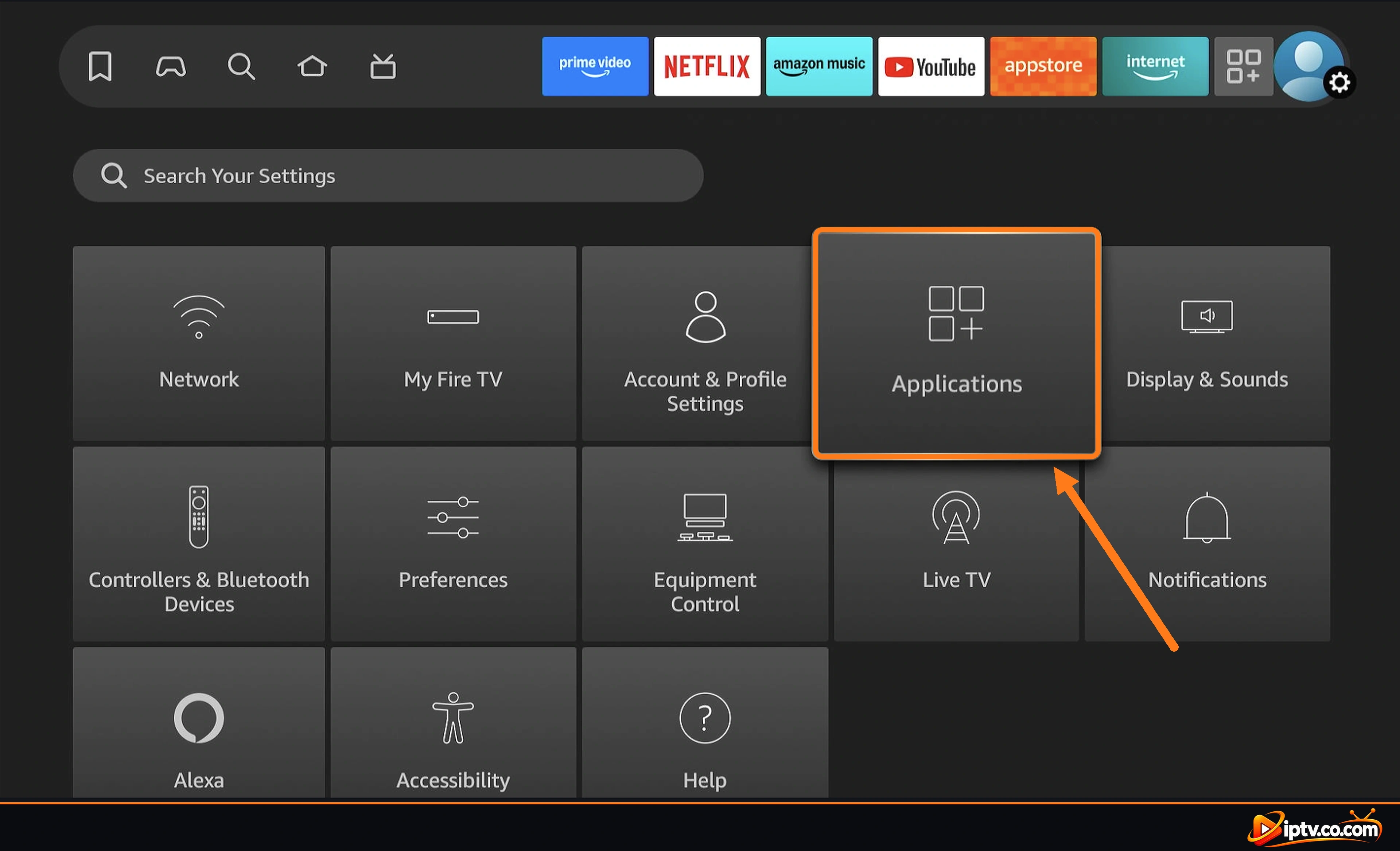
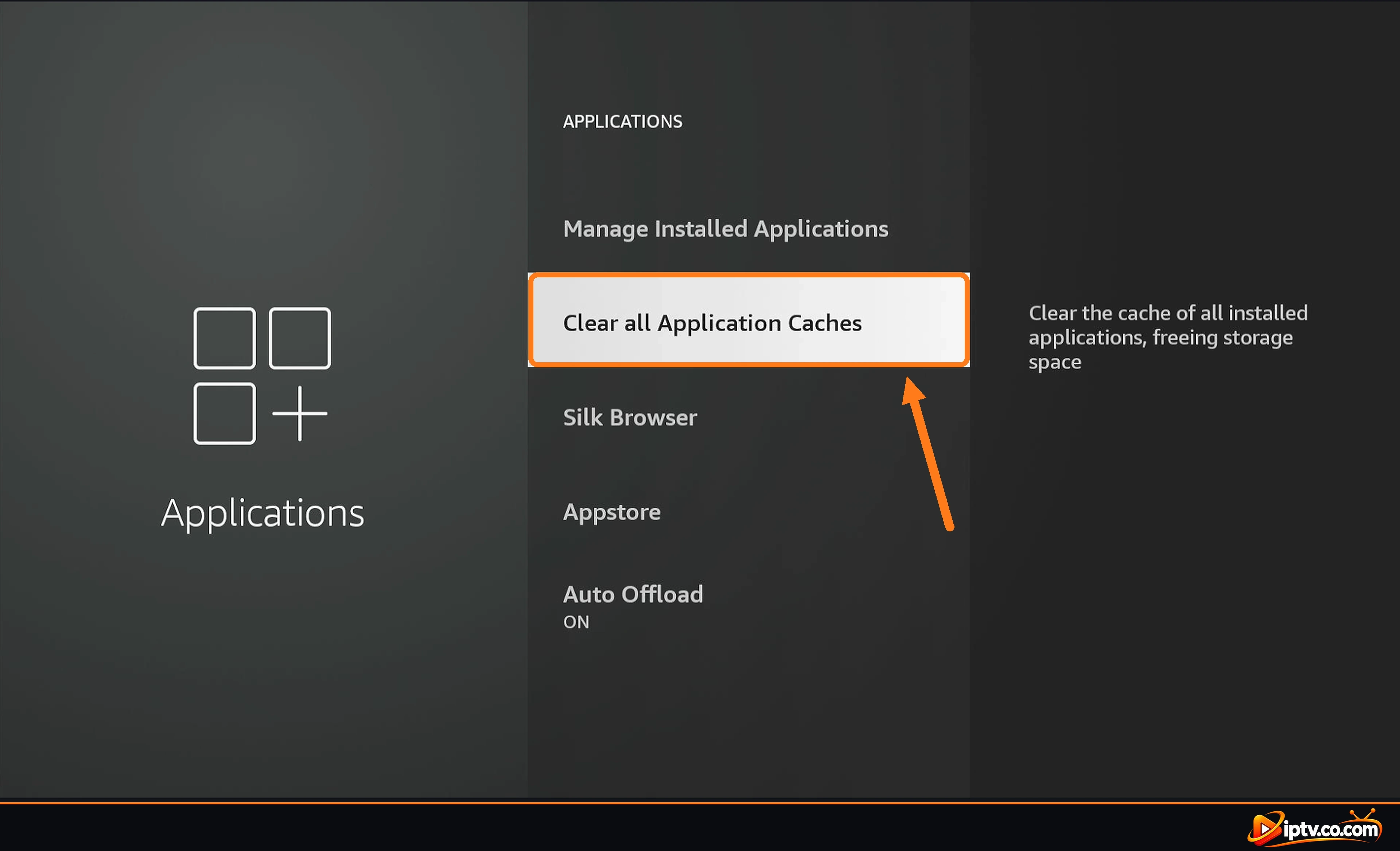
Clear the cache: in IBO XPlayer open Settings > Clear Cache, or on the Fire TV home screen open Settings > Applications and select Clear all Application Caches. Your playlist stays saved on the IBO XPlayer website.
Free up storage: uninstall apps you don’t use and delete old APK files in Downloader.
Restart the Firestick: hold Select + Play for 5 seconds.
Open Settings > Applications on your Fire TV
Select Clear all Application Caches
Keep Your Login Private
Never post your Device Key, Xtream Codes or M3U link in comments or support groups when asking for help. Anyone with them can use your playlist.
Still Not Working? Uninstall IBO XPlayer and Install It Again
If nothing above fixes it, a clean reinstall usually does. Your playlist is saved on the IBO XPlayer website with your Device ID, so you don’t lose it.
Step 1: Open Settings > Applications
On the Fire TV home screen, open Settings (gear icon) and select Applications.
Open Settings > Applications on your Fire TV
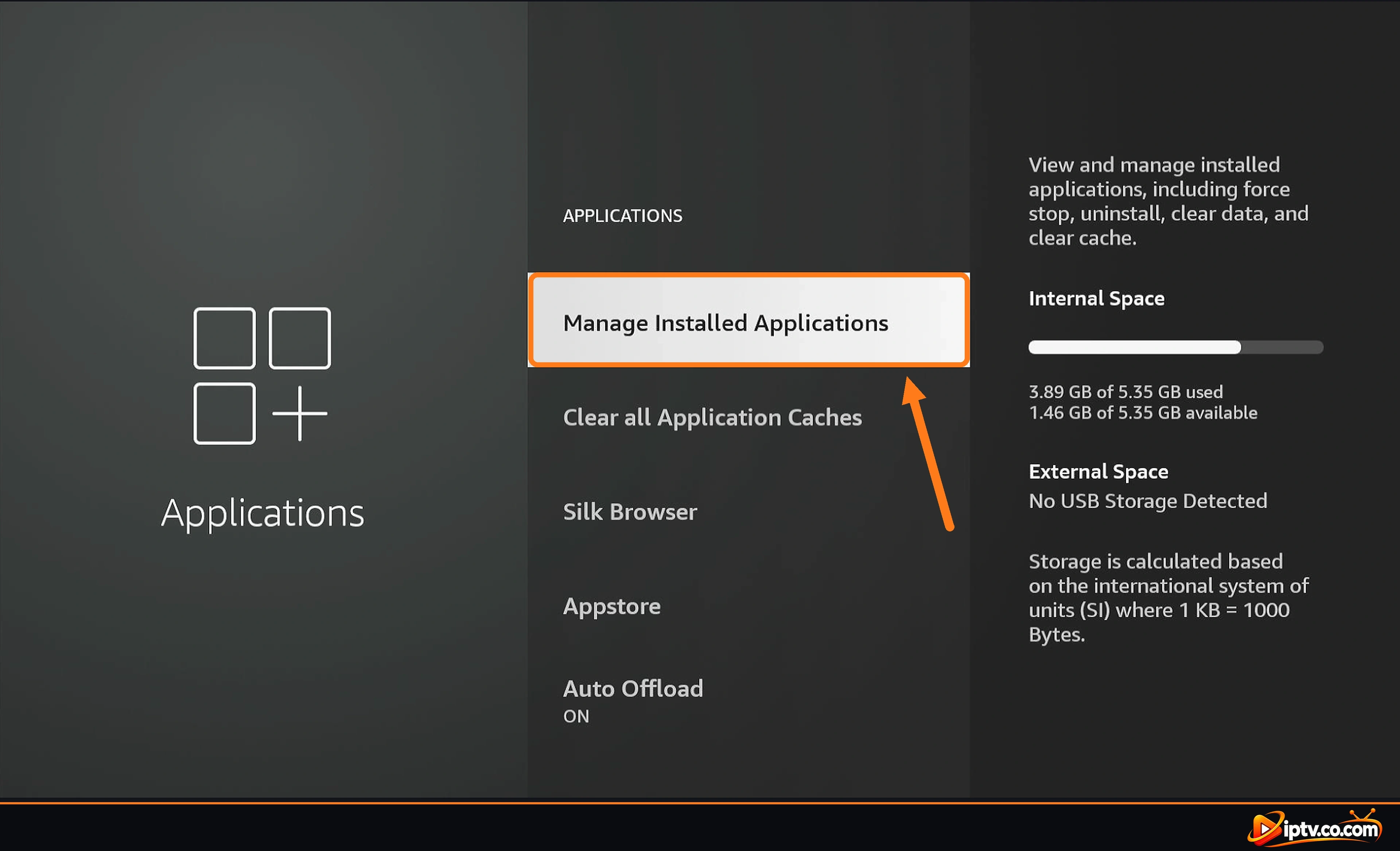
Step 2: Open Manage Installed Applications
Select Manage Installed Applications.
Open Manage Installed Applications
Step 3: Uninstall IBO XPlayer and Install It Again
Select IBO XPlayer in the list, select Uninstall and confirm. Restart the Firestick, then install IBO XPlayer again with the Downloader code 7947185 (see how to install IBO XPlayer). Open it and select the refresh icon: your playlist loads again.
On other devices: on Samsung and LG TVs, delete the app and reinstall it from the TV’s app store; on Android, go to Settings > Apps > IBO XPlayer > Uninstall, then install it again.
Open Settings (gear icon) > More Options, tick Use Runtime Function In Movies Section and Use Runtime Function In Series Section, and select Save. After that, movies and series should play.
Select the refresh icon on the home screen, clear the cache in Settings, restart the device and check your internet. If it still doesn’t load, check your playlist on the IBO XPlayer website.
Usually the Xtream Codes or M3U URL was typed wrong, or the IPTV subscription expired. Add the playlist again on the website, or contact your IPTV provider.
Yes, if you use your provider’s VPN DNS. Many IPTV servers block VPN IPs, so replace the Xtream Codes host or the M3U server with the VPN DNS from your login details (it starts with vpn, for example http://vpn.dream-4k.co).