How to Activate Hot Player With M3U and Xtream Codes
Activate Hot Player step by step: find your MAC address, upload your M3U link or Xtream Codes on hotplayer.app/upload, then restart the app to load your playlist.
By IPTV Guide
7 min read
2 Comments
Quick Summary
To activate Hot Player with your playlist, note the MAC address shown in the app. On the Hot Player website, open Upload List, enter your MAC and select Next. Choose Link (M3U) or Xtream Code as the source, enter your IPTV login details and select Save. Then restart Hot Player or select Refresh to load your channels.
Good to Know: Hot Player Has No Channels
Hot Player is a media player only and does not include any channels. Your M3U link or Xtream Codes come from your IPTV provider.
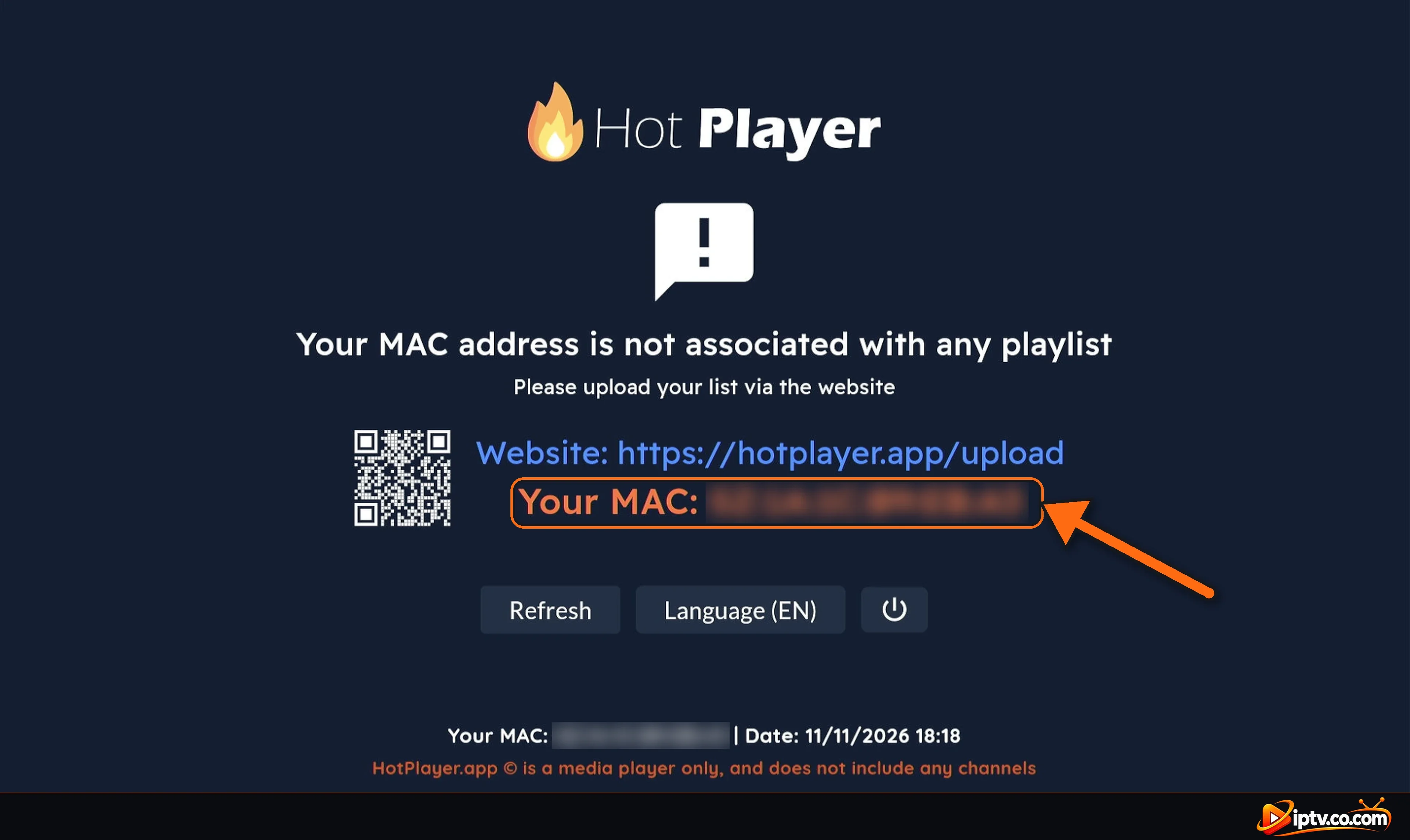
After you install Hot Player, the app shows Your MAC address is not associated with any playlist. Hot Player links playlists to your device’s MAC address, and you add them on the Hot Player website from a phone or computer. This guide shows how to activate Hot Player with an M3U link or Xtream Codes step by step.
Your IPTV login details from your provider: an M3U link or Xtream Codes (host, username and password).
A phone or computer with a web browser.
Step 1: Find Your Hot Player MAC Address
Open Hot Player. Before a playlist is added, the screen shows Your MAC under the website address. Once a playlist is active, the MAC is shown at the bottom of the home screen and in the Information window (the “i” button). Write it down exactly as shown.
Your Hot Player MAC address is shown under the upload website
Step 2: Open Upload List on the Hot Player Website
On your phone or computer, open the Hot Player website and select Upload List in the menu:
https://hotplayer.app/upload
Select Upload List on the Hot Player website
Enter Your MAC Address and Select Next
In Upload your playlist, type your MAC in Your MAC Address exactly as shown in the app, then select Next.
Enter your MAC address and select Next on the Hot Player website
Choose the Source: Link, File or Xtream Code
Open the Source menu and choose Link for an M3U URL or Xtream Code for Xtream Codes. (File is for an M3U file saved on your device.)
Choose the source on the Hot Player website: Link, File or Xtream Code
Method 1: Activate Hot Player With an M3U Link
Source: Link.
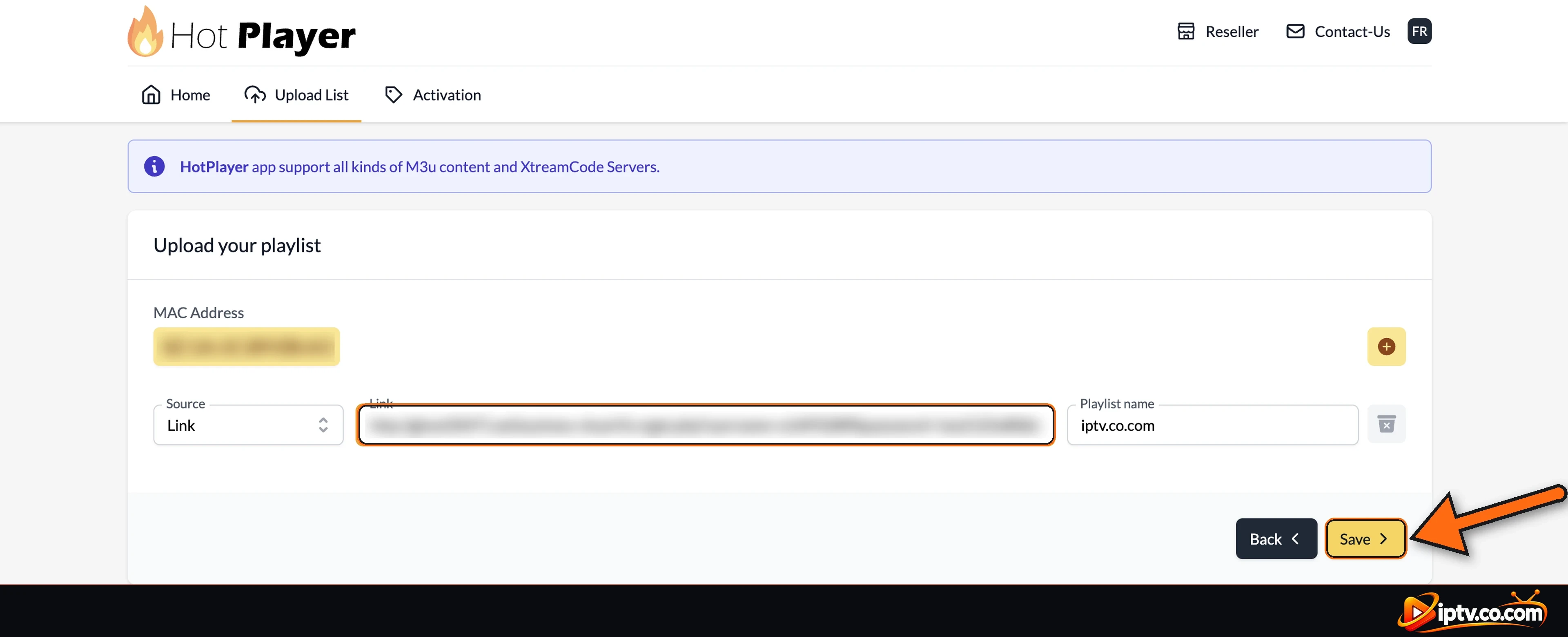
Link: paste the full M3U URL from your IPTV provider.
Playlist name: any name you like, for example My IPTV.
Select Save.
Paste your M3U link and playlist name, then select Save
Example: M3U URL Format
An M3U link usually looks like this (your server, username and password will be different):
The website shows Congratulations: Your List successfully updated! Restart the App.
Your list is successfully updated: restart Hot Player
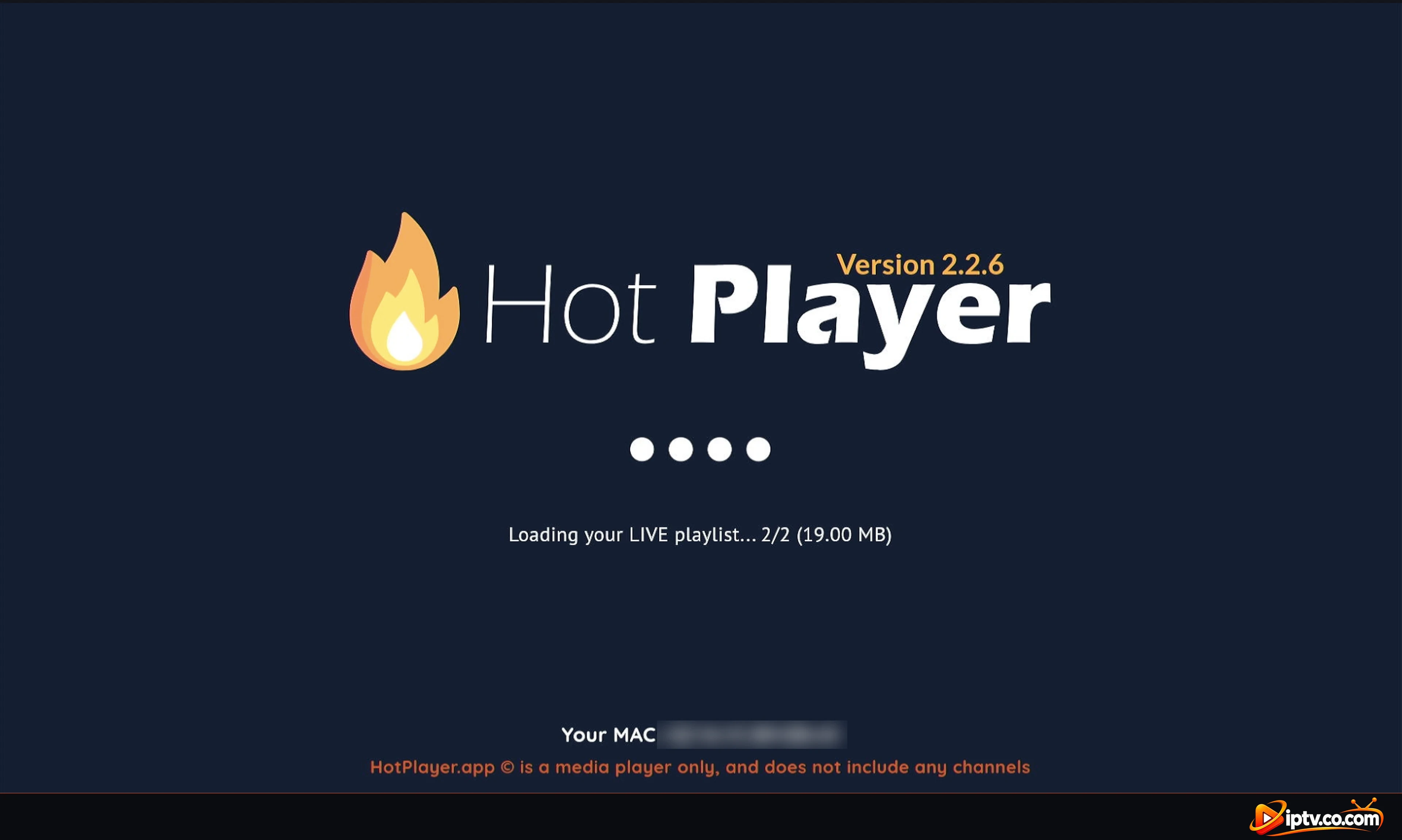
Close Hot Player and open it again, or select Refresh on the app screen. Hot Player loads your playlist (Loading your LIVE playlist…).
Hot Player is loading your playlist
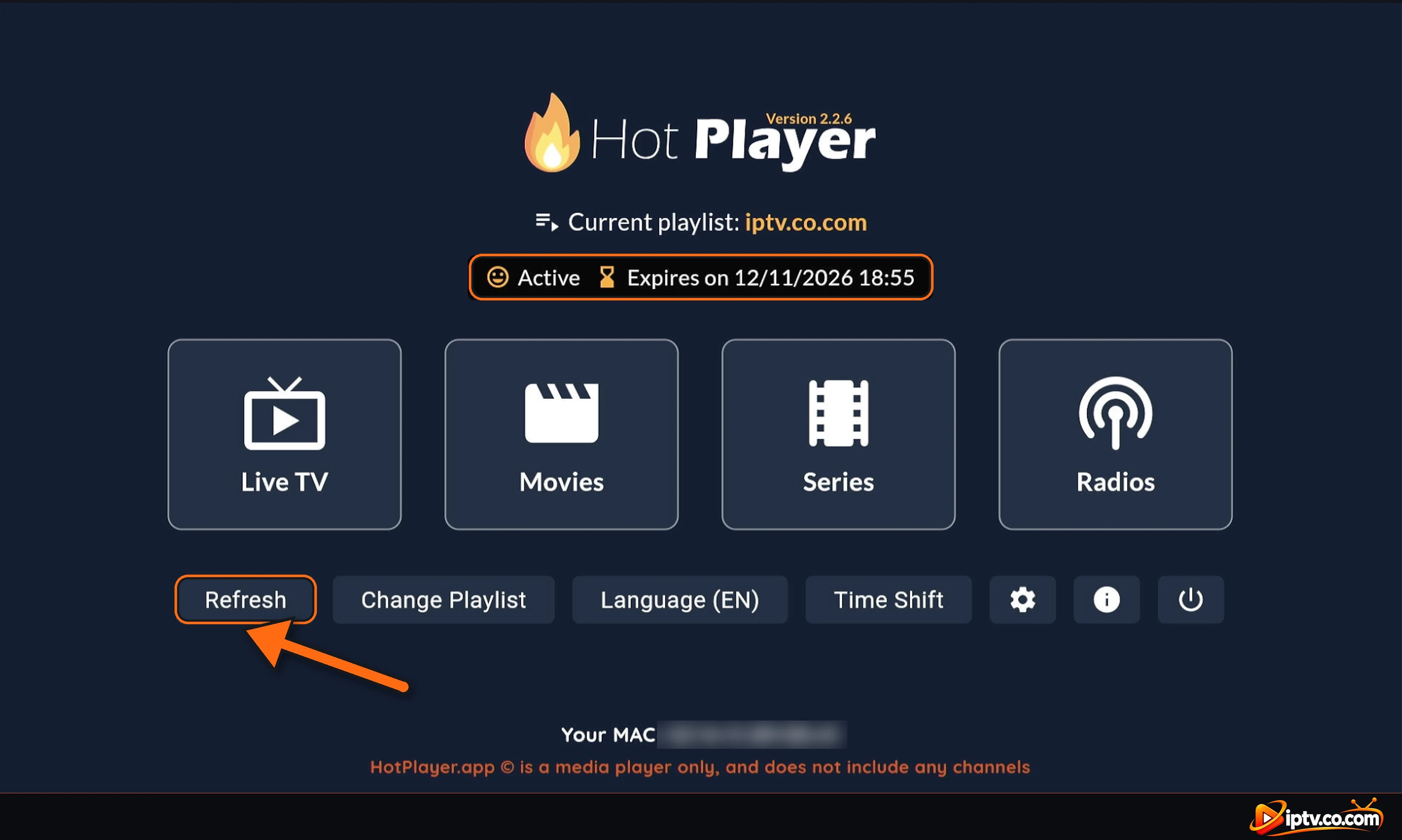
The home screen now shows Current playlist with your playlist name, Active and the expiration date. Use Refresh any time your provider updates the playlist, and Change Playlist to switch between playlists.
Hot Player home screen: current playlist active, Live TV, Movies, Series and Radios
Watch Live TV, Movies and Series
Live TV
Choose a category on the left and a channel in the middle. The preview and the TV guide (EPG) appear on the right.
Hot Player Live TV: categories, channels, preview and TV guide
Movies
Browse movie categories such as Trend Now, Recently Added and your provider’s categories. Add favorites with the heart icon.
Hot Player Movies categories
Series
Series work the same way: choose a category, then a series, a season and an episode.
Hot Player Series categories
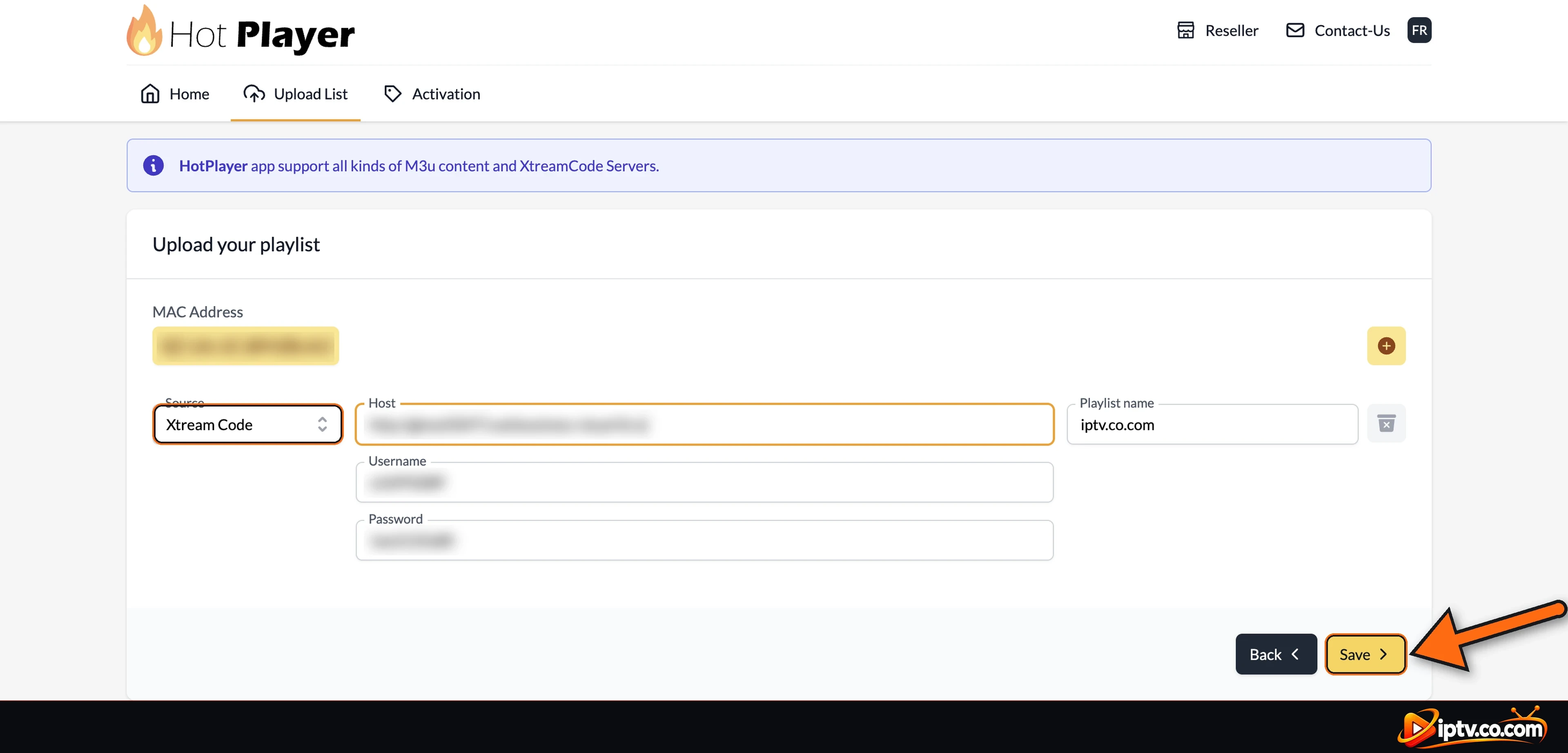
Method 2: Activate Hot Player With Xtream Codes
Source: Xtream Code.
Host: the server URL from your provider, for example http://example-server.com.
Username and Password: exactly as your provider sent them.
Playlist name: any name you like.
Select Save.
Restart Hot Player or select Refresh to load the playlist, the same way as in Step 3.
Want several playlists? Select the + button next to your MAC to add another one.
Add Xtream Codes on the Hot Player website: host, username, password and Save
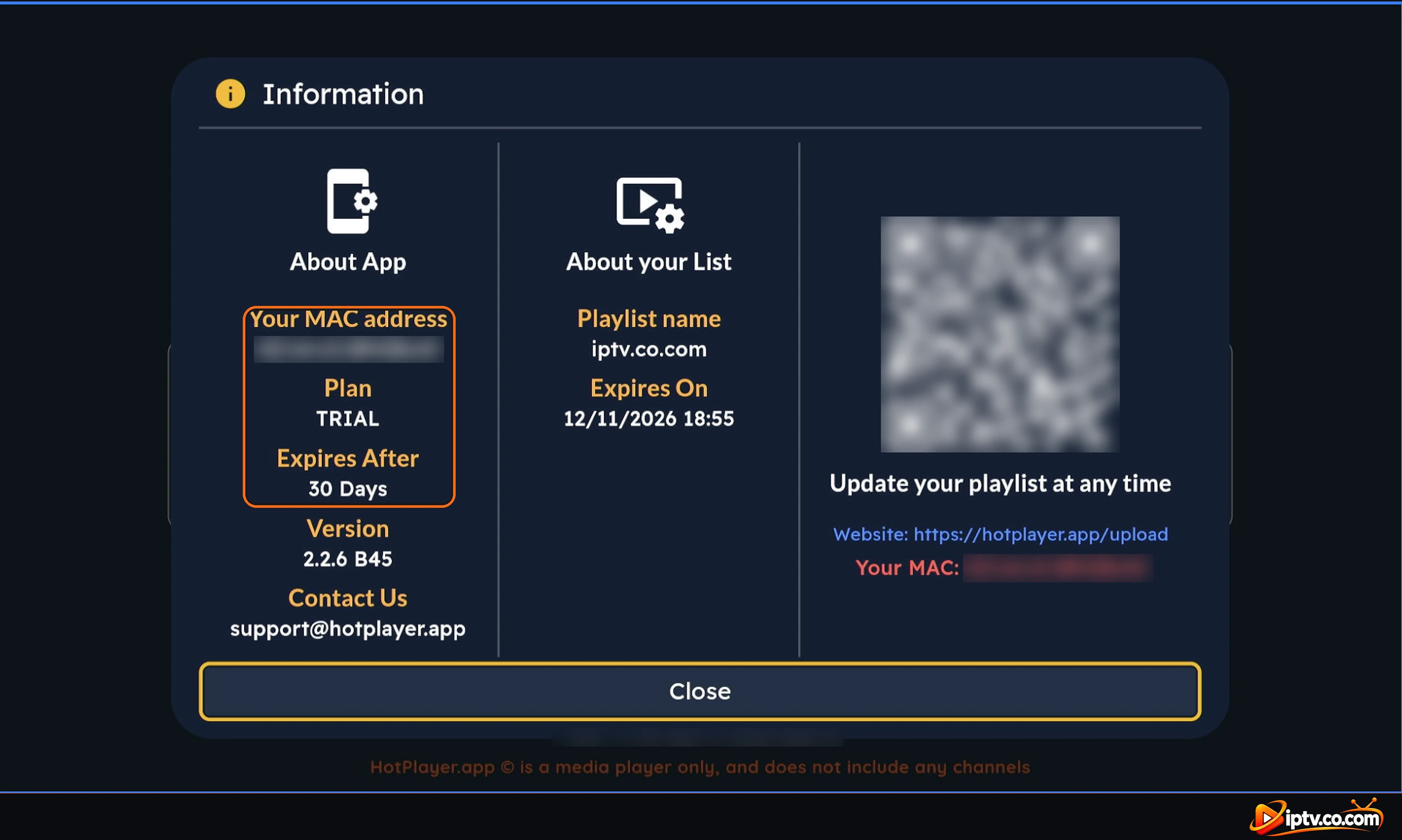
Hot Player Free Trial
Hot Player starts with a free trial. Open the Information window (the “i” button) to see your Plan (TRIAL) and when it Expires After (30 days in this example). When the trial ends, activate the app from the Activation page of the Hot Player website with the same MAC address. Buying a 6 or 12-month IPTV subscription? Your provider can activate it for free: see the Hot Player subscription guide.
Hot Player Information: MAC address, trial plan, 30 days and playlist details
Hot Player Playlist Not Working? Quick Fixes
Still “not associated with any playlist”: restart the app or select Refresh. Check that the MAC on the website matches the app exactly.
Use http://, not https:// in the M3U link and the host.
Xtream Codes don’t work: put only the server URL in Host, not the full M3U link.
No channels or playback errors: check your username, password and subscription with your provider.
Remove a wrong playlist: use Delete your playlist on the Upload List page with your MAC, then add it again.
If Hot Player stops working with a VPN, replace the server with your provider’s VPN DNS. It always comes with your IPTV login details and always starts with vpn. If your provider didn’t send one, contact them.
Note the MAC in the app, open hotplayer.app/upload, enter your MAC, select Next, choose Link or Xtream Code, enter your login details and select Save. Then restart the app.








2 Responses