How to Activate Televizo With Xtream Codes and M3U
Activate Televizo IPTV player step by step with Xtream Codes or an M3U link: create a playlist, enter your login, save and watch channels, movies and series.
By IPTV Guide
6 min read
2 Comments
Quick Summary
To activate Televizo, add the playlist from your IPTV provider. For Xtream Codes (recommended), select Create playlist > New Xtream Codes playlist, enter a name, your username, password and the server address, then select the ✓ at the top right. For an M3U link, select New M3U playlist, paste the link and select ✓. Then select your playlist to load Channels, Movies and Series.
Good to Know: You Need Your IPTV Login Details
Televizo is a video player only and does not provide any content. You need an Xtream Codes login or an M3U link from your IPTV provider. Haven’t installed it yet? See how to install Televizo.
Televizo supports two ways to add your IPTV subscription: Xtream Codes (recommended: channels, movies and series load as separate tabs) and M3U playlists (a link or a file). This guide shows the full setup of both, step by step, on Firestick, Android TV and Android.
Method 1: Activate Televizo With Xtream Codes (Recommended)
Step 1: Select Create playlist
Open Televizo. The first screen says Televizo is a video player only. Select Create playlist.
Televizo first screen: select Create playlist
Step 2: Select New Xtream Codes playlist
Choose New Xtream Codes playlist.
Select New Xtream Codes playlist in Televizo
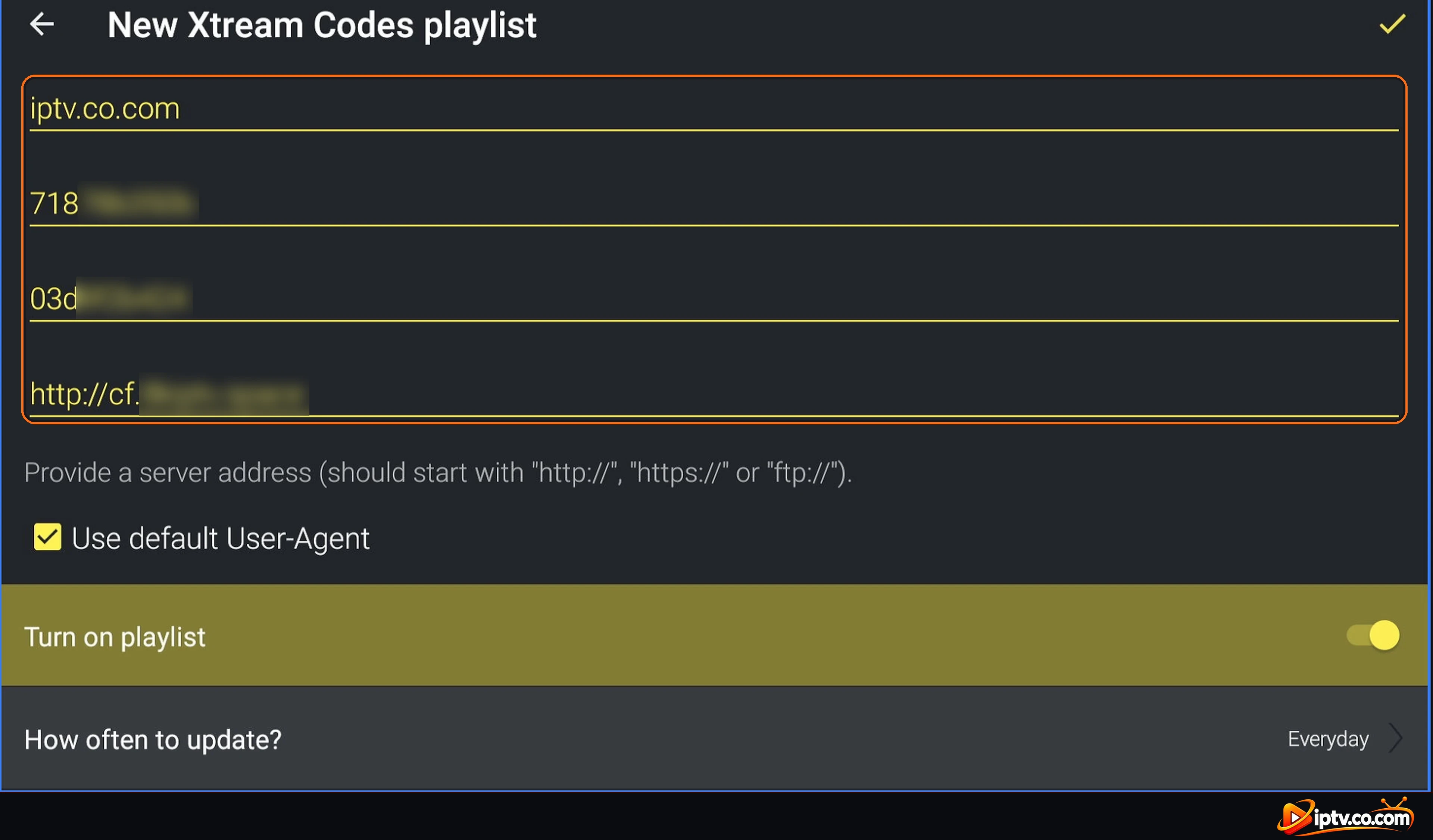
Step 3: Enter Your Xtream Codes Details
Fill in the four fields from top to bottom:
Playlist name: any name, for example the name of your provider.
Username: exactly as your provider sent it (case-sensitive).
Password: exactly as your provider sent it.
Server address: starts with http://, with the port if your provider gave one, for example:
http://yourserver.com:8080
Leave Use default User-Agent ticked and Turn on playlist ON. How often to update? can stay on Everyday.
Enter the playlist name, username, password and server address
Step 4: Select the Checkmark to Save
Move up to the ✓ at the top right and select it to save the playlist.
Select the checkmark to save the Xtream Codes playlist
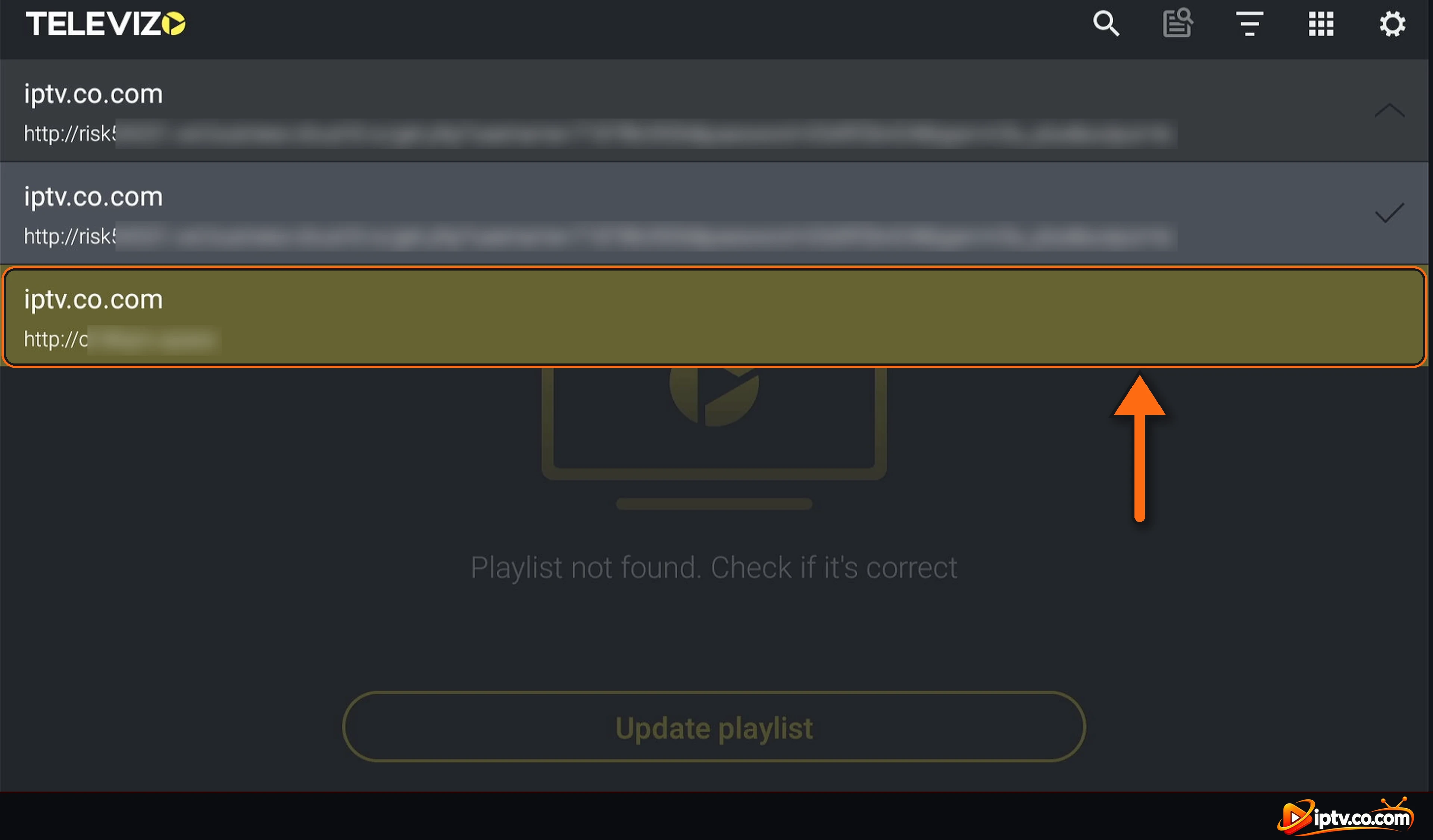
Step 5: Select Your Playlist
Your playlist appears in Playlists. Select it to open it.
Select your Xtream Codes playlist in Playlists
If you have several playlists, open the list at the top of the main screen and select the one you want to watch.
Choose your playlist from the list at the top
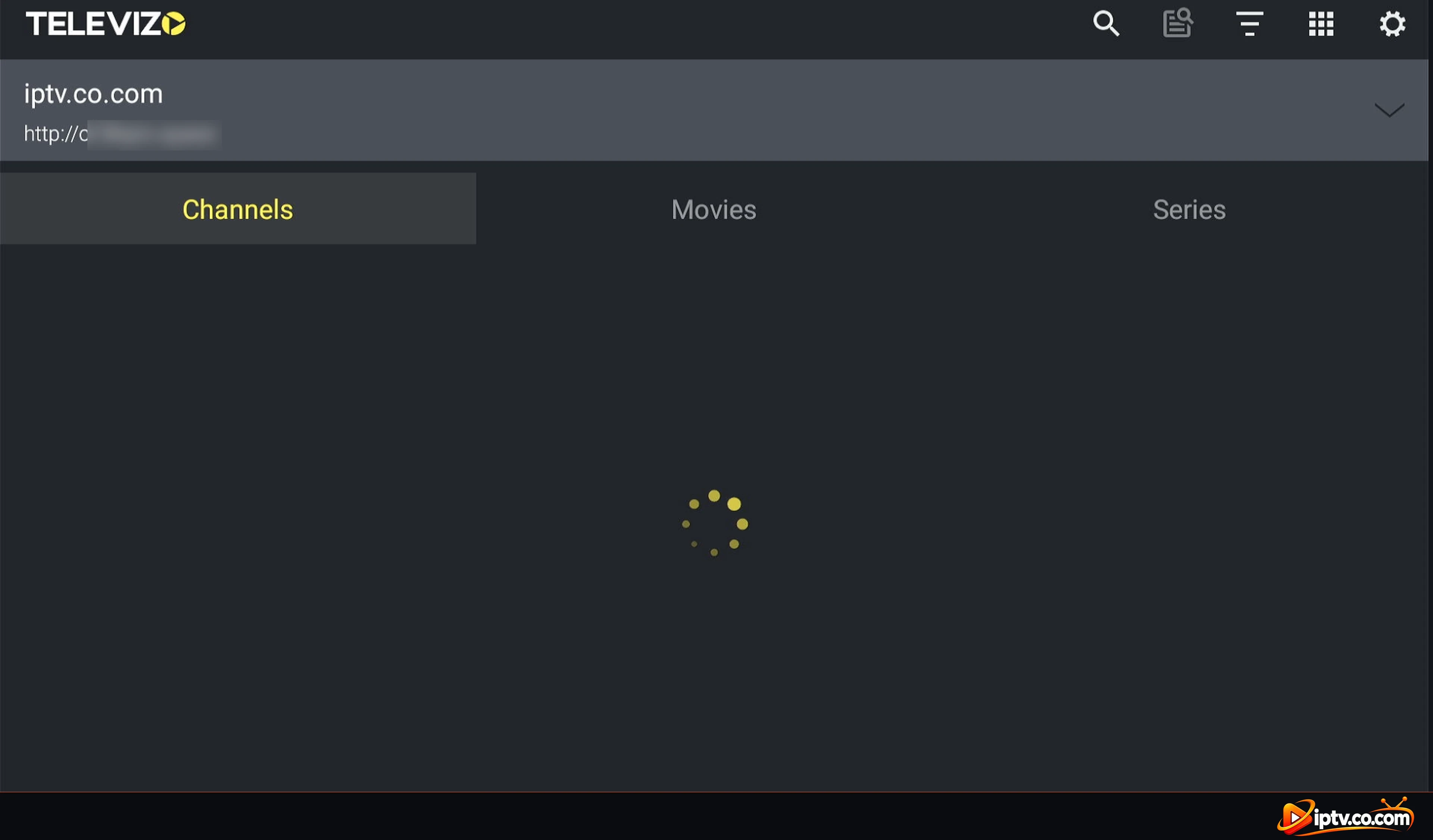
Step 6: Wait While Your Channels Load
Televizo loads your channels, movies and series. The first time, big playlists can take a minute.
Televizo loading channels from your Xtream Codes playlist
Watch Live TV, Movies and Series in Televizo
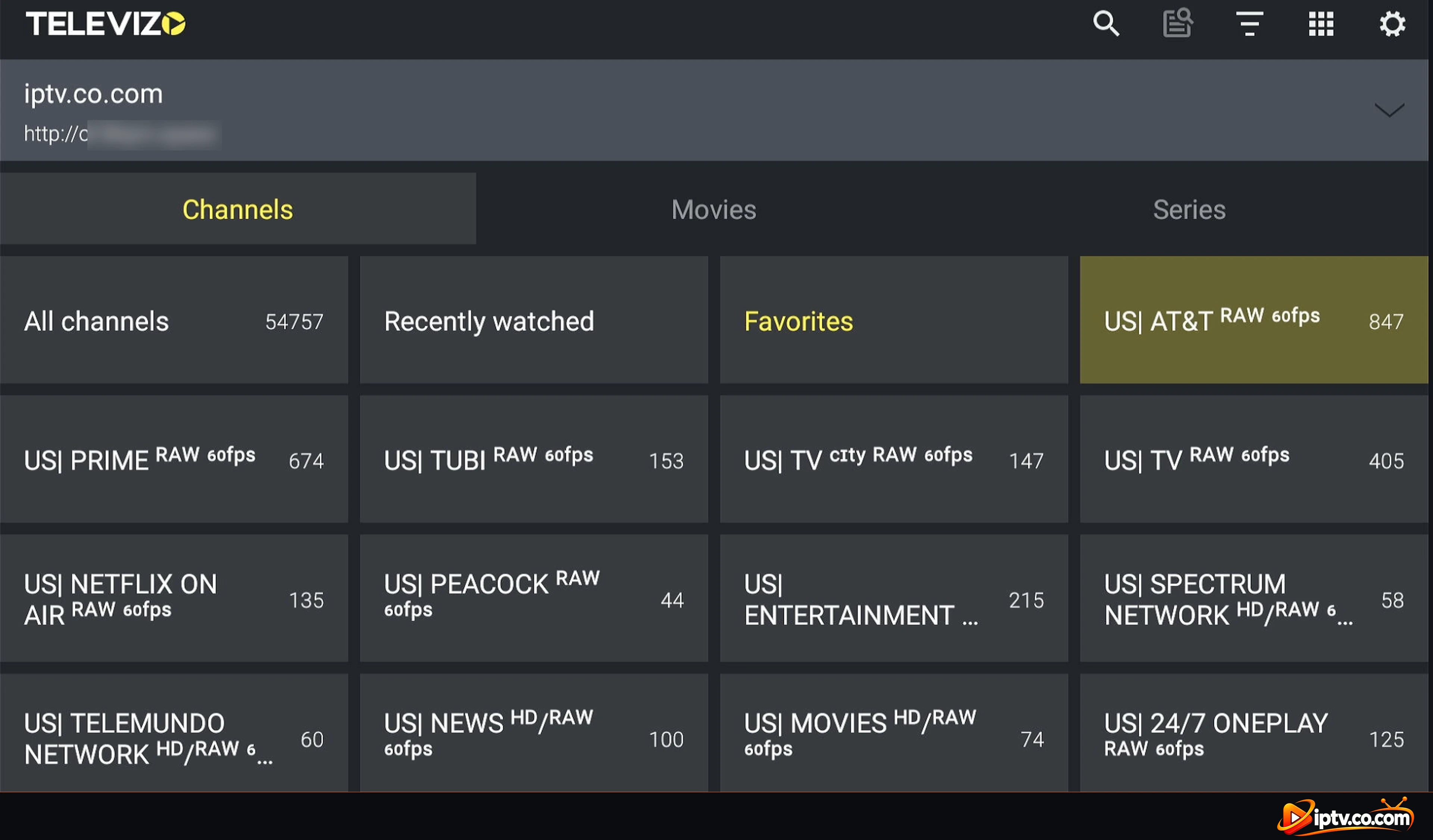
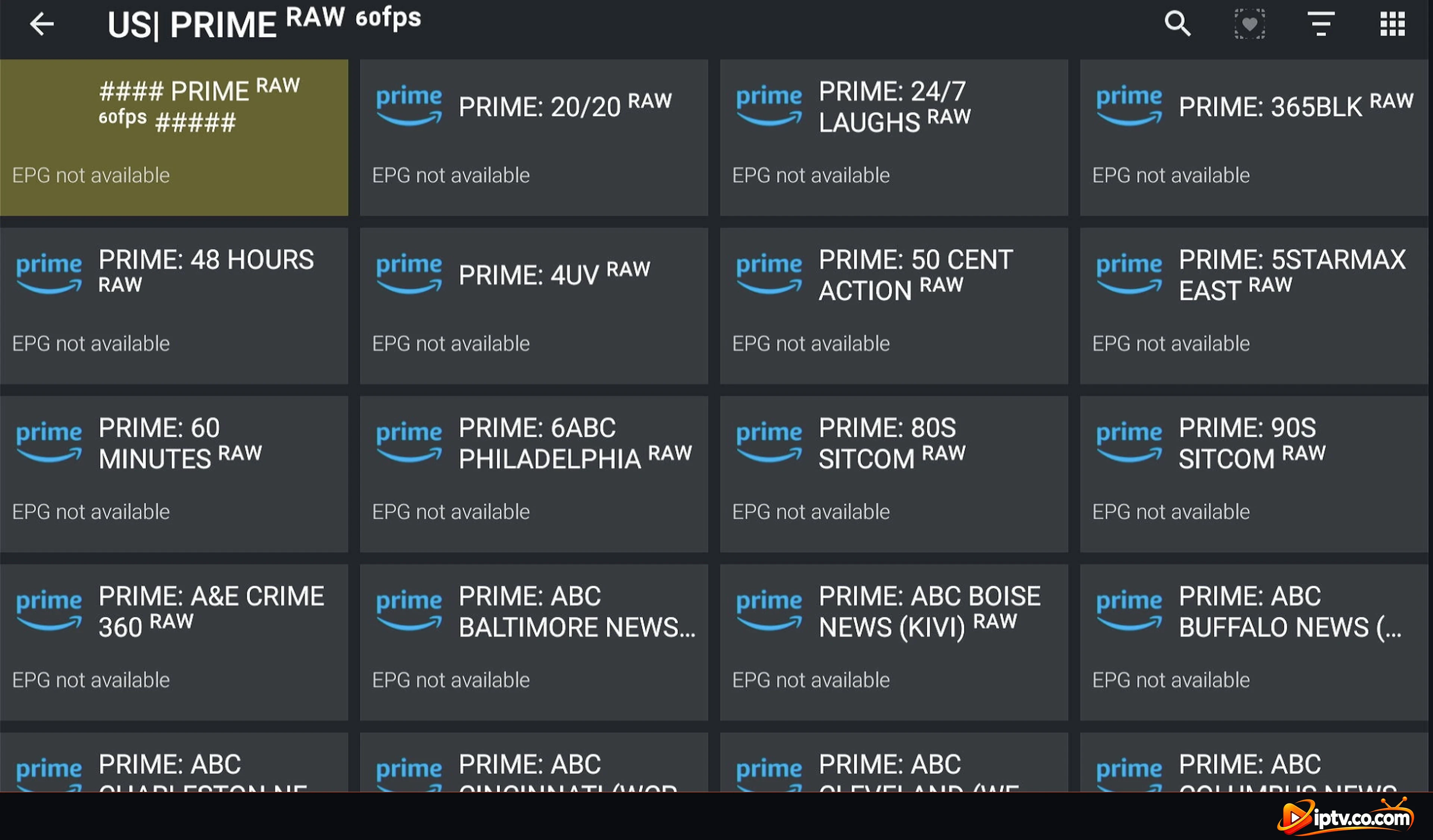
When loading finishes, Televizo shows three tabs: Channels, Movies and Series. Channels shows All channels, Recently watched, Favorites and your provider’s channel groups with the number of channels.
Televizo Channels tab with channel groups
Open a group to see its channels, then select a channel to play it.
Televizo channel list in a group
The player shows the channel name, the program (when your provider sends EPG) and buttons for the channel list, info, favorites, subtitles, audio and full screen.
Watching a live channel in Televizo
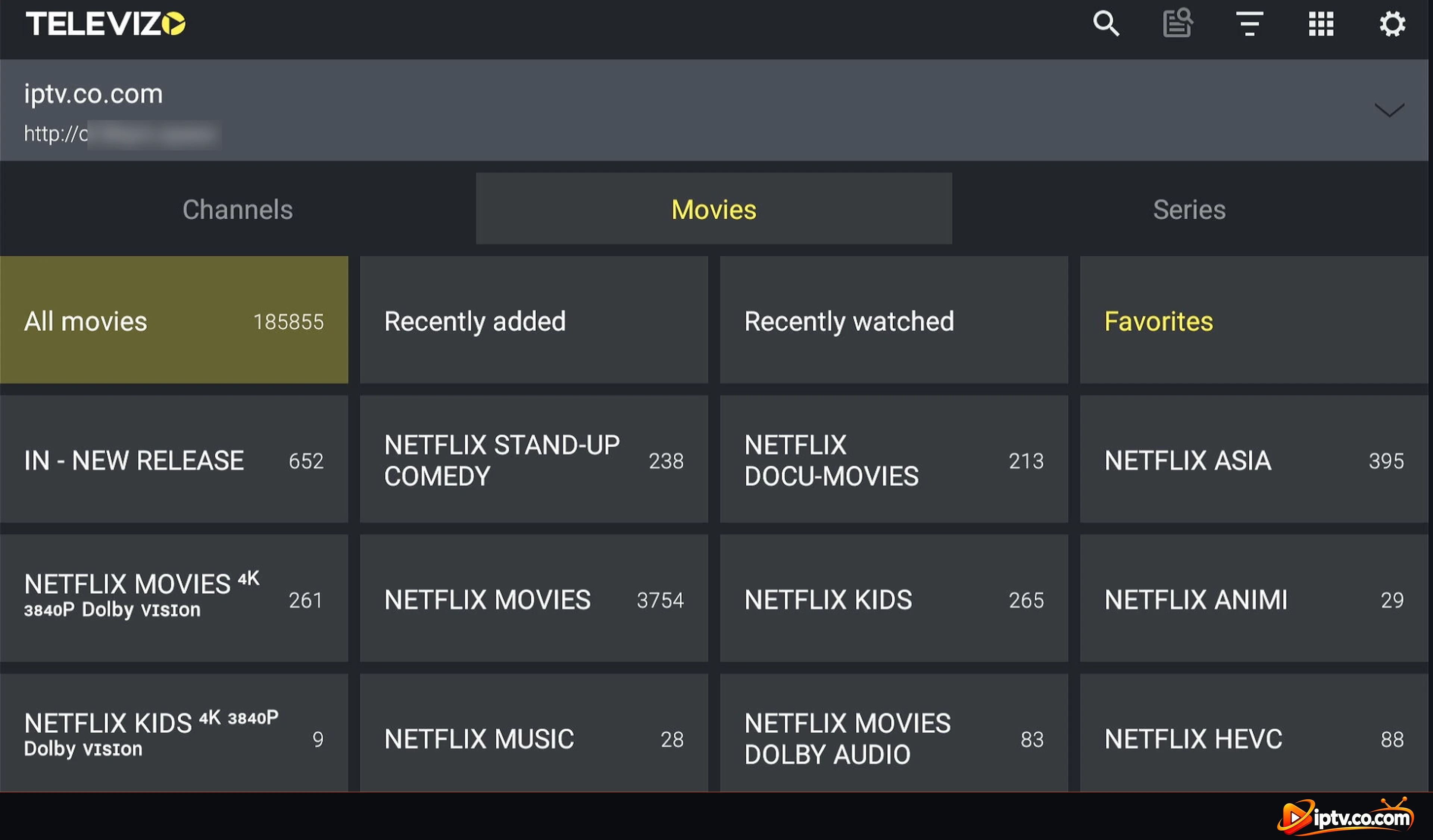
Movies are in the Movies tab (All movies, Recently added, Recently watched, Favorites and categories)…
Televizo Movies tab with movie categories
…and series in the Series tab.
Televizo Series tab with series categories
Method 2: Activate Televizo With an M3U Link
Step 1: Select New M3U playlist
Select Create playlist on the first screen (or + in Playlists) and choose New M3U playlist.
Select New M3U playlist in Televizo
Step 2: Enter a Name and Your M3U Link
Type a playlist name, then the full M3U link from your provider. It starts with http://, for example:
Leave Use default User-Agent ticked and Turn on playlist ON.
Enter a playlist name and your M3U link
Have an M3U file instead of a link? Select Or attach a file, then Open file manager and choose the file.
Select Open file manager to attach an M3U file
The first time, select Allow so Televizo can open files on your device.
Allow Televizo to access files on your device
Step 3: Select the Checkmark to Save
Select the ✓ at the top right. Then select your playlist in Playlists to load it, as in Method 1.
Select the checkmark to save the M3U playlist
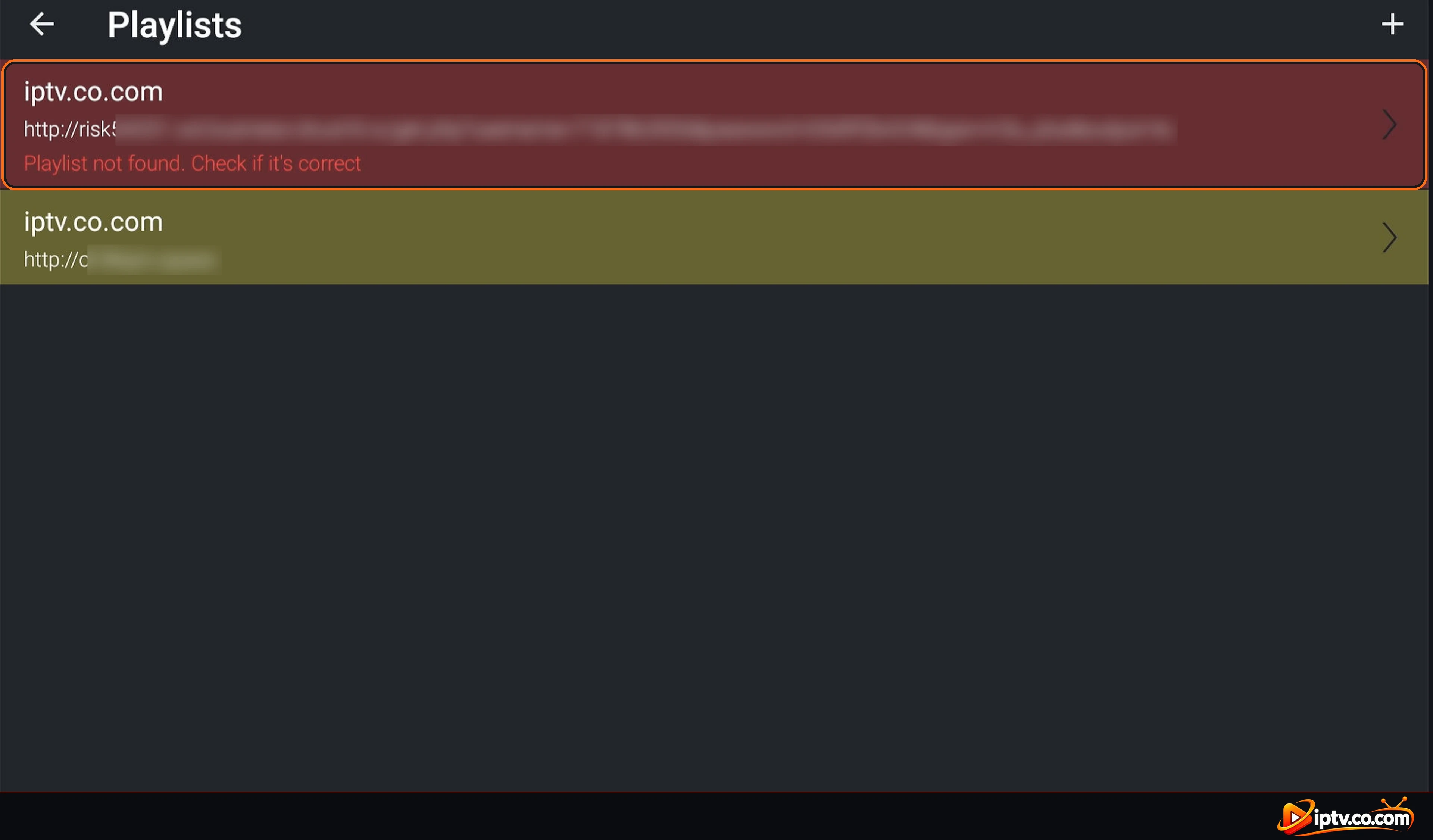
“Playlist not found. Check if it’s correct” in red means Televizo can’t load the link: check the M3U link with your provider, or use Xtream Codes instead.
Playlist not found error in Televizo
How to Add More Playlists in Televizo
You can add unlimited playlists. In Playlists, select the + at the top right and choose New M3U playlist or New Xtream Codes playlist.
Select + to add another playlist in Televizo
Using a VPN? Use Your Provider’s VPN DNS
If Televizo stops working when your VPN is on, replace the server with your provider’s VPN DNS. It comes with your IPTV login details and always starts with vpn.
“Playlist not found. Check if it’s correct”: check the server address, username and password (they are case-sensitive), and that your subscription is active.
Server address: enter only the server with the port (for example http://server.com:8080), not the full M3U link.
M3U link not loading: add the same subscription with Xtream Codes instead.
Playlist doesn’t update: select Update playlist on the main screen, or open the playlist settings and check Turn on playlist is ON.
“EPG not available”: your provider doesn’t send a TV guide for that channel.
Select Create playlist, choose New Xtream Codes playlist (or New M3U playlist), enter your login details from your IPTV provider and select the checkmark to save.










2 Responses