
Quick Summary
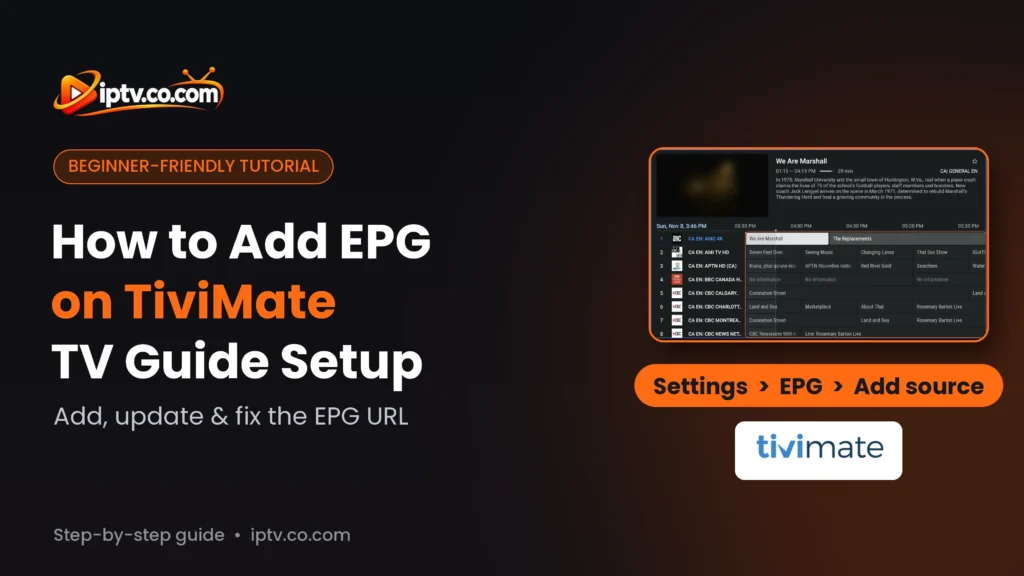
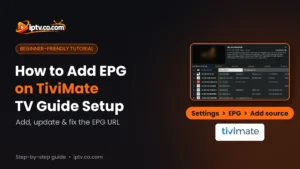
To add EPG to TiviMate, open Settings > EPG > EPG sources > Add source, select Enter URL, type your EPG URL and select OK. Then go back and select Update EPG. Your EPG URL comes from your IPTV provider with your login details, in the free trial or the paid subscription. It usually looks like http://your-provider-url/xmltv.php?username=…&password=…
Good to Know: The EPG Needs TiviMate Premium
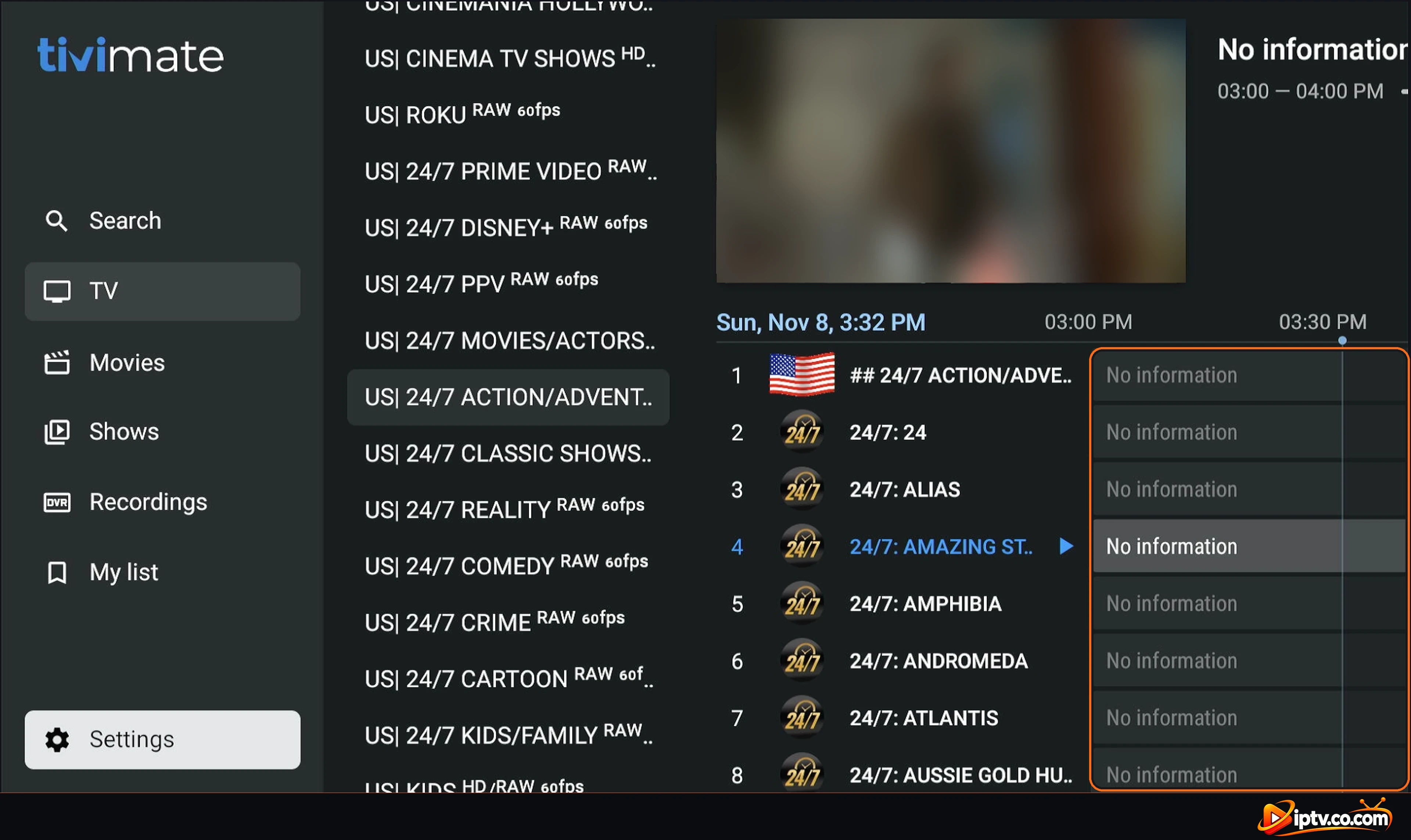
In the free version of TiviMate, the TV guide shows No information. The EPG only works with TiviMate Premium. You also need the EPG URL from your IPTV provider: it is sent with your M3U or Xtream Codes login, in the free trial and in the paid version.
Your channels play, but the TiviMate TV guide only says No information? You need to add an EPG source. This guide explains what an EPG is, where to get your EPG URL, how to add the EPG to TiviMate on Firestick, Android TV and Google TV step by step, how to update it, and how to fix the most common TiviMate EPG problems.
What Is an EPG?
EPG means Electronic Program Guide: the TV guide that shows what is on each channel now and next, with the time, title and description of every show. In TiviMate the EPG fills the guide grid next to your channels. Without it, every program shows No information.
The EPG is a separate link in XMLTV format, the only format TiviMate supports. Your channel list (M3U or Xtream Codes) and your EPG are two different things, so TiviMate needs both.
Where to Get the EPG URL for TiviMate
Your EPG URL comes from your IPTV provider, together with your IPTV login details. You get it with the free trial and with the paid subscription: look in the email or message with your M3U link or Xtream Codes. If you can’t find it, ask your provider for the “EPG link” or “XMLTV URL”.
With Xtream Codes, the EPG URL usually uses the same server, username and password as your login:
http://your-server:port/xmltv.php?username=YOUR_USERNAME&password=YOUR_PASSWORD- Xtream Codes playlist: TiviMate often adds the provider’s EPG by itself as the (default) source. You only need to add it manually if the guide stays empty.
- M3U playlist: add the EPG URL yourself (steps below).
- Use
http://, nothttps://, unless your provider says otherwise.
How to Add EPG to TiviMate (Step by Step)
These steps work on Firestick, Fire TV, Android TV, Google TV and Android boxes. You need TiviMate Premium and a playlist already added (see how to activate TiviMate).
Step 1: Open Settings and Select EPG
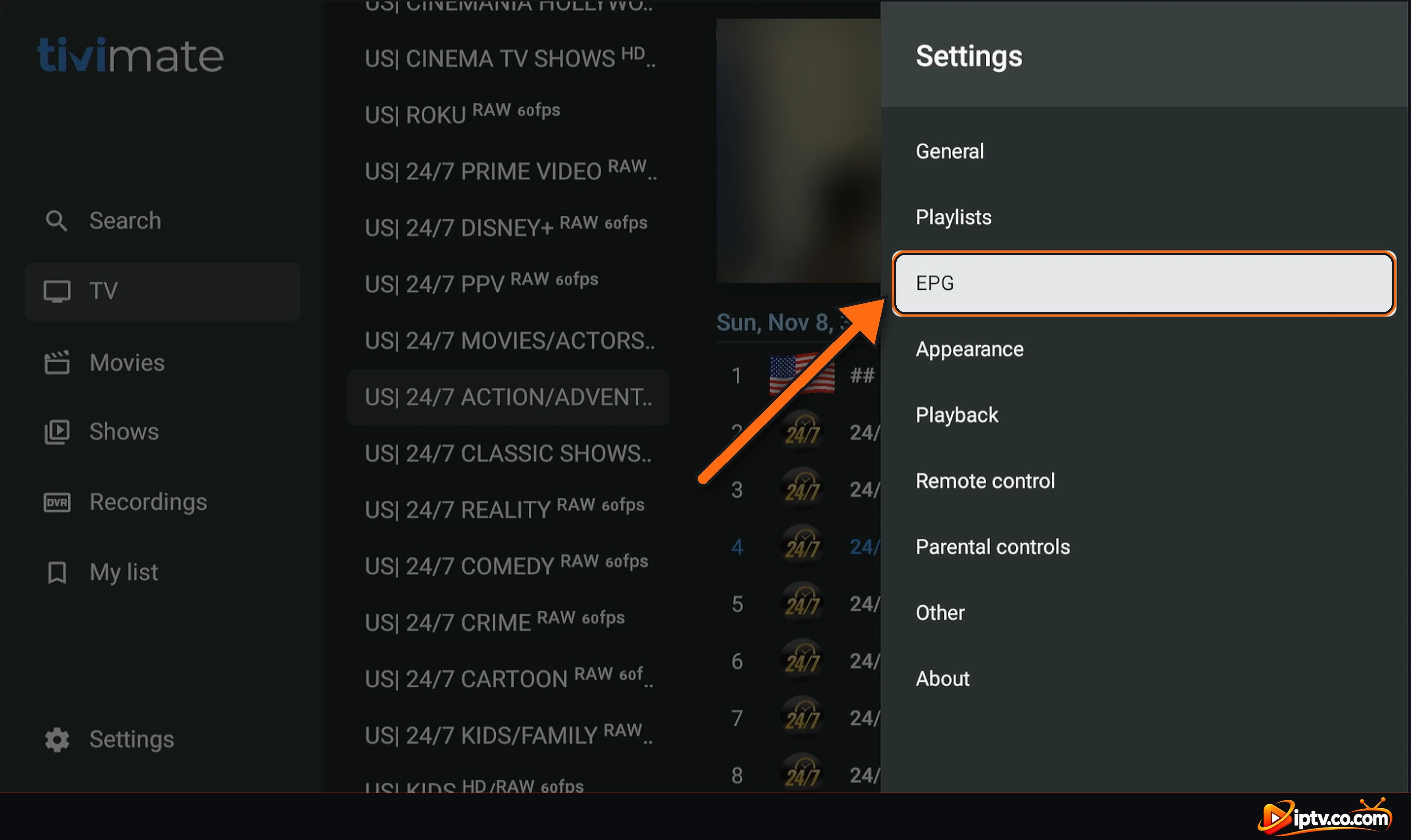
In the TiviMate menu on the left, select Settings, then select EPG.
Step 2: Select EPG Sources
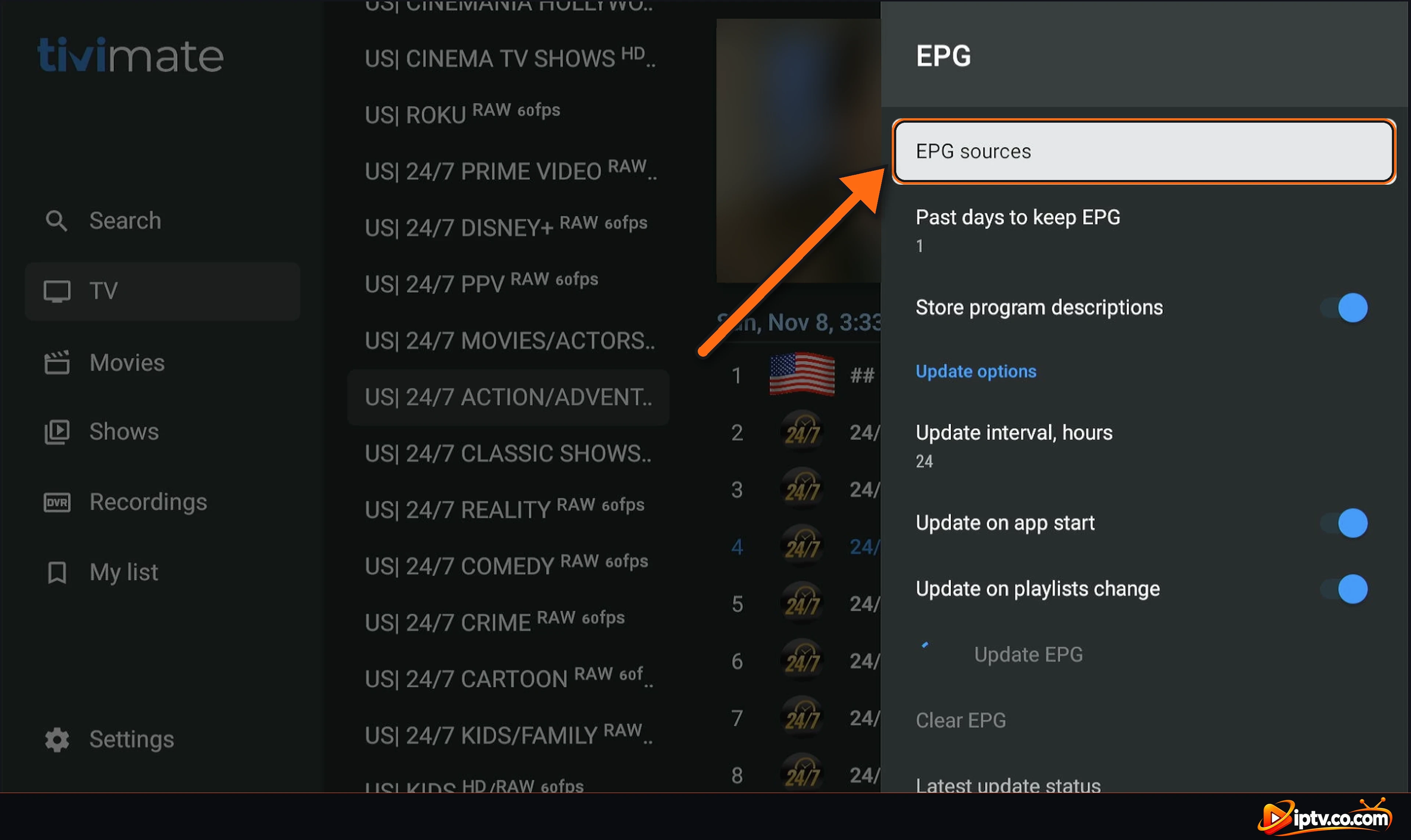
At the top of the EPG menu, select EPG sources.
Step 3: Select Add Source
You see the EPG sources already added (with Xtream Codes there is often one marked (default)). Select Add source.
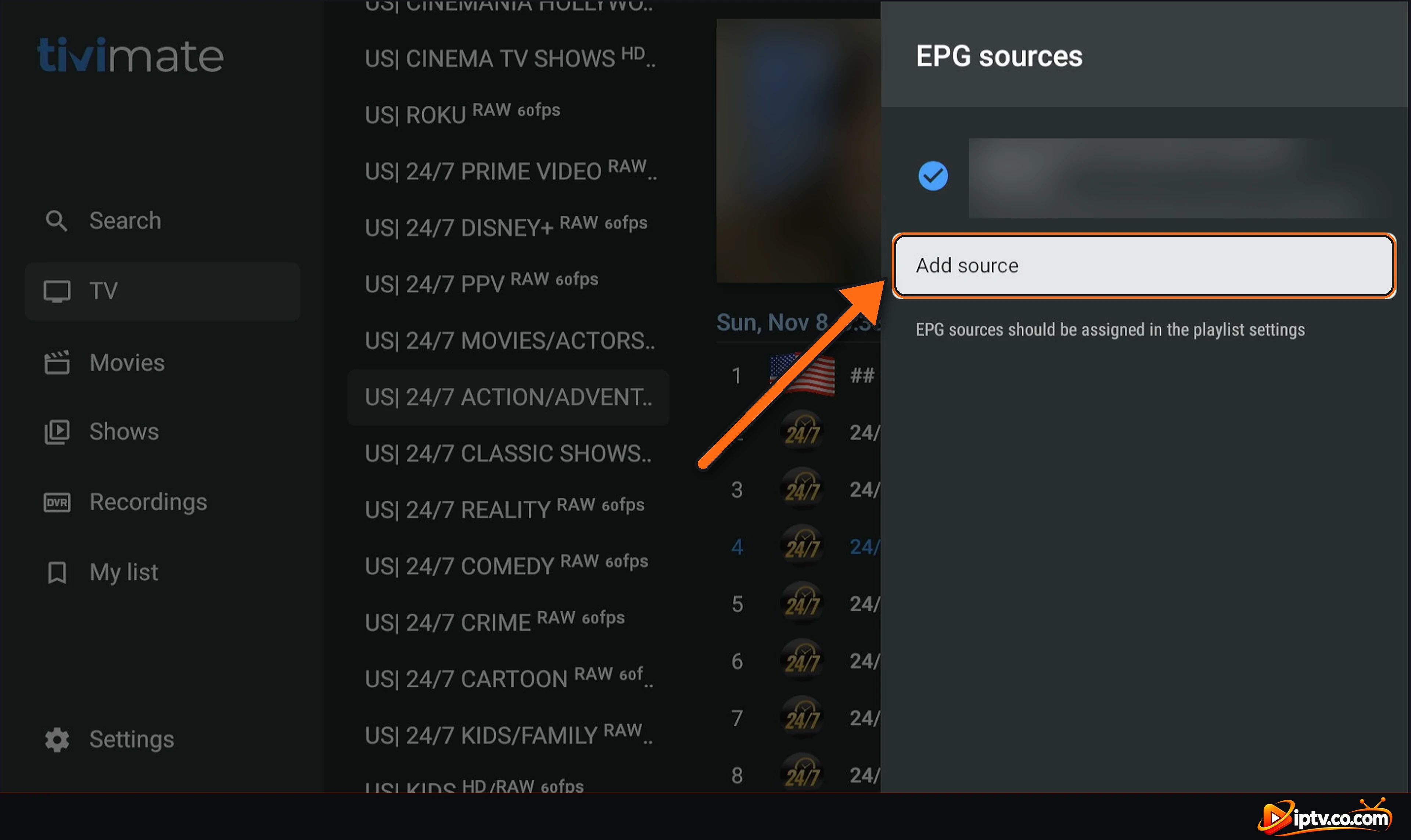
Step 4: Select Enter URL
The EPG URL screen opens (XMLTV format is only supported). Select Enter URL, or Paste from clipboard if you copied the link on the device.
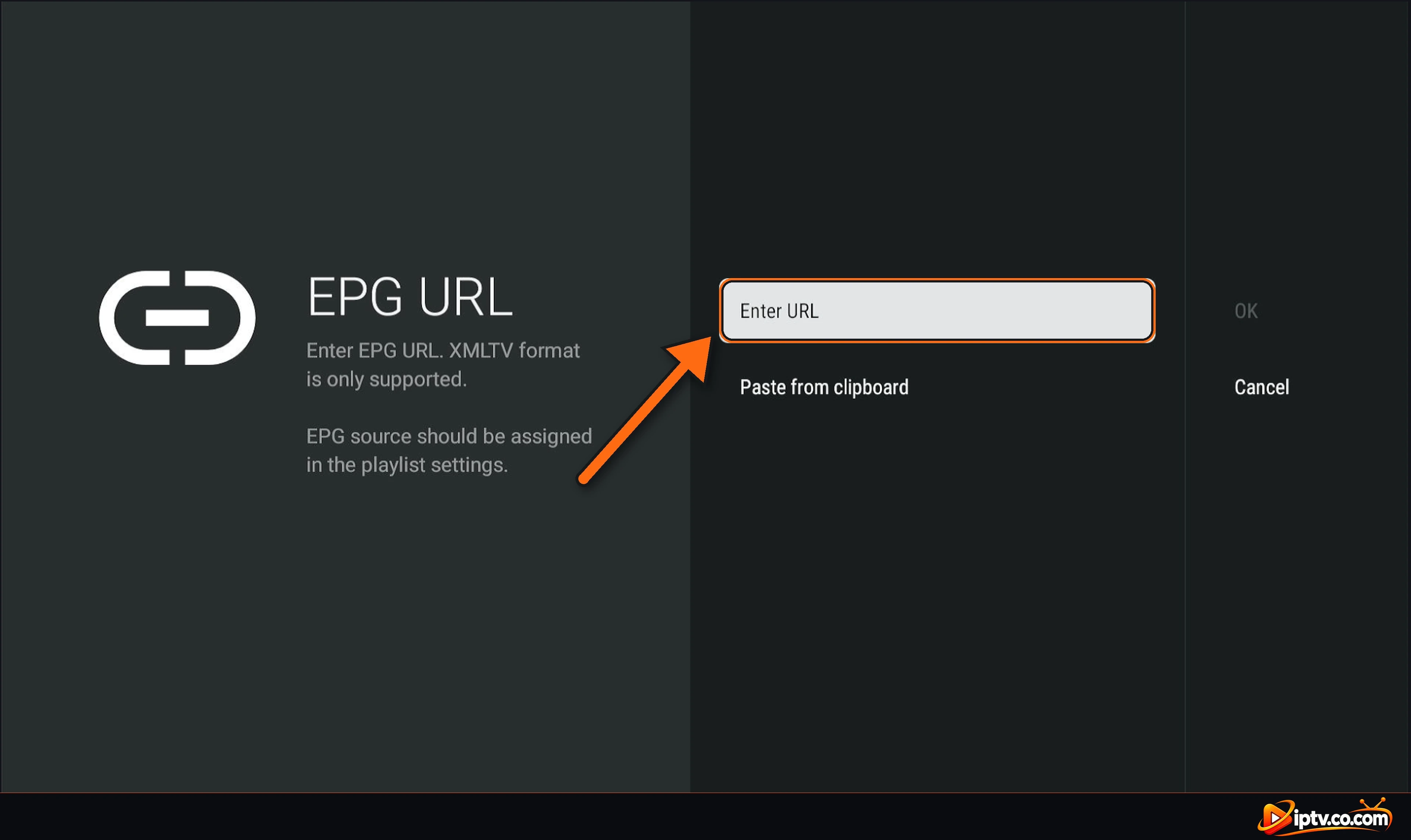
Step 5: Type Your EPG URL and Select Next
Type your full EPG URL with the remote and select Next. Tip: to avoid typing the long link with the remote, scan the QR code next to the Firestick keyboard with your phone and type or paste the link on your phone.
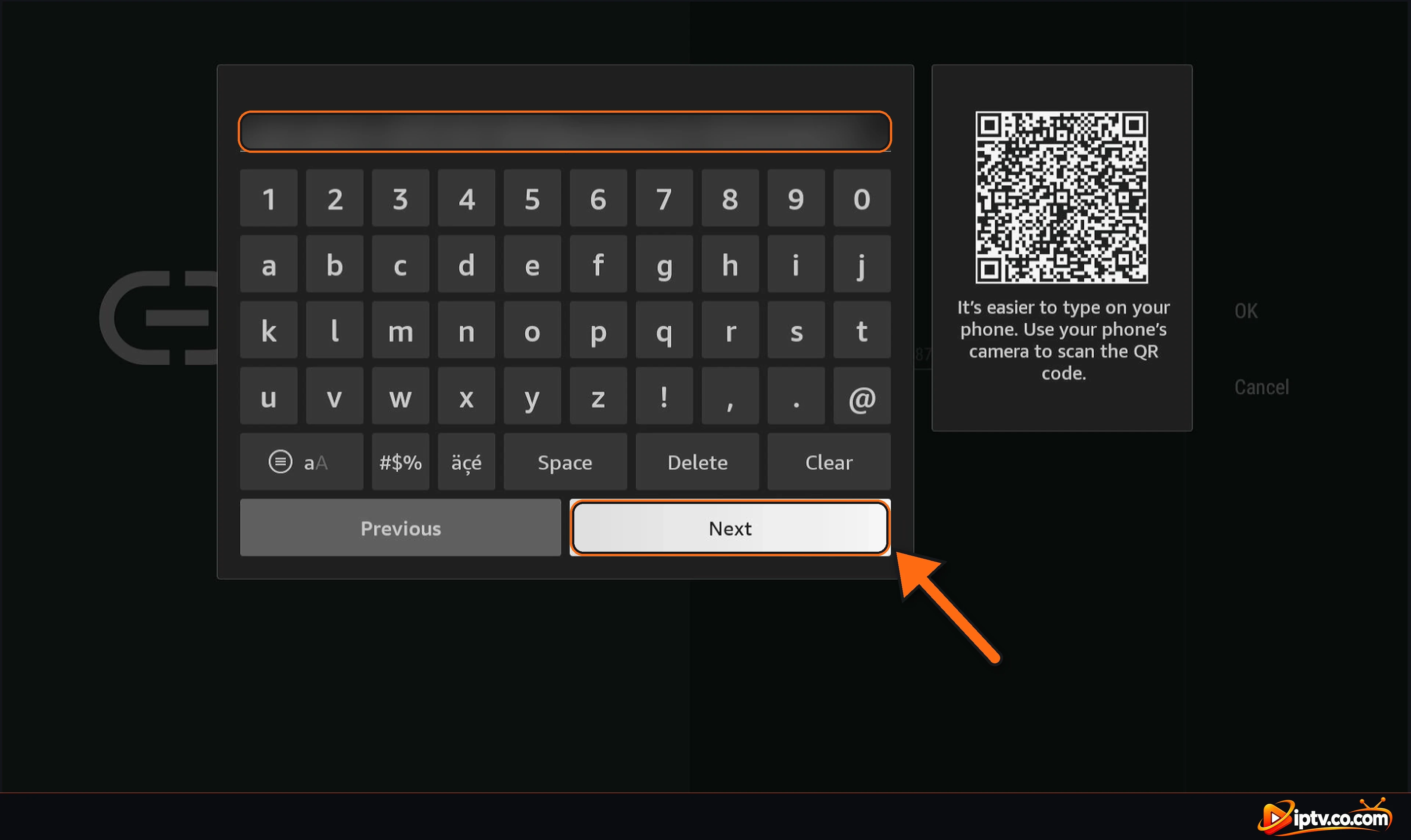
Step 6: Select OK
Your EPG URL now appears under Enter URL. Select OK.
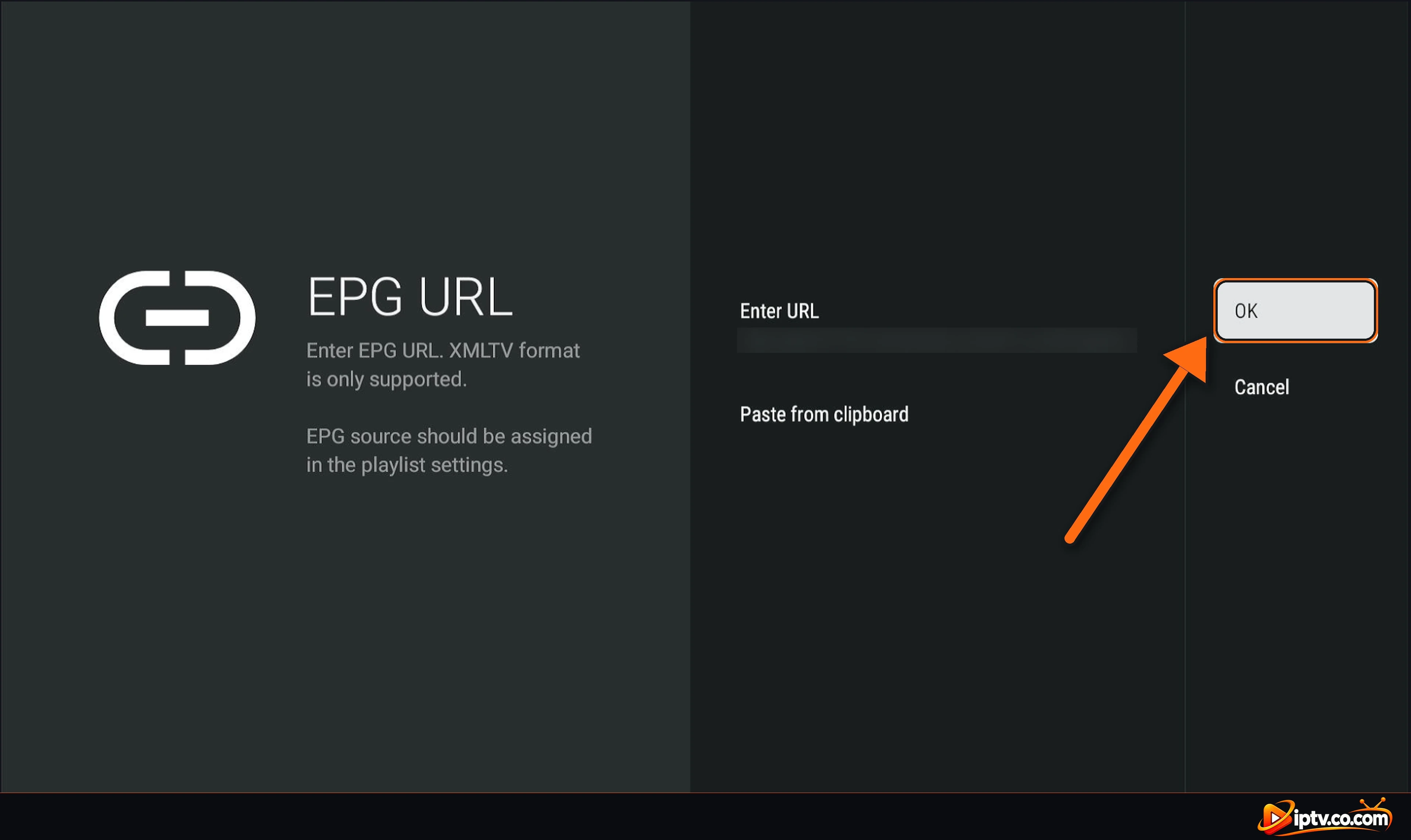
Step 7: Check the New EPG Source
The new source appears in the list. An ! icon only means it hasn’t been loaded yet. Select it to open its settings.
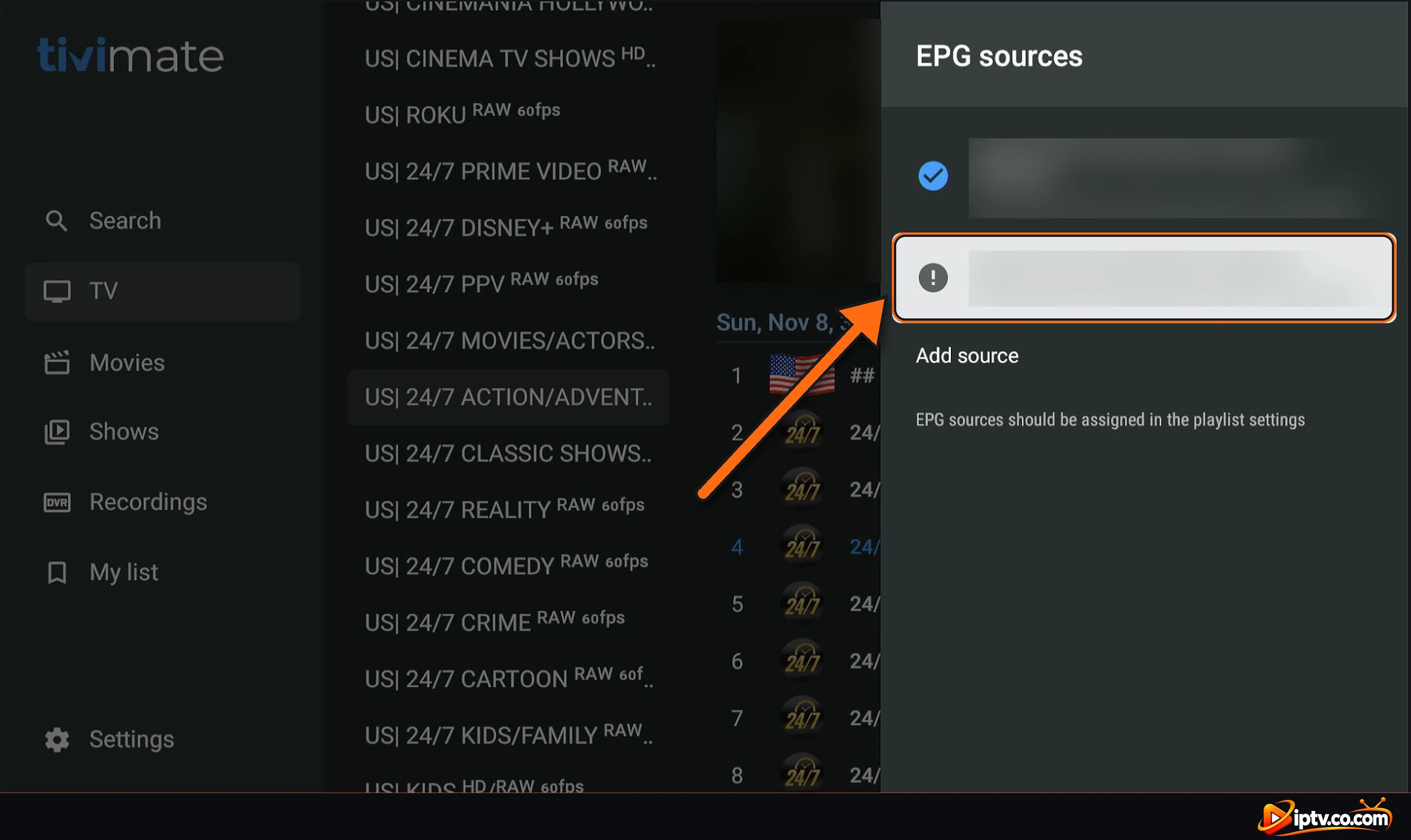
Step 8: Set the Time Offset and Default Source
In the source settings you can change the Source name, check the EPG URL, set a Time offset if the guide is one or more hours early or late, and turn on Default source to use this EPG for all your channels. You can also Delete source here.
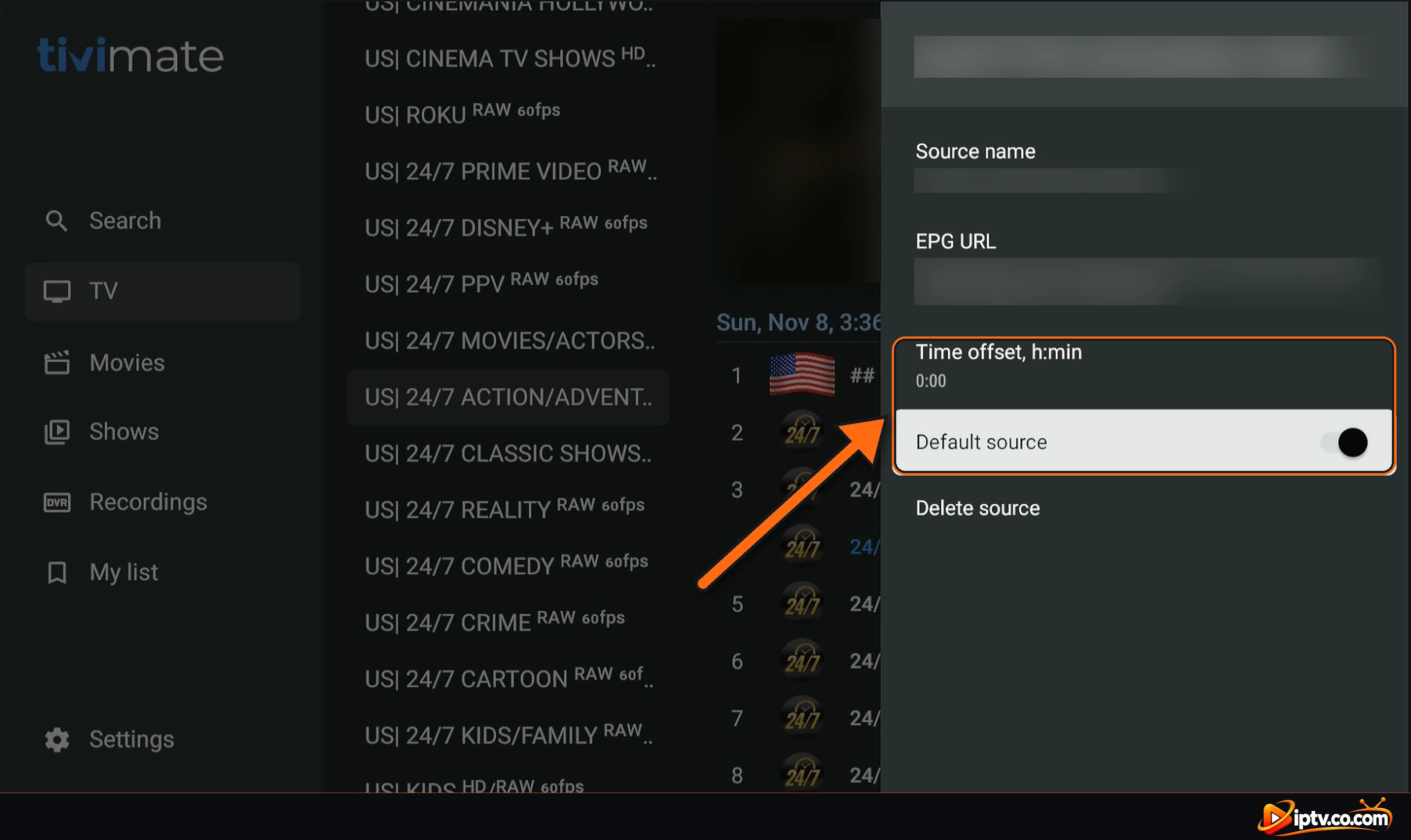
Step 9: Select Update EPG
Go back to the EPG menu and select Update EPG. A loading icon appears while TiviMate downloads the guide. Turn on Update on app start and Update on playlists change so the guide stays up to date.
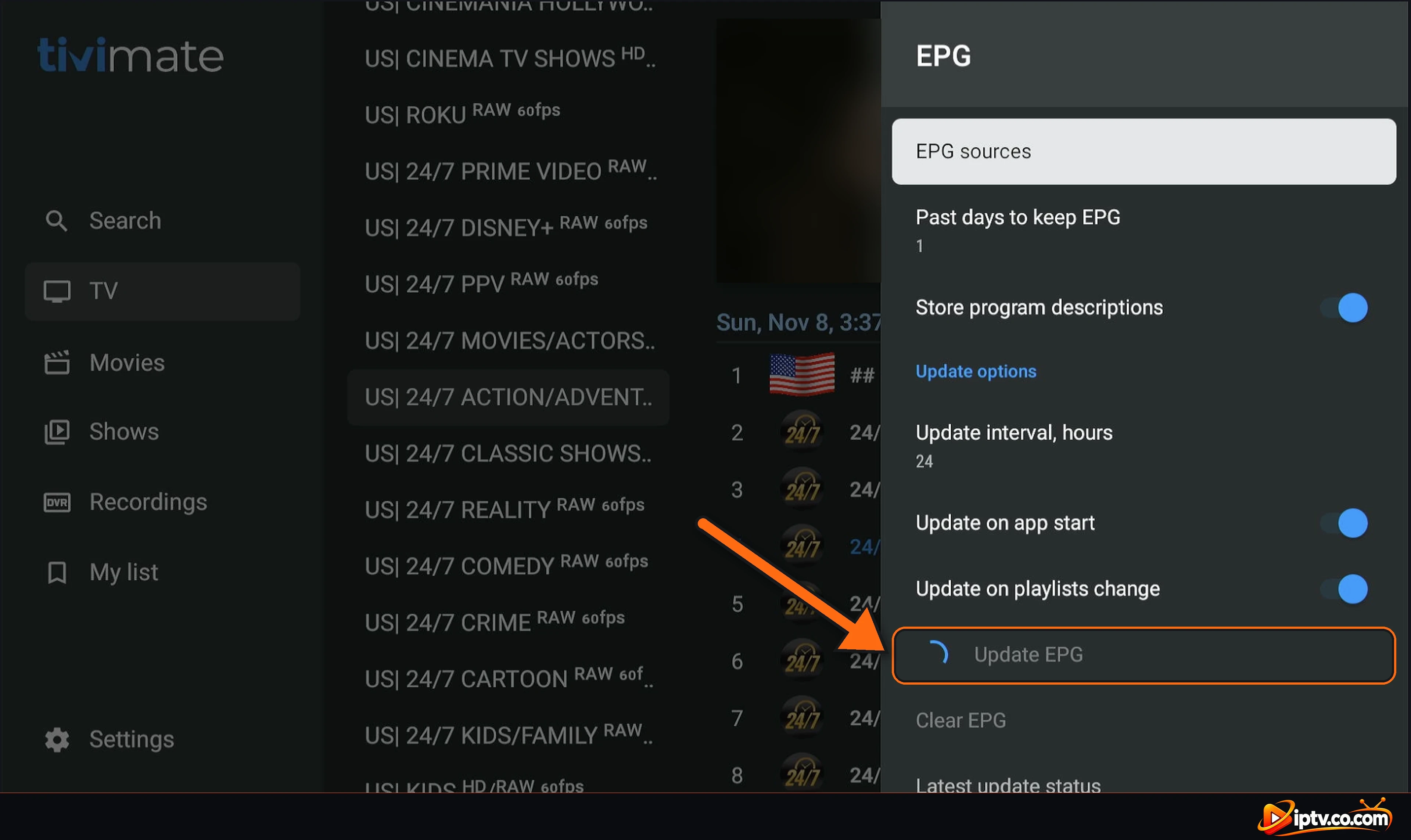
Done: The TV Guide Works
Open TV: the guide now shows the program names, times and descriptions for your channels. A few channels can still show No information if your provider has no guide data for them.
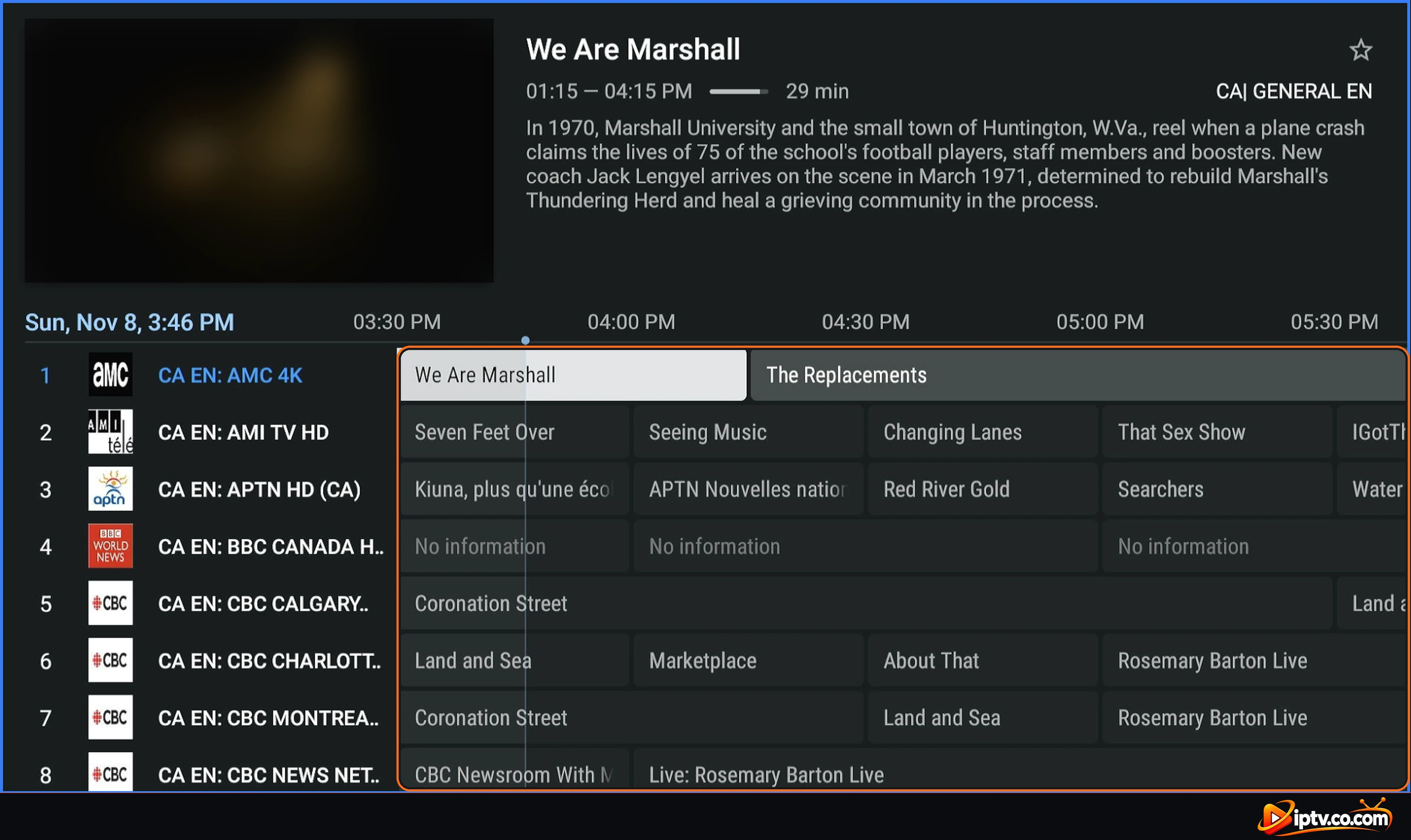
Assign the EPG to Your Playlist
TiviMate shows the note EPG sources should be assigned in the playlist settings. If the guide is still empty after updating, assign the source to your playlist: open Settings > Playlists, select your playlist, open EPG sources and tick the EPG source you added. Then select Update EPG again. This is also how you include the EPG URL in a playlist so you don’t have to choose it every time.
How to Update the EPG on TiviMate
- Update now: Settings > EPG > Update EPG.
- Automatic updates: set Update interval, hours (24 is fine) and turn on Update on app start.
- Keep past programs: Past days to keep EPG sets how many days of old guide data are kept (useful for catch-up).
- Start fresh: Clear EPG, then Update EPG.
- Check errors: Latest update status shows whether the last update worked.
TiviMate EPG Not Working? Quick Fixes
- Guide shows No information everywhere: check that TiviMate Premium is active, then add the EPG source and select Update EPG.
- EPG not updating / failed to update EPG: open Latest update status, check the URL for typos, change
https://tohttp://, then Clear EPG and Update EPG. - Don’t see my EPG: assign the source in Settings > Playlists > your playlist > EPG sources.
- Guide is 1 hour off: set the Time offset in the EPG source settings, and check the time zone of your TV device.
- Only some channels have a guide: your provider has no data for those channels. Ask them, or long press a channel and choose another EPG channel if your version offers it.
- EPG stopped after changing playlist URL: edit the EPG source with the new server, username and password.
- Subscription expired: the EPG URL stops working too. Renew it with your IPTV provider.
Keep Your EPG URL Private
Your EPG URL contains your IPTV username and password. Don’t share it in screenshots, videos or comments.
Frequently Asked Questions
What is an EPG?
EPG means Electronic Program Guide: the TV guide that shows what is on each channel, with times and descriptions. In TiviMate it fills the guide grid next to your channels.
What is EPG on TiviMate?
It is the TV guide in TiviMate. It comes from an EPG URL in XMLTV format from your IPTV provider and needs TiviMate Premium.
How do I add EPG to TiviMate?
Open Settings > EPG > EPG sources > Add source, select Enter URL, type your EPG URL, select OK, then select Update EPG.
How do I get the EPG URL for TiviMate?
Your IPTV provider sends it with your login details, in the free trial and in the paid version. It usually looks like http://server:port/xmltv.php?username=…&password=… Ask your provider if you can’t find it.
How do I update the EPG on TiviMate?
Go to Settings > EPG and select Update EPG. To update it automatically, set the update interval and turn on Update on app start.
Why don’t I see my EPG on TiviMate?
Check that TiviMate Premium is active, that the EPG source is added and assigned to your playlist in Settings > Playlists, and select Update EPG.
Does the TiviMate EPG work in the free version?
No. In the free version the guide shows No information. The EPG needs TiviMate Premium.
How do I set up EPG on TiviMate on Firestick?
The steps are the same on Firestick: Settings > EPG > EPG sources > Add source > Enter URL, then OK and Update EPG. Scan the QR code next to the keyboard to type the link on your phone.
How do I avoid typing the EPG source manually in TiviMate?
Use the QR code next to the Firestick keyboard to type on your phone, or copy the link on the device and use Paste from clipboard. With Xtream Codes, TiviMate often adds the EPG by itself.
Why is the TiviMate EPG one hour off?
Set the Time offset in the EPG source settings, and check that the time zone on your TV device is correct.
Your TiviMate TV guide is ready. Need the rest of the setup? See how to install TiviMate, how to activate TiviMate with M3U and Xtream Codes and how to unlock TiviMate Premium, or browse all TiviMate guides.
One Response