IPTV Smarters Failed to Authorize: Quick Fix
- Retype your username and password exactly (they are case-sensitive).
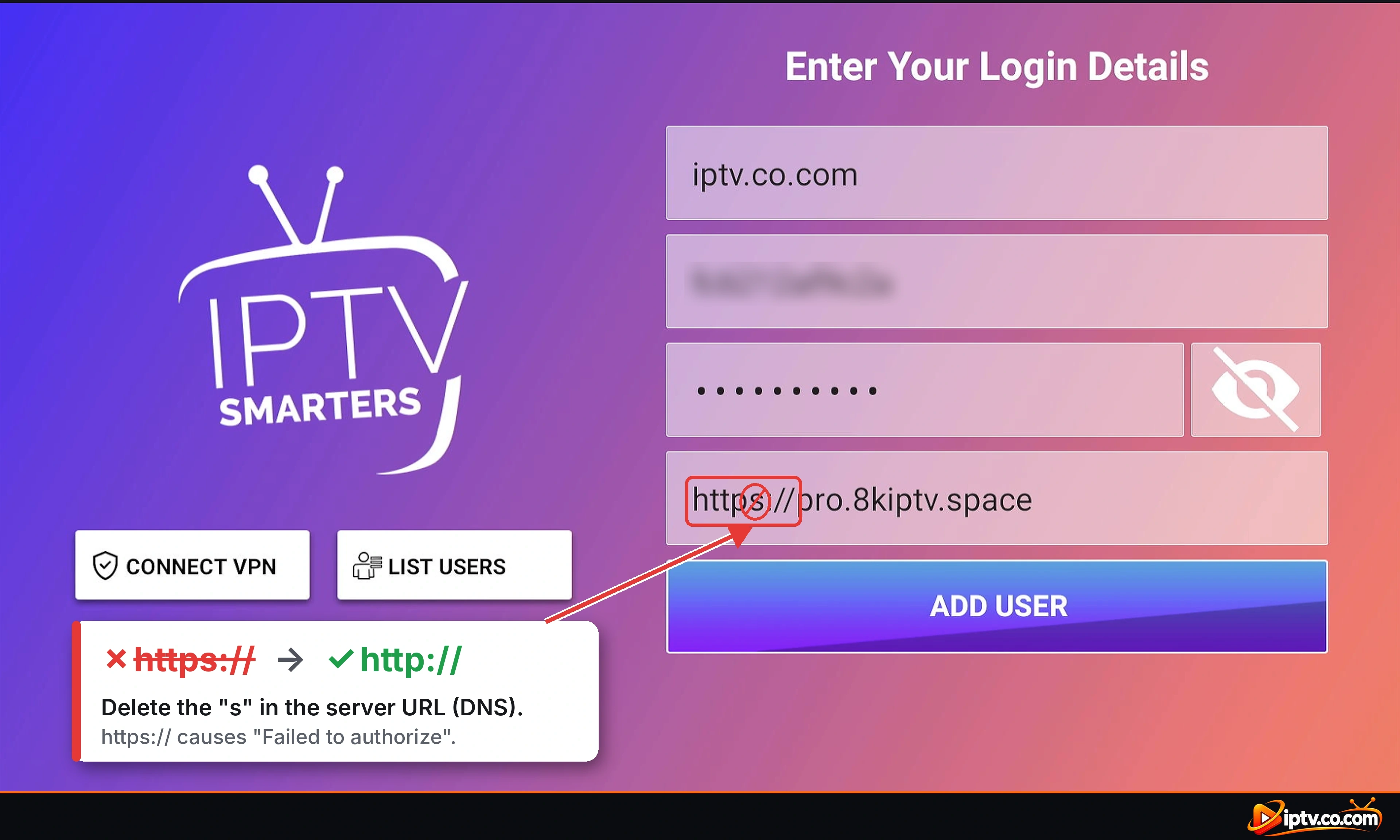
- Write the server URL with http://, not https://, and add the port.
- Delete the user in List Users and add it again.
- Restart your router to get a new IP address.
- Check that your subscription is active, or ask your provider for a new DNS.
Seeing the IPTV Smarters failed to authorize error when you log in? It is the most common IPTV Smarters Pro error, and it almost always comes from the login details, the server URL or the subscription, not from the app itself. This guide explains what the message means and gives you every fix, step by step, for Firestick, Android TV, Samsung and LG smart TVs, iPhone and PC.
What Does “Failed to Authorize” Mean in IPTV Smarters?
IPTV Smarters is only a player: it has no channels and no accounts of its own. When you add a playlist, the app sends your username, password and server URL (also called the DNS or portal) to your IPTV provider’s server. Failed to authorize means that server refused the login. The usual causes are:
- A typing mistake in the username, password or server URL.
- https:// instead of http://, a missing port, or extra text like
/get.phpin the URL. - An expired subscription, or too many devices connected at the same time.
- Your IP address was blocked after several failed logins.
- Your provider changed its server address (DNS).
- Your internet provider blocks the IPTV server.
How to Fix IPTV Smarters Failed to Authorize (Step by Step)
1. Retype Your Username and Password
Copy them again from your provider’s email or client area, character by character. They are case-sensitive: Abc123 and abc123 are different. Make sure there is no space at the start or end, and tap the eye icon to check the password.
2. Fix the Server URL: http://, Port and No /get.php
Write the server URL exactly like http://your-provider-url:8080. Most IPTV servers don’t accept https://: delete the “s”. Keep the port if your provider gives one, and don’t paste the full M3U link (/get.php?username=…) into the URL field.
3. Delete the User and Add It Again
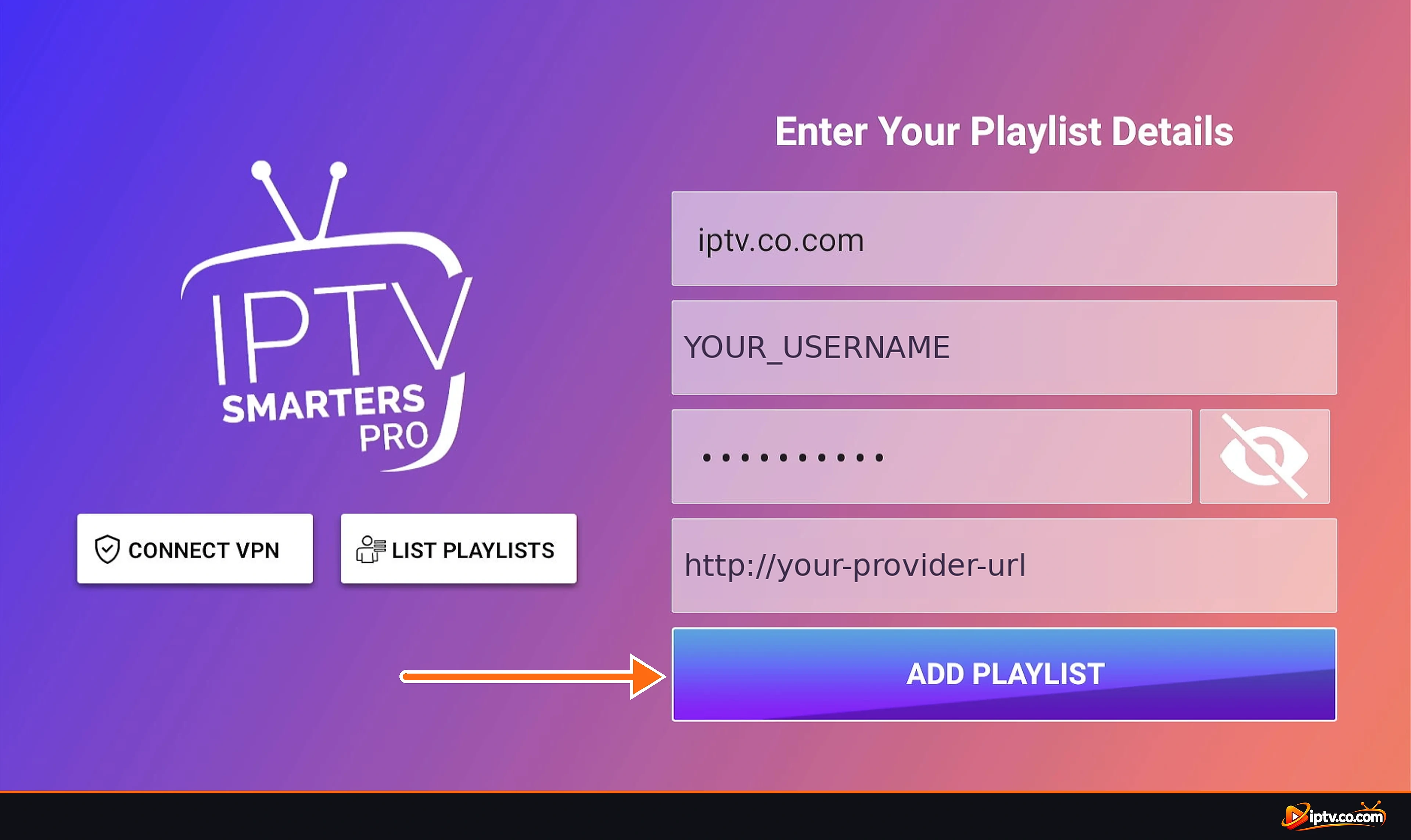
Open List Users, long-press (or select the pencil icon on) your user and delete it. Then tap Add User > Login with Xtream Codes API and type the details again.
4. Restart Your Router to Get a New IP Address
IPTV servers can block an IP address after several failed logins. Unplug your router for 1–2 minutes, plug it back in, wait until the internet is back, then log in once with the correct details.
5. Ask Your Provider for a New DNS
Providers sometimes change their server address, or give a special DNS for IPTV Smarters. Ask for the latest one, then delete the old user and add it again with the new URL.
6. Check Your Subscription and Connections
An expired, unpaid or suspended line returns Failed to authorize. So does a plan with 1 connection when IPTV Smarters is also open on another device. Close the app everywhere else and check the expiry date in your provider’s client area. See how to check when your subscription expires.
7. Use Your Provider’s VPN DNS if Your Internet Blocks IPTV
Some internet providers block IPTV servers, which looks like a login error. Use the VPN DNS your provider gives (for example http://vpn.dream-4k.co) as the server URL, or turn on a VPN and log in again.
8. Update or Reinstall IPTV Smarters and Check the Date
Install the latest version from the official link, clear the app cache, and make sure the date and time on your device are set automatically. A wrong date can break the connection to the server. Full steps: how to install IPTV Smarters Pro.
9. Test the Same Login With an M3U URL
Choose Load Your Playlist or File/URL and paste your M3U link, or test it in VLC. If it doesn’t play there either, the problem is the subscription or the server, not IPTV Smarters. See how to log in with an M3U URL.
Failed to Authorize on Firestick, Smart TV, iPhone and PC
- Firestick and Android TV: go to Settings > Applications > Manage Installed Applications > IPTV Smarters Pro, select Force stop and Clear cache, then log in again. See IPTV Smarters on Firestick.
- Samsung and LG TV: turn the TV off at the wall for 1 minute, then retype the URL with the remote carefully. A single wrong character is enough to fail.
- iPhone and iPad (Smarters Player Lite): delete the playlist, close the app from the app switcher and add it again.
- Windows and Mac: paste the details instead of typing them, and allow the app through the firewall when Windows asks.
Other IPTV Smarters Login Errors
- “Invalid username or password”: same fix as Failed to authorize: retype the details and check the subscription.
- “Your account is expired”: renew your subscription with your provider; the app can’t fix it.
- “URL not valid”: the server URL is missing http:// or has extra text. See URL not valid fixes.
- Logged in but no channels: see channels not loading.
For every other problem (buffering, crashes, TV guide, VPN), see IPTV Smarters Pro not working. Still stuck? Send your provider a screenshot of the error and the exact server URL you used.
Frequently Asked Questions
Is IPTV Smarters failed to authorize a problem with the app?
No. IPTV Smarters failed to authorize is a login error from your provider’s server. Fix the username, password or server URL, or renew your subscription.
What does Failed to authorize mean in IPTV Smarters?
It means your IPTV provider’s server refused the login. The username, password or server URL is wrong, or the subscription is expired or already in use on another device.
How do I fix Failed to authorize on IPTV Smarters?
Retype the username and password, write the server URL with http:// and the port, delete the user and add it again, restart your router and check that your subscription is active.
Why does IPTV Smarters say Failed to authorize when my details are correct?
Your IP address may be blocked after failed logins, the provider may have changed its DNS, or your internet provider may block the server. Restart the router, ask for a new DNS or use the provider’s VPN DNS.
Should the IPTV Smarters URL start with http or https?
Use http:// in almost every case. Most IPTV servers don’t accept https://, which causes Failed to authorize.
Can an expired subscription cause Failed to authorize?
Yes. An expired, unpaid or suspended line is refused by the server. Renew it with your provider.
Does a VPN cause Failed to authorize?
It can. Some VPN servers are blocked by IPTV providers. Try another VPN location or your provider’s VPN DNS.
Is IPTV Smarters down when it says Failed to authorize?
Rarely. The app works offline from your provider: the error comes from the provider’s server or your login details.
Does reinstalling IPTV Smarters fix Failed to authorize?
Only if the app is damaged or outdated. In most cases the fix is the login details, the URL or the subscription.