How to Install Hot Player on Firestick, Android, Samsung, LG, Roku, Windows & Mac
Install Hot Player step by step: Firestick and Android TV with Downloader code 395800, Android phone APK, Samsung, LG, Roku, Windows and Mac.
By IPTV Guide
8 min read
2 Comments
Quick Summary
On Amazon Firestick and Android TV / Google TV, install Hot Player with the Downloader app and code 395800. On Android phones and tablets, download the APK from apk.hotplayer.app. On Samsung, LG and Roku, install it from the TV app store, and on Windows and Mac from the Microsoft Store and the Mac App Store. Hot Player is not available on iPhone or iPad.
Good to Know: Hot Player Has No Channels
Hot Player is a media player only and does not include any channels. After installing it, you add your own playlist (M3U URL or Xtream Codes) from your IPTV provider on the Hot Player website, using your MAC address.
Hot Player is an IPTV and video player that plays your own M3U and M3U8 playlists, with Live TV, Movies, Series and Radios. It works on almost every TV and computer: Firestick, Android TV, Samsung, LG, Roku, Windows, Mac and Android phones. This guide shows how to install Hot Player on each device step by step and where to find your MAC address to add your playlist.
Where Can You Install Hot Player?
Device
Available?
How to install
Amazon Firestick / Fire TV
Yes
Downloader app, code 395800
Android TV & Google TV
Yes
Downloader app, code 395800
Android phone & tablet
Yes
APK from apk.hotplayer.app
Samsung smart TV
Yes
Samsung Apps
LG smart TV
Yes
LG Content Store
Roku
Yes
Roku Channel Store
Windows PC
Yes
Microsoft Store
Mac (macOS)
Yes
Mac App Store
iPhone & iPad
No
Use IBO Player or IPTV Smarters
How to Install Hot Player on Firestick
Hot Player isn’t in the Amazon Appstore, so on Firestick you install it with the free Downloader app. If you don’t have Downloader yet, follow how to install the Downloader app, then go to Settings > My Fire TV > Developer Options > Install unknown apps and turn it ON for Downloader.
Step 1: Open Downloader and Select the Address Bar
Open Downloader and select the bar at the top: Click here to enter a URL, Short Code, or Search Term.
Open Downloader and select the address bar
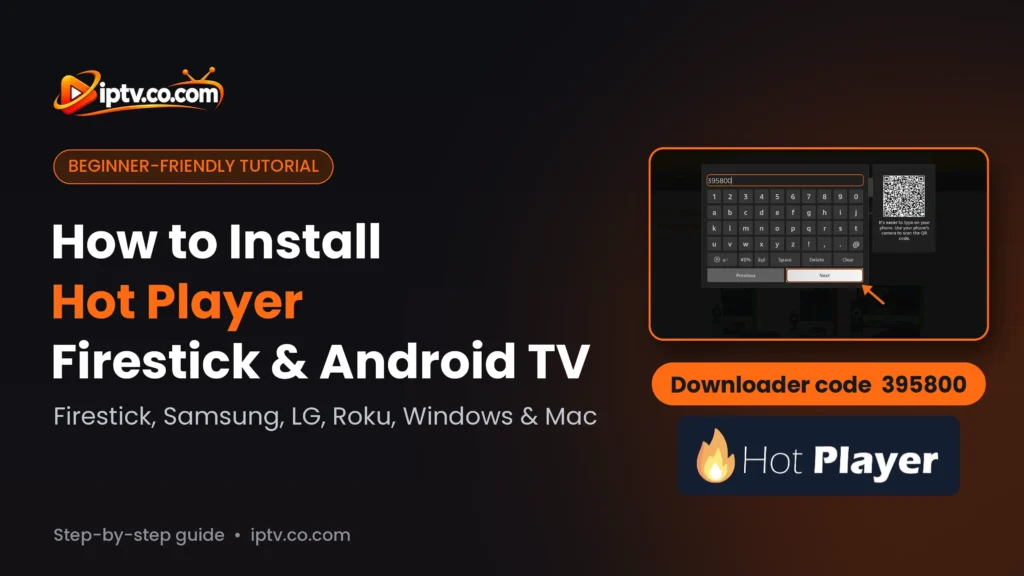
Step 2: Enter Downloader Code 395800
Type the Hot Player Downloader code 395800 and select Next.
Enter the Hot Player Downloader code 395800 and select Next
Step 3: Wait While the Hot Player APK Downloads
Downloader opens the short link and downloads the Hot Player APK (about 82 MB). Wait until the download finishes.
The Hot Player APK is downloading in Downloader
Step 4: Select INSTALL
When the Hot Player install screen appears, select INSTALL.
Select INSTALL to install Hot Player on Firestick
Step 5: Select OPEN
When you see App installed, select OPEN. Back in Downloader, you can choose Delete to remove the APK file and free up space.
Hot Player is installed on Firestick: select OPEN
How to Install Hot Player on Android TV and Google TV
On Android TV and Google TV (Sony, TCL, Philips, Hisense, Xiaomi Mi Box, NVIDIA Shield, Chromecast with Google TV and Android TV boxes), install Hot Player with the Downloader app:
Install Downloader by AFTVnews from the Google Play Store.
Allow Downloader to install unknown apps: Settings > Apps > Security & restrictions > Unknown sources (the menu name changes slightly by brand).
Open Downloader and enter code 395800, then select Next.
When the download finishes, select Install, then Open.
How to Install Hot Player on Android Phone and Tablet
Step 1: Open the Hot Player APK Link in Chrome
Open Chrome on your phone or tablet and type the Hot Player APK link in the address bar:
https://apk.hotplayer.app
Type apk.hotplayer.app in Chrome on an Android phone
Step 2: Select Download
Chrome asks Download from this site? Tap Download.
Tap Download to download the Hot Player APK
Step 3: Wait for the Download
The file HotPlayer_2.2.6.apk (about 82 MB) downloads. Tap it when it’s done.
The Hot Player APK is downloading on Android
Step 4: Tick “I Understand” and Tap Install
Android may show Not verified because the app isn’t from the phone’s app store. Tick I understand that this app may pose risks, then tap Install. On some phones you first need to allow Chrome to install unknown apps.
Tick I understand that this app may pose risks
Tap Install to install Hot Player
Step 5: Confirm and Open Hot Player
Tap Install again to confirm, then Open when you see App installed.
Confirm: Do you want to install this app? Tap Install
Hot Player is installed: tap Open
Step 6: Note Your MAC Address
Hot Player opens and shows Your MAC address is not associated with any playlist. Write down Your MAC and add your playlist on the website shown on the screen, hotplayer.app/upload. Then tap Refresh to load it. See First launch below for details.
Hot Player on an Android phone: MAC address and upload website
How to Install Hot Player on Samsung Smart TV
Press Home on your Samsung remote and open Apps.
Select the Search icon and type Hot Player.
Open the Hot Player page and select Install, then Open.
Hot Player in Samsung Apps on a Samsung smart TV: select Install
How to Install Hot Player on LG Smart TV
Press Home on your LG remote and open the LG Content Store (called Apps on newer webOS TVs).
Search for Hot Player.
Select Install, then Launch.
Hot Player in the LG Content Store on an LG smart TV: select Install
How to Install Hot Player on Roku
On your Roku, go to Home > Streaming Store (Streaming Channels) and search for Hot Player.
Select Hot Player by DIGI VIBES SARL and choose Add app.
You can also add it from the Roku website on your phone or computer: sign in with your Roku account, open the Hot Player page and select + Add app. It appears on your Roku within a few minutes.
Hot Player in the Roku Channel Store: select Add app
How to Install Hot Player on Windows PC and Mac
Windows PC: Microsoft Store
Open the Microsoft Store on your PC, search for Hot Player (by STE DIGI VIBES) and select Get or Install. Then open it from the Start menu.
Hot Player by STE DIGI VIBES in the Microsoft Store on Windows
Mac: Mac App Store
Open the App Store on your Mac, search for Hot Player (Advanced Video Player) and select Get, then Install. Open it from Launchpad or the Applications folder.
Hot Player in the Mac App Store: select Get
Hot Player on iPhone and iPad: Not Available
Hot Player is not available on iPhone or iPad. Use one of these players instead, with the same playlist from your IPTV provider:
First Launch: Your MAC Address and Playlist Website
The first time you open Hot Player, it shows Your MAC address is not associated with any playlist. That’s normal: Hot Player has no channels until you add your playlist. The screen shows:
Your MAC: write it down exactly as shown.
The upload website where you add your M3U URL or Xtream Codes with your MAC (or scan the QR code):
https://hotplayer.app/upload
After uploading your playlist, select Refresh in the app to load it.
Hot Player first launch: your MAC address and the playlist upload website
Hot Player Won’t Install? Quick Fixes
Downloader says the code is invalid: check that you typed 395800 and that your device is connected to the internet.
“Install blocked”: turn ON Install unknown apps for Downloader (Firestick) or for Chrome (Android phone).
“App not installed” or not enough storage: the APK is about 82 MB. Uninstall apps you don’t use and try again.
Can’t find Hot Player on Samsung, LG or Roku: update the TV software, check the region, and search again.
“Not associated with any playlist”: add your playlist on the Hot Player website with your MAC, then select Refresh.
Only Install the Official Hot Player
Avoid modded or “premium unlocked” Hot Player APKs from unknown websites. They can contain malware. Use Downloader code 395800, apk.hotplayer.app or the official app stores.





2 Responses