TiviMate PC: Quick Summary
- There is no official TiviMate app for Windows or Mac: TiviMate is made for Android TV.
- To use TiviMate on a PC, install the BlueStacks Android emulator, then install TiviMate IPTV Player inside it.
- To buy TiviMate Premium with a PC, install TiviMate Companion in BlueStacks and subscribe there.
- Want a real PC app? Use IPTV Smarters Pro for Windows or Mac instead.
Good to Know: TiviMate Has No Channels of Its Own
TiviMate is only a player. It doesn’t provide any IPTV channels, playlists or subscriptions, so when channels stop working, the problem is often your playlist or your IPTV provider, not the app.
Searching for TiviMate PC? TiviMate IPTV Player is built for Android TV devices such as the Firestick, so there is no TiviMate download for Windows 10, Windows 11 or macOS. You can still run the Android version on your computer with an emulator, and that is also the easiest way to buy TiviMate Premium without an Android phone. This guide shows both methods step by step, plus the best real PC alternatives. Remember that TiviMate is only a player: it has no channels, so you still need your own M3U URL or Xtream Codes.
Is There a TiviMate App for PC?
No. The developer only publishes TiviMate for Android-based TV devices (Firestick, Fire TV, Android TV, Google TV and Android TV boxes) and the TiviMate Companion app for Android phones. There is no TiviMate .exe for Windows and no Mac App Store version, and websites offering one are not official. See every supported device in how to install TiviMate.
| Option | Works on | Best for |
|---|---|---|
| TiviMate in BlueStacks | Windows 10/11, Mac | Using TiviMate and buying Premium on PC |
| IPTV Smarters Pro | Windows, Mac | A real desktop IPTV app |
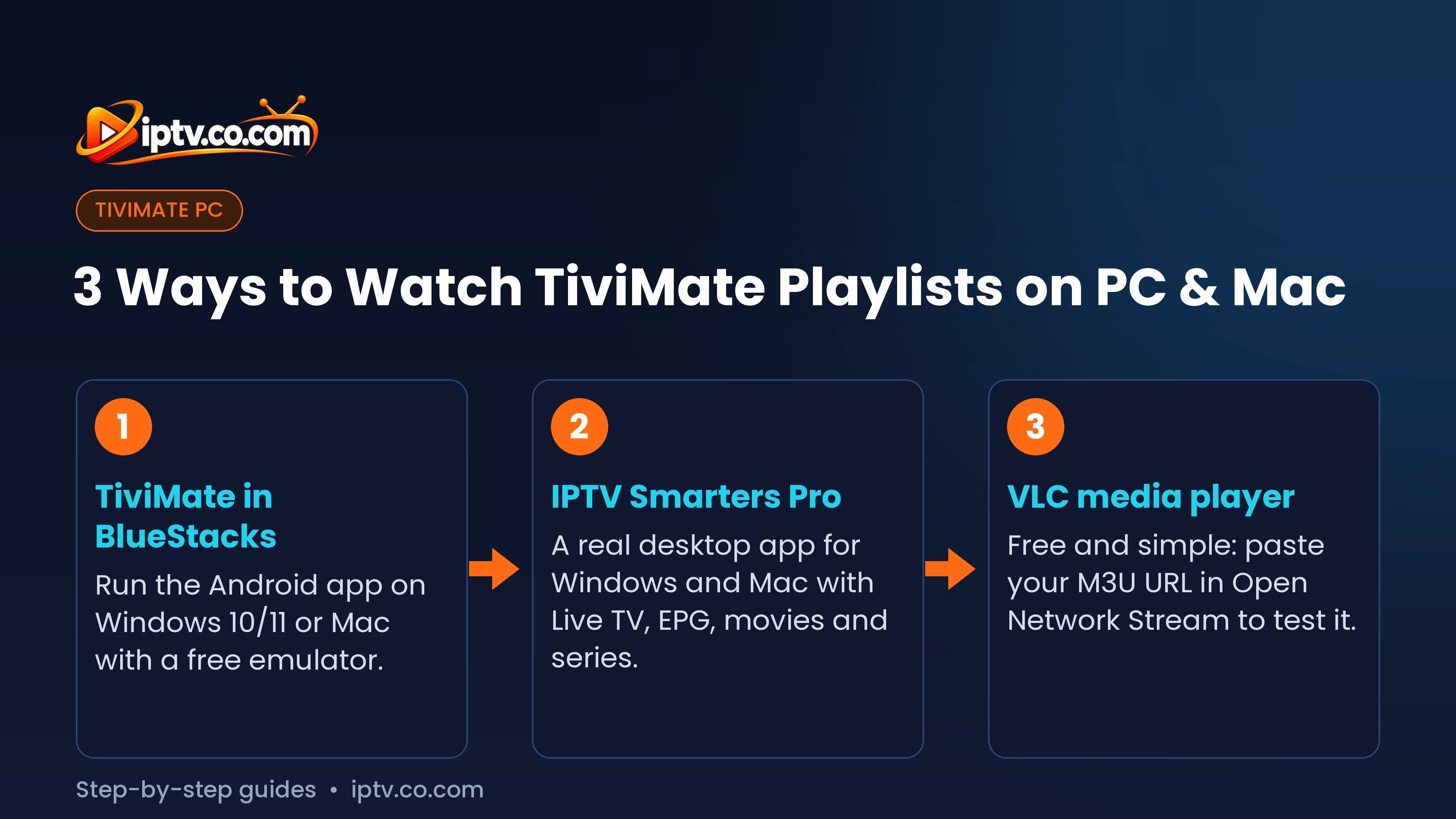
| VLC media player | Windows, Mac | Quickly testing an M3U link |
How to Install TiviMate on Windows 11 and Windows 10
An Android emulator runs Android apps in a window on your PC. BlueStacks is the most popular one and is free.
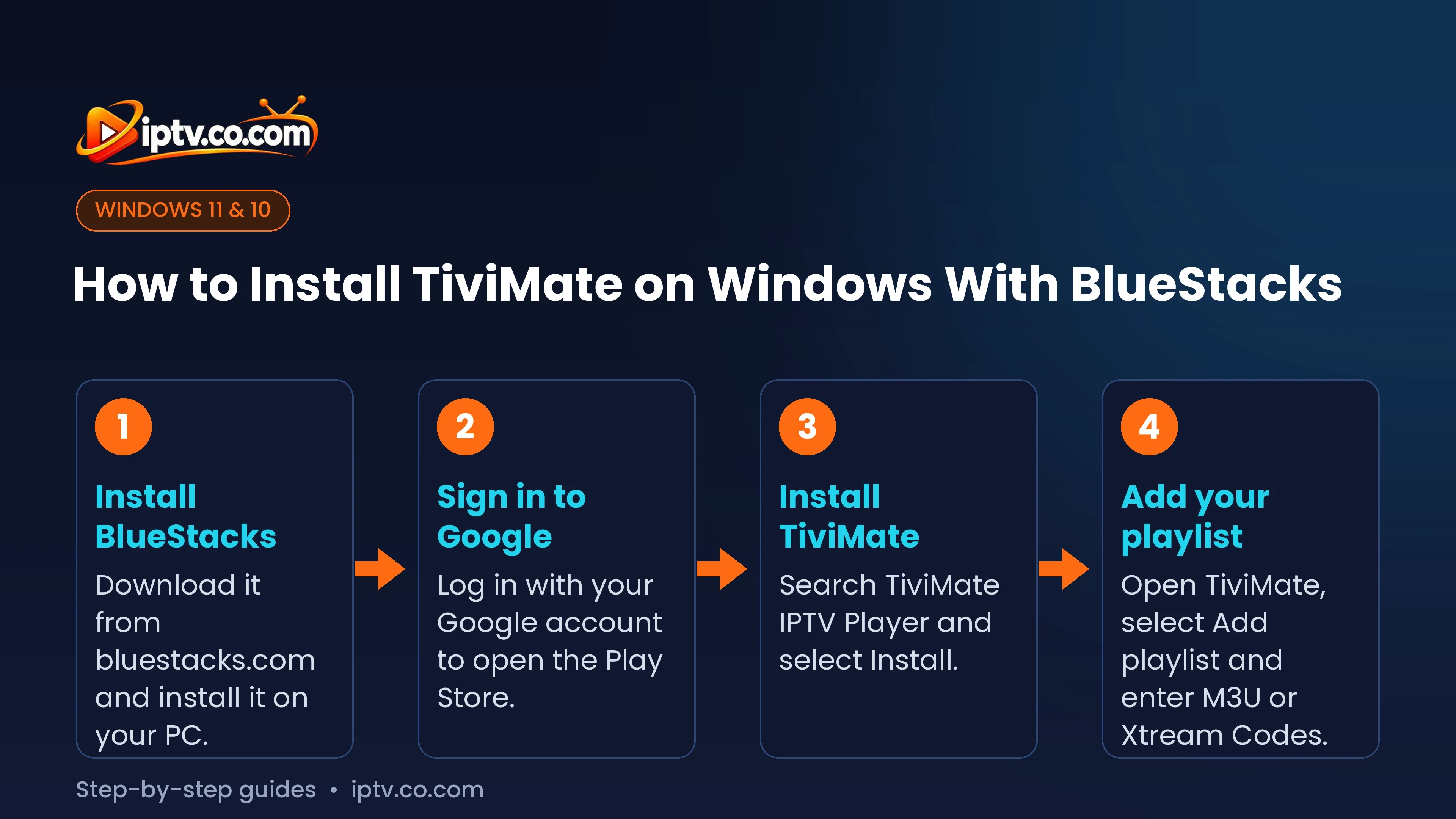
- Download BlueStacks from its official website (bluestacks.com) and install it.
- Open BlueStacks and sign in with your Google account to unlock the Google Play Store.
- Open the Play Store, search for TiviMate IPTV Player and select Install.
- If the Play Store doesn’t show it, drag the official TiviMate APK file onto the BlueStacks window to install it.
- Open TiviMate, accept the terms and select Add playlist. Enter your M3U URL or Xtream Codes: see how to activate TiviMate.
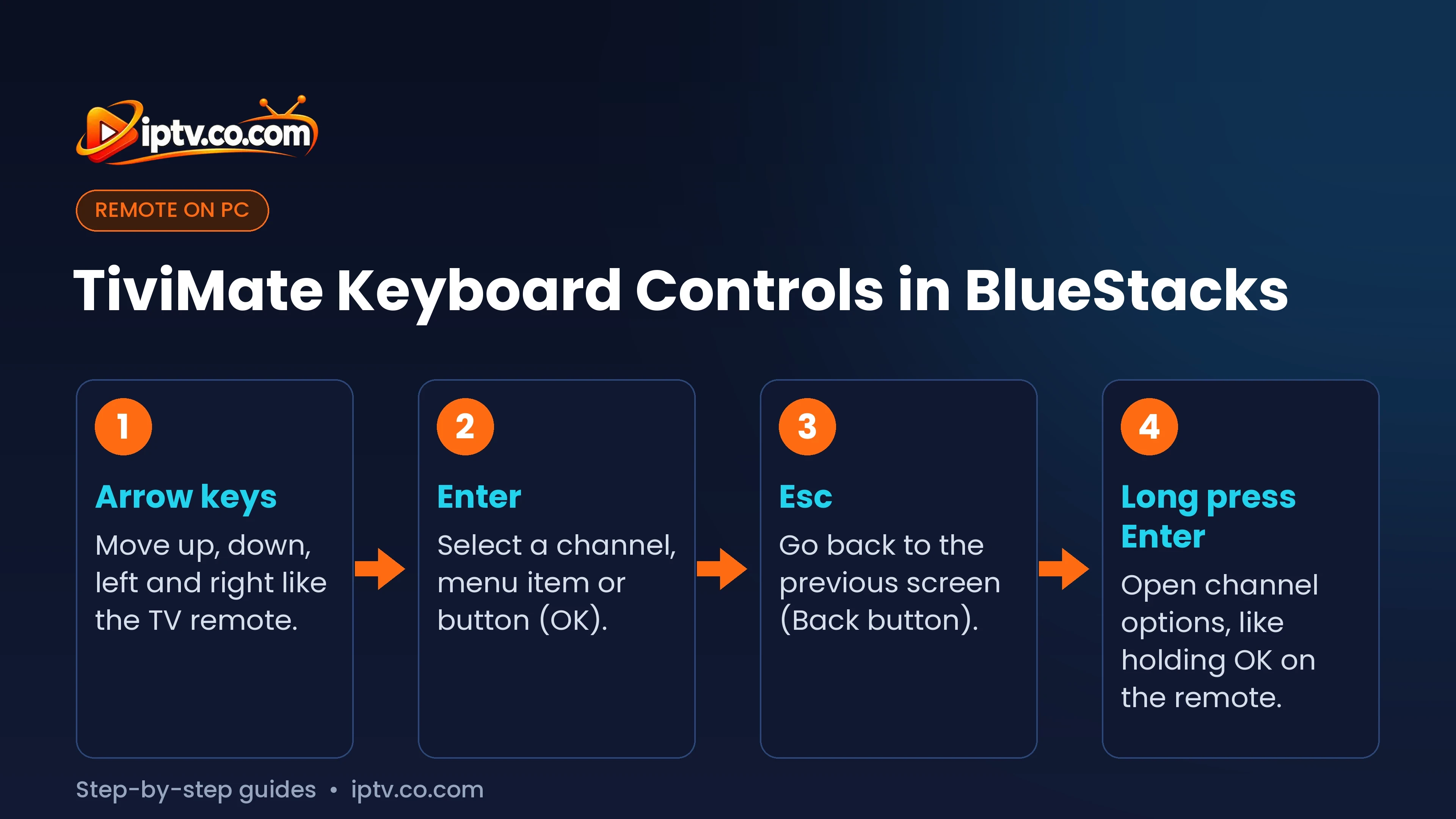
Tip: TiviMate is designed for a TV remote. In BlueStacks use the arrow keys to move, Enter to select and Esc to go back.
How to Use TiviMate on Mac
On a Mac the steps are the same: install the Mac version of BlueStacks (BlueStacks Air runs on Apple silicon Macs with M1, M2, M3 and M4 chips), sign in to Google Play, install TiviMate IPTV Player and add your playlist. On older Intel Macs, emulators can be slow; a native player such as IPTV Smarters is usually smoother. See IPTV on Mac for all Mac players.
How to Buy TiviMate Premium With a PC
TiviMate Premium can only be paid in the TiviMate Companion app from Google Play, not on the TiviMate website. Without an Android phone, use BlueStacks on your PC:
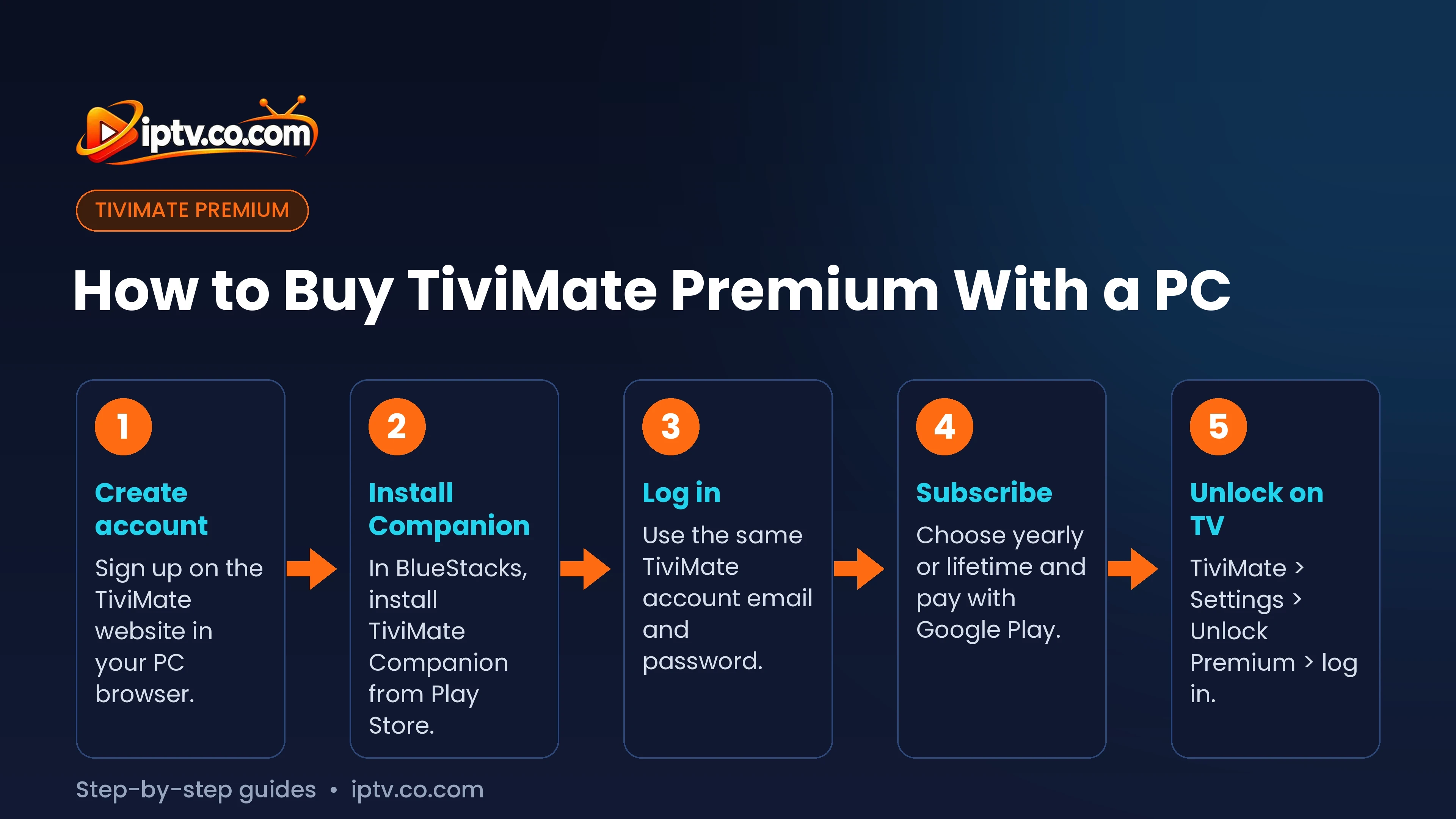
- Create your TiviMate account on the TiviMate website from your PC browser (see Part 1 of our Premium guide).
- In BlueStacks, open the Play Store, search for TiviMate Companion (by Armobsoft FZE) and install it.
- Open TiviMate Companion and log in with your TiviMate account.
- Choose the yearly or lifetime plan and pay with Google Play. The price is shown in your local currency (about $9.99 per year or $29.99 lifetime in the US store, often with a free trial).
- On your Firestick or Android TV, open TiviMate > Settings > Unlock Premium and log in with the same account. Full steps: unlock TiviMate Premium on the TV.
One Premium account works on up to 5 devices, including TiviMate running in BlueStacks.
Best TiviMate Alternatives for Windows and Mac
- IPTV Smarters Pro: a free desktop app with Live TV, a TV guide, movies and series. Install it on Windows or Mac.
- VLC media player: free and simple. Open Media > Open Network Stream and paste your M3U URL to test it.
- More options: best IPTV players for Windows PC.
TiviMate on Roku, iPhone, Apple TV and Smart TVs
TiviMate isn’t available on Roku, iPhone, iPad, Apple TV, Samsung or LG smart TVs either. On those devices use IPTV Smarters, IBO Player or another supported player: see where you can install TiviMate.
Frequently Asked Questions
Is there a TiviMate PC version?
No. TiviMate is only made for Android TV devices. On a PC you can run it with an Android emulator such as BlueStacks, or use a desktop player like IPTV Smarters Pro.
Can I use TiviMate on Windows 11?
Yes, through BlueStacks: install BlueStacks, sign in to Google Play, install TiviMate IPTV Player and add your playlist.
How do I buy TiviMate Premium with a PC?
Install TiviMate Companion in BlueStacks, log in with your TiviMate account and subscribe with Google Play. Then unlock Premium on your TV with the same account.
Can I pay for TiviMate Premium on the website?
No. You can create your account on the website, but payment is only possible in the TiviMate Companion app.
Does TiviMate work on Mac?
Not natively. You can run it with BlueStacks on a Mac, or use a native Mac player such as IPTV Smarters.
Does TiviMate Premium work in BlueStacks?
Yes. Log in to your TiviMate account in Settings > Unlock Premium; the emulator counts as one of your 5 devices.