BOB Player Login: Quick Summary
- Open BOB Player and select Change Server to see your Device ID (MAC address) and 6-digit Device Key.
- On a phone or computer, open bobplayer.com and click Manage Playlist.
- Enter the MAC address, Device Key and captcha, then click LOGIN.
- Add, edit or delete your playlists, then reopen BOB Player.
Good to Know: BOB Player Has No Channels of Its Own
BOB Player is only a player. It doesn’t provide any IPTV channels, playlists or subscriptions, so if your channels stop working, the problem is often your playlist or your IPTV provider, not the app. The fixes below solve the rest.
The BOB Player login doesn’t use an email or password. You log in to the BOB Player website with the Device ID and Device Key shown in the app, and from there you manage the playlists that appear on your TV. This guide shows where to find your login details, how to log in on bobplayer.com, how to manage your playlists, and how to fix the most common login errors.
Where to Find Your BOB Player Login Details
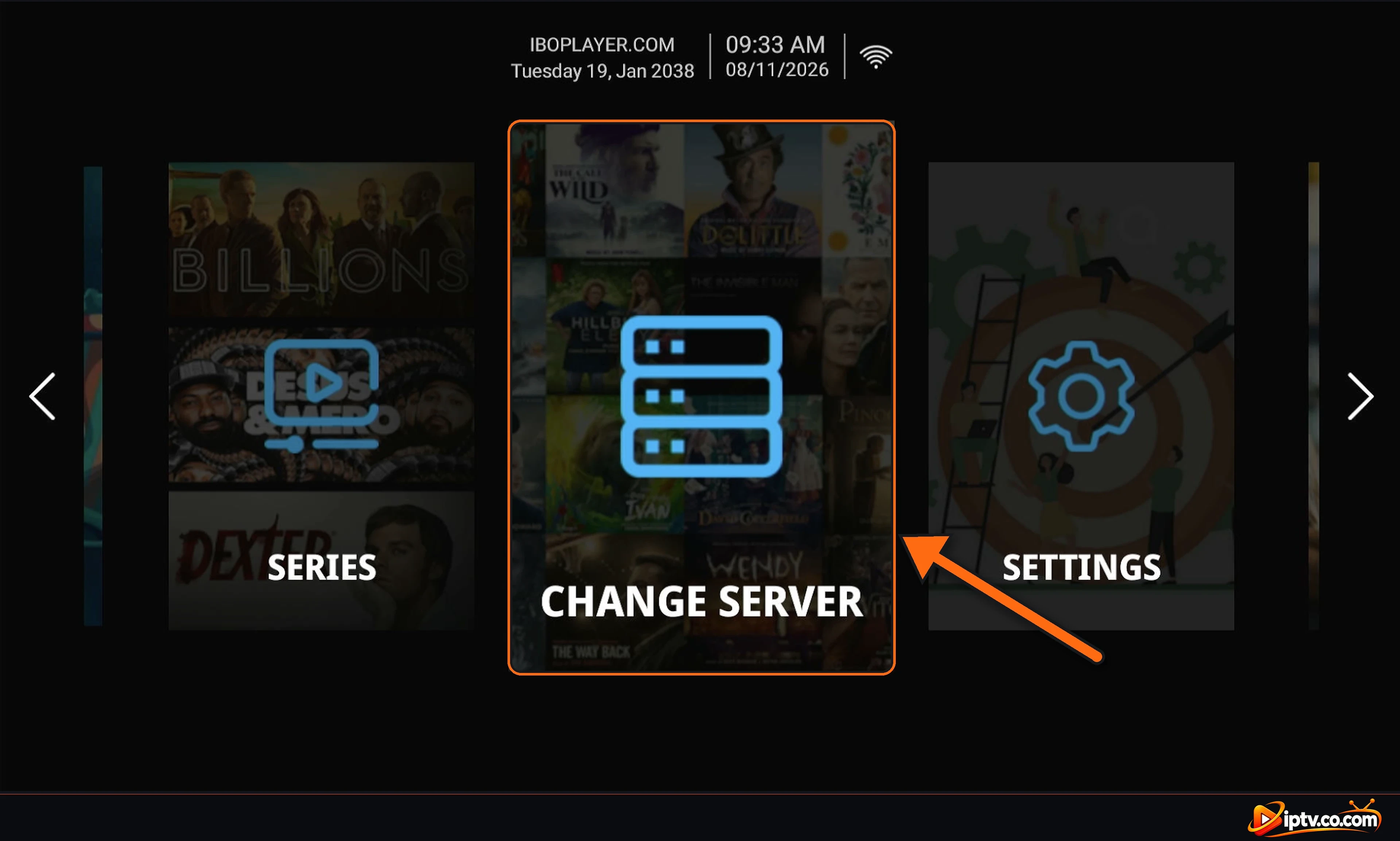
Your BOB Player login is your Device ID (the MAC address of the app on that device) plus a 6-digit Device Key. Open BOB Player and select Change Server on the home screen.
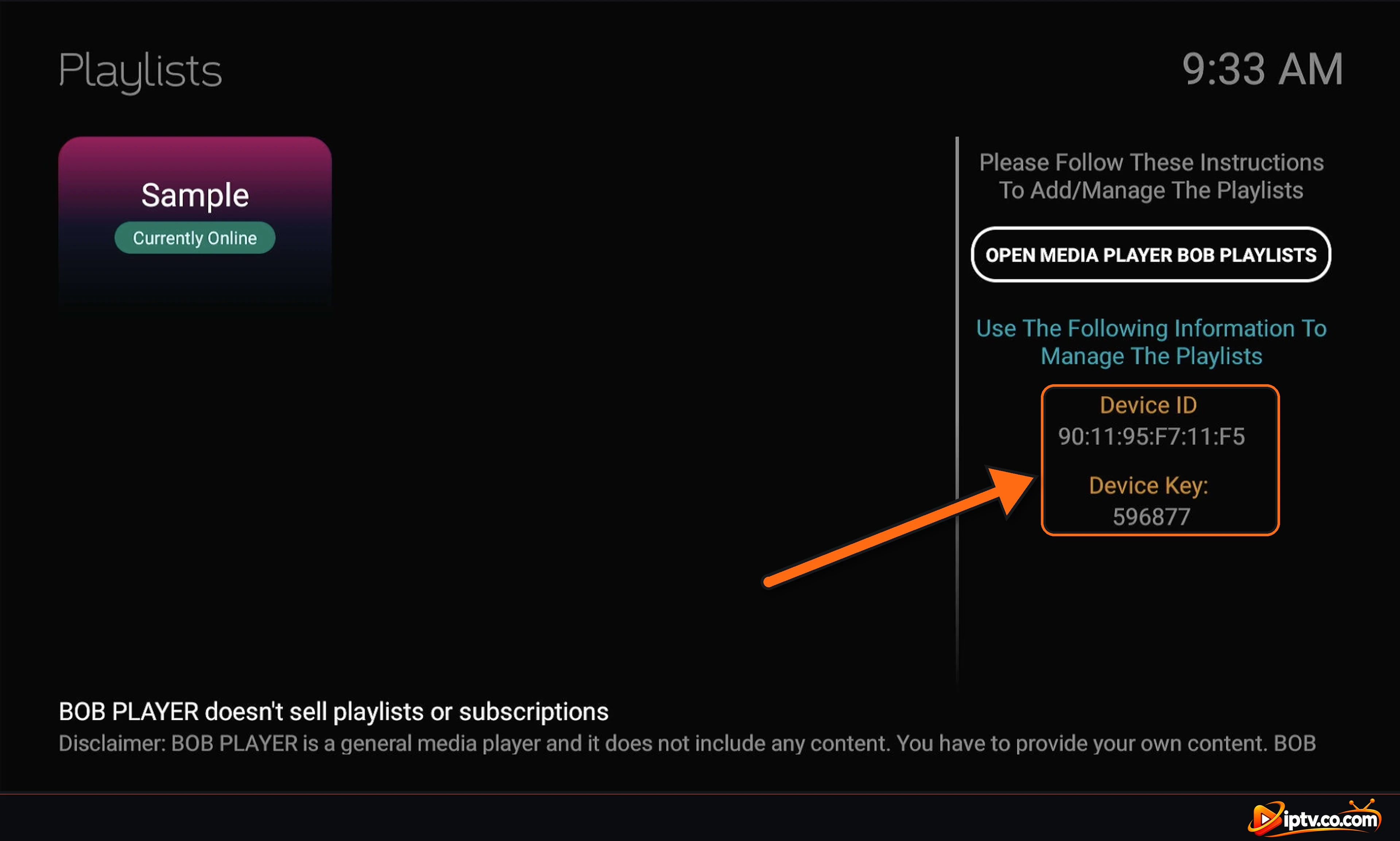
The Playlists screen shows your Device ID and Device Key on the right. Write them down or take a photo. Each device (TV, Firestick, phone) has its own Device ID and Key.
How to Log In to bobplayer.com (Manage Playlist)
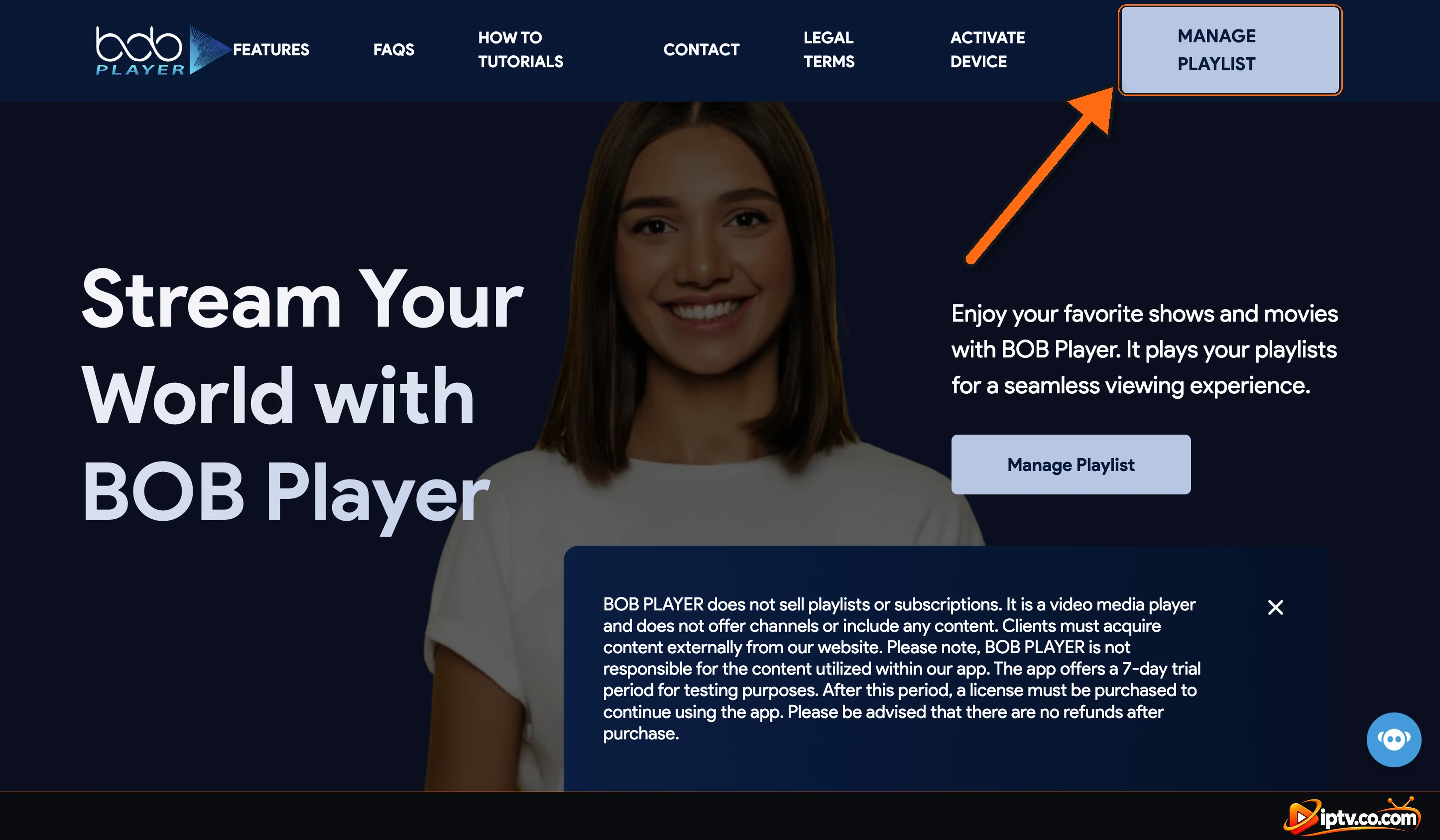
- On your phone or computer, open the official BOB Player website:
https://bobplayer.com - Click Manage Playlist in the top right corner.
- Mac Address: type your Device ID exactly as shown in the app, with the colons.
- Device Key: type the 6-digit key.
- Captcha: type the characters in the image, then click LOGIN.
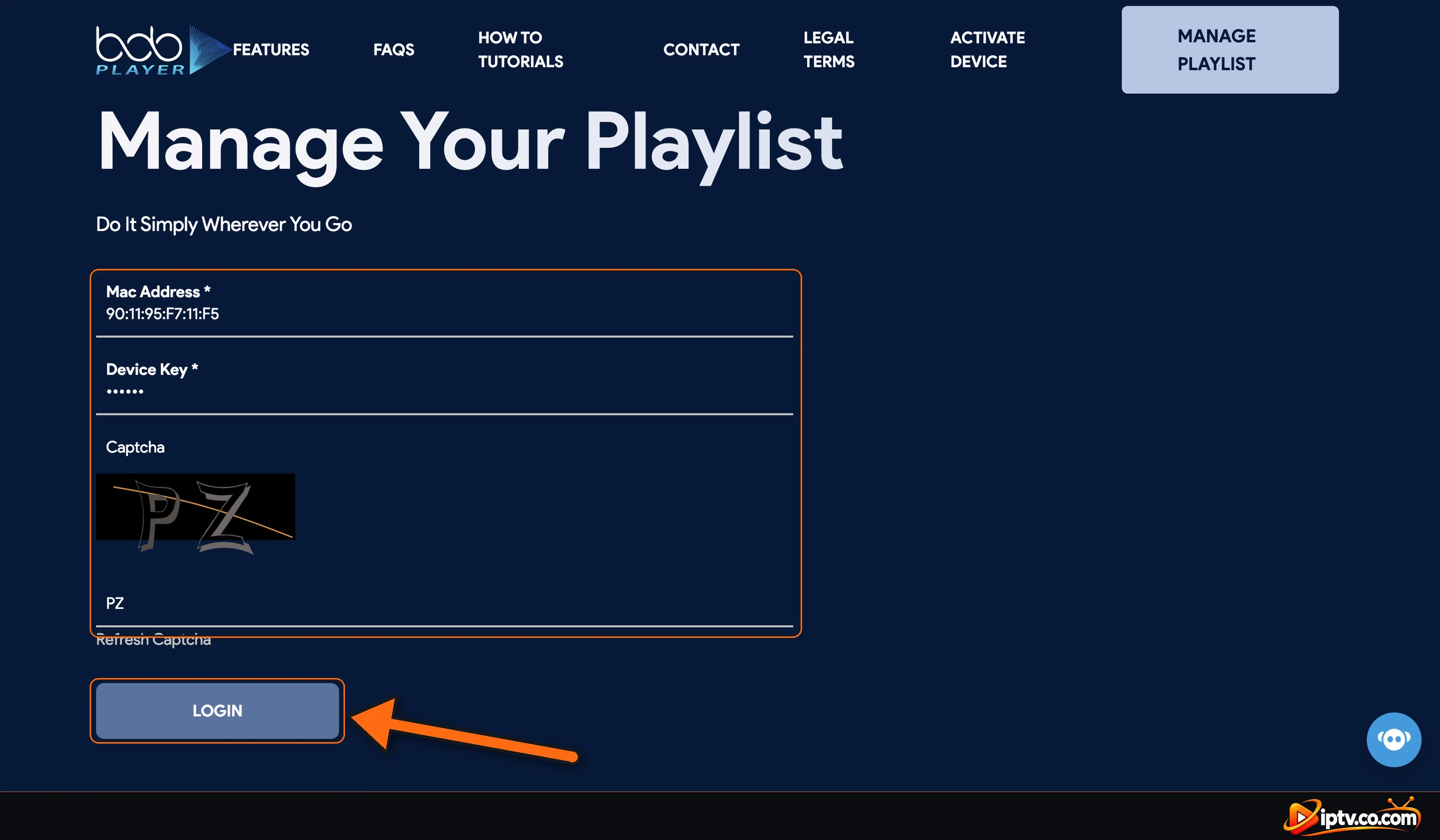
Manage Your BOB Player Playlists
After you log in, the Manage Playlists page shows your MAC address, the playlists already on your device, and two buttons:
- Add Playlist: paste an M3U URL from your IPTV provider.
- Add XC Playlist: enter Xtream Codes (host, username and password).
- Edit or delete: change a playlist’s name or URL, or remove an old one.
Then open BOB Player on your TV, select Change Server and choose your playlist. Full steps with screenshots: add an M3U URL or add Xtream Codes. BOB Player has no channels: playlists always come from your provider.
BOB Player Login Not Working? Quick Fixes
- Invalid MAC address or Device Key: retype them exactly from the Change Server screen, including the colons. Letters in the MAC address are not case-sensitive, but zeros (0) and the letter O are easy to mix up.
- Wrong captcha: click Refresh Captcha and type the new code.
- Playlist added but not on the TV: close BOB Player completely and open it again, or select Change Server and pick the playlist.
- Playlist shows no channels: make sure the URL starts with http://, not https://, and that your IPTV subscription is active.
- App stopped after 7 days: the free trial ended; see BOB Player activation and price.
More fixes: can’t log in on the BOB Player website.
BOB Player Download for Windows, Mac and Google TV
BOB Player is published for Firestick, Android TV and Google TV (Downloader code 815778), Android phones, Samsung and LG smart TVs, and iPhone and iPad. There is no official BOB Player .exe for Windows: to use it on a PC, run the Android version in an emulator such as BlueStacks, or use IBO Player, which is made by the same developer and has a Windows version. See how to install BOB Player on every device.
Frequently Asked Questions
What is the BOB Player login?
Your Device ID (MAC address) and 6-digit Device Key, shown in BOB Player under Change Server. There is no email or password.
Where do I log in to BOB Player?
On the official website bobplayer.com: click Manage Playlist and enter your MAC address, Device Key and the captcha.
How do I manage playlists on bobplayer.com?
Log in with Manage Playlist, then use Add Playlist for an M3U URL or Add XC Playlist for Xtream Codes. You can also edit or delete existing playlists.
Why does BOB Player say my MAC address or Device Key is wrong?
It was typed incorrectly. Copy both exactly from the Change Server screen, including the colons in the MAC address.
Do I need to pay to log in to BOB Player?
No. Logging in and adding playlists is free during the 7-day trial. After that the device needs a one-time activation of about $5.99, often free with your IPTV plan.
Can I download BOB Player on Windows?
There is no official Windows version. Use an Android emulator such as BlueStacks, or IBO Player for Windows from the same developer.
Does BOB Player work on Google TV?
Yes. Install it on Google TV or Android TV with the Downloader app and code 815778.