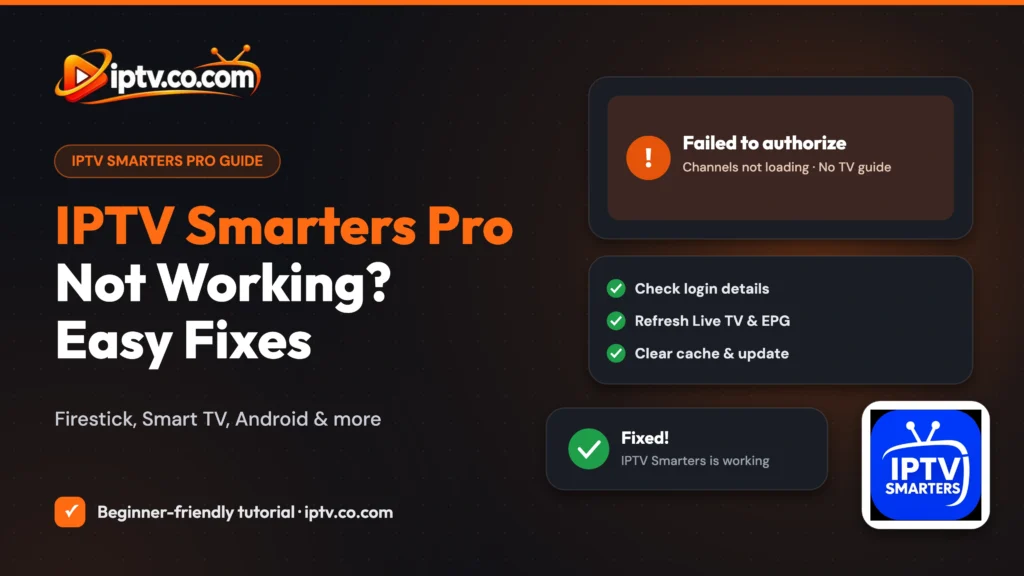
IPTV Smarters Not Working? Quick Fix Checklist
- Restart your device and your router.
- Check that your IPTV subscription is still active.
- Re-enter your username, password and server URL.
- Close IPTV Smarters on your other devices.
- Refresh Live TV, Movies, Series and the EPG.
- Clear the app’s cache, update or reinstall IPTV Smarters.
Good to Know: IPTV Smarters Is 100% Free
IPTV Smarters is a 100% free player and doesn’t provide channels, playlists or subscriptions. When channels stop working, the fix is usually with your own playlist, login details or IPTV provider, not the app.
Is your IPTV Smarters Pro not working? Channels won’t load, the TV guide is empty, it says Failed to authorize, or the app keeps closing? This guide lists the most common IPTV Smarters problems on Firestick, Android, Samsung, LG and other devices, with a simple fix for each one. Start with the checklist above, then jump to your exact problem.
Is IPTV Smarters Down Right Now?
The IPTV Smarters app itself rarely goes down: it’s a 100% free player that doesn’t host, provide or sell any channels, playlists or subscriptions. When nothing loads, the cause is almost always one of these:
- Your provider’s server is down or overloaded (common during big live events).
- Your subscription expired or was suspended. See how to check your expiry date.
- Your internet connection is down or too slow.
Test another app or website on the same device. If everything else works, contact your provider and ask if their server is online.
IPTV Smarters “Failed to Authorize”
This means IPTV Smarters couldn’t log in to your provider’s server. Fix it step by step:
- Enter your Xtream Codes exactly as your provider sent them. Copy the username, password and server URL (also called the DNS) from your provider’s email or client area, character by character.
- Check that the username and password are written correctly. They are case-sensitive:
Abc123andabc123are not the same. Make sure there are no spaces at the start or end, and tap the eye icon to check the password. - Write the server URL (DNS) with
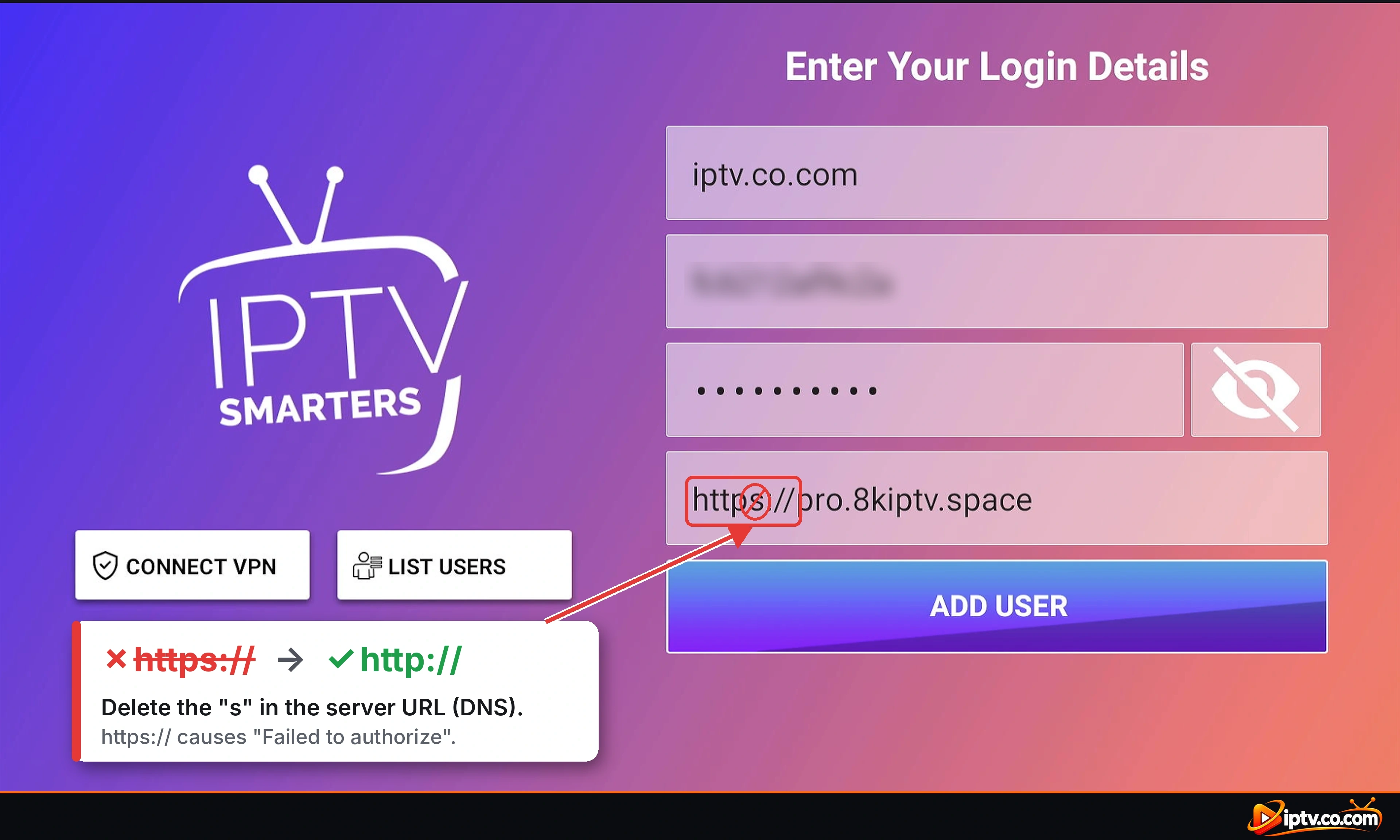
http://, nothttps://. Add the port if your provider gives one, for examplehttp://your-provider-url:8080, and don’t add/get.phpat the end.
- Restart your internet to get a new IP address. Unplug your router for 1–2 minutes, plug it back in, then log in again. IPTV servers can block an IP address after several failed logins.
- Ask your provider for a new DNS (short URL) for IPTV Smarters. IPTV providers send a special server URL made for IPTV Smarters. If yours still fails, ask for the latest one, delete the old user in List Users and add it again with the new DNS.
- Check that your subscription is active and close IPTV Smarters on your other devices. An expired plan or too many connections also cause Failed to authorize.
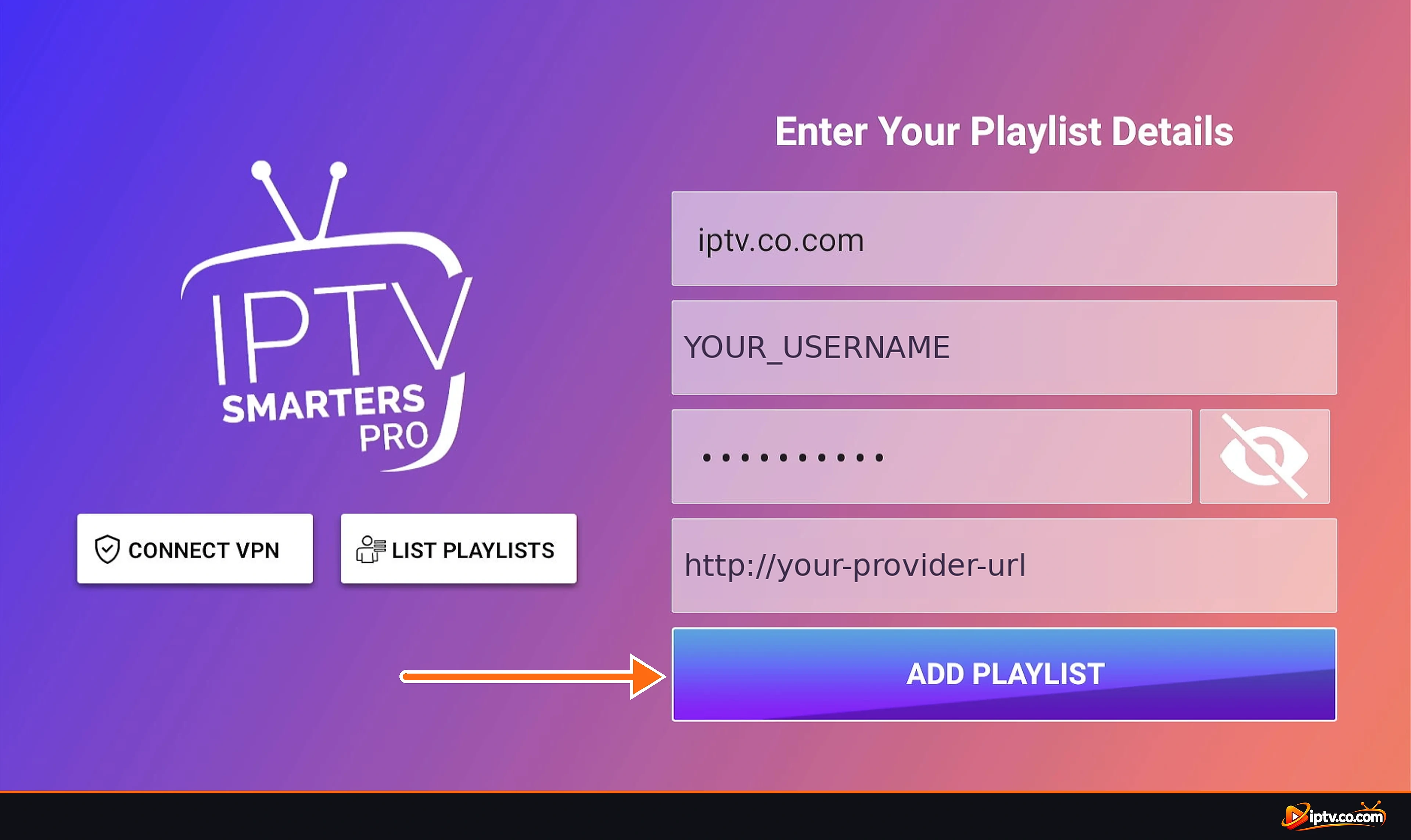
Step-by-step login screens: how to activate IPTV Smarters.
Still seeing the error? Follow our dedicated guide: IPTV Smarters Failed to Authorize: 9 easy fixes.
Live TV or Channels Not Loading or Not Downloading
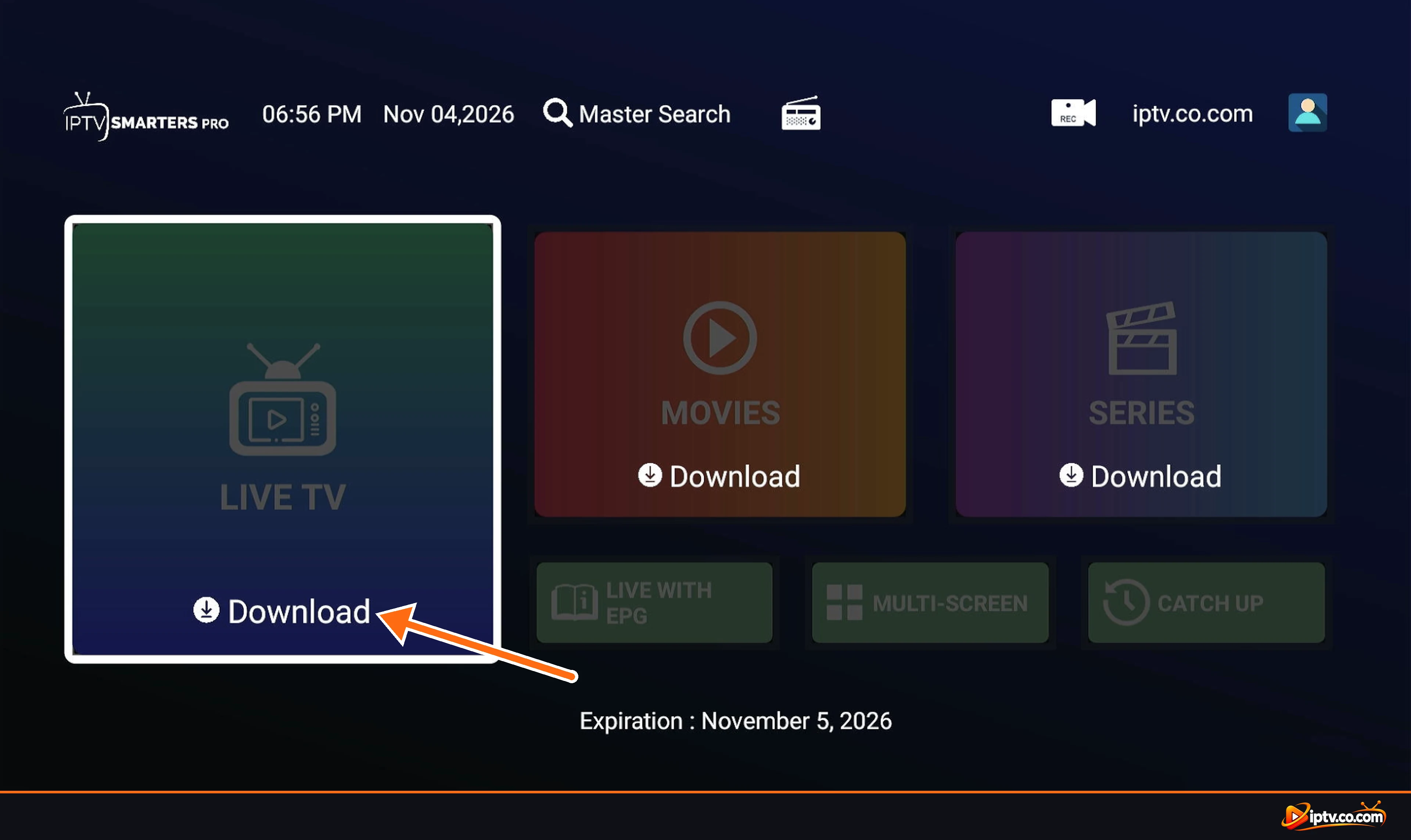
- Download again: on the home screen, tap the refresh button on Live TV (and Movies and Series) and wait until it says Last updated.
- Stuck on Downloading: large playlists take a few minutes. Don’t leave the screen, and restart the app if it freezes.
- Empty categories: your provider may have changed its channel list. Refresh, or ask the provider.
- One channel doesn’t play: that stream may be offline. Try another channel before changing settings.
IPTV Smarters Buffering or Freezing
- Restart your internet to get a new IP: turn off your router, wait 30 seconds, then turn it on again. Your internet provider usually gives you a new IP address, which can stop buffering right away.
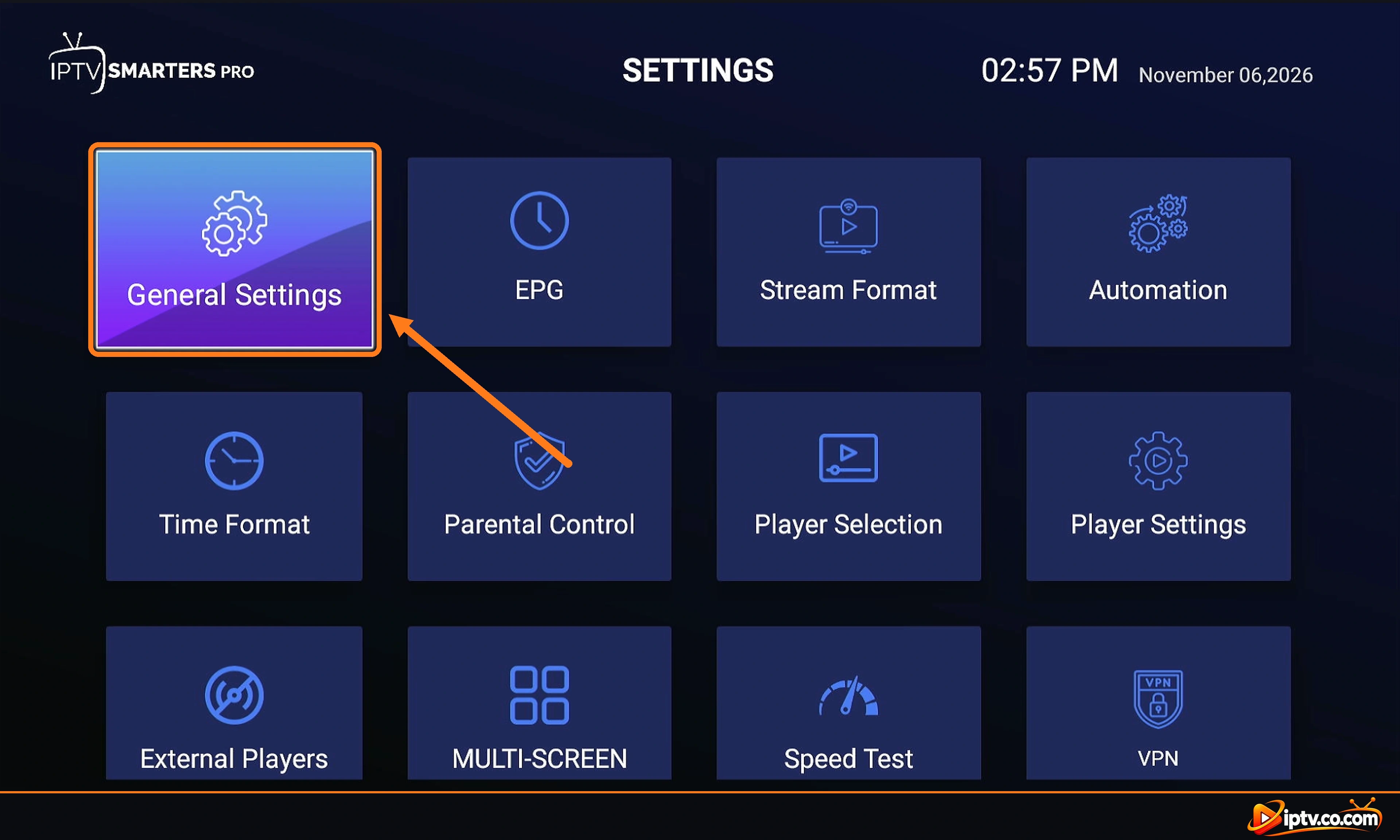
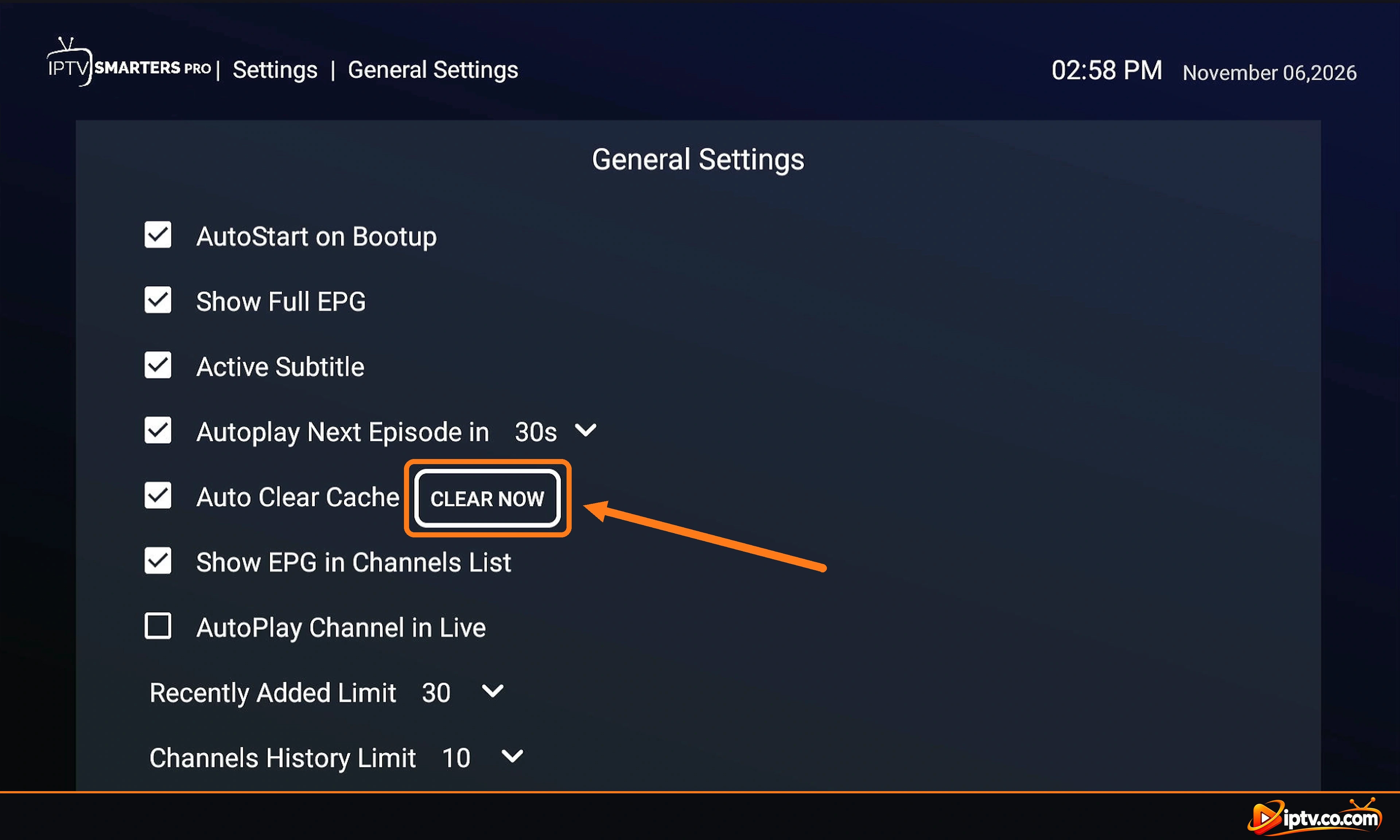
- Clear the cache of the app: in IPTV Smarters Pro go to Settings > General Settings and press CLEAR NOW next to Auto Clear Cache. Keep Auto Clear Cache ticked so the app cleans itself.
- Try a VPN: many internet providers block or slow down IPTV server IPs. A VPN hides this traffic from your provider, so channels often play smoothly again.
- Customize your bouquets: a huge playlist with every country makes the app slow. Delete all the bouquets (channel groups) you don’t need. If your IPTV provider gave you a link to edit your bouquets, use it. If not, ask your IPTV provider to do it and send them the list of countries you are interested in, so they can remove the others.
- Clear the cache of your device: on Firestick and Android TV go to Settings > Applications > Manage Installed Applications > IPTV Smarters Pro > Clear cache. On Android phones go to Settings > Apps > IPTV Smarters Pro > Storage > Clear cache. On Samsung and LG TVs, turn the TV off and unplug it for one minute. Use Clear cache, not Clear data, or you will have to log in again.
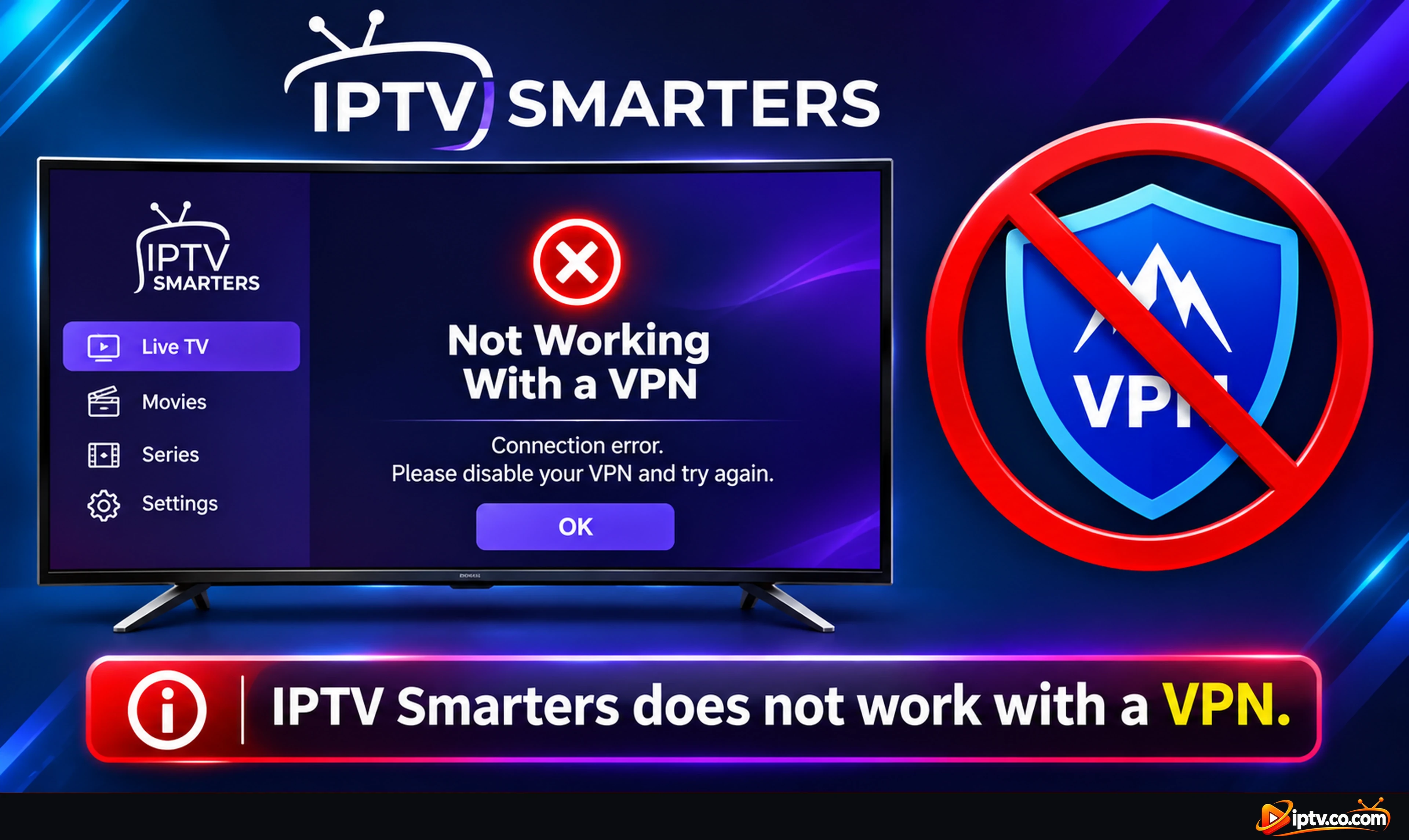
IPTV Smarters Not Working With a VPN
Many IPTV servers block VPN IP addresses, so IPTV Smarters shows a connection error or loads no channels when your VPN is on. The fix is to use your provider’s VPN DNS (VPN server URL) instead of the normal one.
- Find your VPN DNS: it usually comes with your IPTV login details and always starts with vpn (see the example below). If your provider didn’t send one, contact your IPTV provider and ask for the VPN DNS.
- Xtream Codes: in IPTV Smarters, open List Users, edit your user (or select Add User > Login with Xtream Codes API) and replace the URL with the VPN DNS. Keep the same username and password.
- M3U playlist: add a new user with Load Your Playlist or File/URL and paste your M3U URL with the VPN DNS as the server part (before /get.php).
- Do the same for your EPG URL if the TV guide stops working.
- Reload the playlist, then turn your VPN back on: channels load normally.
Example: VPN DNS for Xtream Codes and M3U
VPN DNS: http://vpn.dream-4k.co
Xtream Codes URL: http://vpn.dream-4k.co
M3U URL: http://vpn.dream-4k.co/get.php?username=YOUR_USERNAME&password=YOUR_PASSWORD&type=m3u_plus&output=ts
Still not working? Change the VPN server or country, try another VPN protocol (for example WireGuard), and turn off the VPN’s ad or tracker blocker, which can block IPTV and EPG links.
IPTV Smarters Parental Control: Lock Adult Channels
Watching with children? IPTV Smarters Pro has a parental control password that locks adult channels, movies and series categories. Set your own password so only you can open them.
Step 1: Open Settings
On the IPTV Smarters home screen, select the Settings icon (gear) in the top right corner.

Step 2: Select Parental Control
In the Settings menu, select Parental Control.

Step 3: Set Your Parental Password and Save
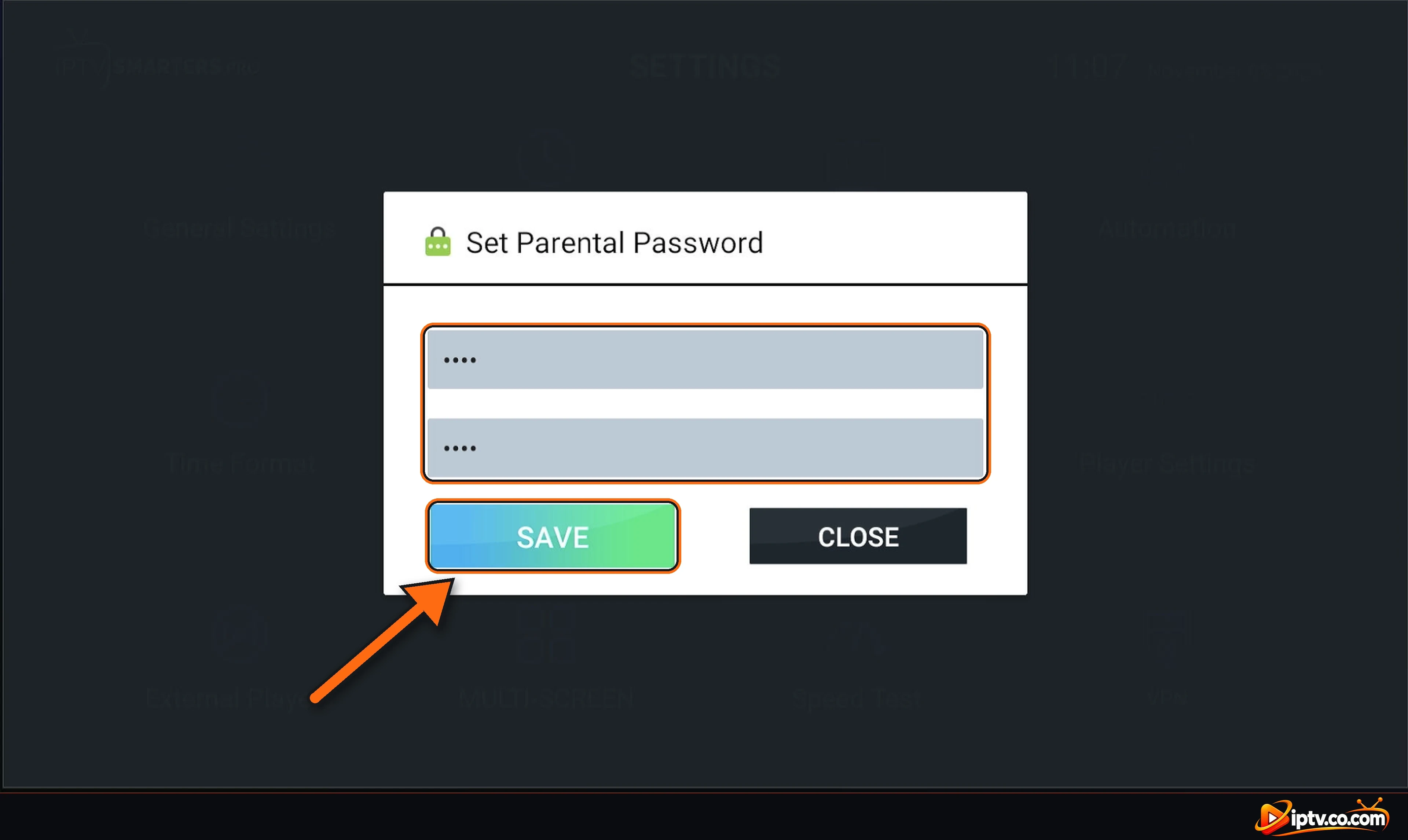
- The Set Parental Password window opens the first time. Type your new password in the first field.
- Type the same password again in the second field to confirm it.
- Select SAVE.
Parental Control then opens with your categories: choose the Live TV, Movies or Series categories you want to lock (for example adult categories). IPTV Smarters asks for your password before opening them.
- Change the password later: open Settings > Parental Control again and enter your current password first.
- Forgot the password? Clear the app data or reinstall IPTV Smarters, then log in again with your Xtream Codes or M3U URL and set a new password.
TV Guide (EPG) Not Loading or Not Updating
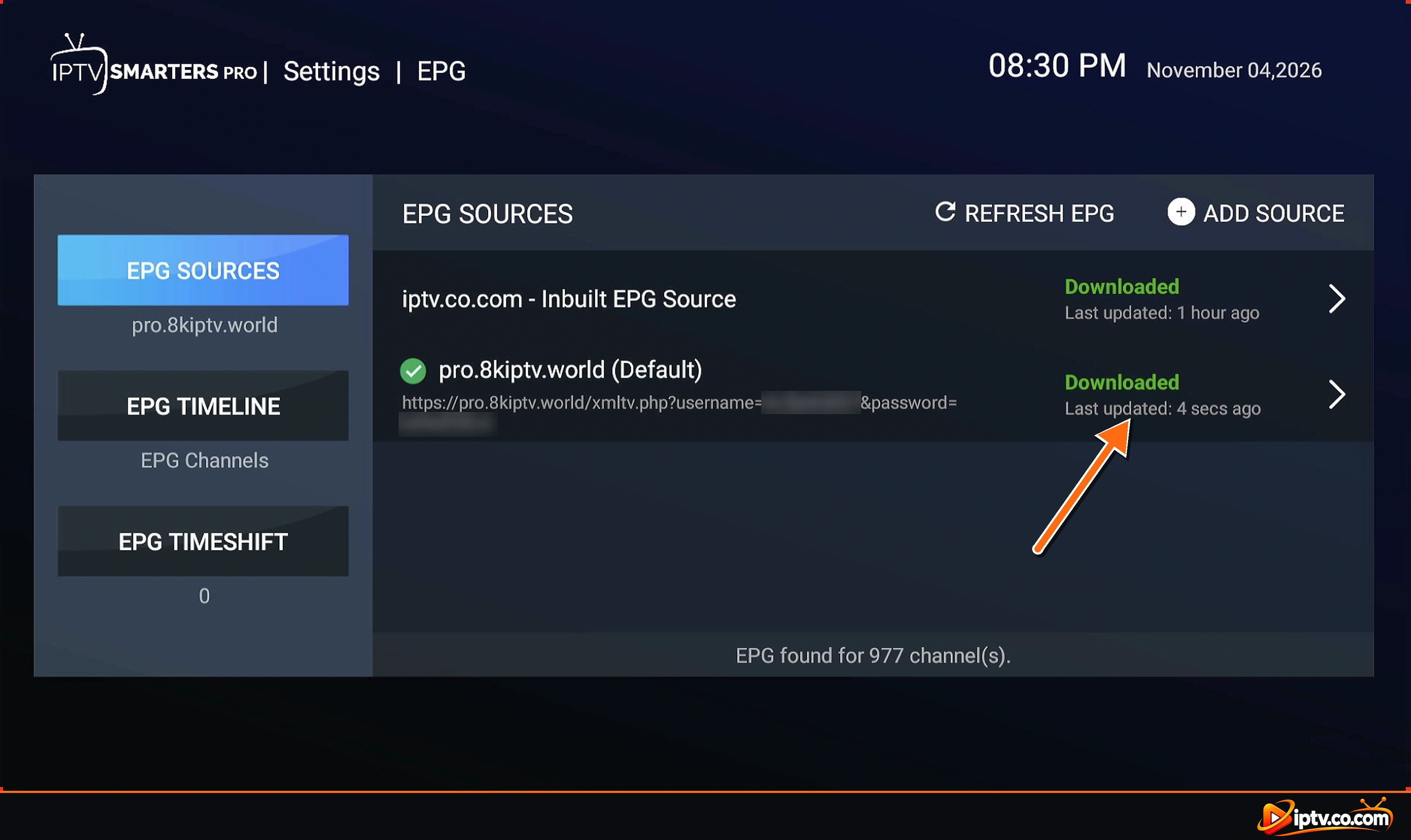
- Open Settings > EPG and tap Refresh EPG.
- Check that one source shows Downloaded and is set as Default.
- If you use an M3U playlist, add your provider’s EPG link as a new source.
- No Program Found on some channels is normal when the provider has no guide data for them.
- Programs at the wrong time? Change EPG Timeshift.
Need the full steps? Visit our step-by-step guide How to Add EPG to IPTV Smarters Pro. It shows how to add an EPG source, set it as Default and refresh the TV Guide, with a screenshot for every step.
Movies or Series Not Working
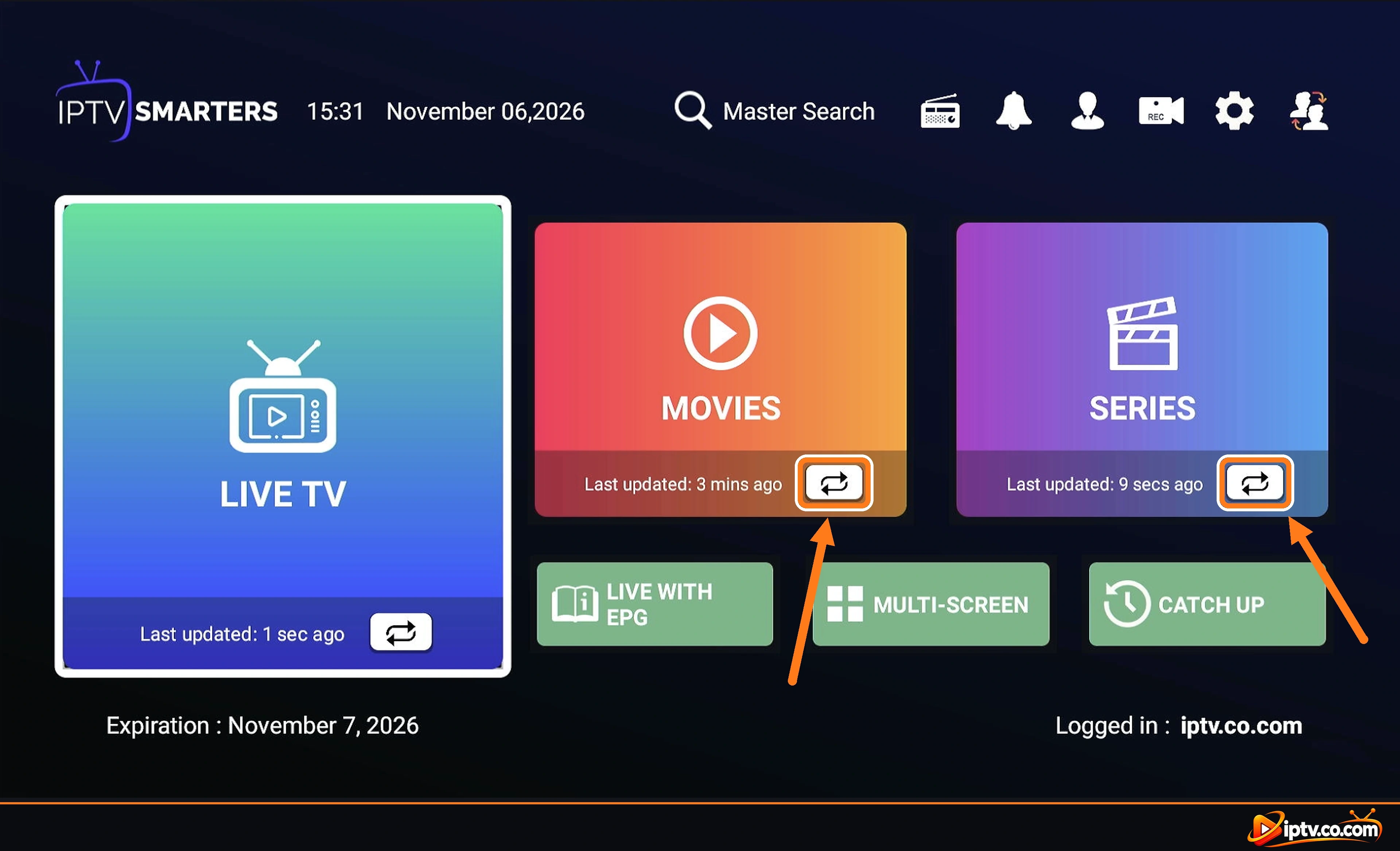
- Update Movies and Series: on the home screen, press the update button (the two arrows) under Movies and under Series. Wait until it shows Last updated: 1 sec ago, then open the library again.
- Try another title: a single movie may be removed or offline.
- Change Settings > Player Selection and try again.
- No subtitles or wrong audio? Pause the video and open the audio and subtitle options in the player.
- M3U playlists often mix movies into Live TV. Use Xtream Codes for a sorted movie and series library.
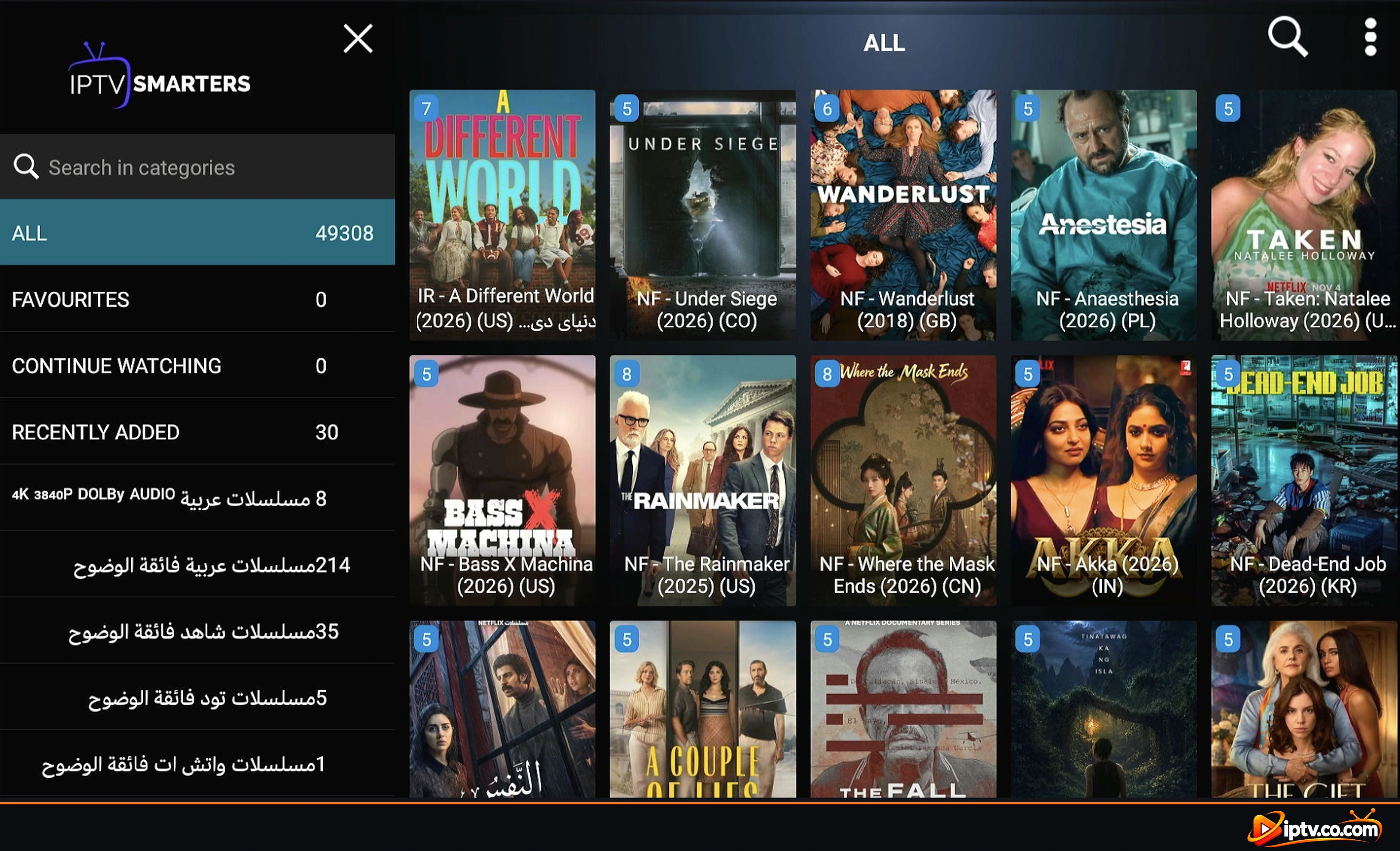
IPTV Smarters Keeps Closing or Crashing
- Force stop and reopen the app.
- Clear the cache: Android and Firestick: Settings > Applications (or Apps) > IPTV Smarters Pro > Clear cache. Don’t clear data unless you are ready to log in again.
- Free up storage: delete unused apps and old APK files.
- Reinstall the latest version. See how to install IPTV Smarters Pro.
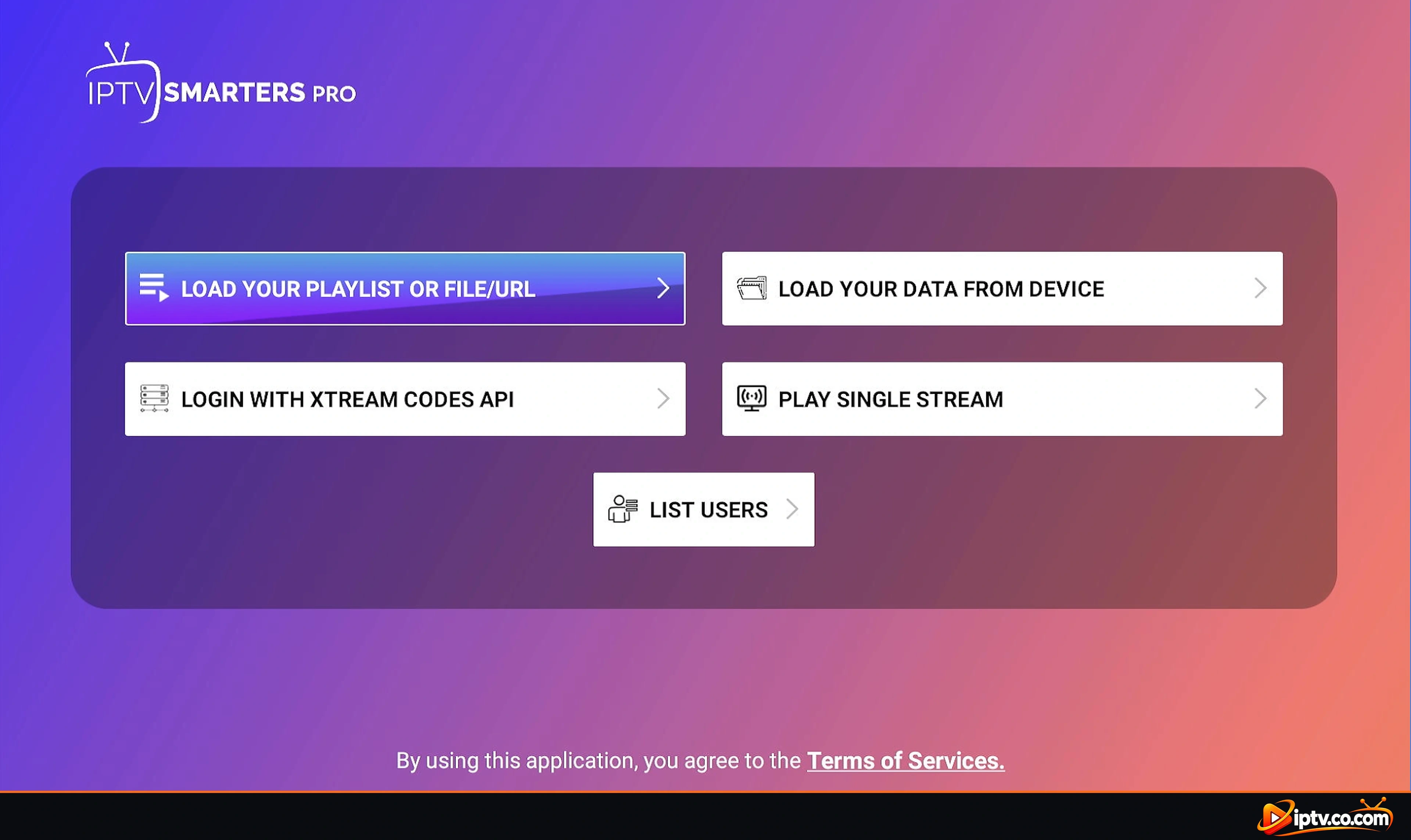
IPTV Smarters Pro Not Working on Firestick
- Restart your internet to get a new IP: turn off your router, wait 30 seconds and turn it on again. Then unplug the Firestick for one minute and plug it back in.
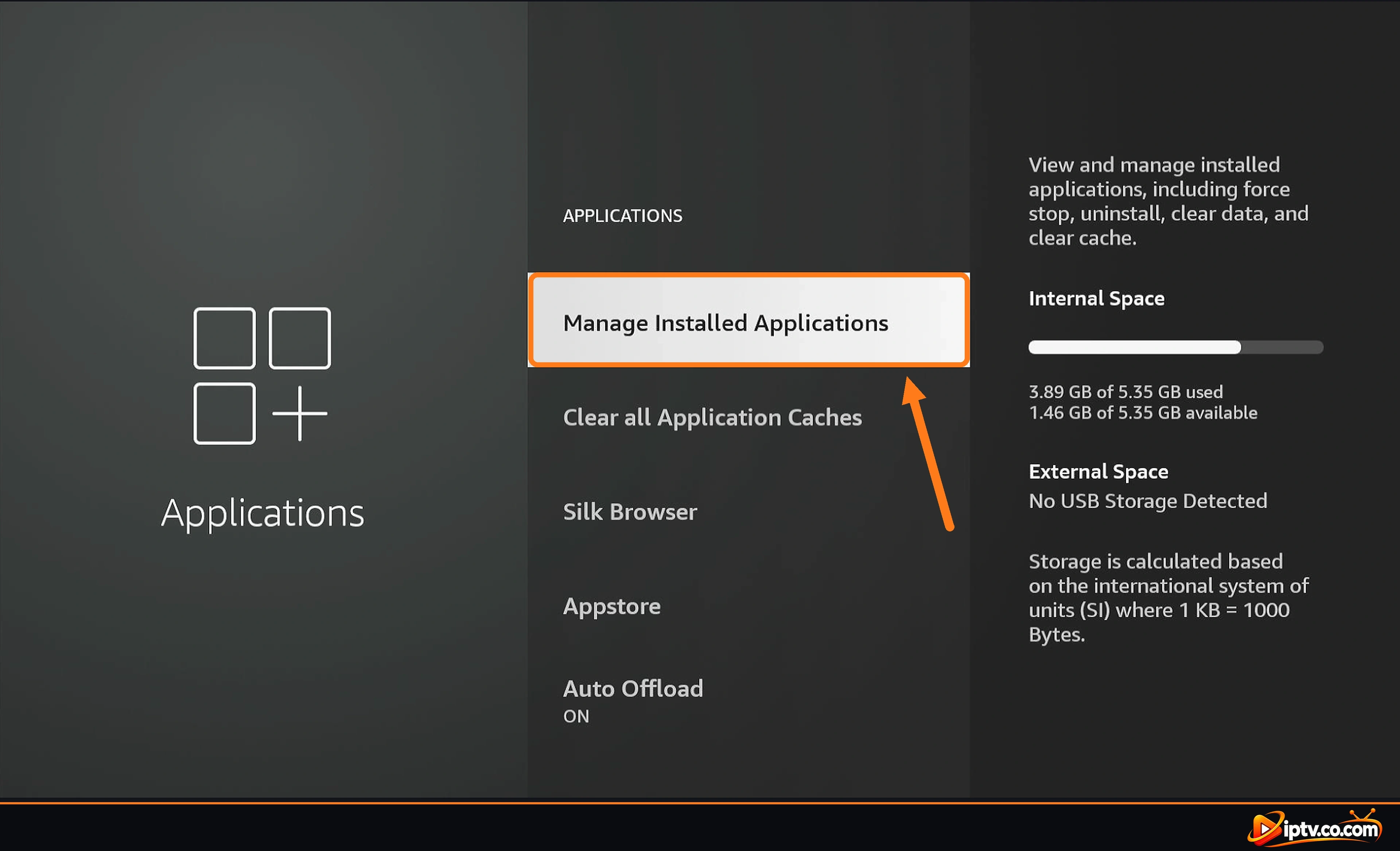
- Clear the cache of all apps: on the Fire TV home screen open Settings > Applications and select Clear all Application Caches. This frees storage and removes old data that can make IPTV Smarters freeze or crash.
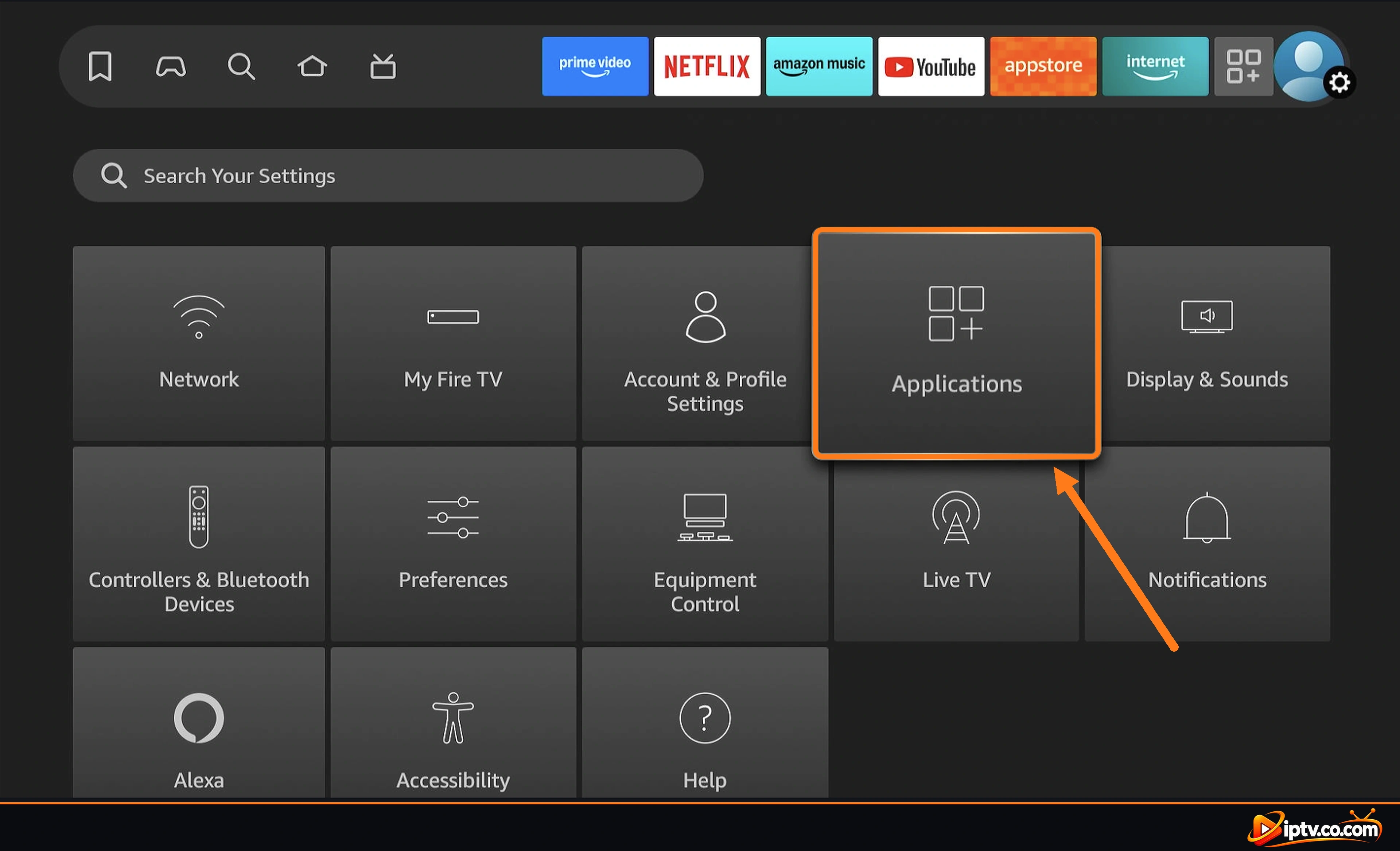
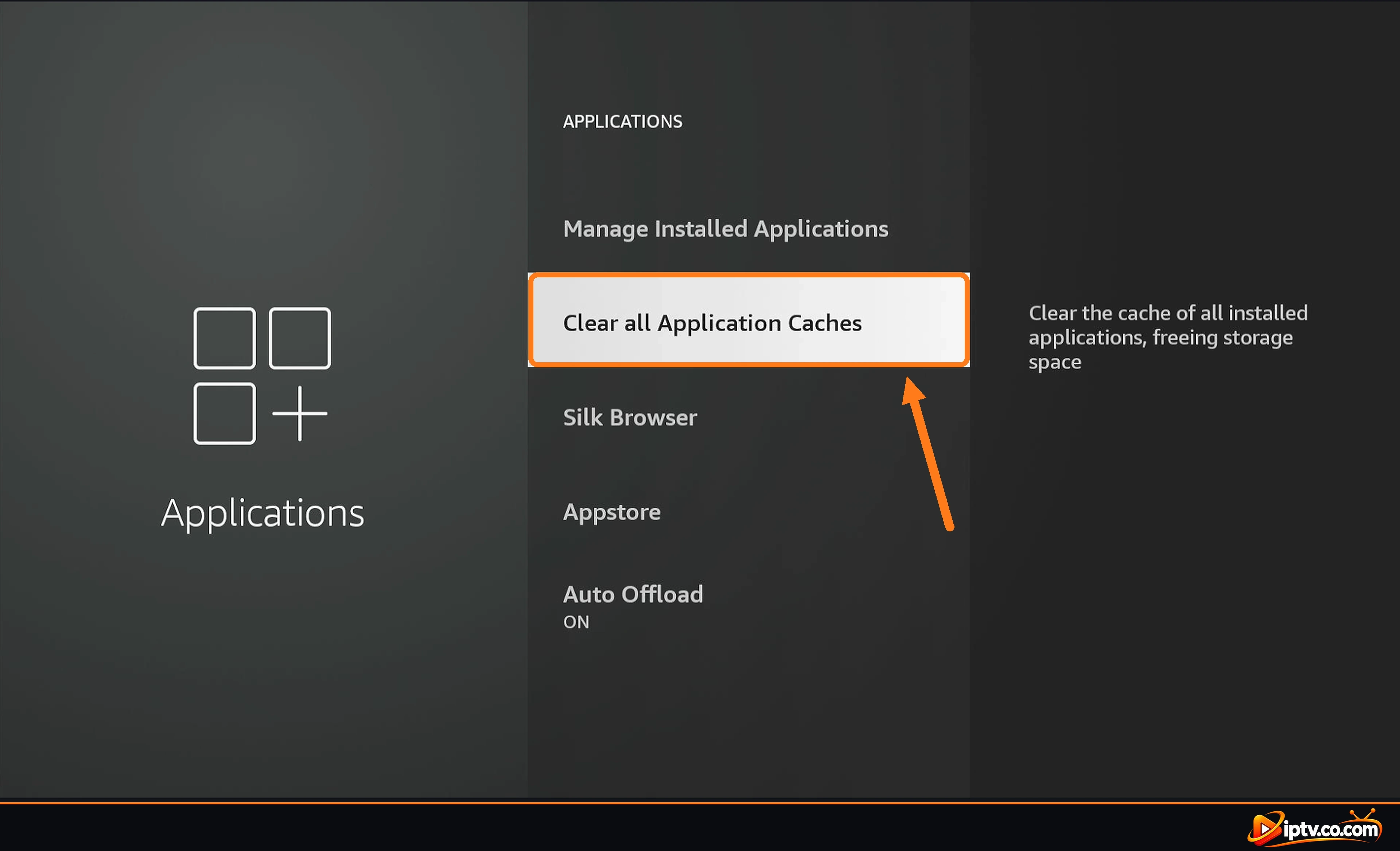
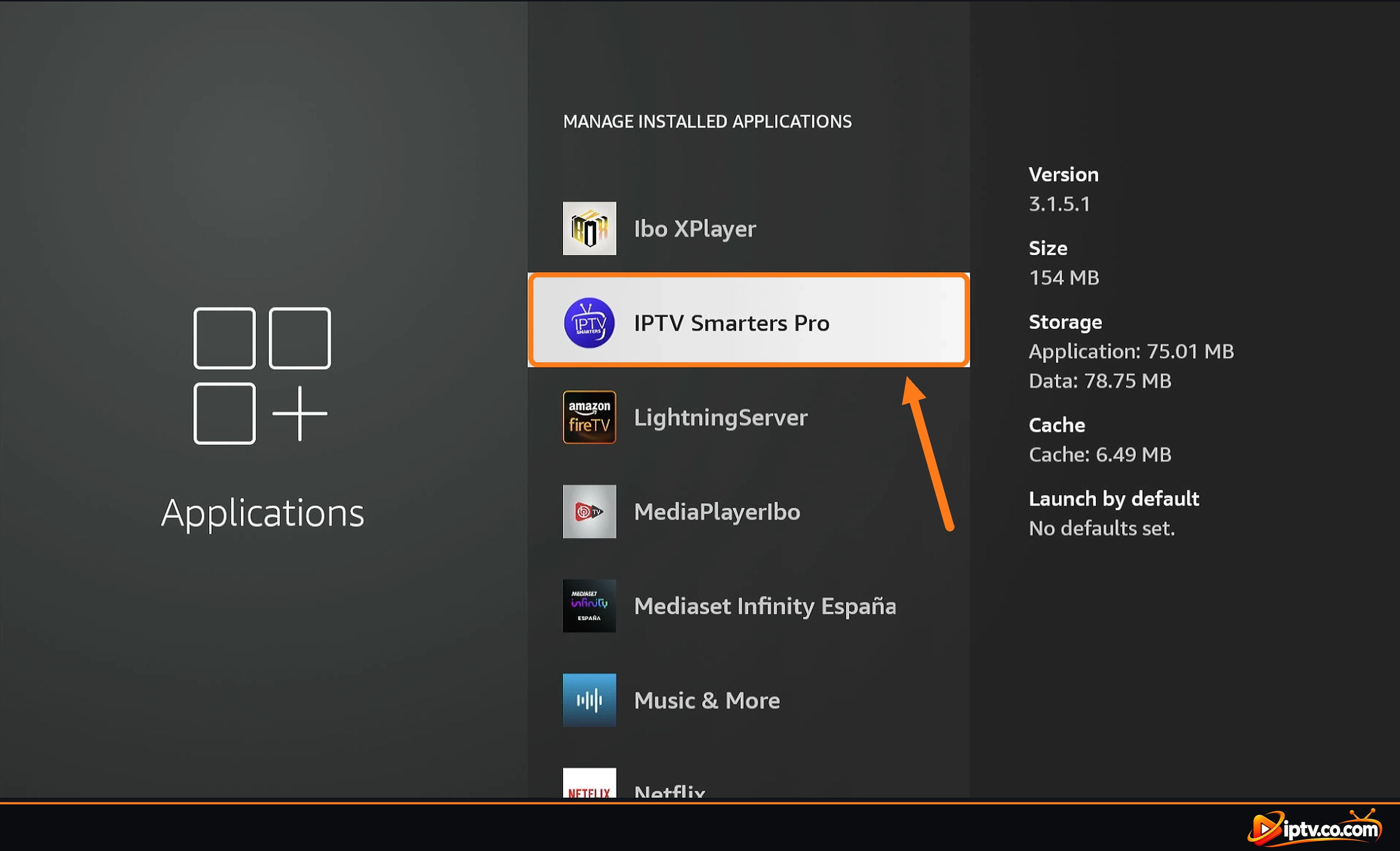
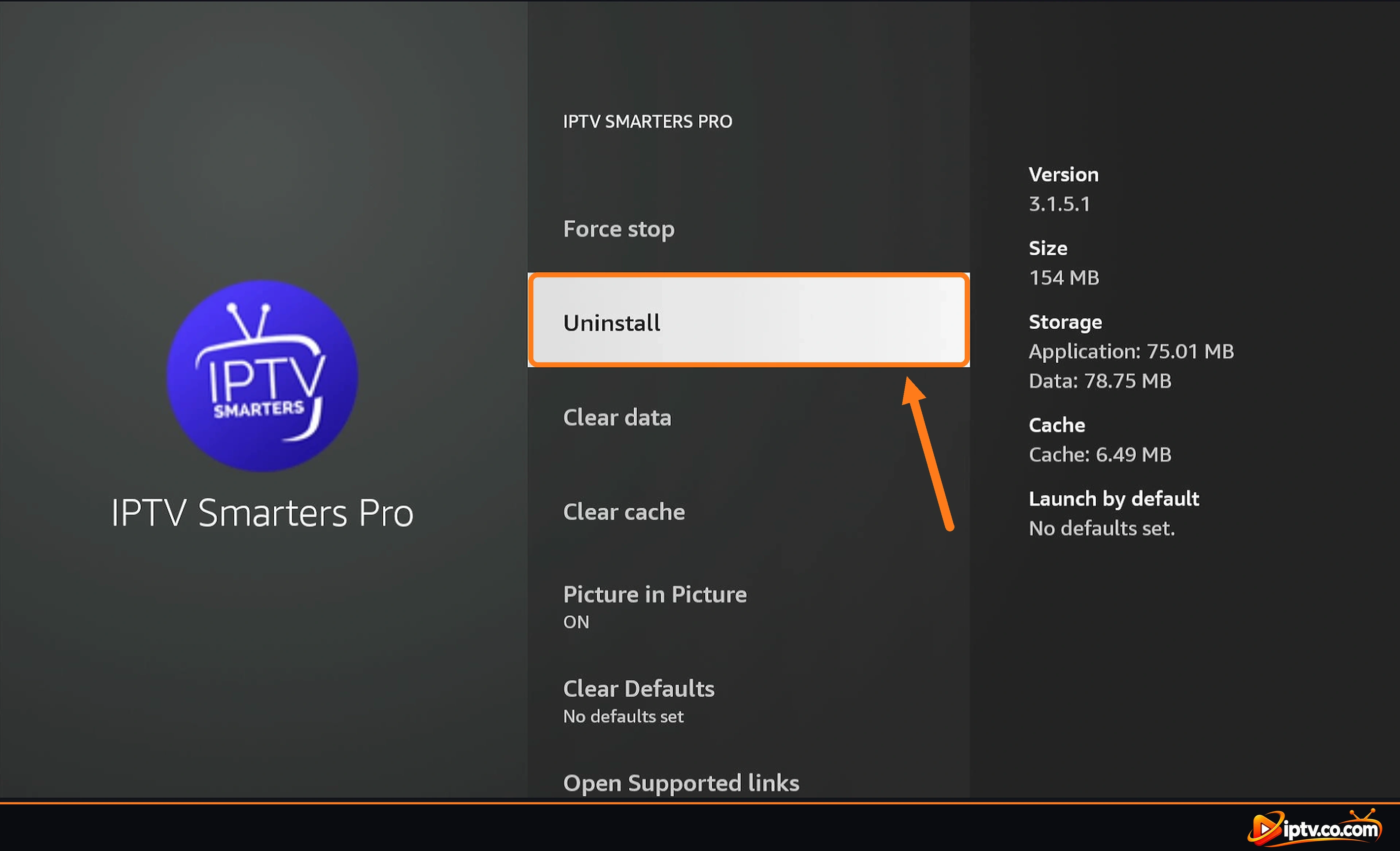
- Still not working? Uninstall IPTV Smarters Pro: go to Settings > Applications > Manage Installed Applications, select IPTV Smarters Pro and choose Uninstall.
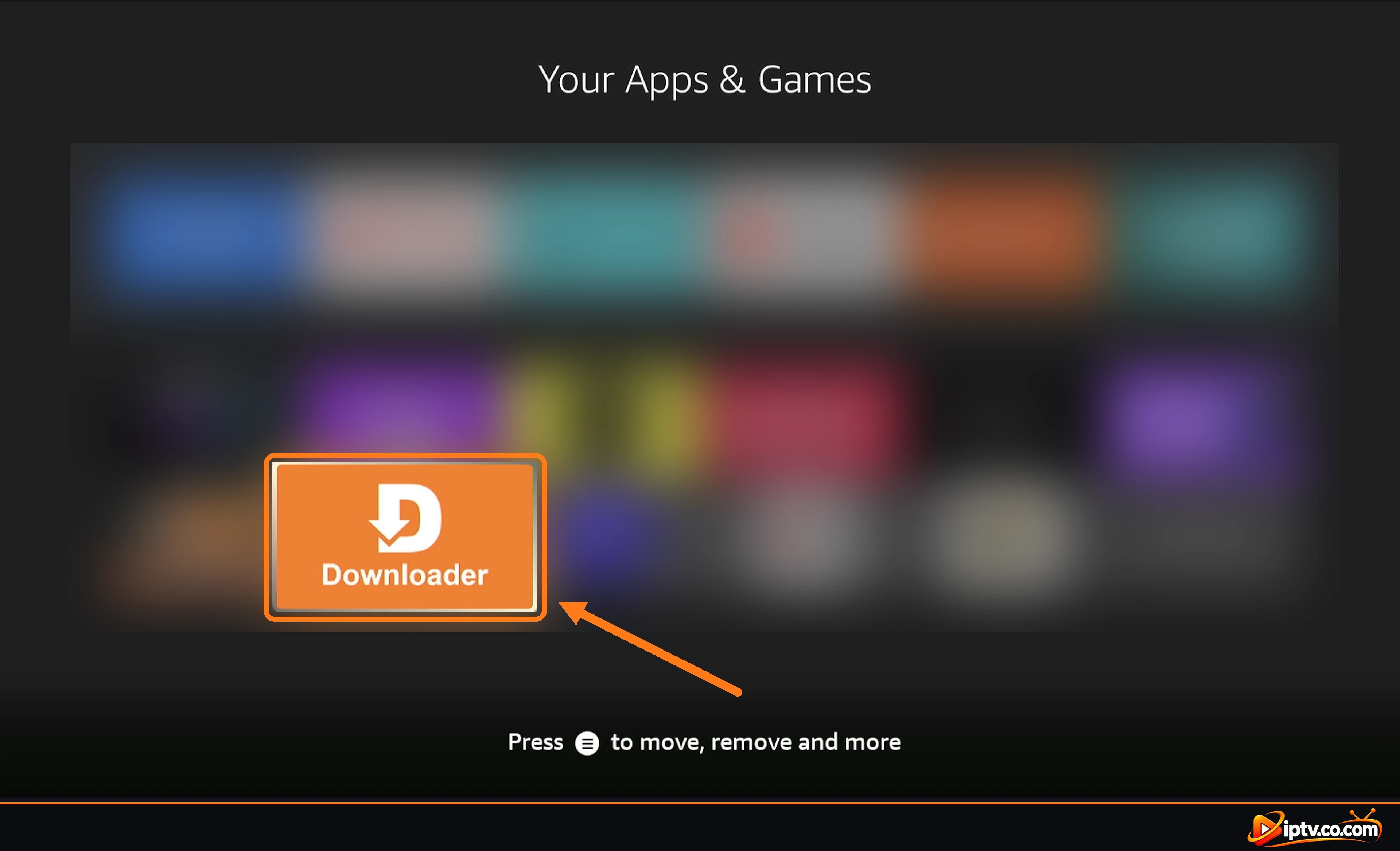
- Install it again: follow our guide how to install IPTV Smarters Pro on Firestick (Downloader code 5535368), then log in again with your Xtream Codes or playlist.
Problems reinstalling?
- Blocked install: turn on Install unknown apps for Downloader in Settings > My Fire TV > Developer Options.
- Low storage: delete the APK file in Downloader’s Files tab and uninstall apps you don’t use.
- New Fire TV models: some newer models run Vega OS and can’t install IPTV Smarters. See which Fire TVs support Downloader.
IPTV Smarters Not Working on Samsung or LG TV
- Can’t find the app: availability depends on the TV model and country. Update the TV’s software and search the store again.
- Not opening: unplug the TV for 1 minute, then try again.
- Login fails: check the date and time are set automatically, and re-enter your details.
- Still not working: uninstall and reinstall from Samsung Apps or the LG Content Store, or use a Firestick or Google TV device instead.
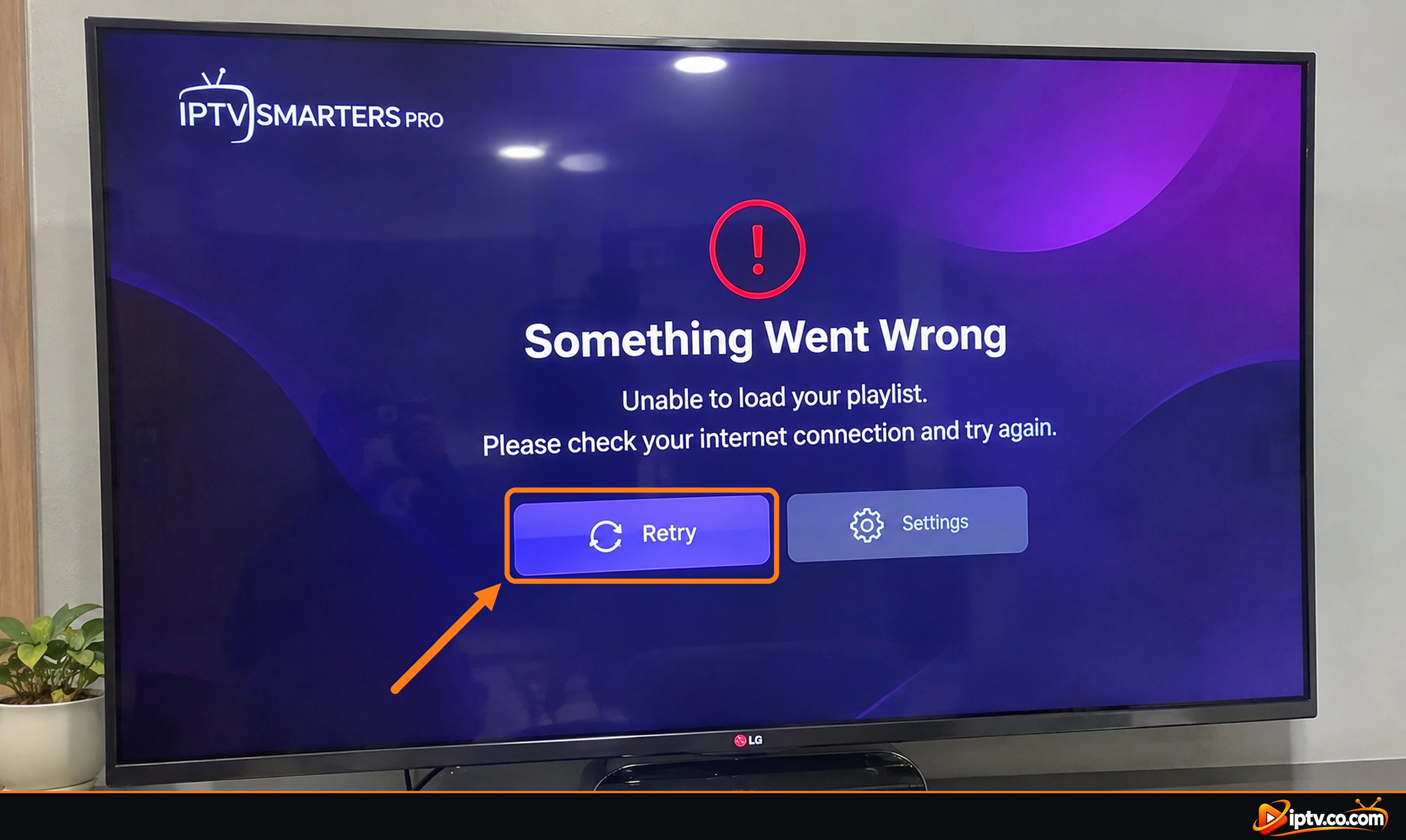
Roku: IPTV Smarters isn’t available on Roku, so it can’t work there. Use a Firestick or Google TV device.
IPTV Smarters Won’t Install or “App Not Installed”
- “App not installed”: uninstall the old IPTV Smarters version first, then install again.
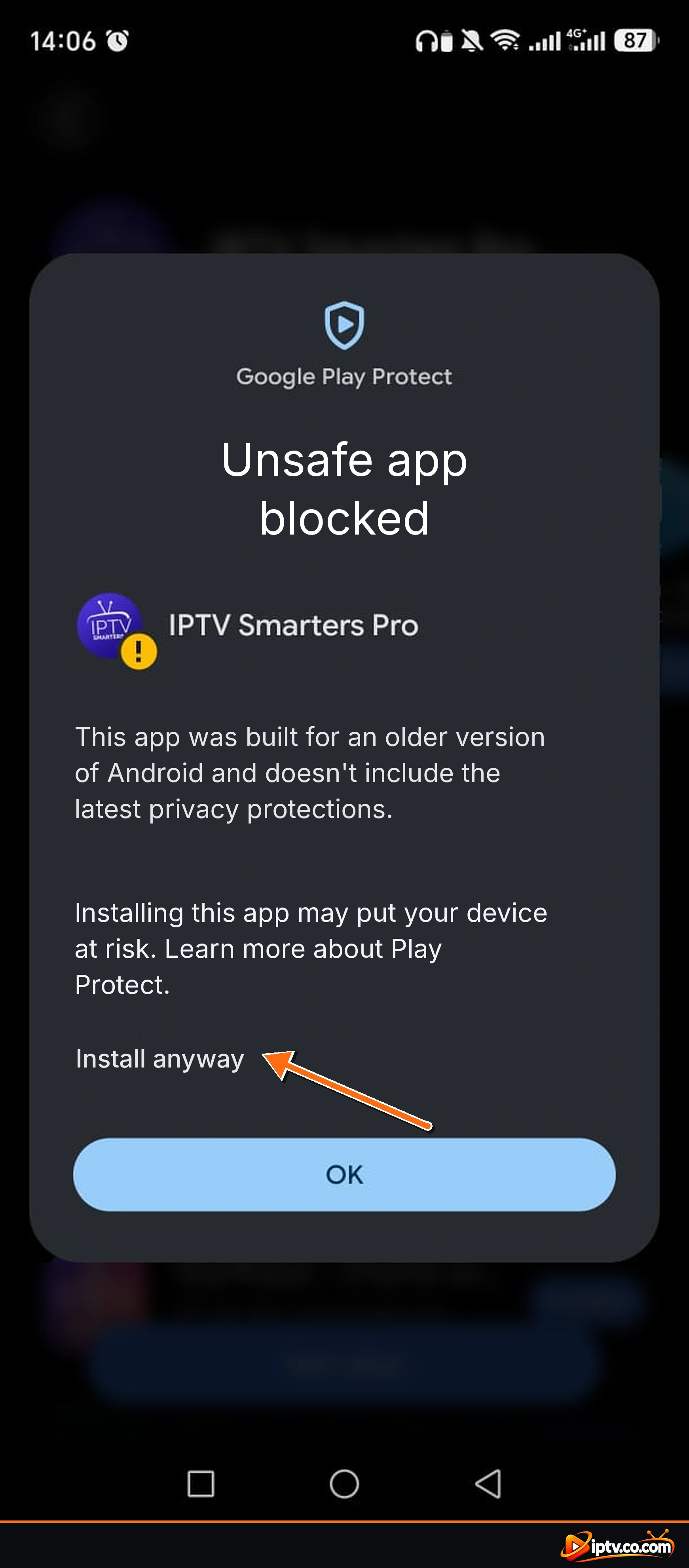
- Play Protect blocks it: tap More details > Install anyway for the APK from our guide.
- Not on Google Play or the App Store: on Android and Firestick, use the APK or Downloader code. On iPhone and iPad, search for Smarters Player Lite.
IPTV Smarters “URL Not Valid”
- Check the server URL (DNS): it must start with
http://(nothttps://) and be typed exactly as your provider sent it. We explain this step by step, with screenshots, in the Failed to Authorize section above. - Using a VPN? Turn it off: some IPTV servers block VPN connections. Close the VPN and try to log in again with your normal internet.
- Not using a VPN? Try one: if it still doesn’t work with your normal internet, your internet provider may be blocking the IPTV server. Turn on a VPN and log in again.
Still Not Working?
Send your provider your device model, app version and a photo of the error. Most IPTV Smarters problems are fixed on the provider’s side.
Frequently Asked Questions
Why is my IPTV Smarters not working?
Usually your subscription expired, your login details are wrong, the provider's server is down, or your internet is slow. Restart, re-enter your login and refresh Live TV.
Is IPTV Smarters down today?
The app rarely goes down. If channels don't load, check your provider's server and your internet connection.
How do I fix Failed to authorize in IPTV Smarters?
Enter your Xtream Codes exactly as your provider sent them, check the username and password, and write the server URL (DNS) with http:// not https://. If it still fails, restart your router to get a new IP address and ask your provider for the latest DNS made for IPTV Smarters.
Why is IPTV Smarters not loading channels?
Refresh Live TV on the home screen. If it stays empty, your provider may have changed the playlist or the server is offline.
Why is IPTV Smarters buffering?
A slow or unstable connection or a busy server. Restart the router, use a cable, and try changing the stream format or player.
Why is the IPTV Smarters TV guide not loading?
Open Settings, EPG and tap Refresh EPG. Make sure a source is Downloaded and set as Default.
Why does IPTV Smarters keep closing?
Clear the app's cache, free up storage and install the latest version.
Why is IPTV Smarters not working on my Firestick?
Allow Install unknown apps for Downloader, free up storage, reinstall with code 5535368 and restart the Fire TV.
Why can't I find IPTV Smarters on my Samsung TV?
It isn't available on every model or in every country. Update the TV or use a Firestick or Google TV device.
Does IPTV Smarters work on Roku?
No. IPTV Smarters isn't available on Roku.
How do I lock adult channels in IPTV Smarters?
Open Settings > Parental Control, type a password twice and select SAVE, then choose the categories you want to lock. IPTV Smarters asks for the password before opening them.
Does IPTV Smarters work with a VPN?
Yes, if you use your provider’s VPN DNS. Many IPTV servers block VPN IPs, so replace the Xtream Codes server or the M3U DNS with the VPN DNS from your login details (it starts with vpn, for example http://vpn.dream-4k.co). If you don’t have one, ask your IPTV provider.
Need to start over? See how to install IPTV Smarters Pro and how to activate it, or browse all IPTV Smarters guides.