
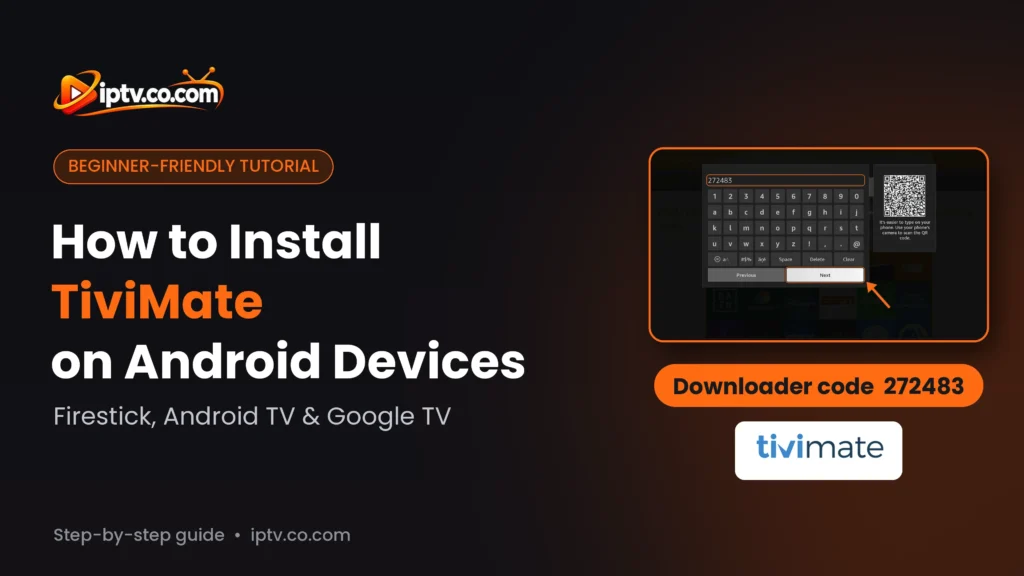
Install TiviMate: The Quick Answer
Short version: TiviMate only runs on Android devices. On an Amazon Firestick, you install it through the Downloader app with code 272483. On Android TV and Google TV, you just grab TiviMate IPTV Player from the Google Play Store. If you own a Samsung or LG smart TV, an iPhone, an iPad, a Windows PC or a Mac, TiviMate isn’t available for you, and we recommend IBO Player or IPTV Smarters instead.
Good to Know: TiviMate Has No Channels
One thing that confuses a lot of people: TiviMate is a player, nothing more. It doesn’t come with channels, playlists or a subscription. Once it’s installed, you add the playlist your IPTV provider gave you (an M3U URL or Xtream Codes login), and that’s what fills it with content.
If you watch IPTV on a TV, there’s a good chance someone has already told you to get TiviMate IPTV Player. It’s easy to see why: the TV guide looks like a proper cable box, and it’s comfortable to use with a remote. The catch is that it’s made for Android TV, so it only works on Android-based hardware like the Amazon Firestick, Fire TV, NVIDIA Shield, Chromecast with Google TV and Android TV boxes. Below, we walk you through the install on each supported device, tell you what to use if your device isn’t supported, and show you what to do the first time you open the app.
What Is TiviMate?
TiviMate IPTV Player (you’ll also see it written as TV Mate, TiviMates or Tivi Mate) is an IPTV player for Android TV devices, developed by Armobsoft FZE. It lays out your channels in a familiar cable-style TV guide and plays the movies and series your provider includes. The app itself is free to download, and you can load it with an M3U playlist, Xtream Codes or a Stalker Portal. Some features, like movies, series, the TV guide, multiple playlists, catch-up and recording, are part of TiviMate Premium, which you buy through the TiviMate Companion app.
Installing and using TiviMate is perfectly legal because it’s just a media player. It doesn’t include any channels on its own; everything you watch comes from the playlist you add.
Where Can You Install TiviMate?
| Device | Available? | How to install |
|---|---|---|
| Amazon Firestick / Fire TV | Yes | Downloader app, code 272483 |
| Android TV & Google TV | Yes | Google Play Store |
| Android phone & tablet | Companion app only | TiviMate Companion (Google Play) |
| Samsung & LG smart TV | No | Use IBO Player or IPTV Smarters |
| iPhone & iPad | No | Use IBO Player or IPTV Smarters |
| Windows PC & Mac | No | Use IBO Player or IPTV Smarters |
How to Install TiviMate on Firestick
You won’t find TiviMate in the Amazon Appstore, so on a Firestick the way in is the free Downloader app. Don’t have it yet? Search for “Downloader” from the Fire TV home screen and install it. Then head to Settings > My Fire TV > Developer Options > Install unknown apps and switch it ON for Downloader. You only need to do this once.
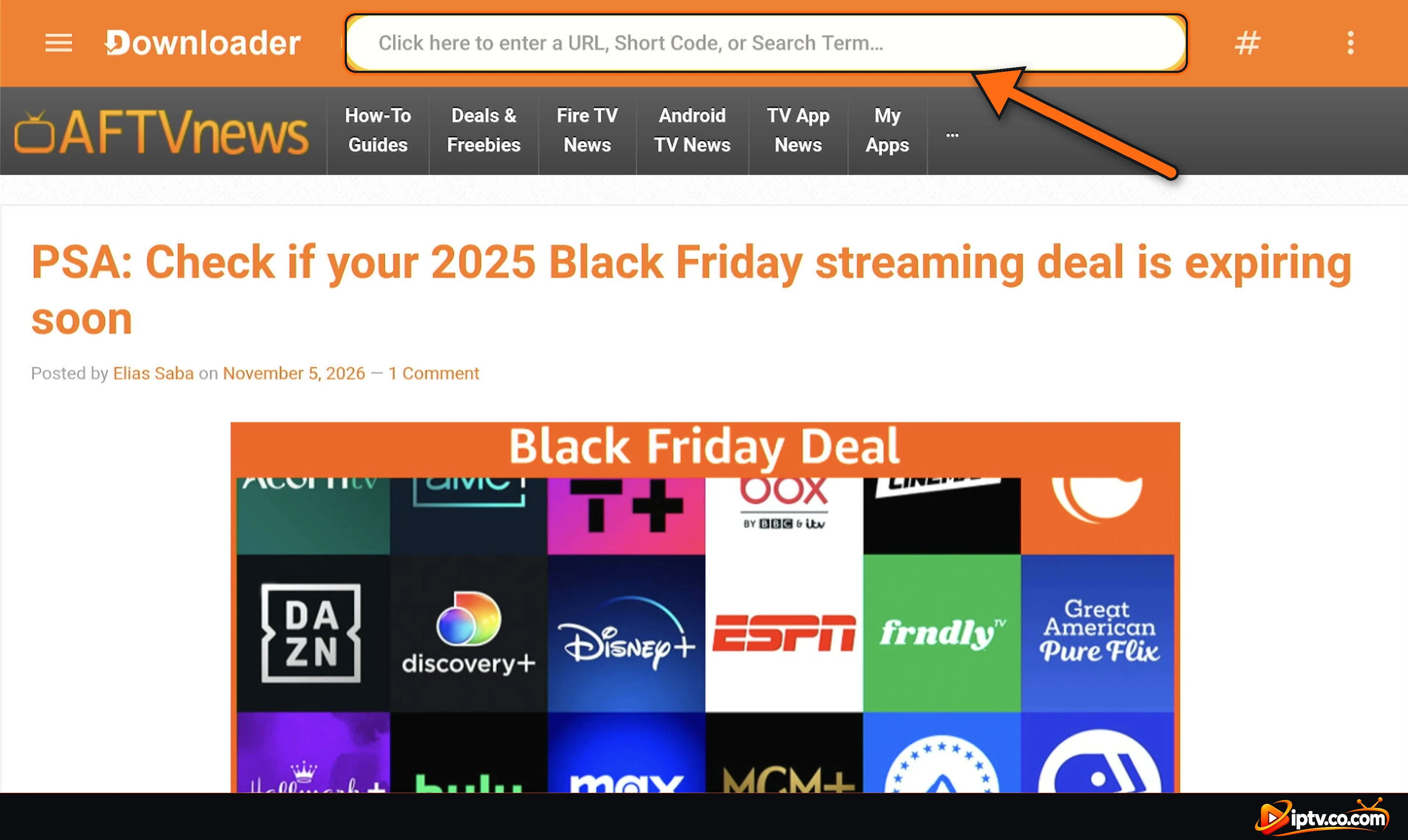
Step 1: Open Downloader and Select the Address Bar
Open Downloader and click the bar at the top that says Click here to enter a URL, Short Code, or Search Term.
Step 2: Enter Downloader Code 272483
Type in the TiviMate Downloader code, 272483, and select Next.

Step 3: Wait While the TiviMate APK Downloads
Downloader follows the short link and starts pulling down the TiviMate APK, which is about 21 MB. On a normal connection it takes a few seconds, so just let it finish.

Step 4: Select INSTALL
The TiviMate install screen pops up. Select INSTALL.

Step 5: Select OPEN
Once you see App installed, select OPEN. Quick tip: when you go back to Downloader, choose Delete to get rid of the APK file. You don’t need it anymore, and Firesticks don’t have much storage to spare.

How to Install TiviMate on Android TV and Google TV
On Android TV and Google TV devices, things are simpler because TiviMate is right there in the Google Play Store. That covers Sony, TCL, Philips and Hisense Android TVs, the NVIDIA Shield, Chromecast with Google TV, the Xiaomi Mi Box and plenty of others:
- Open the Google Play Store on your TV (on Google TV, use Search from the home screen).
- Search for TiviMate.
- Pick TiviMate IPTV Player by Armobsoft FZE.
- Select Install, then Open.
Tip: typing with a remote is slow, so you can also install it from your computer. Go to the Google Play website, sign in with the same Google account your TV uses, search for TiviMate IPTV Player, click Install and pick your TV from the list. If the page says “not available for any of your devices”, it means no Android TV is linked to that Google account.

Your Android box doesn’t have the Play Store? No problem: install the Downloader app and use code 272483, the same way as on the Firestick.
TiviMate on Android Phone and Tablet: TiviMate Companion
Search for TiviMate on an Android phone or tablet and you’ll land on TiviMate Companion. Don’t be fooled by the name: the developer describes it as the companion app for the TiviMate IPTV player, not an IPTV player. Its job is to sign you in to your TiviMate account and handle TiviMate Premium for your TV devices.
- Open the Google Play Store on your phone or tablet.
- Search for TiviMate Companion.
- Tap Install.
- Open it, then log in or create an account to manage TiviMate Premium.
Want to watch IPTV on the phone itself? TiviMate is built for big screens, so on Android phones and tablets we suggest IBO Player or IPTV Smarters.

TiviMate on Samsung, LG, iPhone, iPad, Apple TV, Roku, Windows and Mac: Not Available

Because TiviMate is Android-only, there’s no TiviMate app for:
- Samsung smart TVs (Tizen) and LG smart TVs (webOS)
- iPhone, iPad and Apple TV
- Windows PC and Mac
- Roku
Watch out for apps named “TiviMate” in those stores. They aren’t the official app. Instead, pick one of these players; your M3U URL or Xtream Codes will work in them just the same:
- IBO Player: Samsung, LG, iPhone, iPad, Windows and Mac.
- IPTV Smarters Pro: iPhone, iPad, Windows, Mac and more.
- Really set on TiviMate but own a Samsung or LG TV? Plug an Amazon Firestick or a Google TV stick into a spare HDMI port and install TiviMate on that. It’s what a lot of our readers end up doing.
First Launch: Accept the Terms and Add Your Playlist
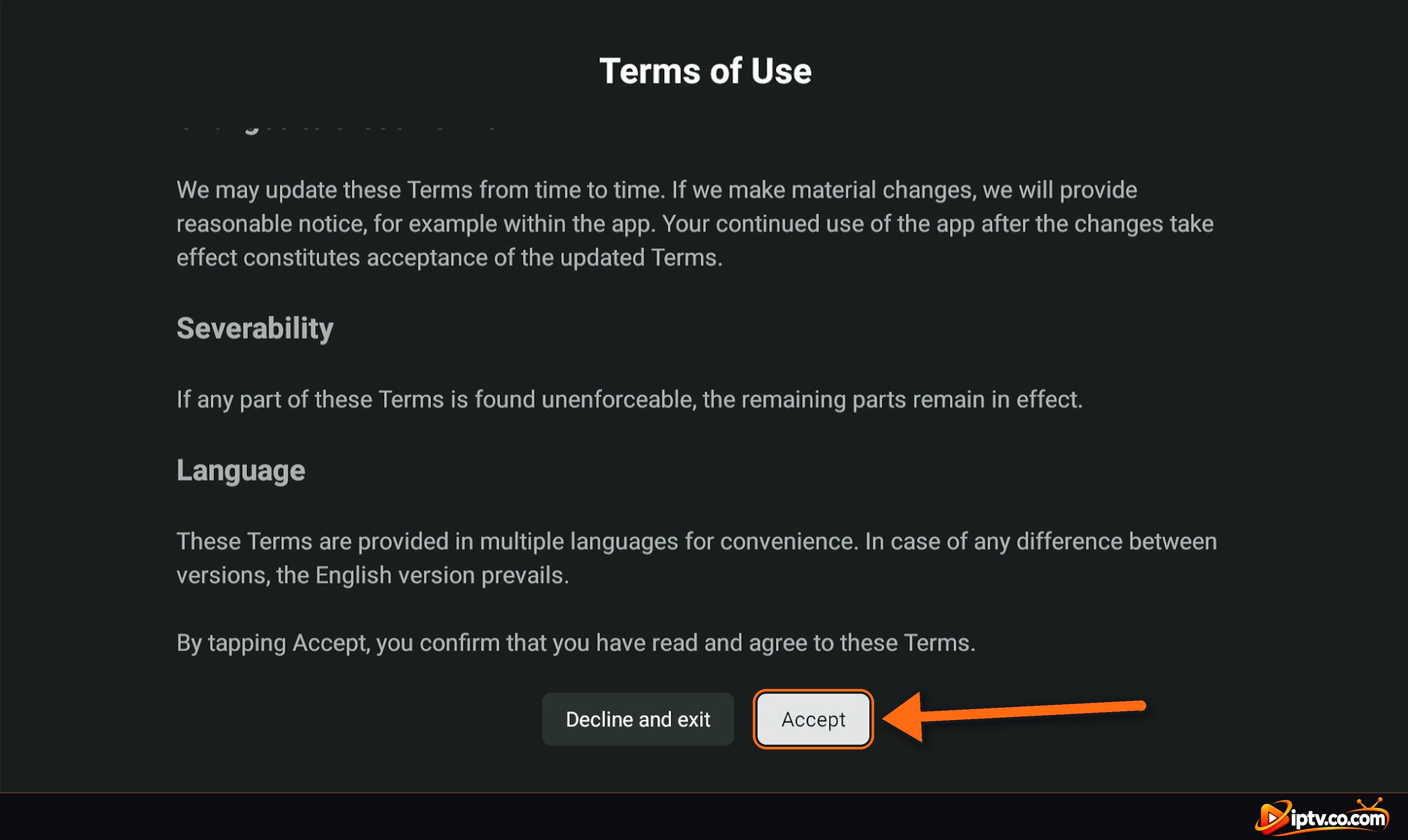
Step 1: Accept the Terms of Use
The very first time you open TiviMate, it shows you the Terms of Use. Scroll to the bottom and select Accept.
Step 2: Select Add Playlist
Next you’ll see the message TiviMate does not provide any content. Add your own playlist to start watching. Select Add playlist and enter the M3U URL or Xtream Codes your IPTV provider sent you. We cover every screen of this part in our guide on how to activate TiviMate with M3U and Xtream Codes.

TiviMate Free vs TiviMate Premium
Installing TiviMate doesn’t cost anything, but the free version is pretty limited: you get basic Live TV with a single playlist, and movies, series and the EPG (TV guide) won’t work. For those you need TiviMate Premium, a paid subscription you can only buy in the TiviMate Companion app on an Android phone. Here’s how to unlock TiviMate Premium. Keep in mind that Premium unlocks features in the app, it doesn’t add any channels. Those always come from your IPTV provider.
TiviMate Won’t Install? Quick Fixes
- Downloader says the code is invalid: double-check that you typed 272483 and that your Firestick is actually online.
- “Install blocked”, or nothing happens after the download: go to Settings > My Fire TV > Developer Options and turn ON Install unknown apps for Downloader.
- “App not installed”: this is almost always a storage problem. Uninstall a few apps you don’t use, restart the Firestick and try again.
- Can’t find TiviMate in the Play Store: on phones you’ll only see TiviMate Companion. On a TV, check that it really runs Android TV or Google TV.
- Samsung or LG TV: there’s no TiviMate for these TVs. Go with IBO Player or add a Firestick.
Only Install the Official TiviMate
You’ll come across sites offering “TiviMate Premium unlocked” or modded APKs. Skip them. They regularly carry malware, and they tend to break the moment the app updates. Stick to the Google Play Store or the official download behind Downloader code 272483.
Frequently Asked Questions
What is the Downloader code for TiviMate?
It’s 272483. Open Downloader on your Firestick, type 272483 in the address bar and select Next, and the official TiviMate installer downloads straight away.
How do I install TiviMate on Firestick?
Install the Downloader app first and allow it to install unknown apps under Developer Options. Then open Downloader, enter code 272483, and select INSTALL followed by OPEN.
Is TiviMate on the Google Play Store?
Yes, on Android TV and Google TV devices, where it’s listed as TiviMate IPTV Player by Armobsoft FZE. On Android phones, the Play Store shows TiviMate Companion instead.
Can I install TiviMate on an Android phone?
Not as a player. TiviMate is designed for Android TV, and on phones and tablets you can only install TiviMate Companion, which manages Premium. To watch on a phone, use IBO Player or IPTV Smarters.
Is TiviMate available on Samsung or LG smart TV?
No, TiviMate only runs on Android. On a Samsung or LG TV, use IBO Player, or plug a Firestick or Google TV stick into the TV.
Is TiviMate available on iPhone, iPad or Apple TV?
No. There’s no official TiviMate for iOS, iPadOS or tvOS. On Apple devices, IBO Player and IPTV Smarters Pro are the easiest alternatives.
Is TiviMate free?
The app is free to install, but the free version only plays Live TV. Movies, series and the TV guide need TiviMate Premium.
Does TiviMate include channels?
No. TiviMate is only a player. You add your own M3U URL or Xtream Codes from your IPTV provider.
What is TiviMate Companion?
It’s the phone app you use to manage your TiviMate account and Premium subscription. It isn’t an IPTV player.
What do I do after installing TiviMate?
Open it, accept the Terms of Use, select Add playlist and enter your M3U URL or Xtream Codes.
What is TiviMate?
TiviMate IPTV Player is an IPTV player for Android TV devices like the Firestick, Fire TV, Google TV and Android TV boxes. It plays your own M3U playlist or Xtream Codes in a TV guide layout and doesn’t include channels.
Can I install TiviMate on Roku?
No. Roku runs its own system and TiviMate is Android-only. Plug a Firestick or Google TV stick into your TV, or use another player.
Can I use TiviMate on a Windows PC or Mac?
There’s no native TiviMate for Windows or macOS, and the developer doesn’t officially support emulators. Some people run it through the BlueStacks Android emulator, which we explain in our TiviMate PC guide for Windows 11 and Mac. For a simpler setup, use IBO Player or IPTV Smarters Pro.
How do I update TiviMate on Firestick?
TiviMate tells you when an update is ready the next time you open it. You can also open Downloader, enter code 272483 again and install the latest version over the old one. Your playlists stay where they are.
Is the TiviMate APK safe?
Yes, as long as it’s the official one: the APK behind Downloader code 272483 and the Google Play version are both safe. Stay away from modded or “Premium unlocked” TiviMate APKs from unknown websites.
That’s it, TiviMate is installed. The next step is adding your playlist with the M3U URL or Xtream Codes from your IPTV provider. Need a player for Samsung, LG, iPhone or PC instead? Take a look at how to download IBO Player or how to install IPTV Smarters Pro, or browse all our IPTV players and apps.
3 Responses